Open an Existing Cart When Starting a New Guest Cart

The Automate Existing Order Modal for New Carts setting automatically displays the Open Existing Order modal whenever a cashier opens a new guest cart. This streamlines kiosk-to-register workflows by prompting staff to select pending orders—such as those placed from a kiosk or in-store menu—without requiring manual intervention.
Overview
By default, opening a new guest cart in the POSaBIT POS starts with a blank transaction. If a customer has already placed an order on a kiosk or in-store menu, the cashier can locate the existing cart using the Open Existing Order modal.
When this setting is enabled, the modal opens automatically as soon as a new guest cart is initiated. If no pending orders are available, the cashier can simply dismiss the modal and proceed with a standard empty cart.
How to Enable
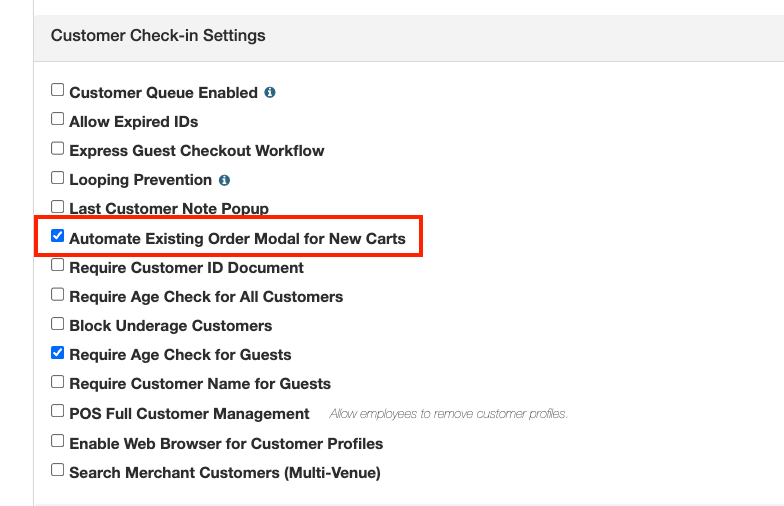
- In the POSaBIT portal, navigate to Settings → General.
- Scroll to the POS General Register Settings section.
- Check the box for Automate Existing Order Modal for New Carts.
- Click Save.
How It Works
When the setting is enabled, the POS behaves as follows whenever a cashier starts a new guest cart:
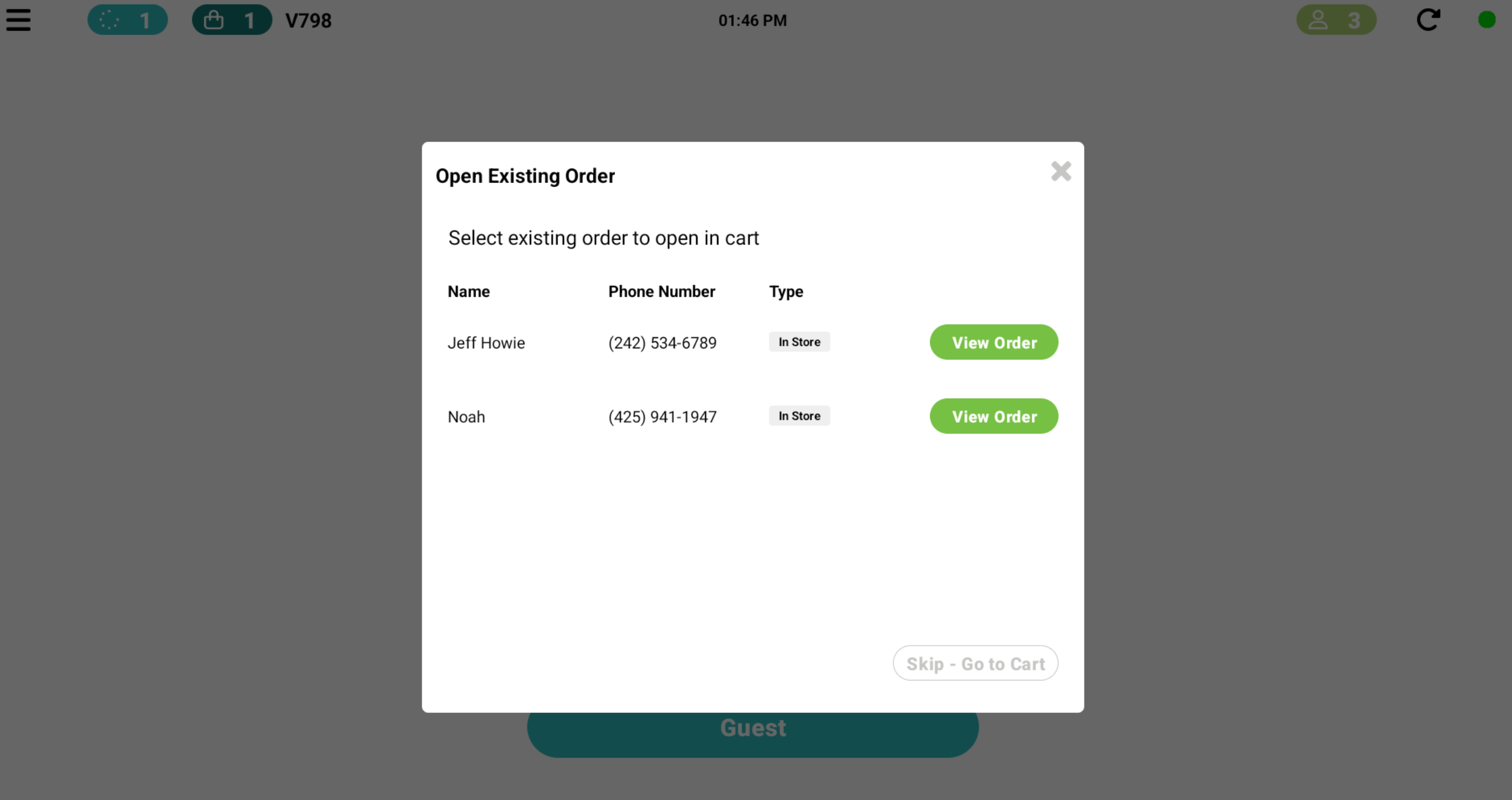
- The Open Existing Order modal appears automatically—no manual trigger required.
- The modal lists any pending orders assigned to a guest, such as orders submitted from a kiosk or in-store menu that have not yet been opened at the register.
- The cashier selects the matching order from the list. The order loads into the cart with all items, quantities, and pricing from when the customer originally placed it.
- If no pending orders exist, the cashier can skip the modal and the cart proceeds as a normal empty guest cart.
When to Use This Setting
This setting is ideal for the following scenarios:
- Kiosk-first workflows — Customers browse and build their cart at a self-service kiosk, then approach the register to pay. The modal automates the handoff so cashiers don't need to manually search for the order.
- High-volume guest transactions — Venues where most guest transactions originate as pre-built online or in-store orders benefit from the reduced number of clicks required at the register.
- Reducing cashier errors — Automating the prompt ensures staff don't accidentally ring up a duplicate order because they missed the step to load the existing one.
