Brand Portal - Product Catalog Overview
 Updated 2 weeks ago
Product Catalog Overview
The POSaBIT Product Catalog enables your brand to manage product content in one centralized location and distribute it across the POSaBIT retailer network. By uploading product images, descriptions, and other product details into the Brand Portal, you can ensure retailers have access to accurate, up-to-date, brand-approved content for use on their in-store and online menus.
Instead of sending product assets to individual retailers or managing updates across multiple channels, you can maintain your product information once and make it available throughout the POSaBIT ecosystem. This helps improve product representation, increase brand consistency, and save time for both your team and your retail partners.
What is the Product Catalog?
The Product Catalog is your brand's centralized product library within the POSaBIT ecosystem. It allows you to:
- Upload product images
- Manage product descriptions and attributes.
- Keep product information current.
- Make approved content available to participating POSaBIT retailers.
Why Use the Product Catalog?
The Product Catalog allows you to publish your product content once and make it available across the entire POSaBIT retailer network.
Instead of sending product images, descriptions, and other marketing assets to each retailer individually, you can manage your product information from a single location in the Brand Portal. Once your products are published, participating POSaBIT retailers can connect their inventory to your catalog products and use your approved content on their in-store and online menus.
Using the Product Catalog helps you:
- Increase your brand's visibility across the POSaBIT retailer ecosystem.
- Ensure retailers have access to your latest product images, descriptions, and product details.
- Maintain consistent branding and messaging across multiple retail locations in one system.
- Reduce the time spent sharing and updating product assets with individual retailers.
- Keep your product information current by managing updates from one centralized location.
How Product Catalog Distribution Works
The Product Catalog follows a simple process:
- Your team reviews and updates product content within the Brand Portal.
- Enable your Product Catalog when you are ready to share content with POSaBIT retailers.
- Product content is published to the POSaBIT Product Catalog.
- Retailers can connect their inventory products to your catalog products.
- Connected retailers can use your approved content on their in-store and online menus.
- Future updates to your catalog content can be made available to retailers through their selected synchronization settings.
Managing Your Products
Dashboard Catalog Metrics
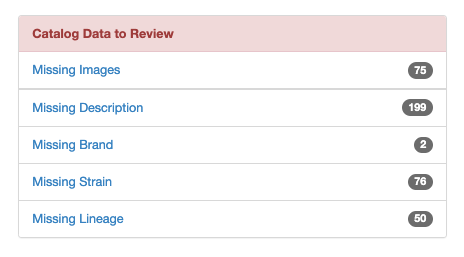
After logging into your POSaBIT portal, you'll land on the Dashboard. This gives you a quick snapshot of your catalog's overall health. This is a great place to start every time you log in. It gives you a clear action list of what needs attention and makes it easy to prioritize your work. The more complete your catalog data is, the better your products will look on retailer menus.
Updating Product Information
The Products page (Product Details --> Products) is the main workspace for managing your catalog. You can search, filter, update, and create new products from here. There are three ways to edit your products — let's walk through each one.
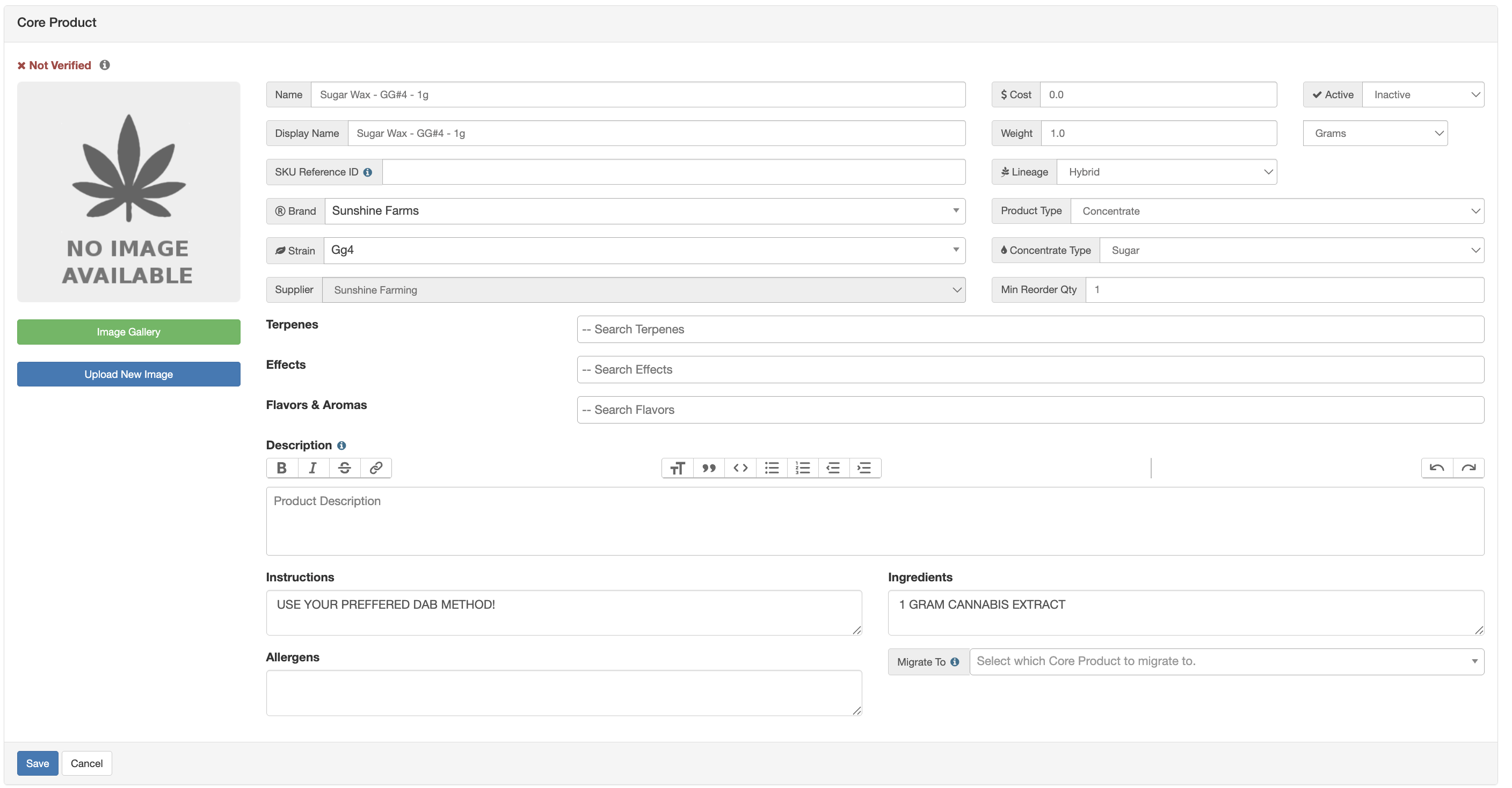
- Edit a Single Product: This is the best option when you need to make a specific change to one product or add detailed content like a description or photo.
- From the Products page, click Edit on the row of a product.

Vendor Verified field: Shows whether a vendor user has updated this product information - use it to tell products that have been updated/verified apart from those that have not.- Edit details like the brand, strain, lineage, product type, description, images, and any other catalog information.
- Hit Save.
- From the Products page, click Edit on the row of a product.
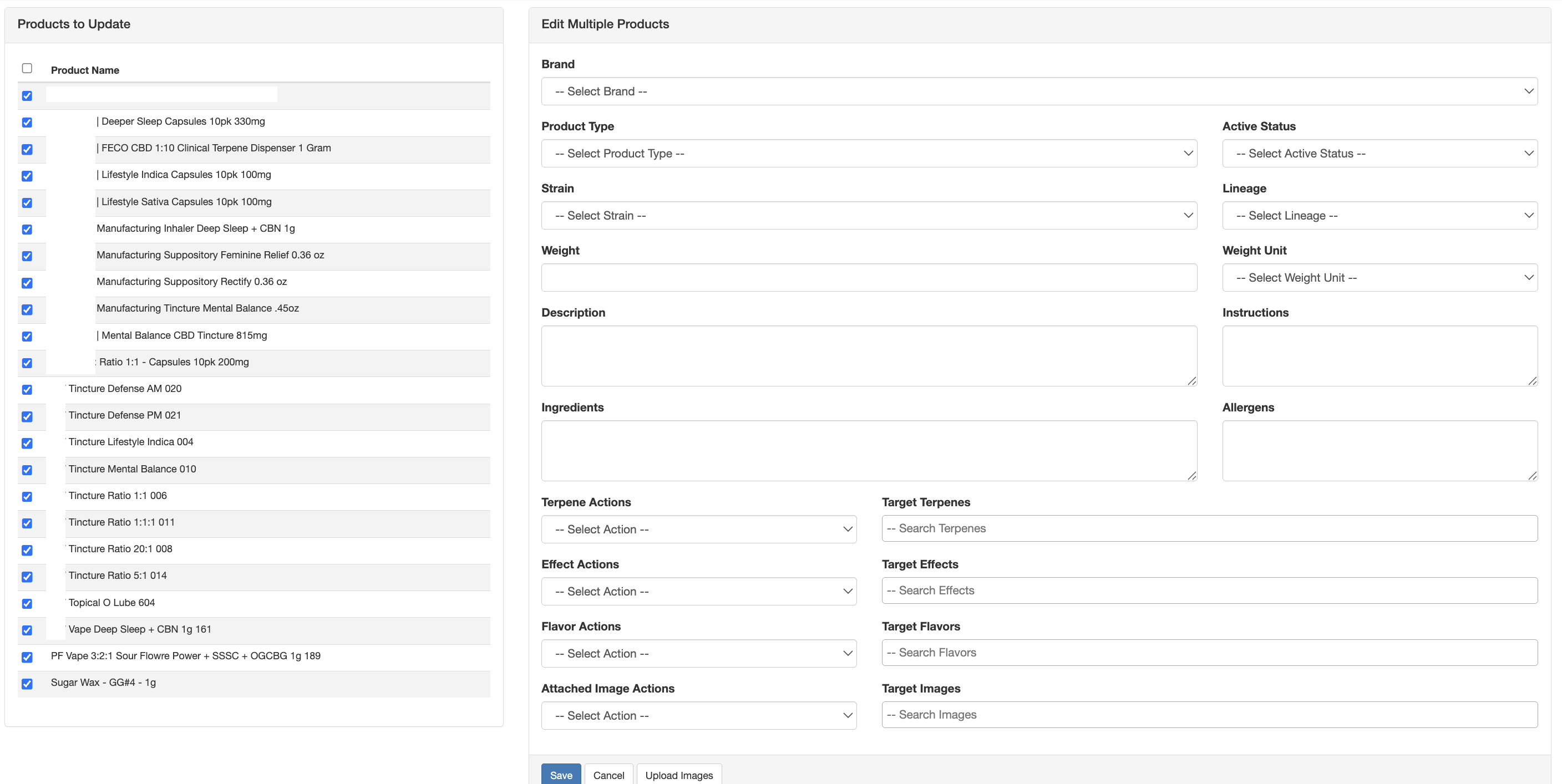
- Bulk Edit Products: If you need to update multiple products at once, use the bulk edit tools. Check the box next to each product you want to edit. To select everything on the page at once, check the box at the top of the list. Your changes will be applied to all selected products in one step.
- From the Products page, use the filters to narrow down your list of products.
- Select the products you'd like to update (checkbox on left side of the listed product).
- Click the orange Edit Checked button in the top right corner.
- Edit details like the brand, strain, lineage, product type, description, images, and any other catalog information.
- Hit Save.
- Export, Edit, and Import a Spreadsheet: The third option is ideal when you have a large number of changes to make, or you prefer working in a spreadsheet.
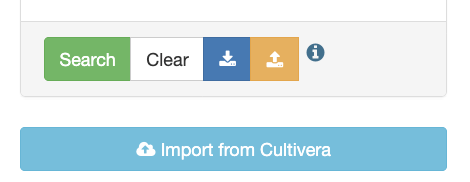
- From the Products page, click the blue Export button (at the bottom of product search filters).
- This will download a CSV file containing all of your products and their current catalog information.
- This will download a CSV file containing all of your products and their current catalog information.
- Open the file. You'll see one row per product with columns for each field — name, brand, category, description, and more. Make your edits directly in the spreadsheet. You can update as many products and fields as you need.Important note — do not change the product ID column. That's how the system identifies which product to update when you import the file back in.
- When you're finished making change, save the file in the same format it was downloaded — CSV is the required format for import back into the POSaBIT Product Catalog.
- Navigate back to the Brand portal, from the products page click the orange Import (at the bottom of product search filters).
- Select your edited file, and upload it.
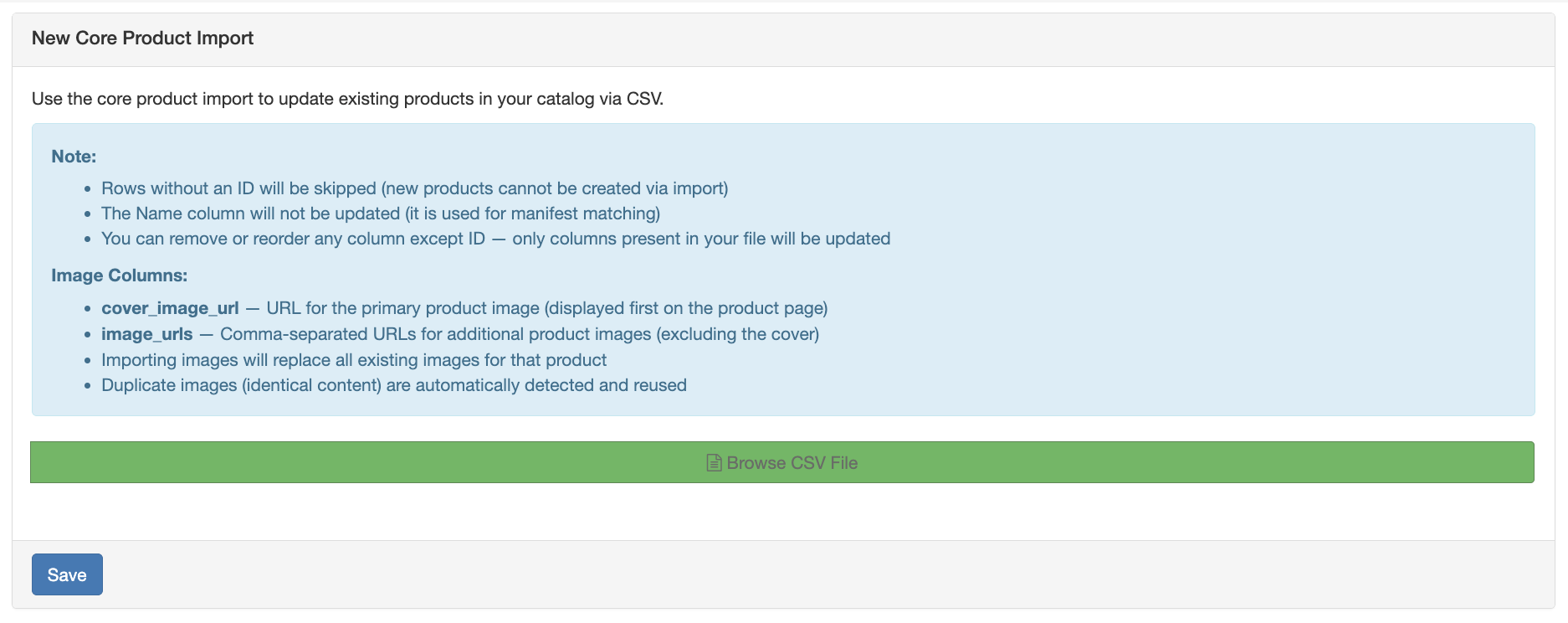
- The system will process the file and update your products. You'll see a confirmation when the import is complete. If there are any errors — like a missing required field — you'll be notified so you can correct and re-upload.

- The system will process the file and update your products. You'll see a confirmation when the import is complete. If there are any errors — like a missing required field — you'll be notified so you can correct and re-upload.
- From the Products page, click the blue Export button (at the bottom of product search filters).
Creating New Products
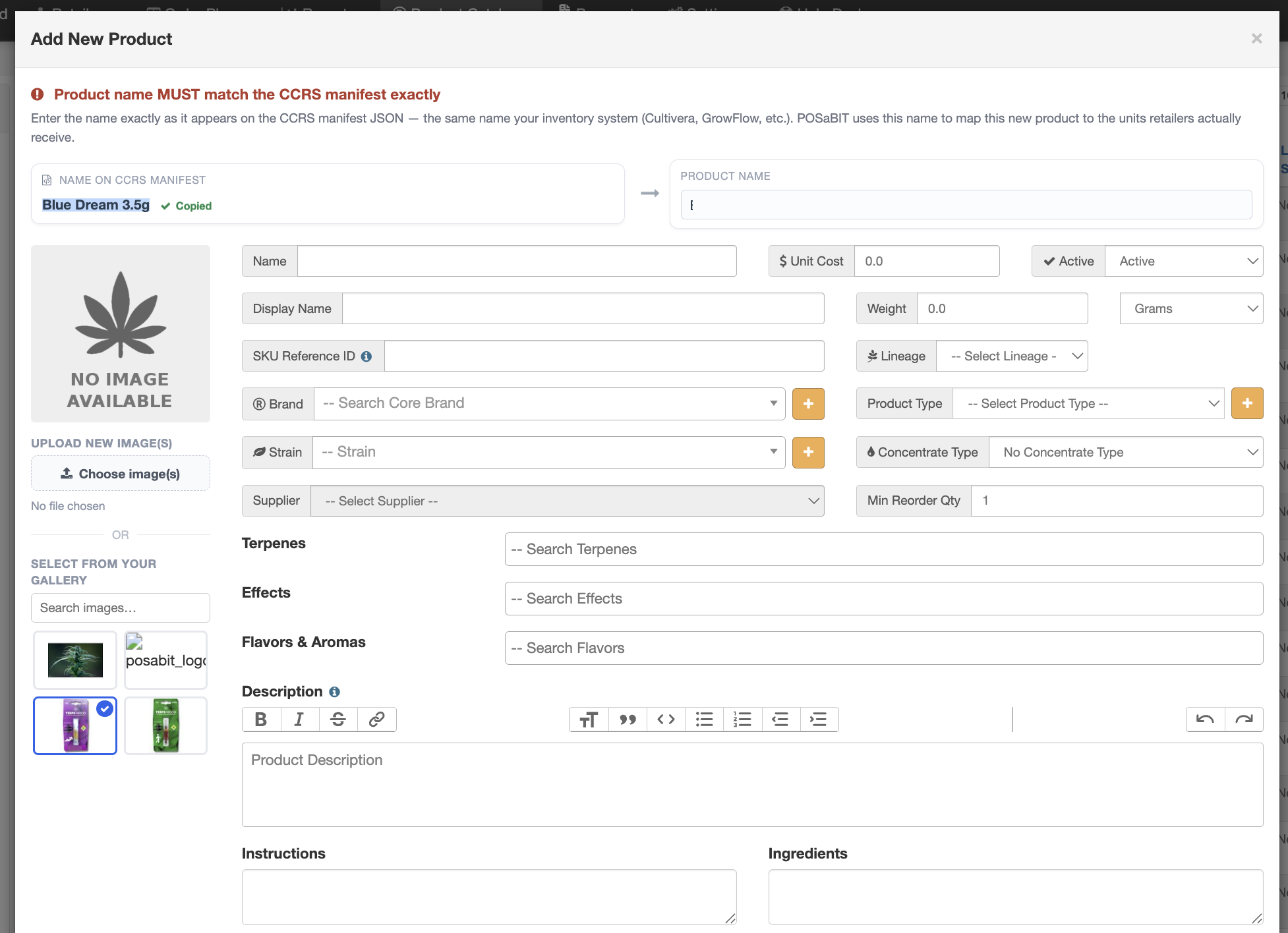
On the Products page, you can use the blue + New Product button on the top right. Once the pop-up is opened, fill out all the required fields and click Save.
Verifying Products
- To verify your products, you will need to to to the POSaBIT Vendor Portal --> Product Catalog --> Products.
- Click Edit on the product you want to verify.
- On the top left of the product edit page, you will see a green Mark as Verified button. Clicking this will mark this product as verified.
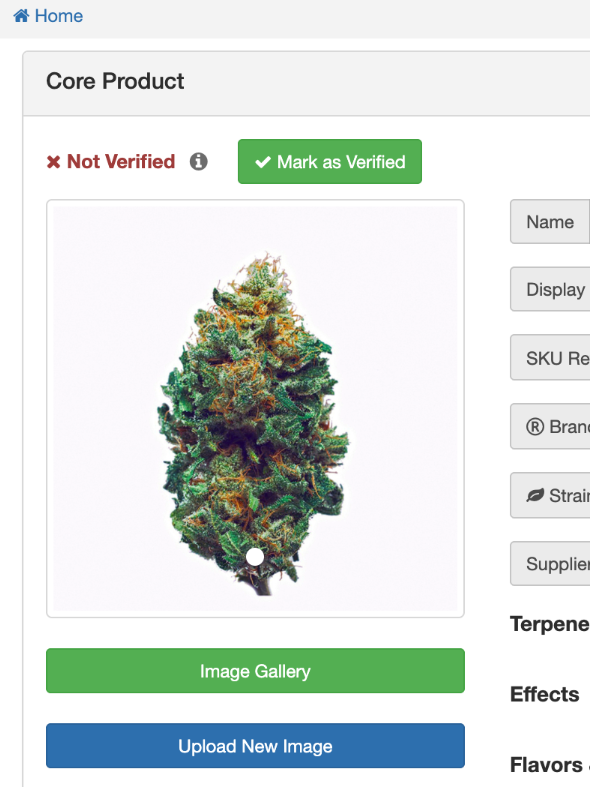
Image Gallery
Next, let's look at the Image Gallery. This is your central hub for managing all product images in one place — without needing to open individual products.
The gallery gives you a visual overview of every image in your catalog. You can browse, search, and see at a glance which products have images and which are still missing them. To upload new images, you can drag and drop image files directly onto the gallery page. You can upload multiple images at once, which makes it easy to do a bulk refresh of your product photos in one session."
Once images are uploaded, you can assign them to the appropriate products from within the gallery — keeping your catalog visual and up to date without jumping between individual product pages.
Edit Brand Information
Before enabling your catalog, it's worth making sure your brand information is accurate. Keeping your brand details current ensures that every product tied to that brand reflects the correct information across all retailer menus.
From the Brands section (Product Details --> Brands), click on a brand name to open it. Here you can update the brand name, logo, description, and any other brand-level details. Since many products share the same brand, updating it here is an efficient way to keep everything consistent — you update it once and it applies across all products under that brand.
Fewer accidental duplicates
If you try to quick-add a product name you already have in your catalog, you'll now be asked to confirm before a duplicate is created. Cultivera imports that collide with an existing product now tell you specifically which product matched, instead of a generic "Clean name" message — making it much easier to tell whether something is really a new product or just a naming variation (different weight, different label, etc.) of one you already have.
Automatic Catalog Field Backfill
Your product catalog can now fill in some of its own blanks. Once a product is stocked at more than 5 venues, a background job looks at what those venues have independently entered for that same product — lineage, strain, weight, terpenes, effects, and flavors — and fills in any of those fields that are still blank on your catalog record.
What it will and won't do:
- It only fills fields that are completely blank. An existing value — even a partial one — is never overwritten.
- It only draws from what multiple venues have entered independently, not from a single venue's guess.
- When a field is filled in this way, the product is flagged for your review rather than an automatic email being sent, so you can confirm the value next time you're in your catalog.
This is meant to reduce blank fields on older or bulk-imported catalog entries over time — it's not a replacement for filling in your own product data when you have it.
Enabling Your POSaBIT Product Catalog
Once you've uploaded your product data and reviewed it, the next step is to enable your catalog so retailers can access it. Head to the catalog settings. Here you'll find the setting to enable your catalog for retailers. When this is turned on, retailers in your network will be able to pull your product information — including images, descriptions, and other catalog fields — directly into their menus. Think of this as your final review step: get your data in order first, then flip the switch to make it live.
To Enable the Catalog:
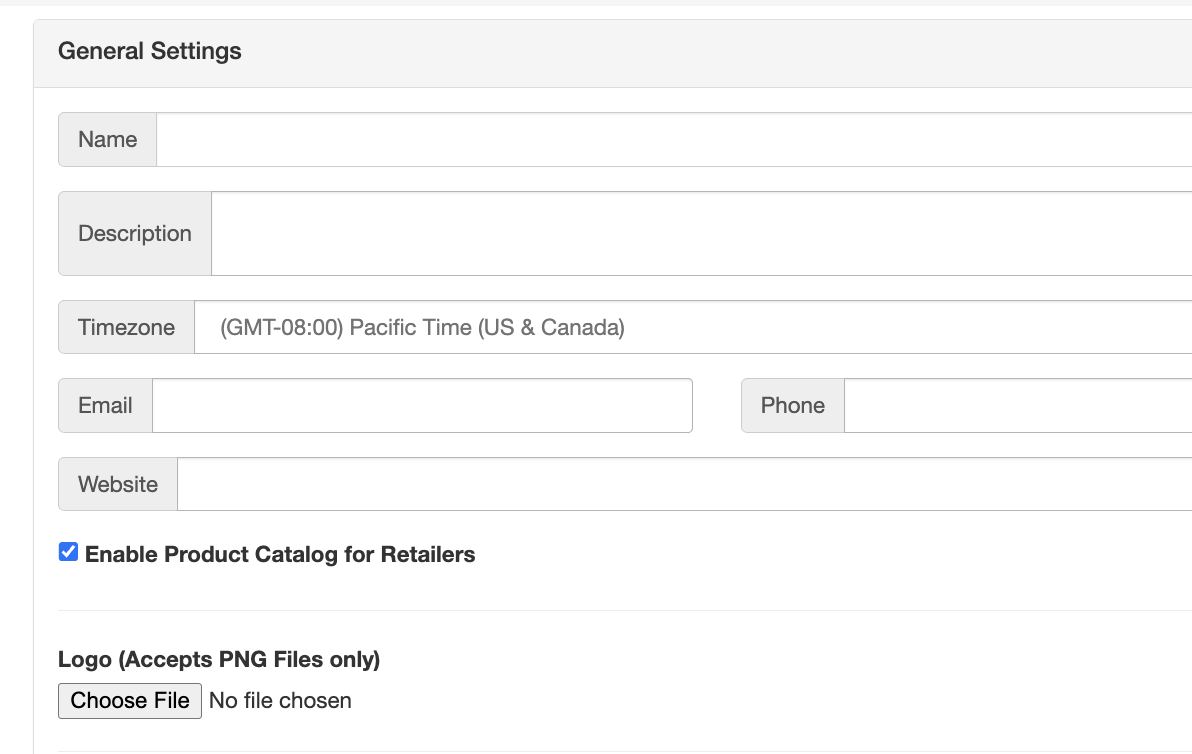
- Click Settings --> General Settings.
- Check the Enable Product Catalog for Retailers flag.
- Hit Save.
Auto-inactivate / Auto-Reactivate Rules
Deactivation Rules
A product is automatically deactivated when all of these are true:
- No sales in the last 3 months.
- Not in stock at any retailer (0 retailers currently stocking it).
- The product is at least 3 months old — a newly imported product can’t be switched off before retailers have had a chance to pick it up.
- It wasn’t auto-reactivated within the last 6 months — once the system turns a product back on, it gets a 6-month grace period before it can be auto-deactivated again, so slow/seasonal sellers don’t flip on and off forever.
Reactivation Rules
An inactive product is automatically reactivated when both of these are true:
- In stock at 1 or more retailers, and
- At least one sale in the last 4 weeks.
Timing
The sweep runs daily at 9:20am, but each vendor’s catalog is only reviewed about every 15–16 days (Vendor::CatalogSweepWorker::COOLDOWN). So a product that qualifies won’t necessarily change state the same day — it can take up to ~2 weeks for the sweep to reach that brand’s catalog. Reactivation is checked before deactivation in each pass, and all of this only applies to catalog-enabled vendors.
Product Content Recommendations
To maximize the effectiveness of your catalog listings, we recommend including:
- High-quality product images
- Clear product descriptions
- Strain details (when applicable)
- Provide Terpenes, Effects, Flavors, and Aromas information
- Any additional information that helps consumers understand your products
Understanding Retailer Connections
Retailers maintain control over how Product Catalog content is used within their business. While your content is made available through the Product Catalog, each retailer determines:
- Which products to connect.
- Which catalog information to display.
- Whether catalog content is updated manually or automatically.
Best Practices
To get the most value from the Product Catalog:
- Keep product images current and high quality.
- Update product information whenever packaging or product details change.
- Publish new products as early as possible.
- Review your catalog regularly for accuracy.
- Provide complete product information whenever available.
- Ensure descriptions are consumer-friendly and compliant with local regulations.