Sales Share by Retailer Report

The Sales Share by Retailer report shows you what percentage of each store’s total cannabis sales belong to your brand. Unlike a standard sales report, which only shows your own numbers, this report compares your cost of goods against every brand selling at the same retailer — giving you a true picture of your market position at each location.
How to find it
From the upper navigation, go to:
Reports → Sales Share by Retailer
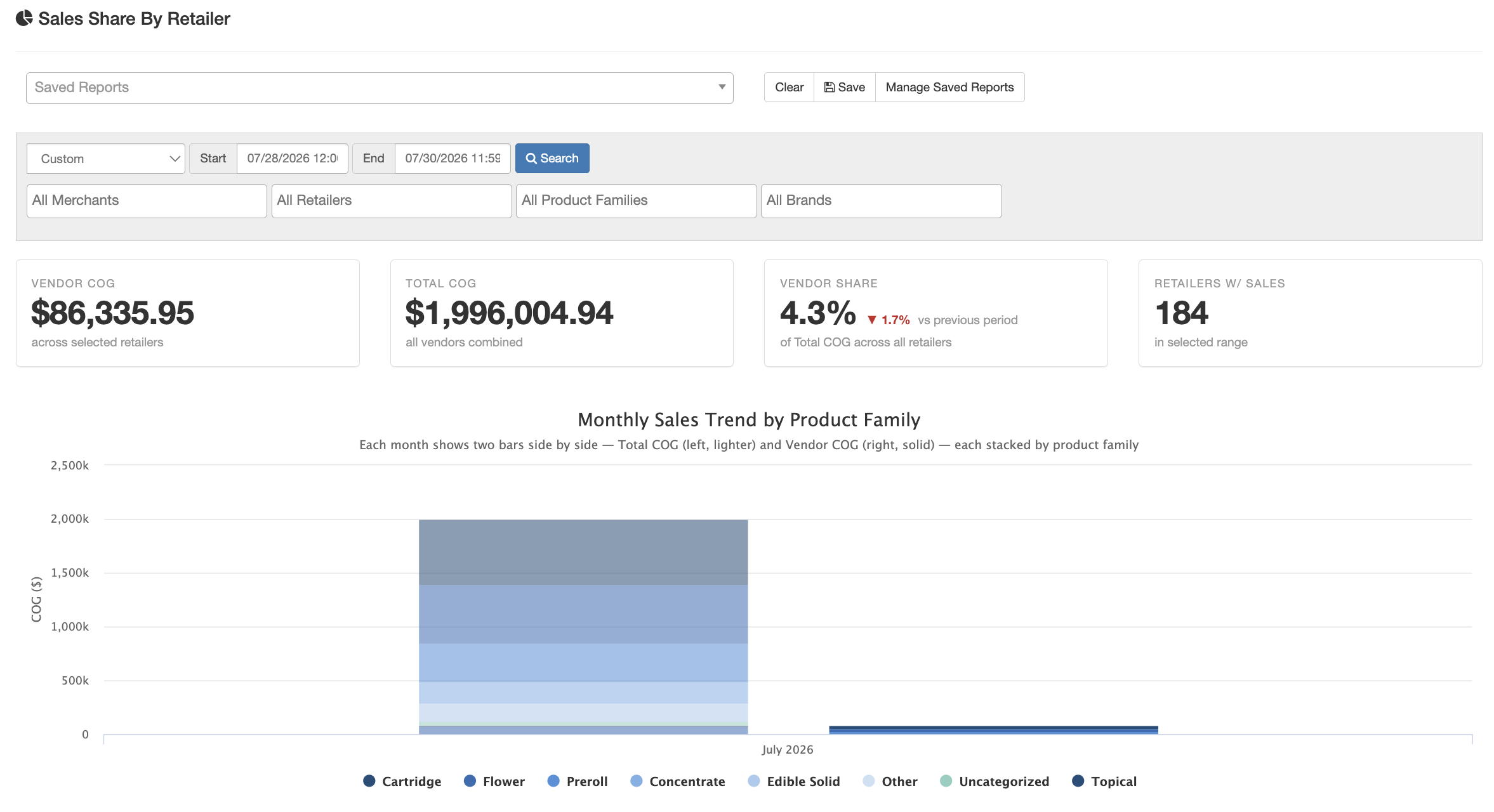
Summary cards
Four cards at the top of the report give you an at-a-glance view of your position across your retail network for the selected date range:
- Vendor COG — Your cost of goods sold across all selected retailers in the period.
- Total COG — The combined cost of goods from every brand selling at those same stores.
- Vendor Share — Your COG as a percentage of total COG, with an arrow indicator showing whether your share increased or decreased compared to the previous period.
- Retailers with Sales — The number of active retail locations that had sales in the selected date range.
Monthly trend chart
Below the summary cards, a stacked bar chart shows your COG alongside the total market COG month by month, broken out by product family (Flower, Edibles, Vapes, etc.). Use this chart to spot whether your overall share is growing or shrinking over time, and which product categories are driving the movement.
Retailer breakdown table
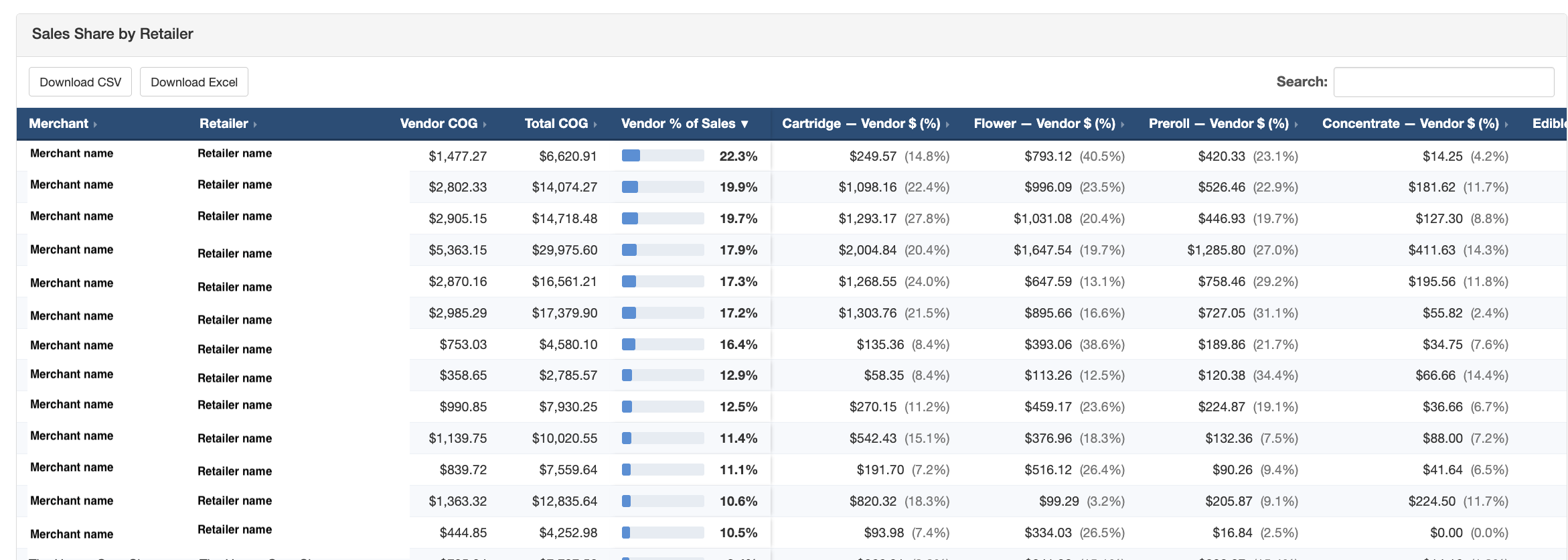
The table lists every retail partner where you had sales activity during the selected period, sorted by your highest share first. Each row includes:
- Merchant — The store group (chain or parent company) the retailer belongs to.
- Retailer — The individual store location name.
- Vendor COG — Your cost of goods at that store in the period.
- Total COG — All brands combined at that store in the period.
- Vendor % of Sales — Your share as a percentage, shown alongside a visual progress bar.
- Per-family columns — For each product family, your dollar amount and share percentage at that location (e.g., “Flower — Vendor $ (%)”).
Sorting and searching
Click any column header to sort the table by that column. Use the search field above the table to filter rows by store name.
Exporting
Two export options are available above the table:
- Download CSV — Exports the table data as a comma-separated file.
- Download Excel — Exports the table data as an .xlsx file, ready for use in a retailer business review or presentation.
Filters
Use the filter bar to narrow the report to the data you need. Available filters include:
- Date range — Choose from standard presets (Last 30 Days, Month to Date, Year to Date) or multi-year ranges, or set a custom start and end date.
- Merchant — Limit results to one or more store groups.
- Retailer — Limit results to specific store locations.
- Brand, Strain, Product Type, Product Family — Narrow the report to a specific part of your catalog.
Frequently asked questions
What does “Total COG” include?
Total COG represents the combined cost of goods for all brands sold at the retailers where you also have sales. It is scoped to the same date range and retailer set as your own data, so the share percentages reflect an accurate comparison.
Why does a retailer appear in the table with a 0% share?
A retailer may appear if they had overall market sales during the period but no sales attributed to your brand. This is intentional — it lets you see potential gaps in your retail coverage.
What does the trend arrow on the Vendor Share card mean?
The arrow compares your share percentage in the current date range to the equivalent prior period. An upward arrow (green) means your share increased; a downward arrow (red) means it decreased. If there is no prior-period data available, the card displays “No prior-period data” instead.
Why don’t I see all my retailers?
The report only includes retailers that are active and have granted your brand access to their data. If a retailer is missing, contact your POSaBIT account manager to verify the retailer’s data-sharing settings.
