Brand Portal Employee Groups Overview

The Brand Portal now uses employee authorization groups, giving you finer control over what each team member can see and do.
What this means for you
Employees are placed in one or more groups that define a read/manage permission matrix across the portal's sections. Every vendor starts with two built-in groups that can't be renamed or deleted:
- Managers — Read and Manage access to everything.
- Staff — Read-only access to everything, with no Manage access anywhere.
You can also create unlimited custom groups. A new custom group starts with Read access everywhere and Manage access nowhere, until an admin adjusts its permissions.
If you haven't set up groups before, every user keeps their current level of access — this doesn't remove anyone's access on its own. It gives your admins a way to tighten or customize access going forward, the same way venue admins already manage POS user permissions.
Read vs. Manage, in general
For most permissions in the matrix, the difference is straightforward:
- Read lets someone view a list, view details, and open an edit screen to look at a record — but not submit changes, create something new, or delete anything.
- Manage includes everything Read does, plus creating, editing, deleting, and any other action specific to that section (exporting, syncing, canceling, etc.).
A few permissions don't follow that pattern — either because there's nothing to "manage" beyond viewing, or because the underlying action has no read-only view at all. Those are called out individually below.
Admins can also fine-tune an individual group further: from the "Advanced" option on any permission row, you can grant Manage access but carve out one or two specific actions that group still isn't allowed to do.
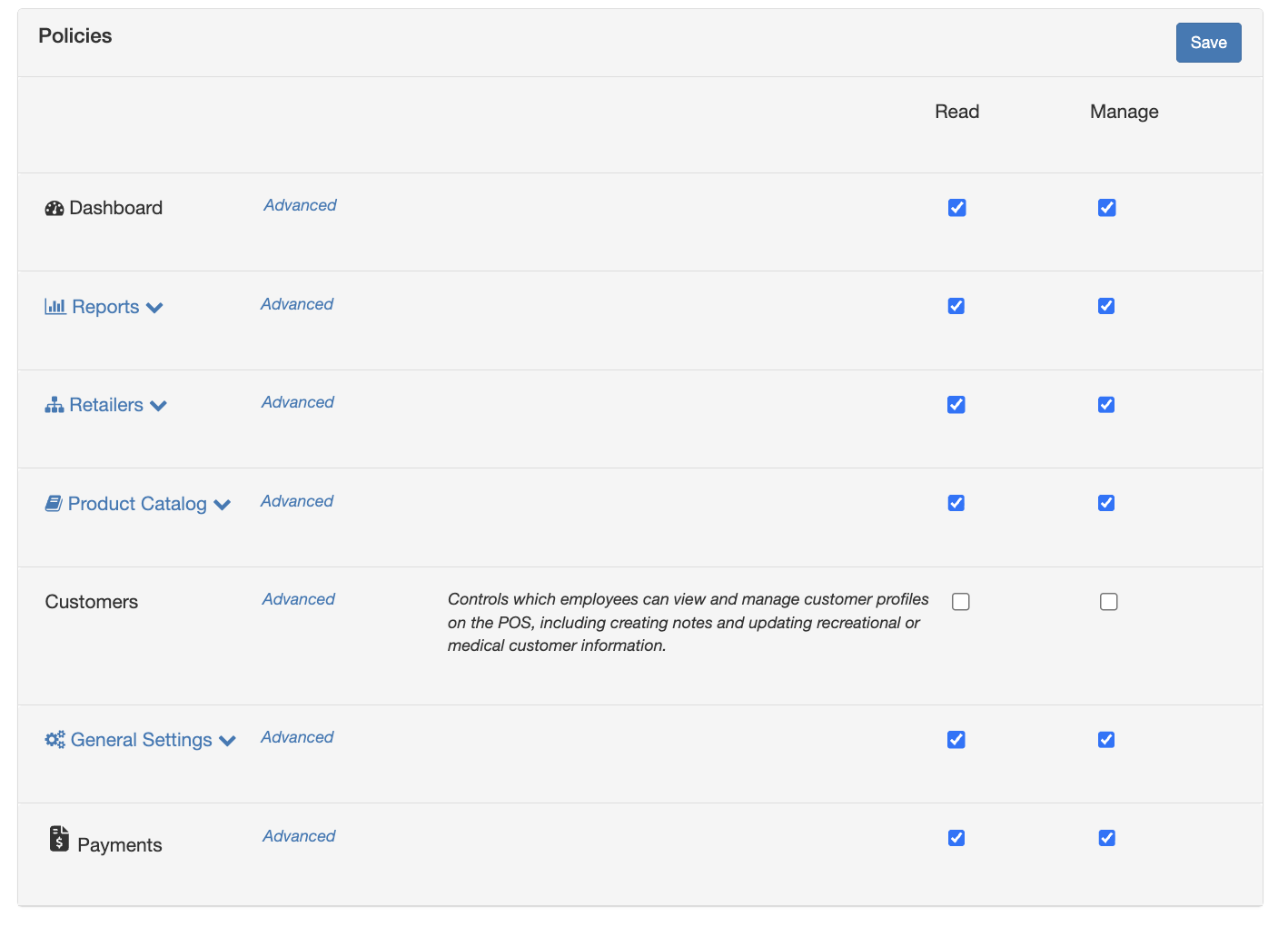
Dashboard
Permission | Read | Manage |
Dashboard | View your dashboard and its panels (sales summary, promotions, retailer inventory widgets). | Same as Read — the dashboard has nothing else to manage. |
Retailers & Inventory
Permission | Read | Manage |
Retailers | View your retailer list, and view a retailer's Sales, Reorder, and Inventory pages. | Also edit a retailer's settings and connection details. |
Inventories | View inventory records. | Create, edit, and delete inventory records. |
Lots | View lot records. | Create, edit, and delete lot records. |
Manifests | View manifests. | Create, edit, and delete manifests. |
Purchase Orders | View purchase orders, PO history, and Cultivera export options. | Create and submit purchase orders, cancel a PO, and change its status. |
PO Line Items | — | All-or-nothing: there's no read-only view for line items. Manage is required to add, edit, or remove items on a purchase order (and to view their change history) — without it, a group has no access to line items at all. |
Reports
Unless noted otherwise, every report below follows the general rule: Read lets someone run the report and view/export its results, and Manage adds nothing further — reports don't have anything to create or delete.
Permission | Read | Manage |
Custom Sales Report | Run and view this report. | No additional capability. |
Custom Discounts Report | Run and view this report. | No additional capability. |
Custom Inventory Report | Run and view this report. | No additional capability. |
Saved Reports | View your saved report library. | Create, edit, and delete saved report profiles. |
Deliveries | View and download your delivered scheduled reports. | No additional capability. |
Sales by Products | Run and view this report. | No additional capability. |
Sales by Product Types | Run and view this report. | No additional capability. |
Sales by Brands | Run and view this report. | No additional capability. |
Sales by Retailers | Run and view this report. | No additional capability. |
Sales Share by Retailer | Run and view this report. | No additional capability. |
Sales by Customers | Run and view this report. | No additional capability. |
Low Inventory Report | Run and view this report. | No additional capability. |
Sales Data Export | Run and view this report. | No additional capability. |
Product Catalog
Permission | Read | Manage |
Product Types | View product types. | Create, edit, and delete product types. |
Brands | View brands. | Create, edit, and delete brands. |
Strains | View strains. | Create, edit, and delete strains. |
Suppliers | View your supplier list. | Create, edit, and delete suppliers. |
Products (Catalog) | View your product catalog, including where a given product is stocked. | Create and edit catalog products (including quick-adding new products) and duplicate an existing product. |
Products by Retailer | View which retailers carry which of your products. | Create, edit, and delete these retailer-product links. |
Product Imports | View import history. | Run new product imports. |
Cultivera Imports | View Cultivera import history and results. | Run new Cultivera imports, including creating new products from unmatched rows. |
Brand Assignments | View brand assignments. | Create, edit, and delete brand assignments. |
Product Updates | — | All-or-nothing: this is the single action of linking a retailer's unmapped SKU to one of your catalog products. There's no read-only view — a group either has Manage and can make the link, or has no access to it. |
Image Gallery | View your image gallery. | Upload and delete images. |
Image Attachments | View which images are attached to which products. | Attach and remove image attachments. |
Image Batch Uploads | View batch upload history. | Start new batch uploads. |
Terpenes | View terpene data. | Create and edit terpene entries. |
Traits & Effects | View your flavor and effect taxonomies. | Create and edit custom traits. |
Payments
Permission | Read | Manage |
Payments | View payment activity. | Same as Read — there's nothing else to manage here today. |
Settings
Permission | Read | Manage |
General Settings | View your vendor's general settings. | Edit those settings. |
Employees | View the employee list and an employee's profile (name, login, email, phone). | Also reset an employee's password and toggle their Active/Inactive status. |
Employee Access | View which employees are linked to your vendor account. | Add or remove that access. |
Employee Groups | View the list of employee groups, open a group, and see its members and permission matrix. | Add or remove group members, change a group's permissions (including "Advanced" exceptions), and rename or delete custom groups. The built-in Managers and Staff groups can never be renamed or deleted, regardless of permission level. |
API Integrations | View your API integration connections. | Create, edit, and remove API integration connections. |
Subscription | View your subscription details. | Make changes to your subscription. |
Connected Merchants | View merchants connected to your vendor account. | Manage those connections. |
Adding Employees to a Group
There are two ways to add an employee to a group:
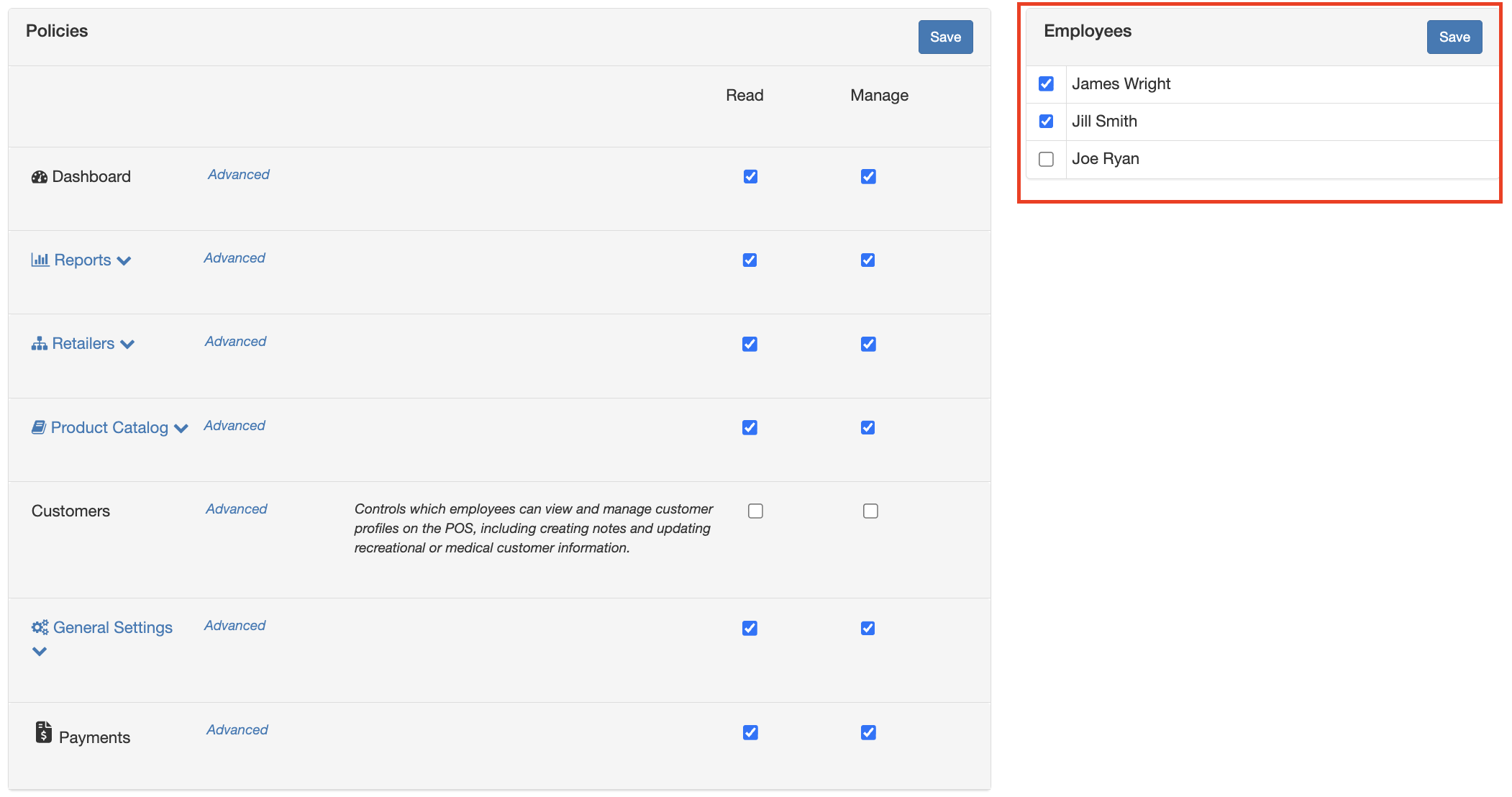
- From the group: Open the group under Employee Groups, and check the box next to each employee you want as a member of that group.
- From the employee's profile: Open the employee under Employees, click the Green Edit button on the top right, and use the Access Level dropdown to choose which group they belong to.
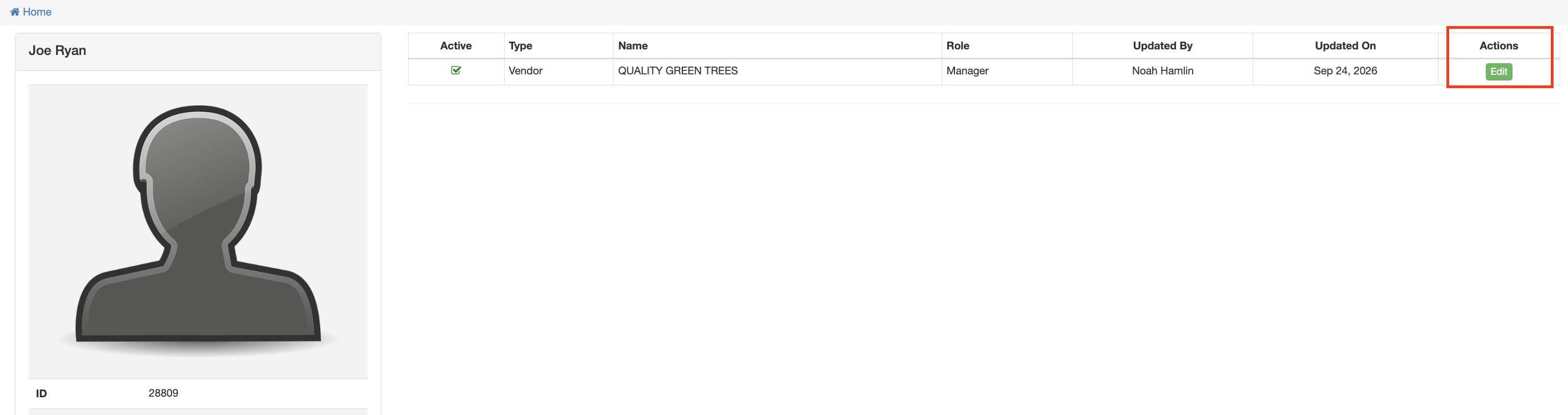
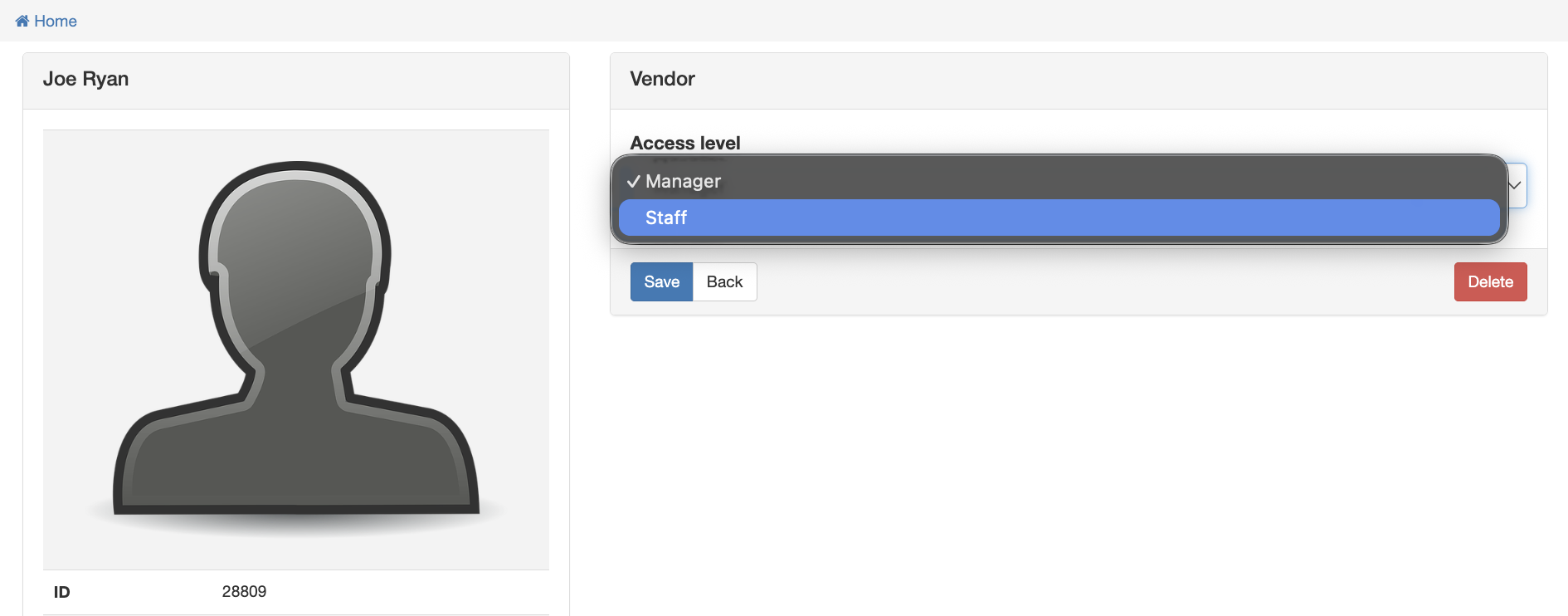
Both paths update the employees group they are associated with — use whichever is more convenient: the group view when you're setting up a roster all at once, or the employee's profile when you're just adjusting one person's access.
Reach out to POSaBIT support if you'd like help setting up custom groups for your team.
