Add Web Browser Pop-Up Option on Customer Profile within the POSaBIT App

POSaBIT has added a web browser pop-up option to the POS app that allows you to verify medical customers directly from the point of sale. This feature is particularly useful for budtenders who need to verify medical patients through your state's medical patient tracking system without leaving the POS interface.
This feature is disabled by default as enabling the web browser could potentially slow down the POS terminal.
How to Enable the Web Browser for Customer Profiles
Follow these steps to enable the web browser pop-up feature in your POSaBIT Portal:
- Log in to your POSaBIT Venue Portal at app.posabit.com.
- Navigate to Settings from the top menu.
- Select General POS Register Settings.
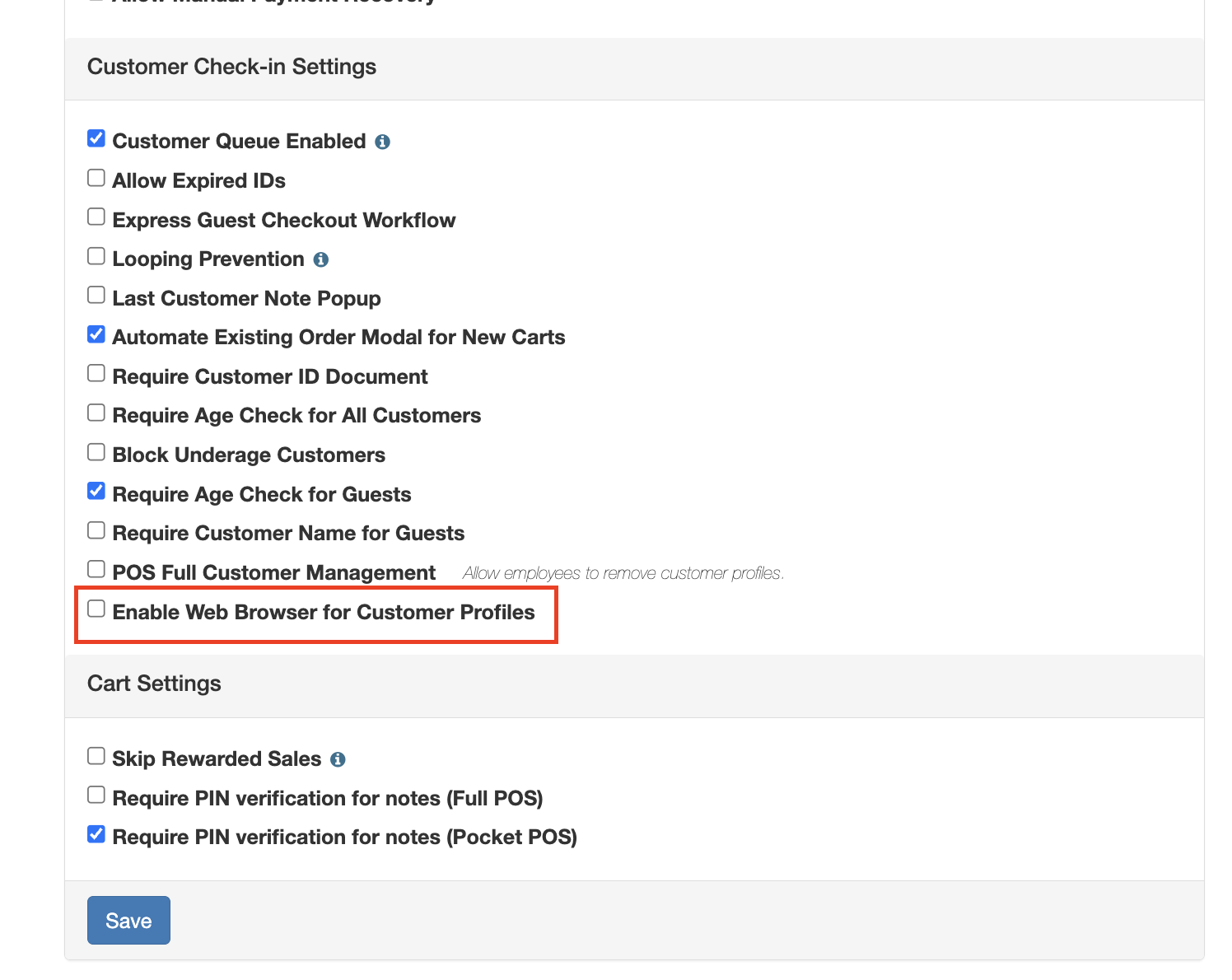
- Scroll down to locate the Enable Web Browser for Customer Profiles setting.
- Check the box next to Enable Web Browser for Customer Profiles.
- Click Save at the bottom of the page.
How to Access the Web Browser on the POS
Once the setting is enabled, budtenders can access the web browser from an active customer cart:
- Open a customer cart on the POS terminal.
- Look for the globe icon in the top right corner of the screen.
- Click the globe icon to open the web browser pop-up window.
- Use the browser to navigate to your state's medical patient tracking system or other verification websites as needed.
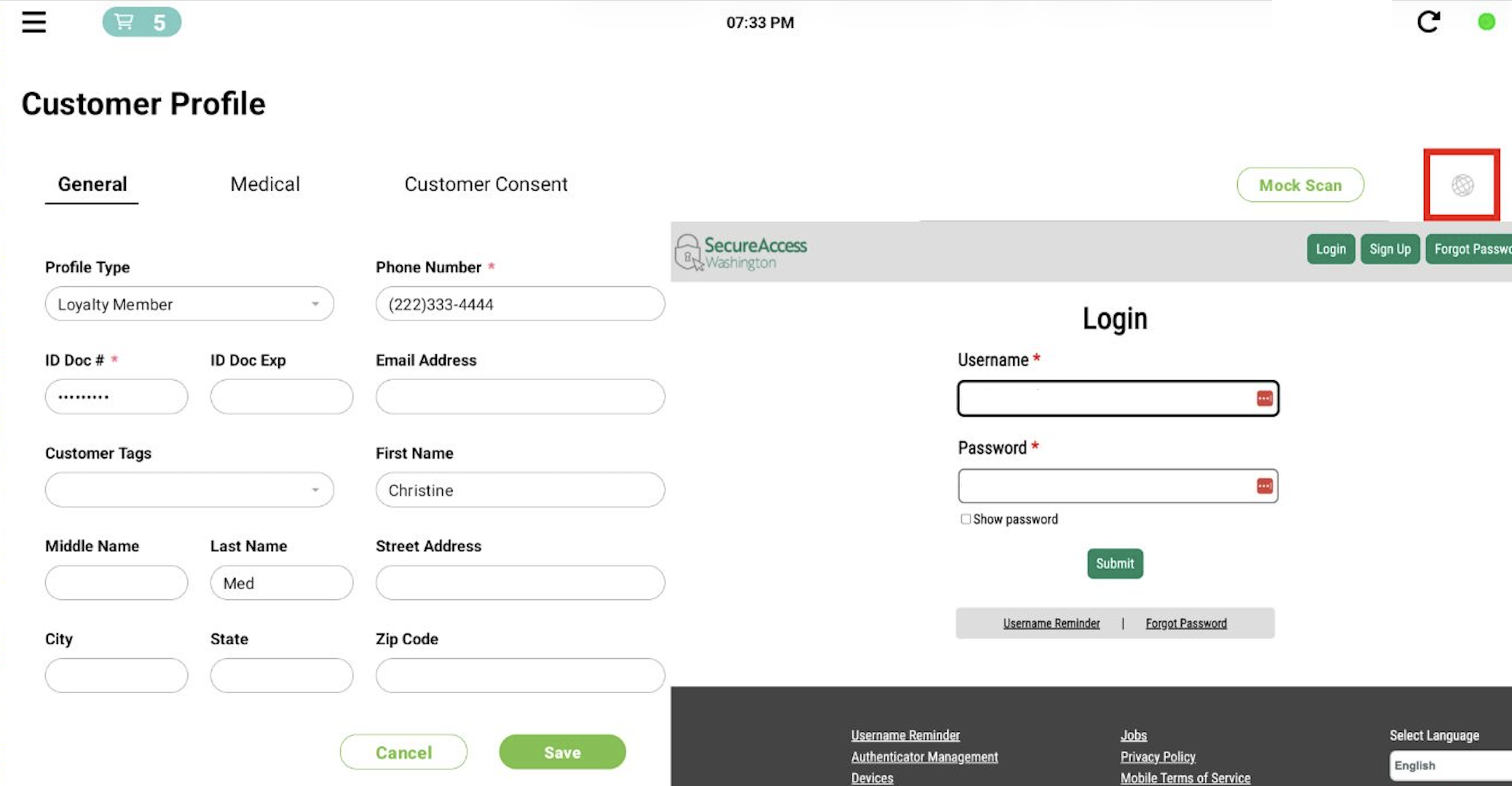
The globe icon will only appear when you have an active customer cart open on the POS. If you don't see the icon, make sure you've opened a customer profile or guest cart first.
For additional assistance, please reach out to POSaBIT support @ 1 (855) POSaBIT or support@posabit.com.
