How to Create a Customer Portal

The Customer Portal is a one-stop shop where consumers can view and manage their loyalty information in one central place, for any venue the merchant assigns to that specific portal. This allows multi-store operators (MSOs) with multiple branded stores to create separate, branded Customer Portals for each brand within their ownership group.
From the Customer Portal, loyalty users can:
- View and edit their personal information
- View their purchase history across all stores assigned to the portal
- View their loyalty points
- Download and access their POSaBIT Pass
- View campaigns and promotional messages sent to them
- Update and edit their POSaBIT Pay account, if the merchant uses POSaBIT Pay
Follow the steps below to create a Customer Portal:
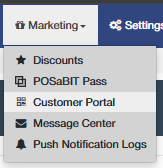
- Login to the POSaBIT web portal - https://app.posabit.com
- Navigate to Marketing and select Customer Portal.
This opens the merchant side of the Customer Portal - the top navigation bar turns blue to indicate you're in this section.
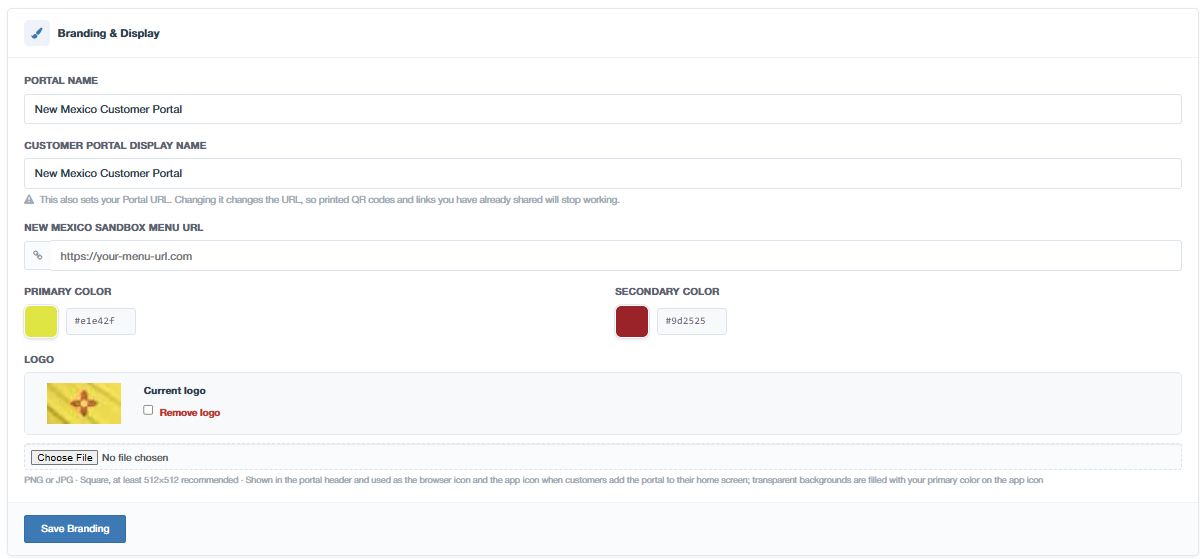
Branding and Display
Field | Description |
Portal Name | An internal name to help you identify this portal - this is not shown to consumers. |
Customer Portal Display Name | The external-facing name that will display on the actual Customer Portal. |
Primary Color / Secondary Color | Assign the brand colors for this portal. |
Logo | Upload a logo for this portal. |
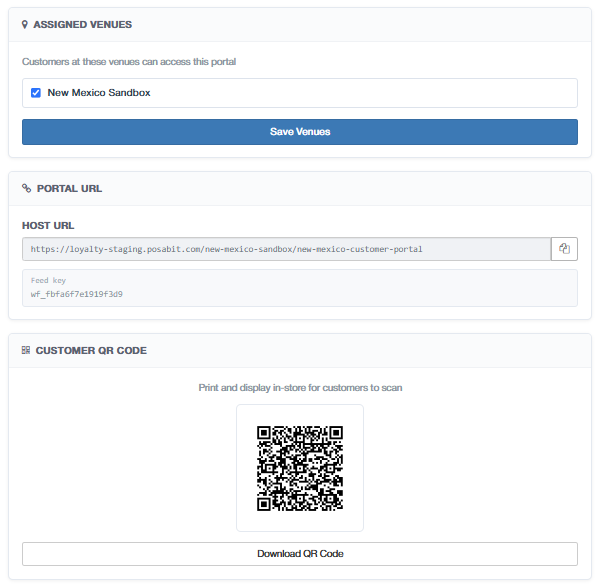
Assigned Venues
- On the right-hand side of the page, you'll see a list of all venues associated with your merchant account.
- Select the checkbox next to each venue you'd like associated with this Customer Portal.
- Select Save Venues.
- Once saved, a new field will appear under Branding and Display for each venue you selected, prompting you to enter that venue's Menu URL. This is used to redirect Customer Portal users to the correct menu for each venue.
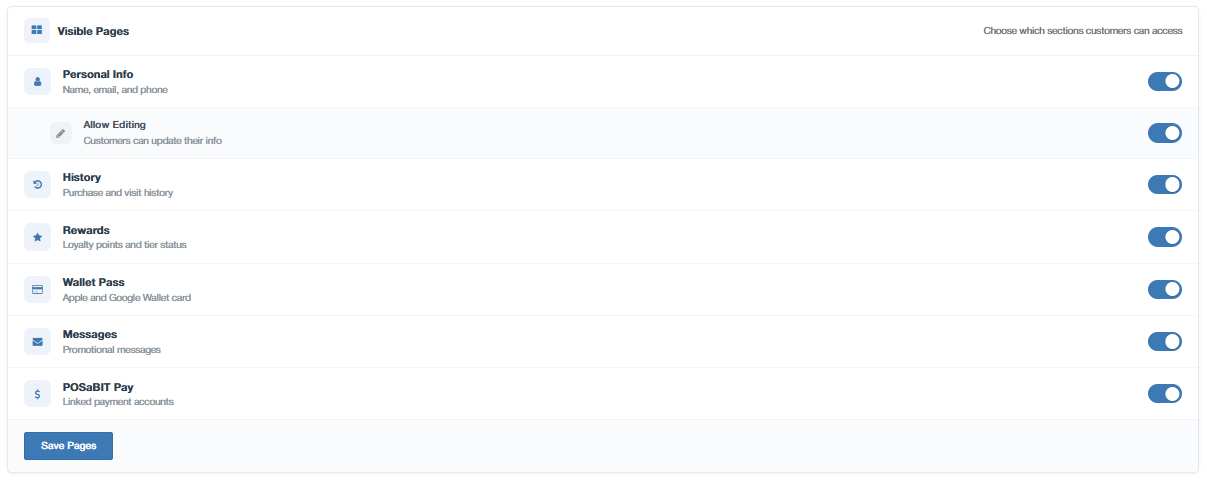
Visible Pages
- Within the Visible pages section, toggle each available page on or off to control what consumers can see on this Customer Portal - for example, Personal Information, Wallet Pass, Rewards, or History.
- Select Save Pages to save your changes.
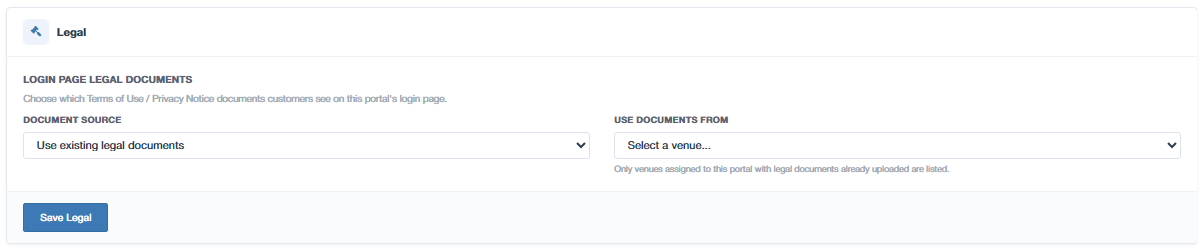
Legal
- At the bottom of the page, select the source of the legal documents used on the customer portal login page:
- If "Upload new Legal Documents" is selected, a new document upload table will display. Use the "New Document" button to attach new legal documents that are specific for the customer portal (merchant level)
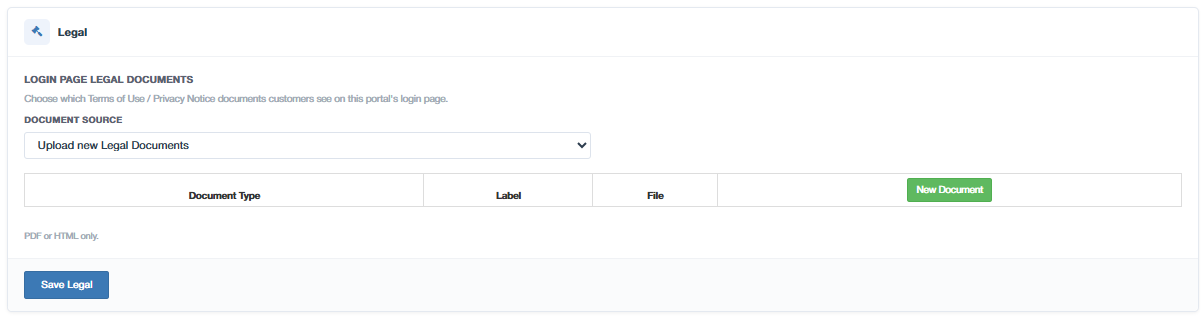
- If "Use existing legal documents" is selected, a new "Use documents from" dropdown field will appear. This dropdown field contains a list of all venues linked to the customer portal. Selecting a venue from this dropdown will use the legal documents from that venue on the customer portal login page.