How to Add an Image Carousel to your POSaBIT Menu

How to Add an Image Carousel to your POSaBIT Menu
- Log into your POSabIT POS Portal
- Go to the Inventory tab --> Menu Feeds
- Locate the menu you want to add your carousel to and click Edit or click on the title of the menu.
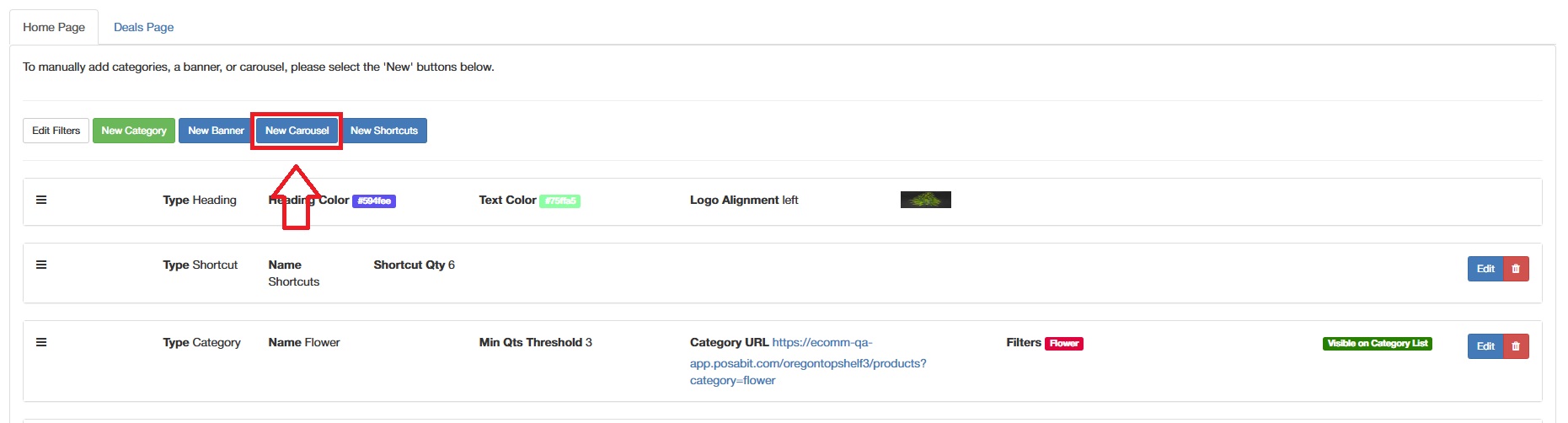
- To add an image carousel, click the blue New Carousel button on the lower left side of the Menu Dashboard
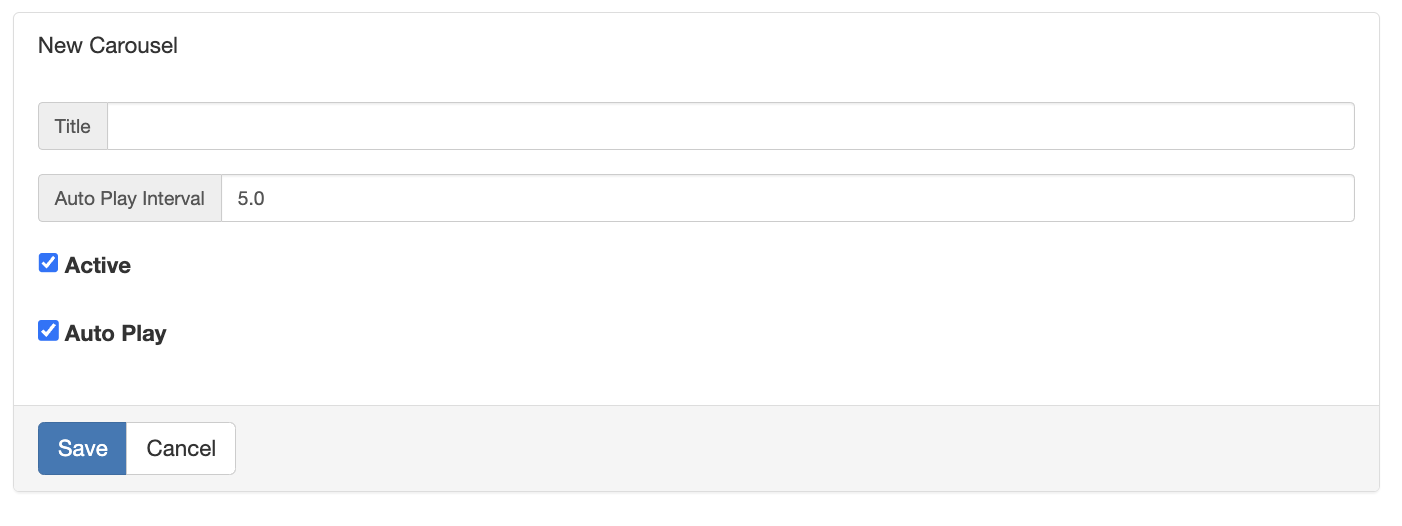
- Fill out the carousel information then click Save
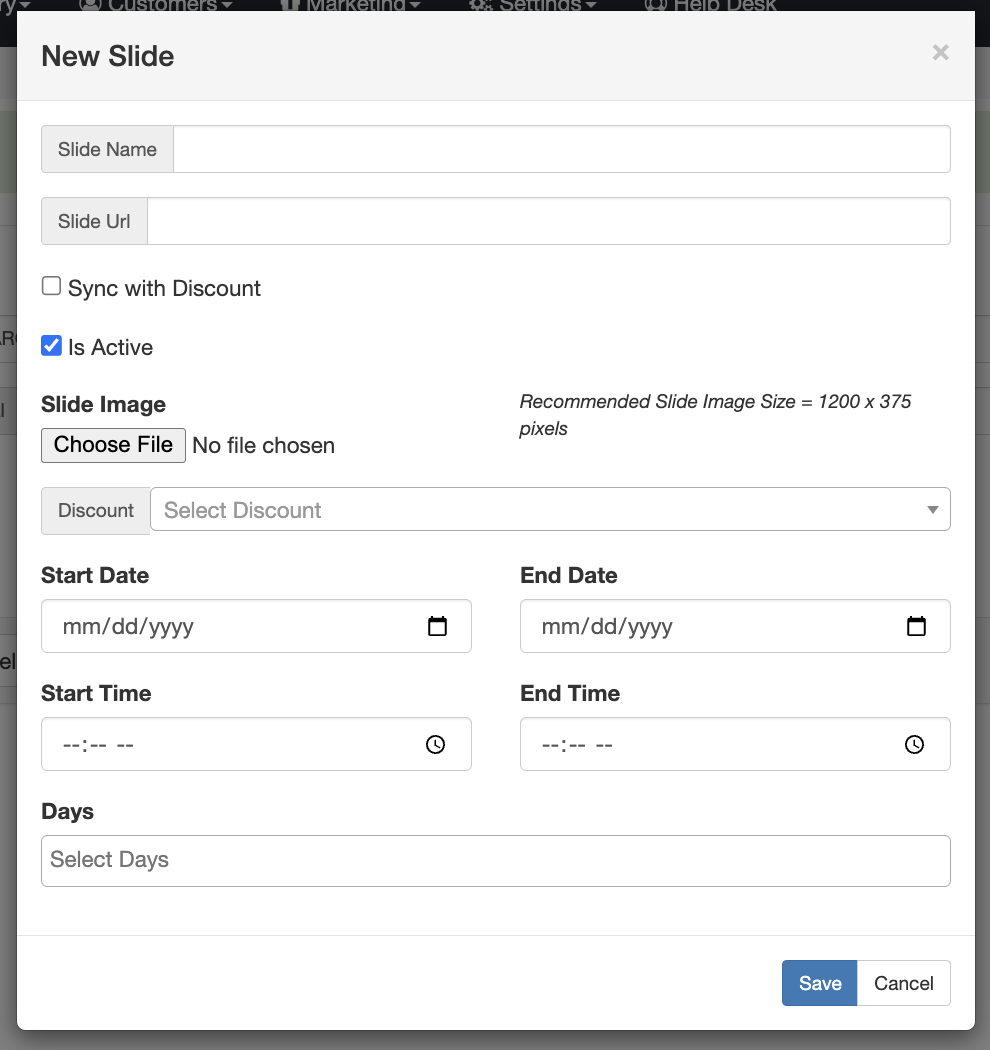
- Once you save it, you will now have a new Add Slide option where you will be able to add the images you want to the image carousel.
- Fill out the information to customize the slide
- Slide Name
- Slide URL - this is where the user will be directed when clicking on the image
- Sync with Discount flag - you can connect the slide to a discount so the slide automatically expires at the time the discount does
- Slide image - select the image file you want to display
- Discount - select the discount you want to associate to the slide (OPTIONAL)
- Start and End day & times (OPTIONAL)
- Days - Select the days you'd like this image to display in the carousel
- Save
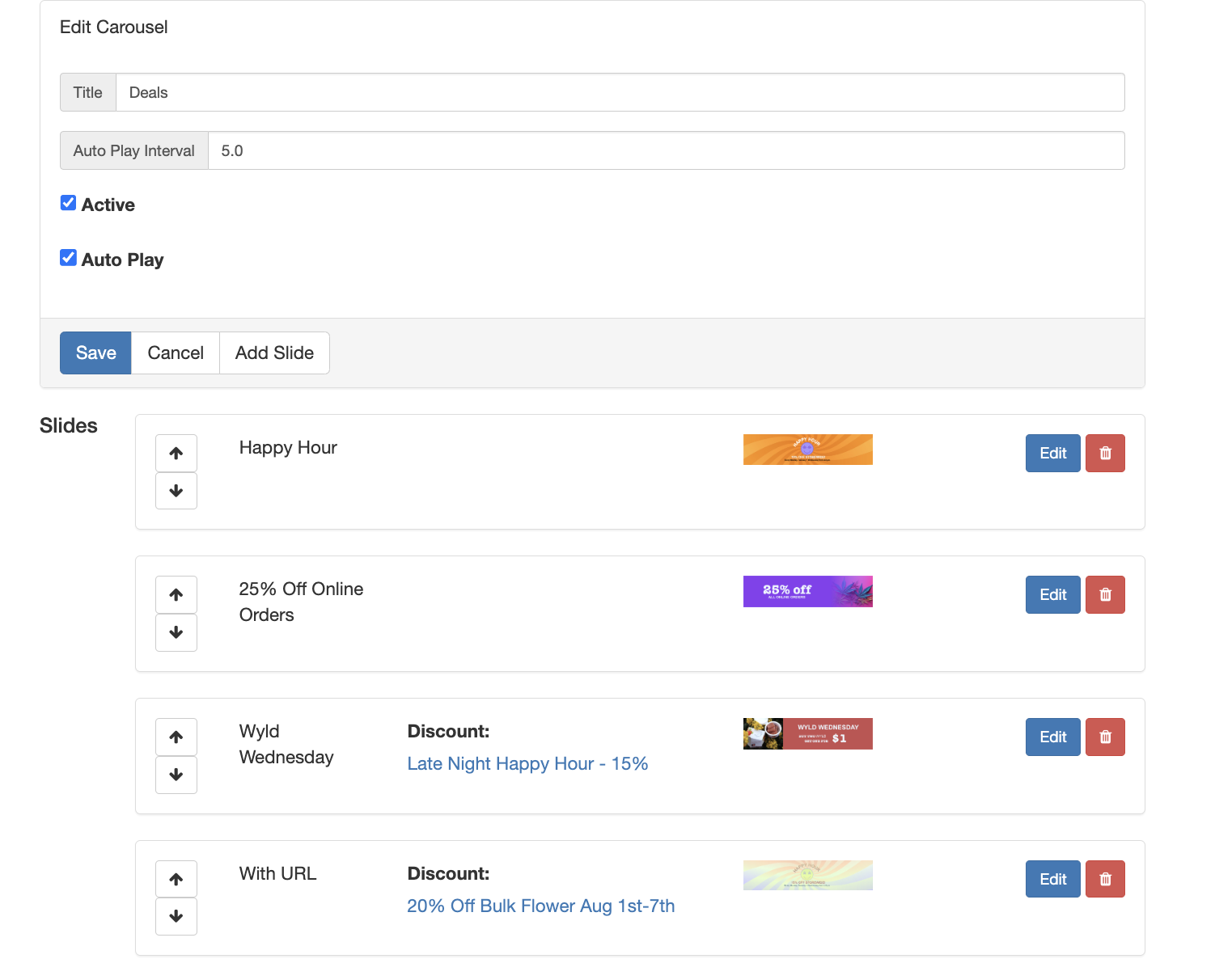
- Once you add your assortment of images to the carousel, you will have an overview of the carousel from the Menu Carousels page. From here you can reorder the order the images display, edit, or remove the different images.