How to Create and Upload an Apple Wallet Certificate

To accept POSaBIT Pass on Apple Wallet, you'll need a Pass Type ID certificate from your Apple Developer account. Follow the steps below to create and upload your Apple Wallet certificate.
Step 1: Create an Apple Developer Account
- If you don't already have one, enroll in the Apple Developer Program at developer.apple.com/programs. Enrollment costs $99/year.
- You can enroll as an Individual or as an Organization:
- Individual: You'll need an Apple ID with two-factor authentication enabled, and you'll verify your identity with a government-issued photo ID. Your legal personal name is used as the account holder.
- Organization: Your business must be a recognized legal entity - Apple does not accept DBAs, trade names, or branches. You'll also need a D-U-N-S Number so Apple can verify your organization's identity. If your business doesn't already have one, you can request one for free through Dun & Bradstreet, though this can take several business days to process.
- Once all required information is submitted, enrollment review typically takes 1-2 business days.
Step 2: Create a Certificate Signing Request (CSR)
- On a Mac, open Keychain Access (Applications -> Utilities -> Keychain Access).
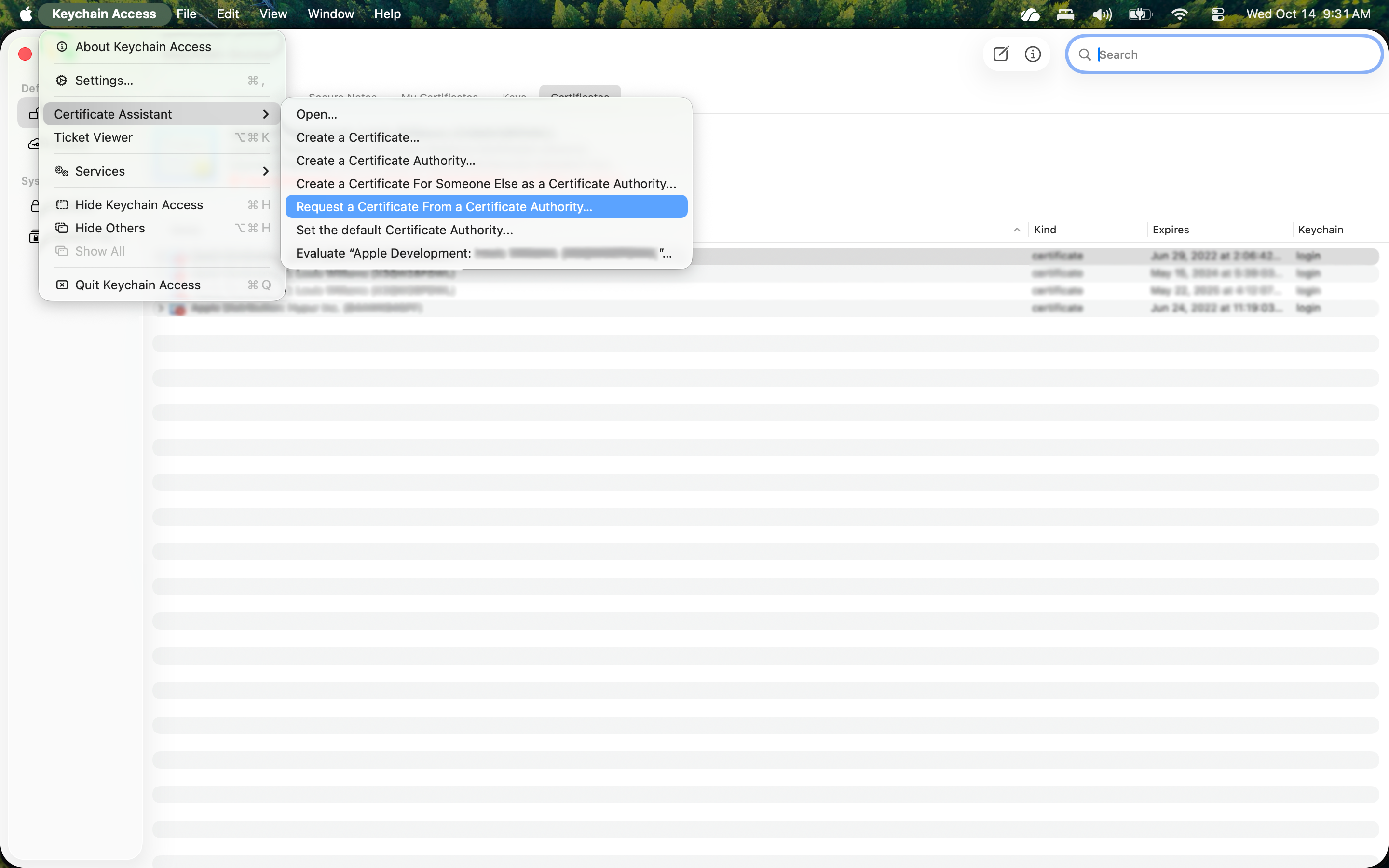
- From the menu bar, select Keychain Access -> Certificate Assistant -> Request a Certificate from a Certificate Authority.
- Enter your email address in the User Email Address field, and a Common Name (for example, your business name). Leave the CA Email Address field blank.
- Under "Request is", select Saved to disk.
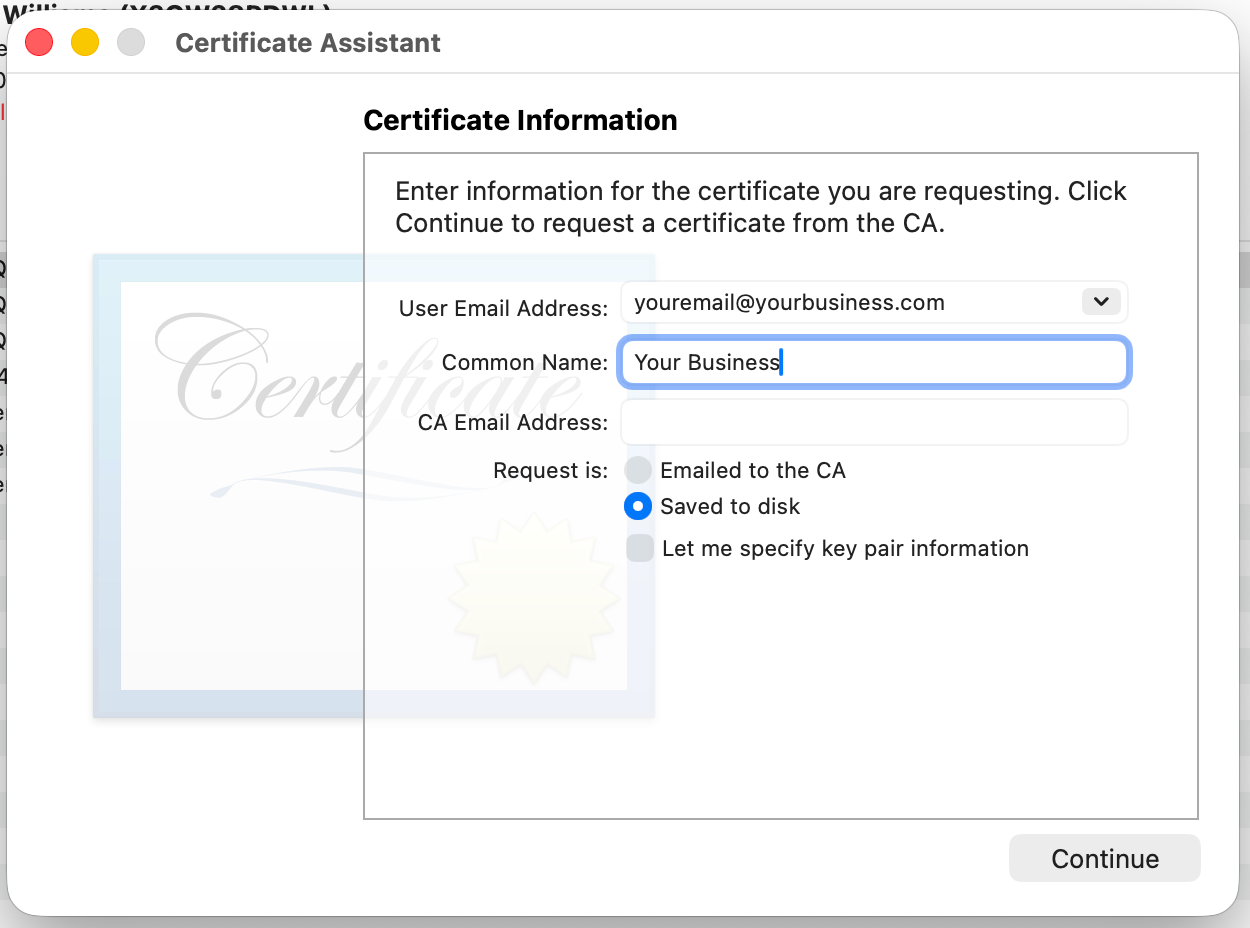
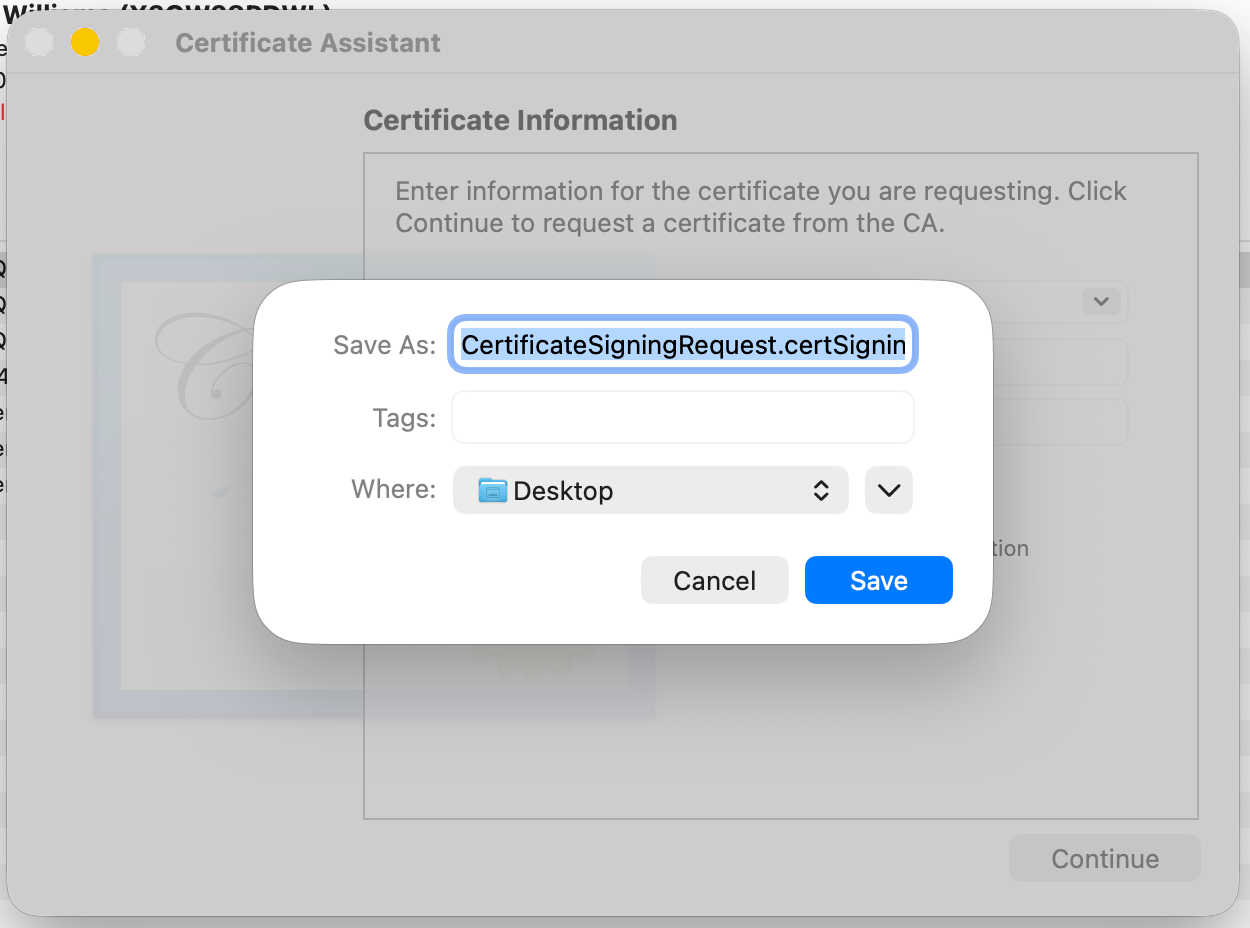
- Select Continue, then save the file. This creates a .certSigningRequest file you'll use in Step 4.
Step 3: Register a Pass Type ID
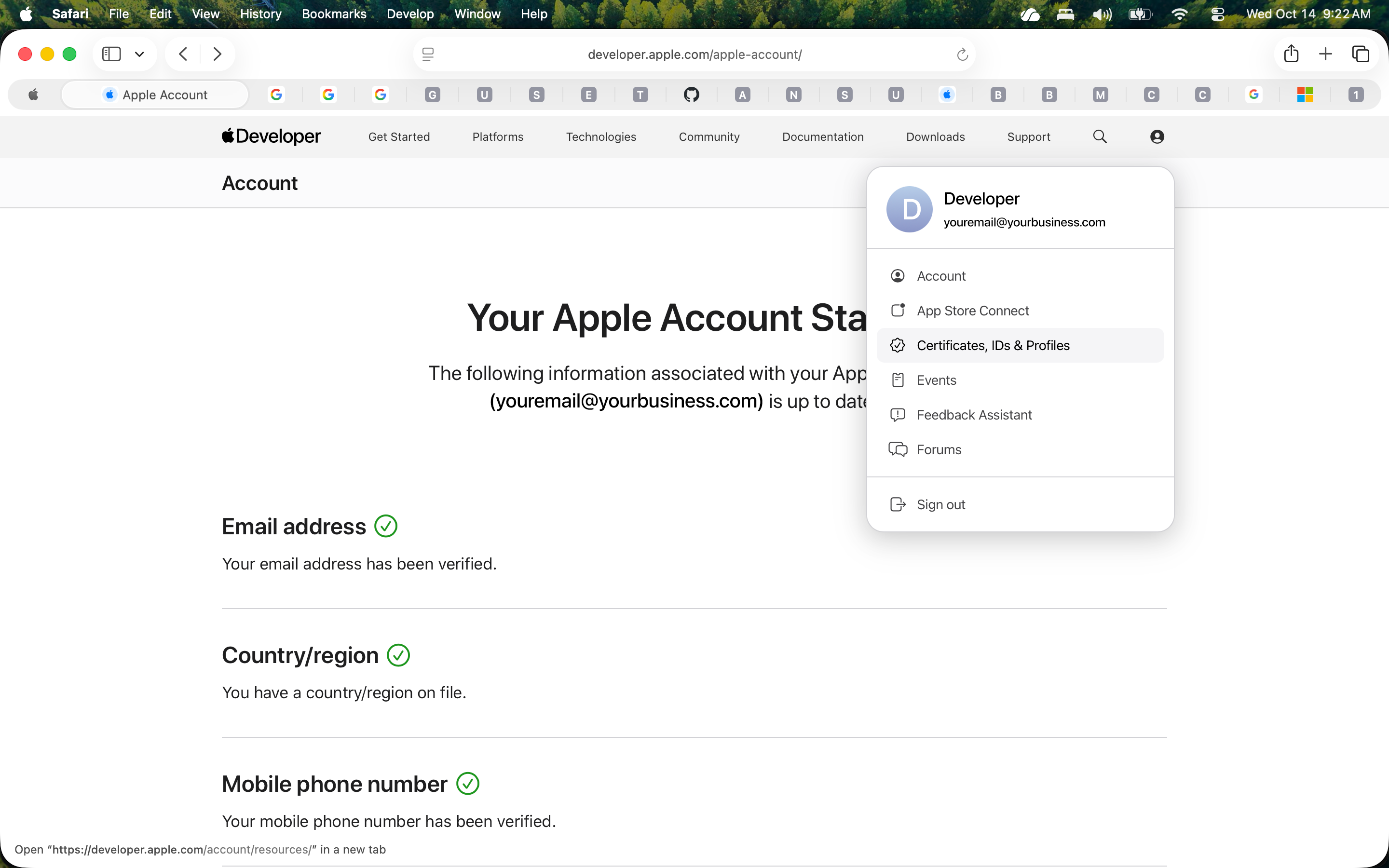
- Log in to your Apple Developer account - you'll need the Account Holder or Admin role - and go to Certificates, Identifiers & Profiles.
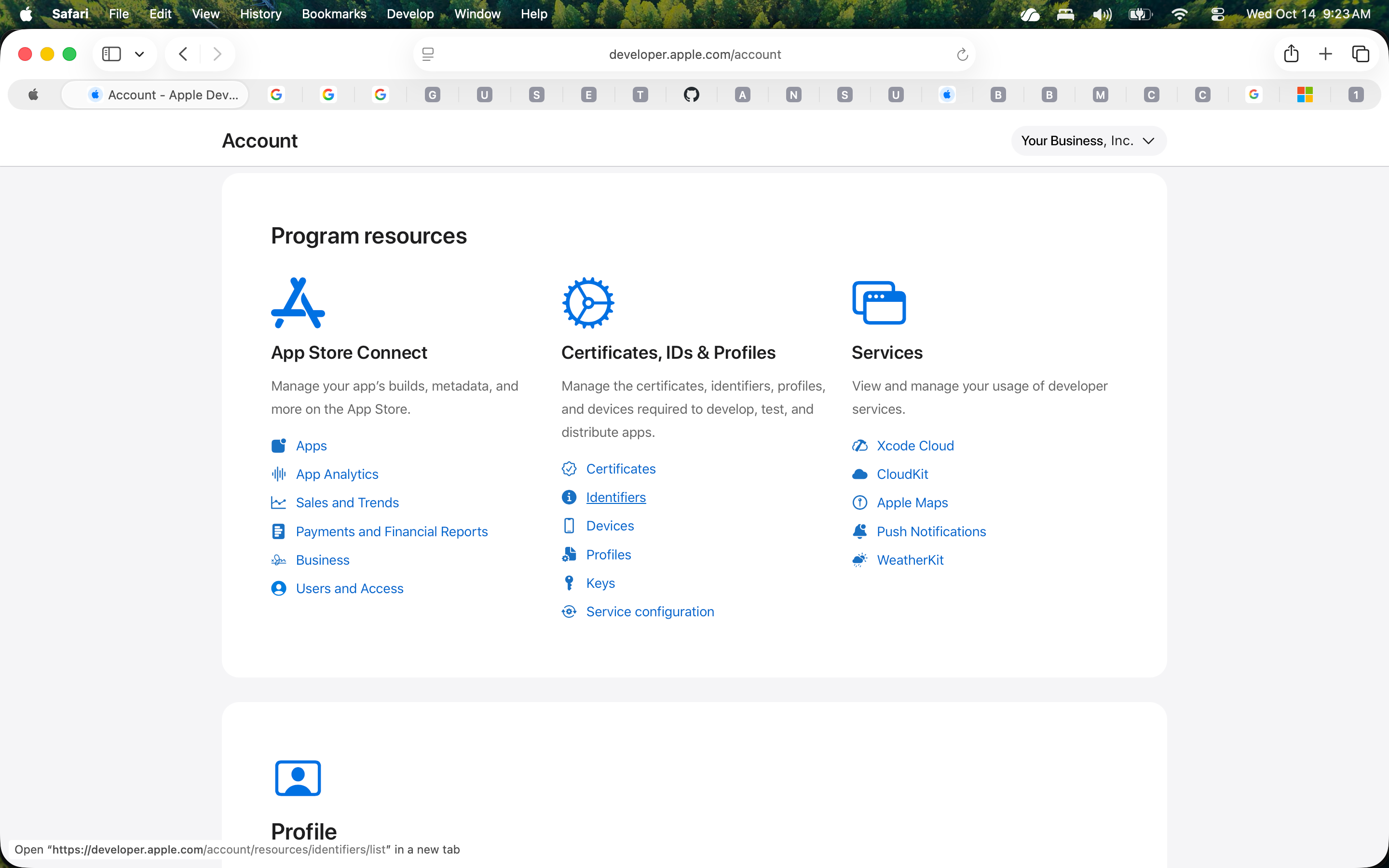
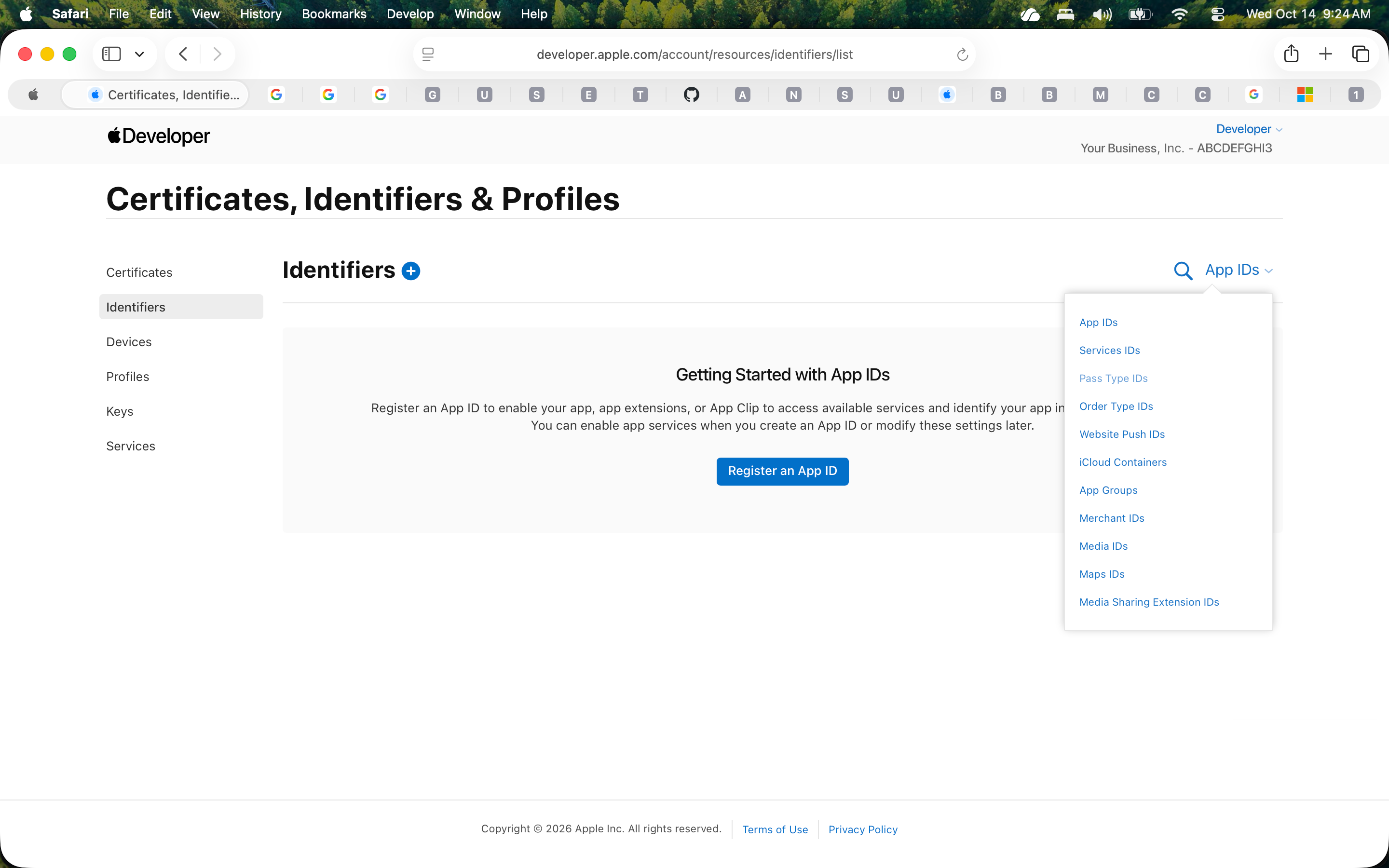
- Select Identifiers, then select the dropdown titled "App IDs" on the right-hand side.
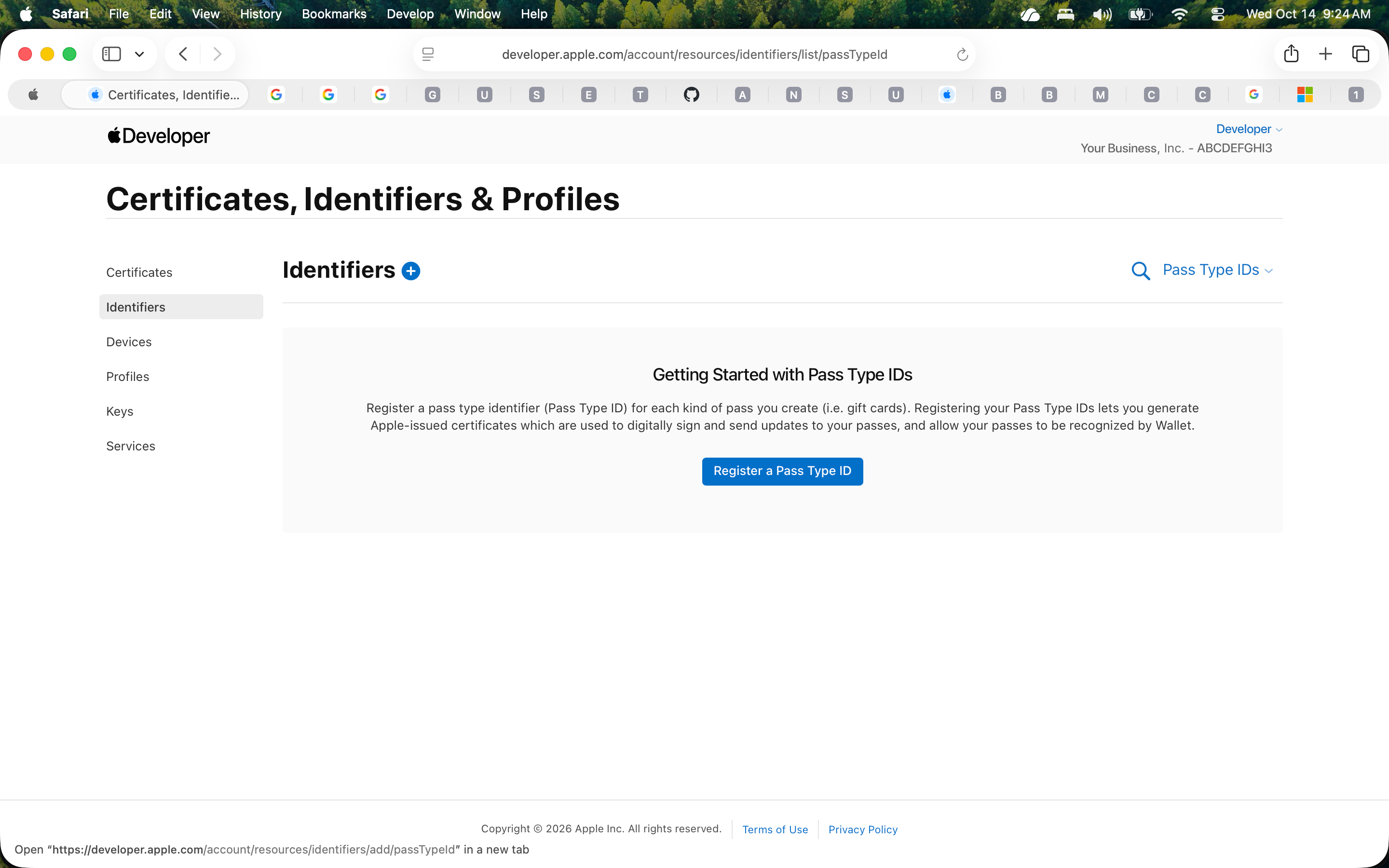
- Select Pass Type IDs, then select "Register a Pass Type ID".
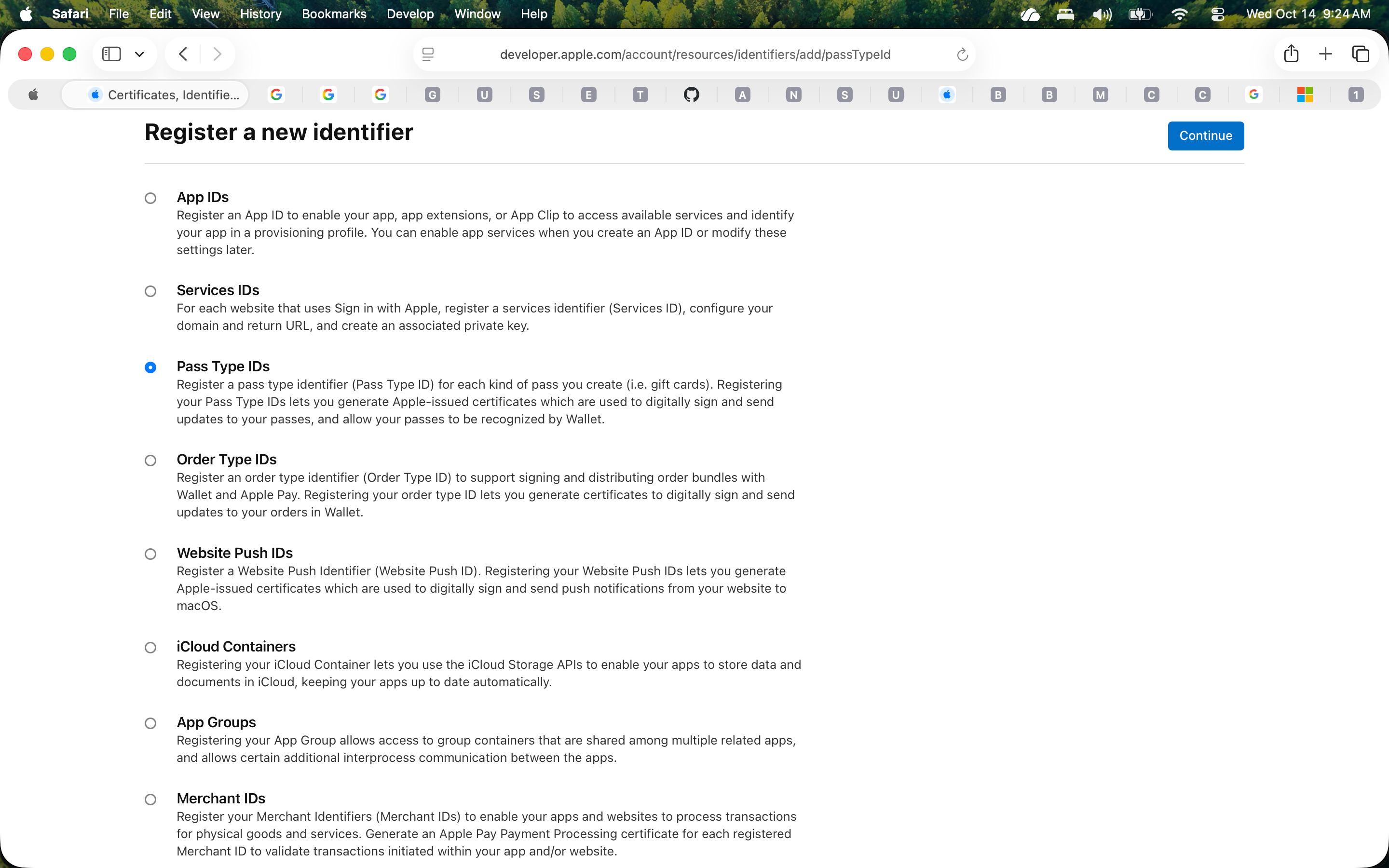
- Ensure "Pass Type IDs" is the only identifier selected then press "Continue"
- Enter a Description (a name to help you identify this Pass Type ID later) and an Identifier. The identifier typically follows the reverse-domain format pass.[your reversed domain].[pass name] - for example, pass.com.yourbusiness.loyalty.
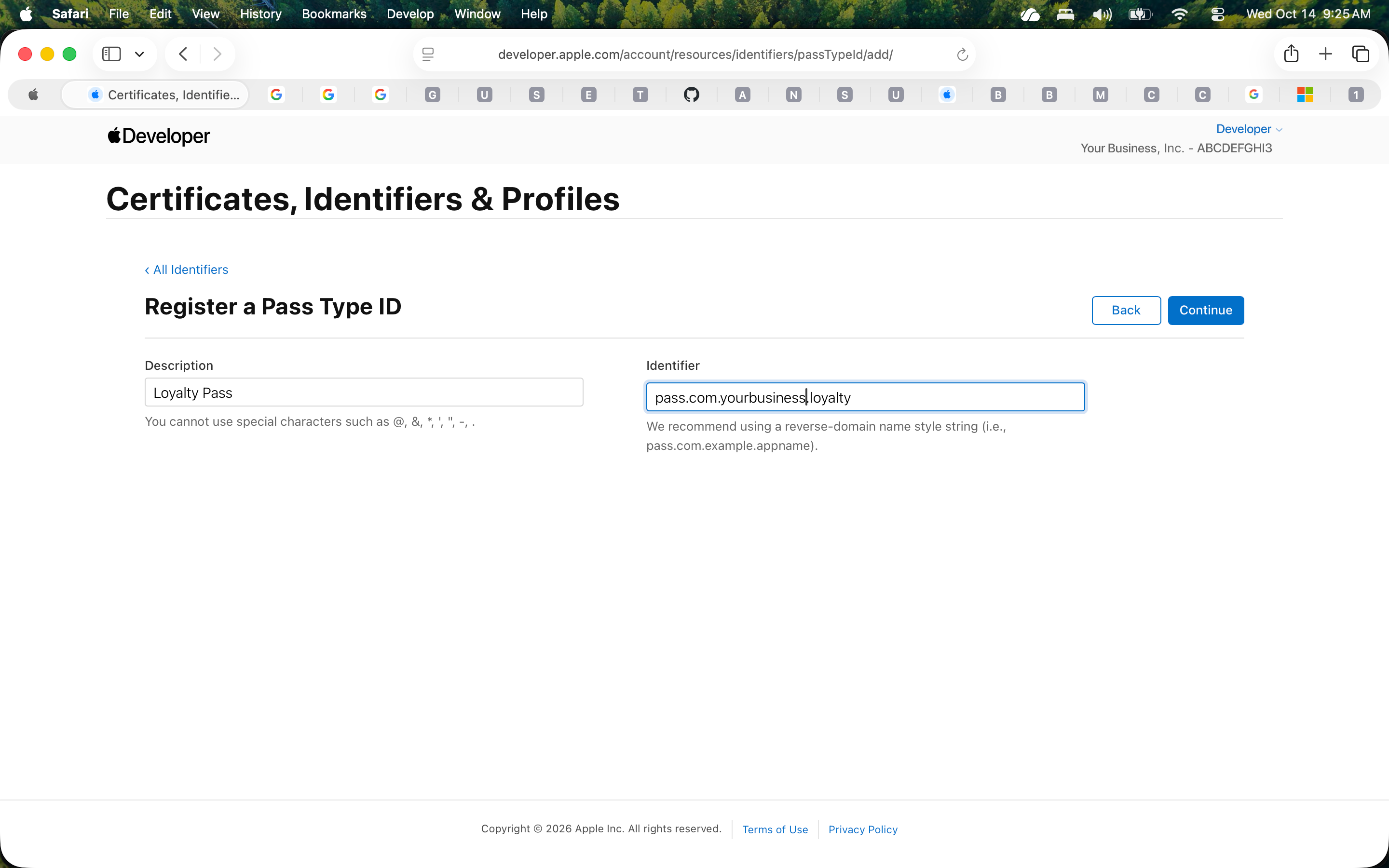
- Select Continue, review the information, then select Register.
Step 4: Generate the Pass Type ID Certificate
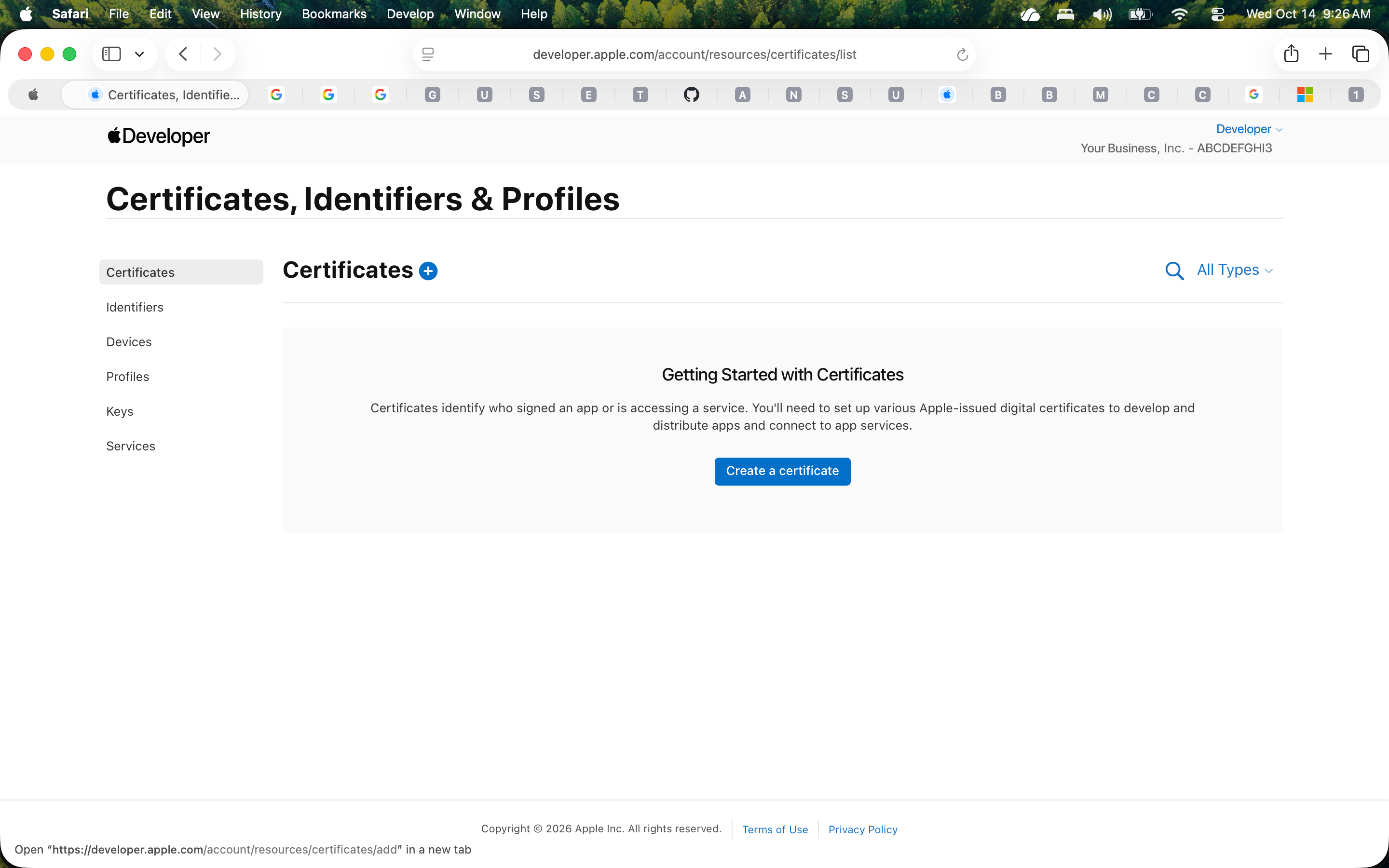
- Still in Certificates, Identifiers & Profiles, select Certificates, then select Create a certificate.
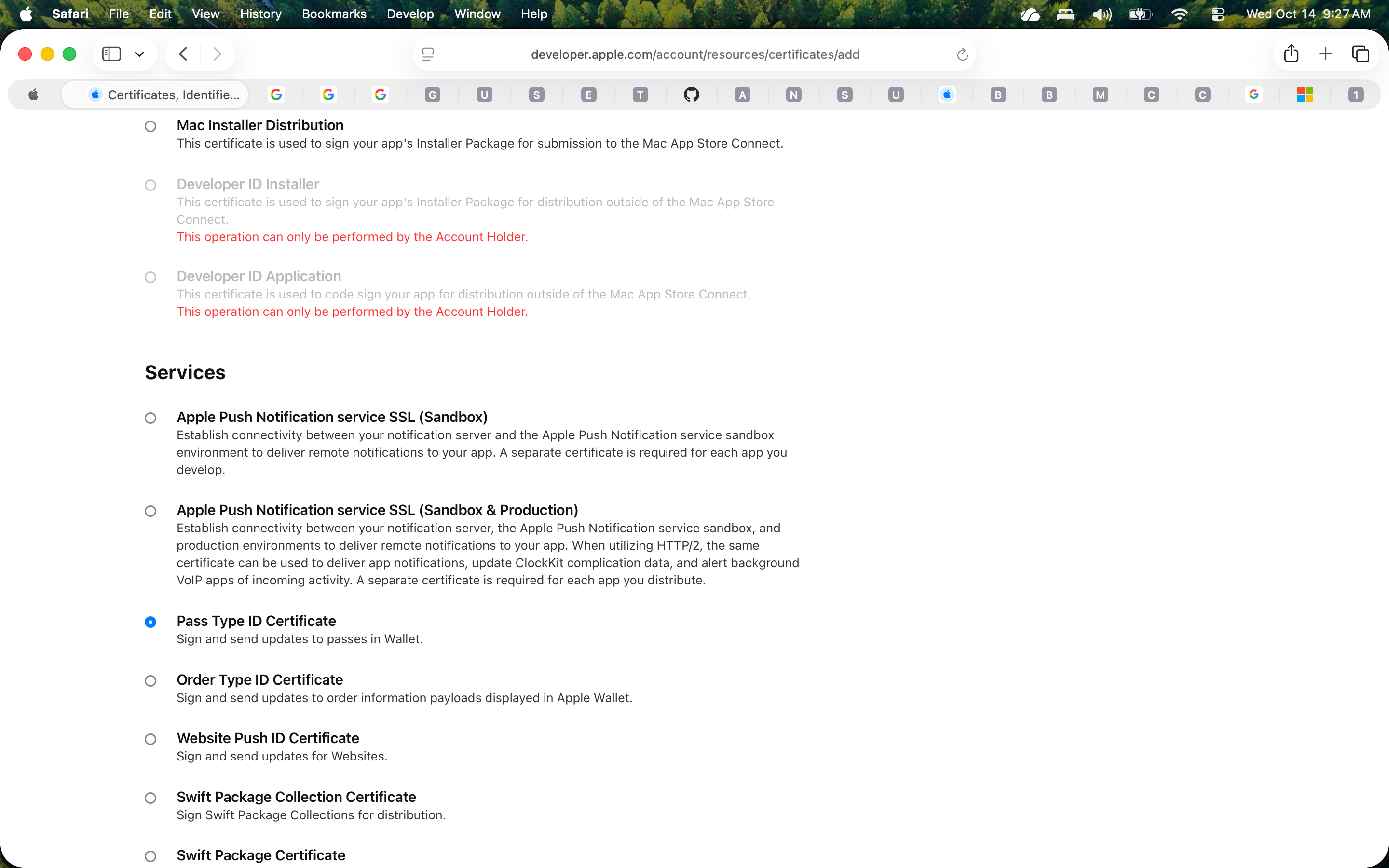
- Under Services, select Pass Type ID Certificate, then Continue.
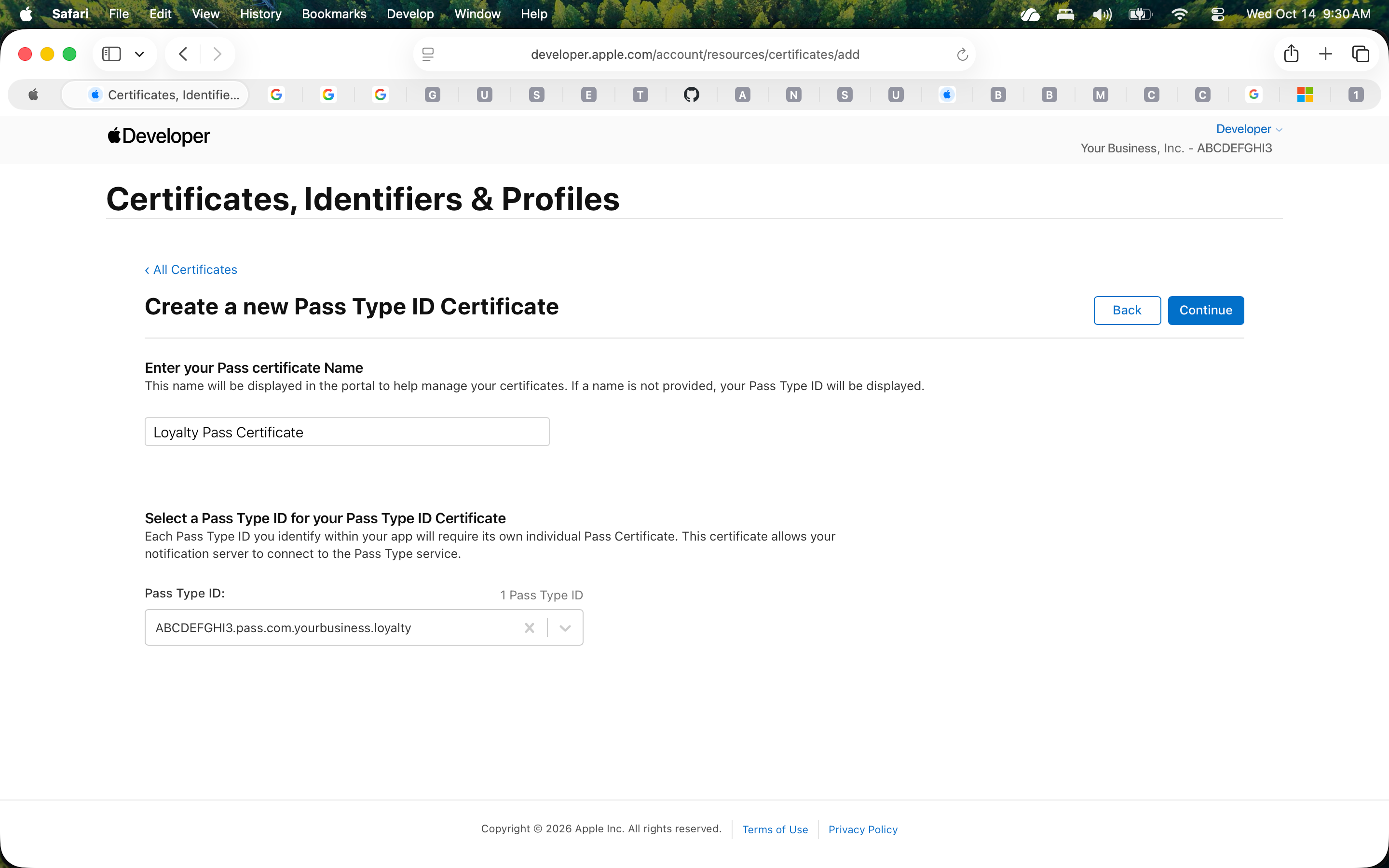
- Select the Pass Type ID you registered in Step 3, then Continue.
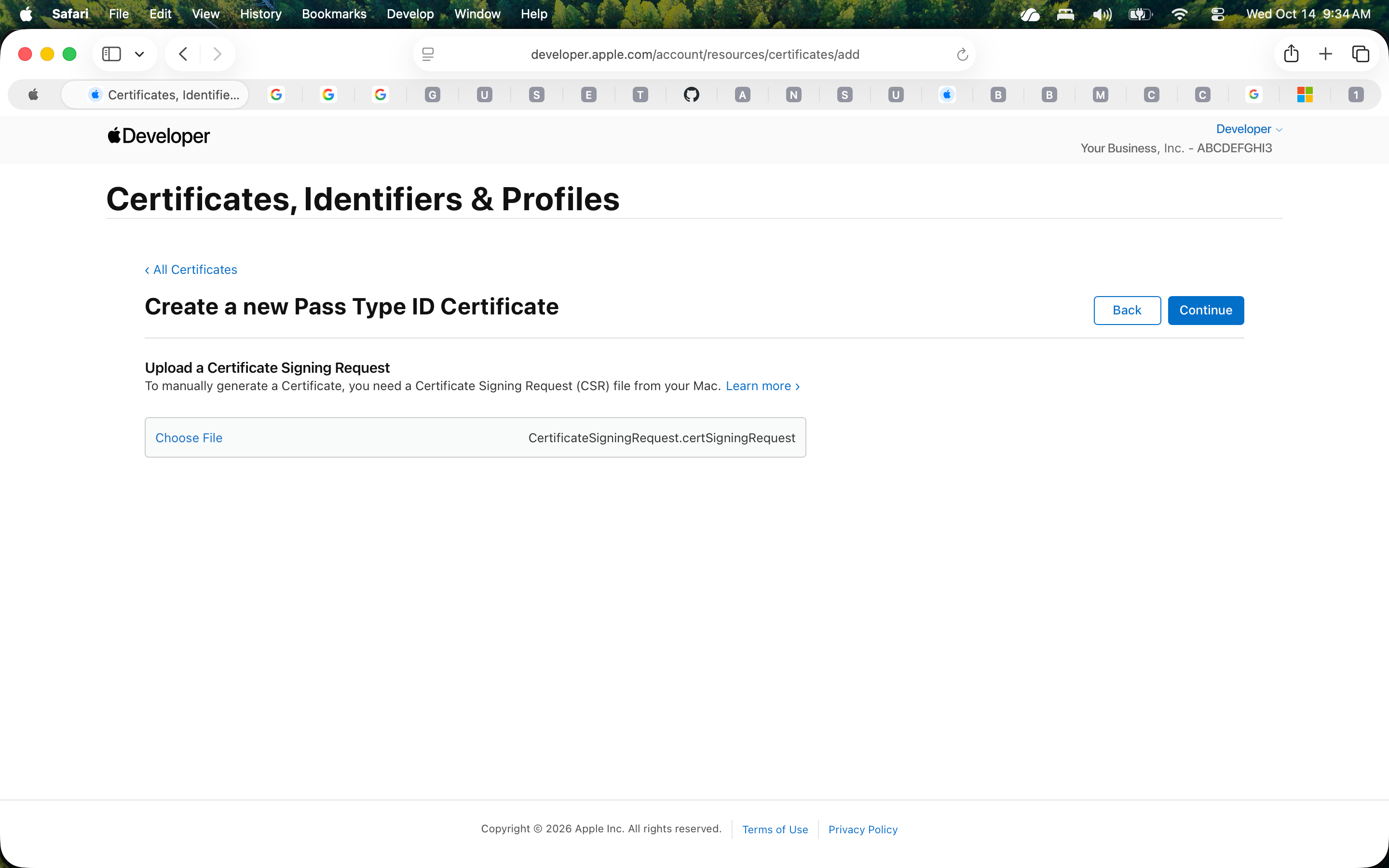
- Select Choose File and upload the .certSigningRequest file from Step 2, then Continue.
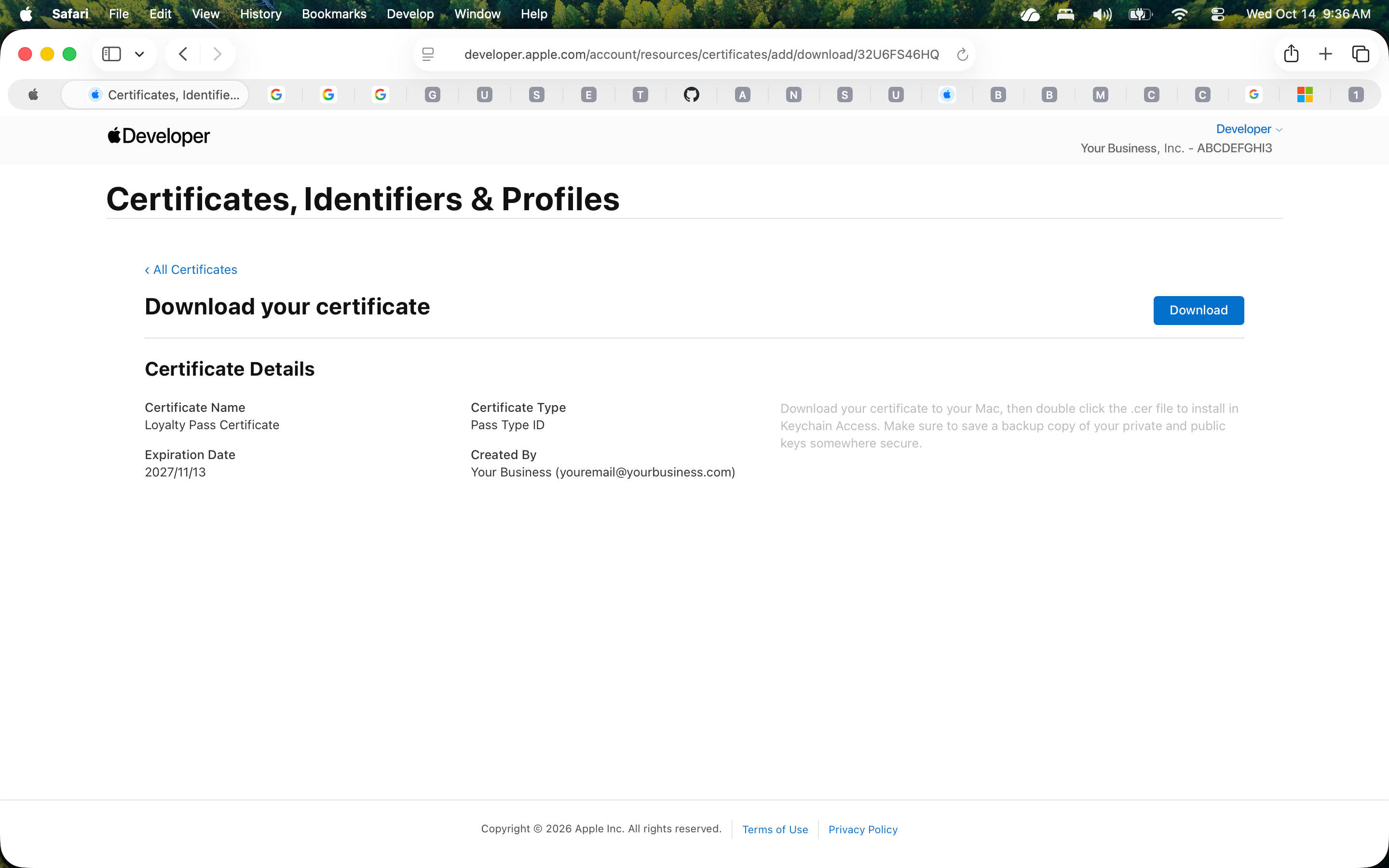
- Select Download to download the certificate (a .cer file) to your computer.
Step 5: Export Your .p12 Certificate File
- Double-click the downloaded .cer file to add it to Keychain Access - it will be added to your login keychain.
- In Keychain Access, select the My Certificates category and locate the certificate. It will be listed under your Pass Type ID name, with a disclosure arrow revealing an associated private key.
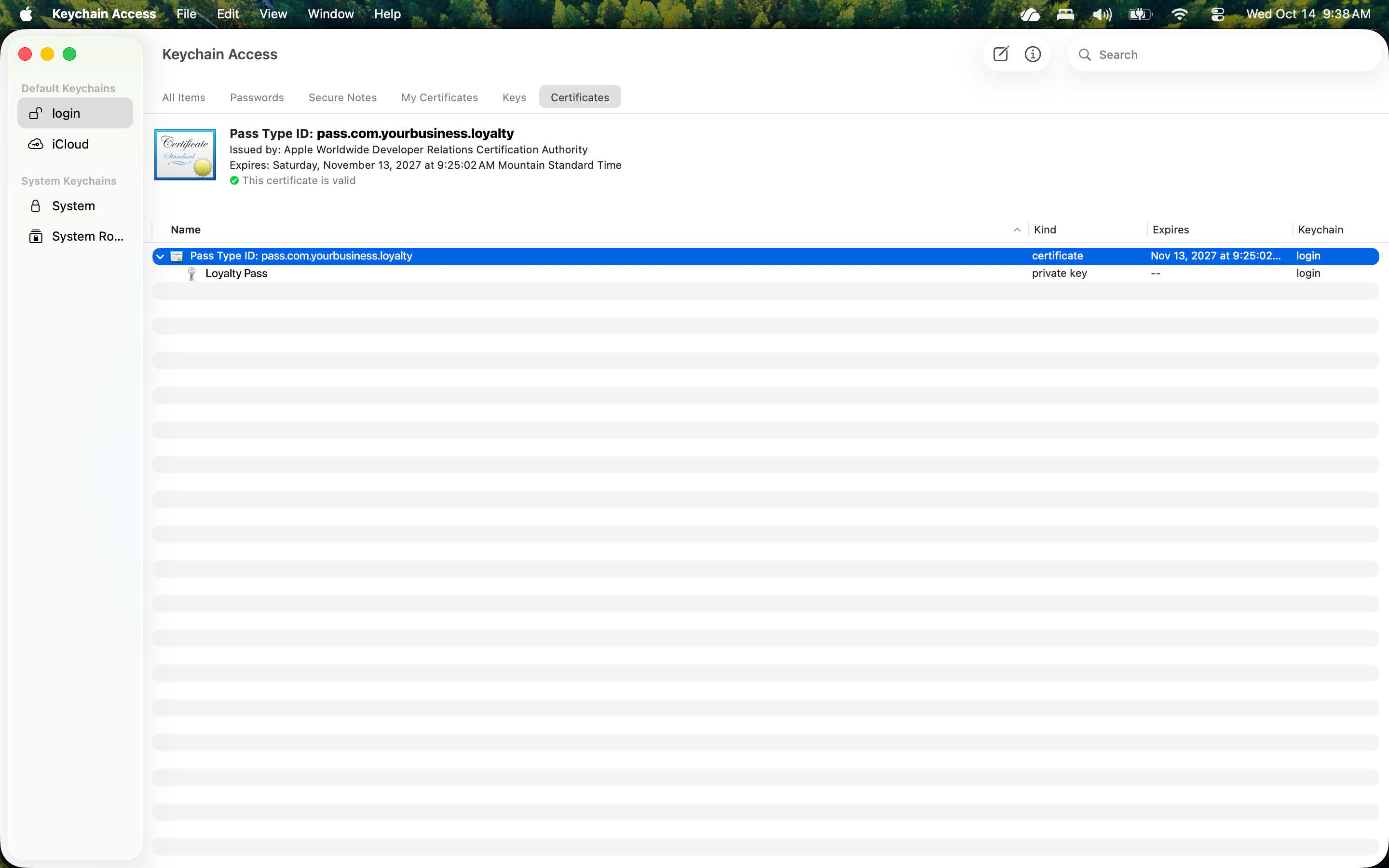
- Right-click (or Control-click) the certificate and select Export "Pass Type ID: ...".
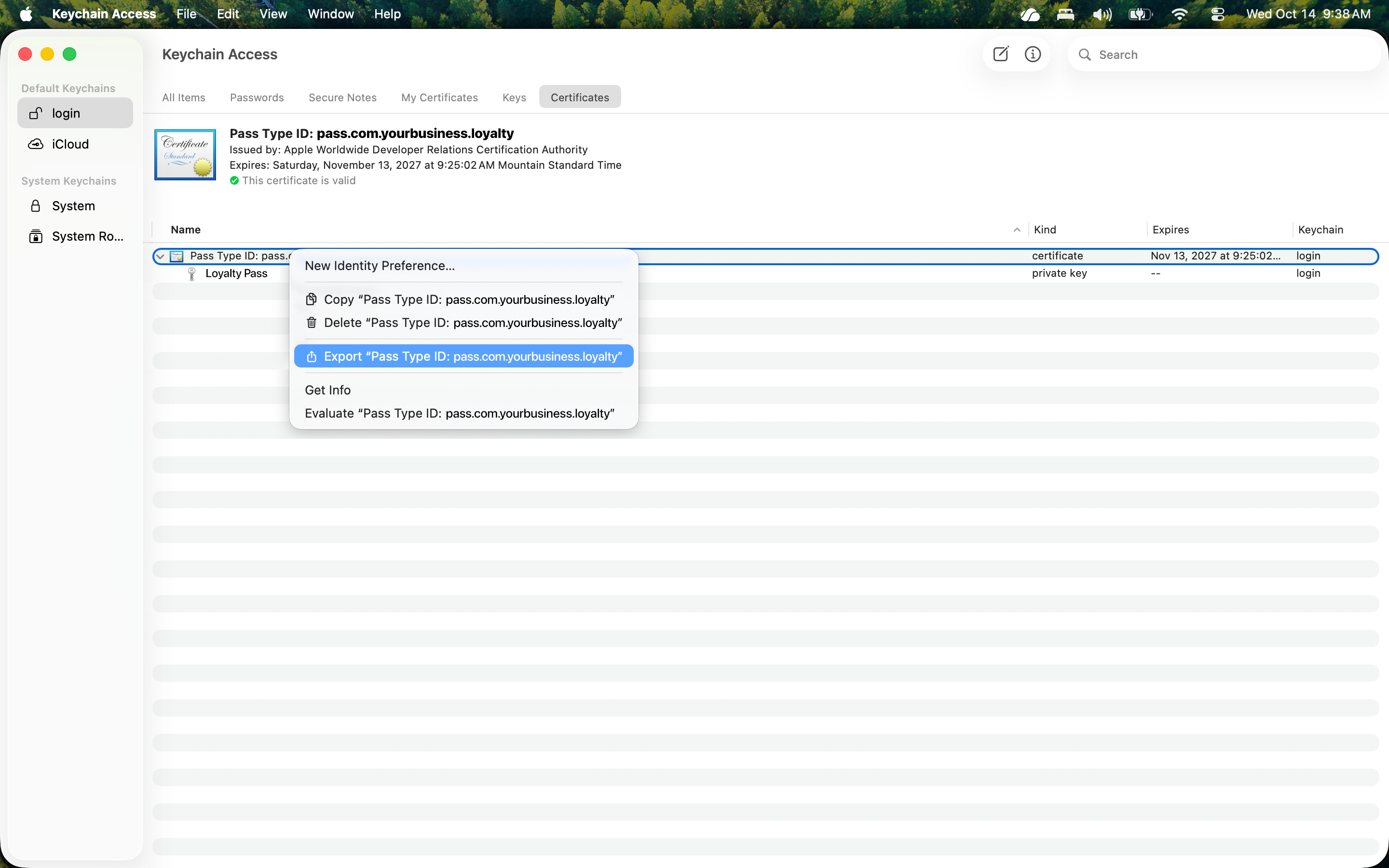
- Choose Personal Information Exchange (.p12) as the file format, name the file, then select Save.
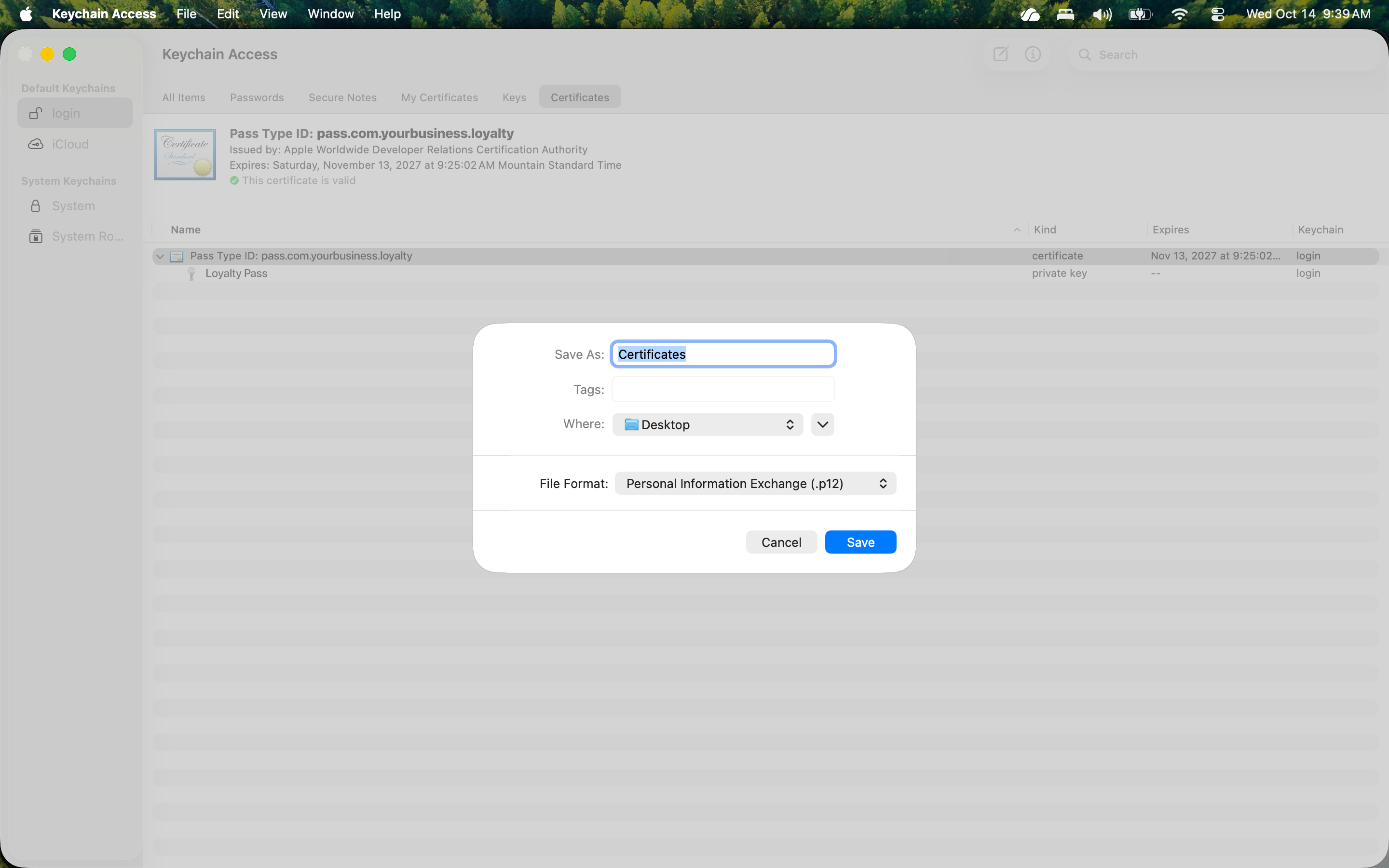
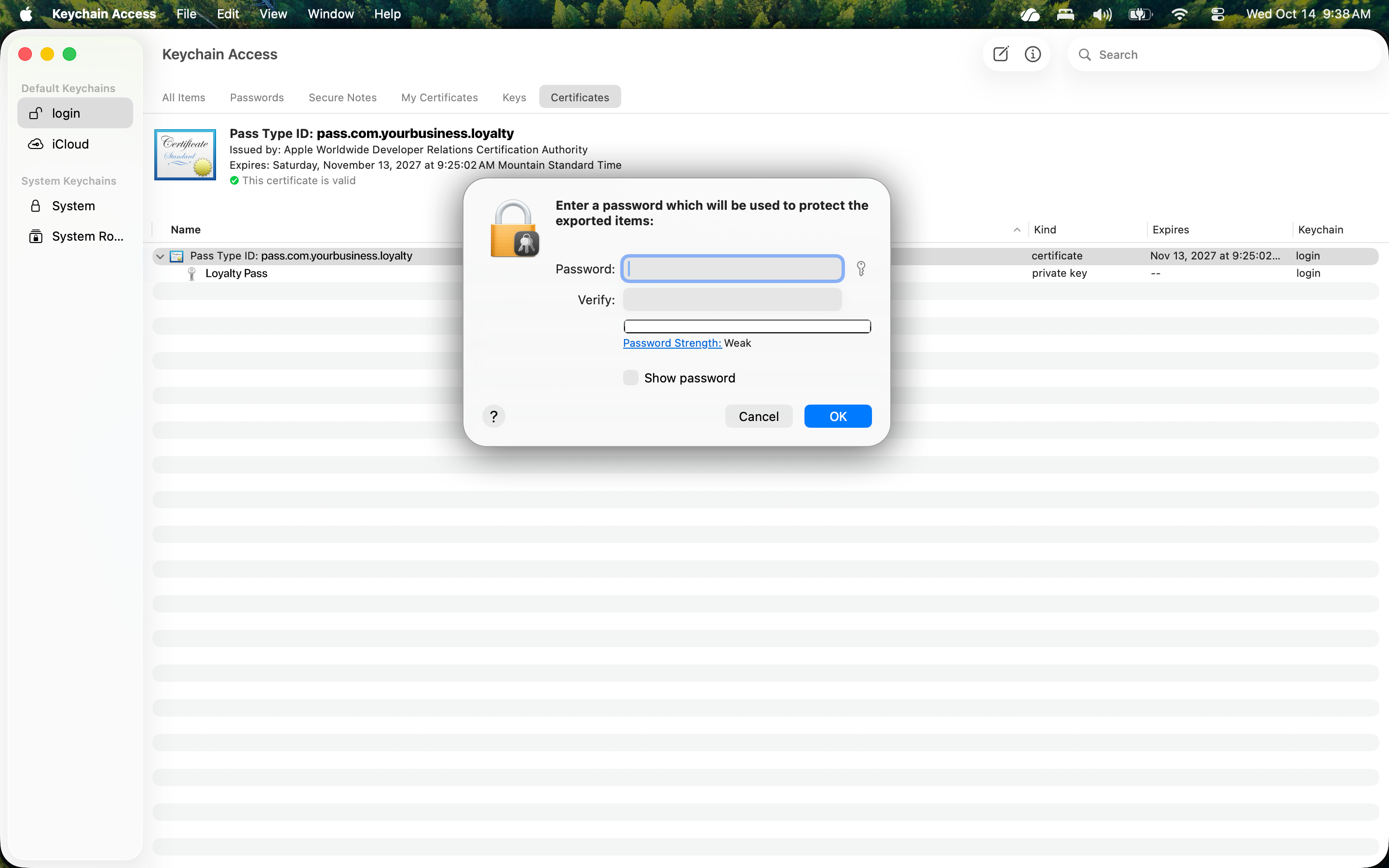
- When prompted, set a password to protect the file, or leave it blank. This becomes your P12 Password.
Step 6: Upload to POSaBIT Pass
- In the POSaBIT Pass - Designer flow, complete Step 3: Configure Certificates and select Upload Certificate.
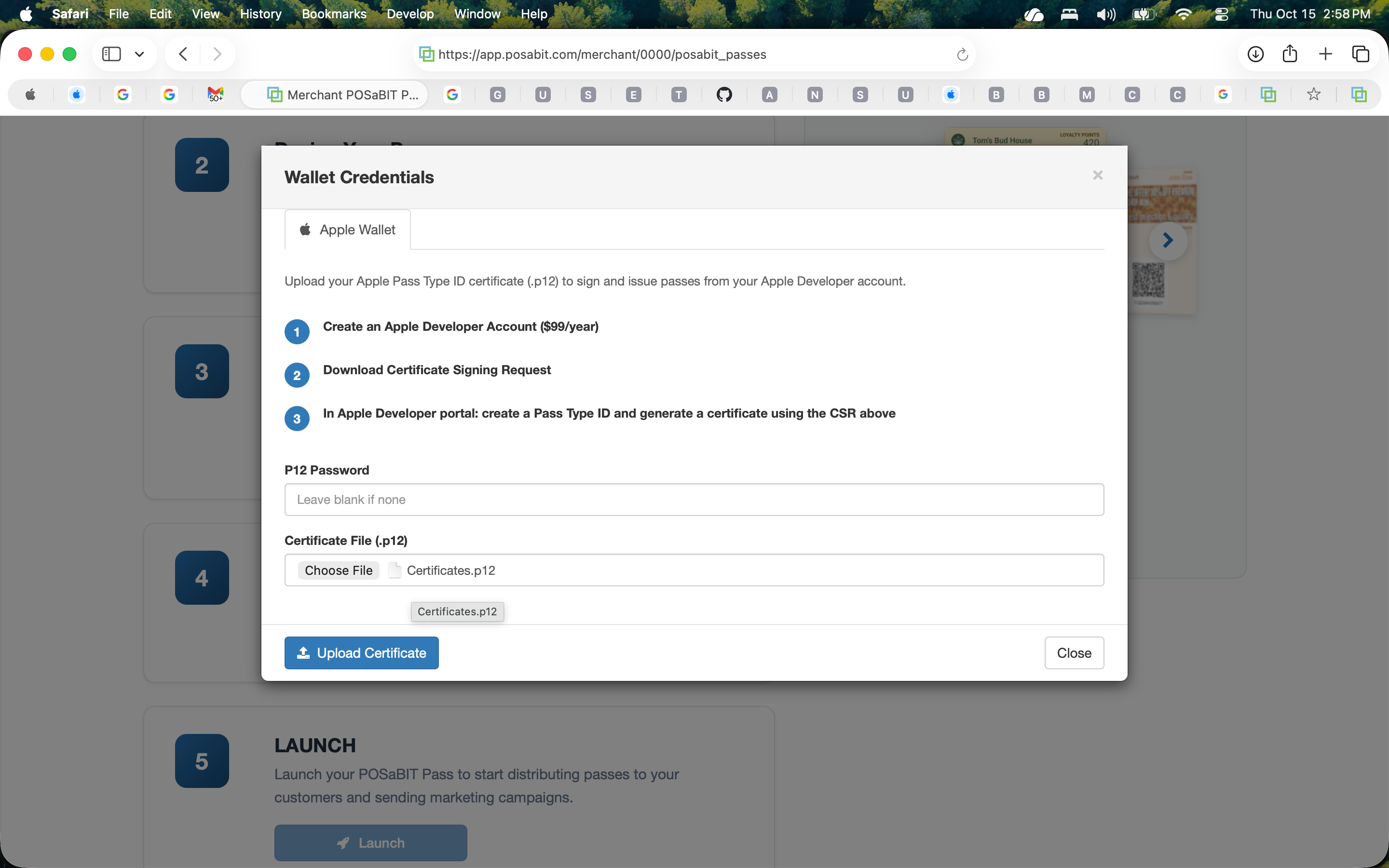
- On the Apple Wallet tab, enter your P12 Password (or leave it blank if you didn't set one), then select Choose File to upload your .p12 certificate file.
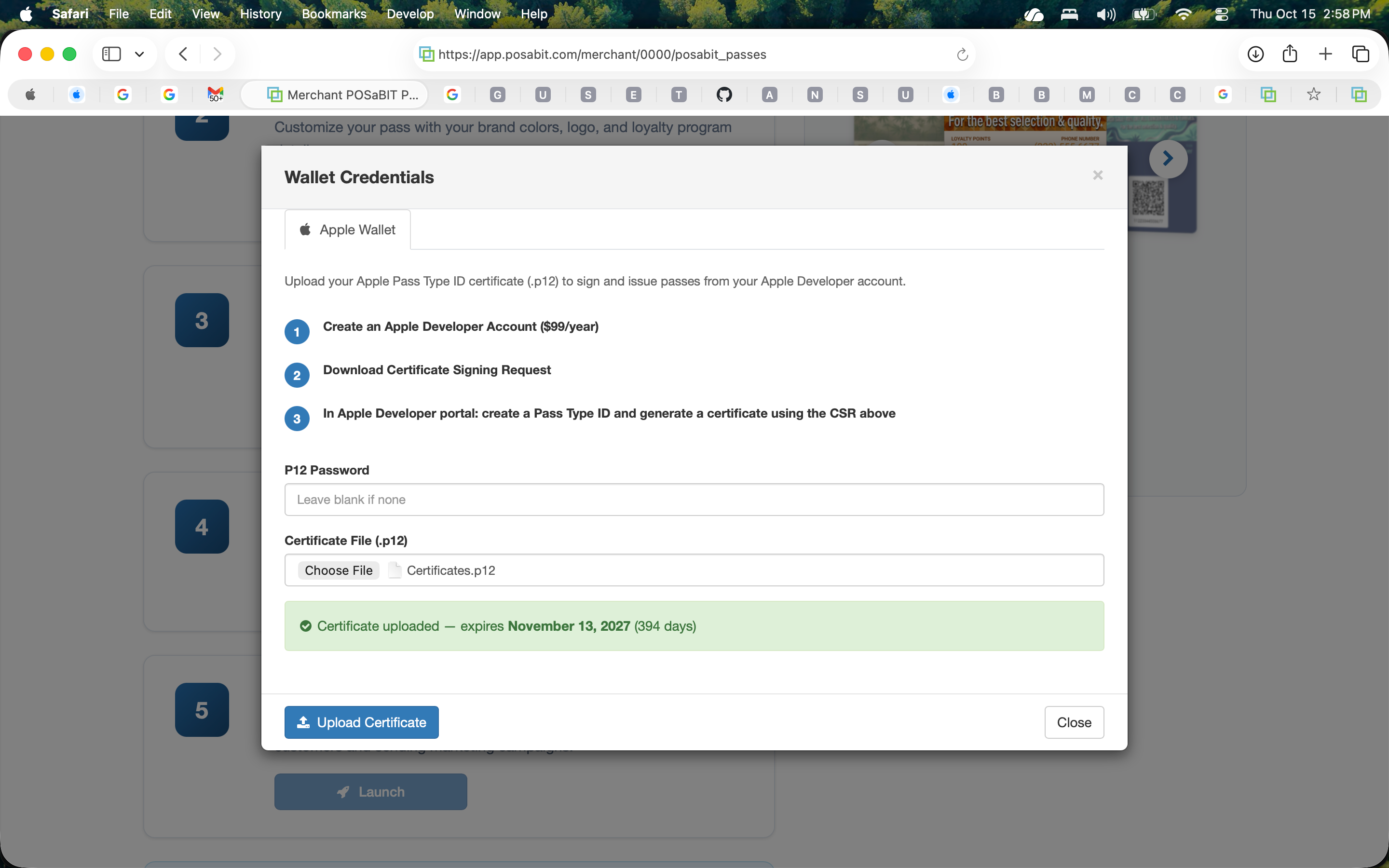
- Select Upload Certificate.
Certificate Renewal
Apple Pass Type ID certificates expire one year from the date they're issued and cannot be renewed - they can only be replaced with a new certificate tied to the same Pass Type ID. Apple typically sends a reminder email to the address on your developer account before your certificate expires; it's worth setting your own calendar reminder as a backup. If a certificate expires, passes already installed on customers' phones will continue to work, but you won't be able to issue new passes or push updates until you generate and upload a replacement using the same steps above (you can reuse the same Pass Type ID from Step 3 - you only need a new certificate).
