How to Generate and Send a New Campaign via POSaBIT Pass

POSaBIT Pass allows merchants to create and send unlimited campaigns via push notification to any loyalty customers who currently have a POSaBIT Pass downloaded to their phone.
- Selecting the notification opens the customer's Wallet Pass.
- You can add different links to the back of the pass - for example, to reference your menus.
Follow the steps below to generate and send a new campaign:
- Login to the POSaBIT web portal - https://app.posabit.com
- Navigate to Marketing and select Message Center.
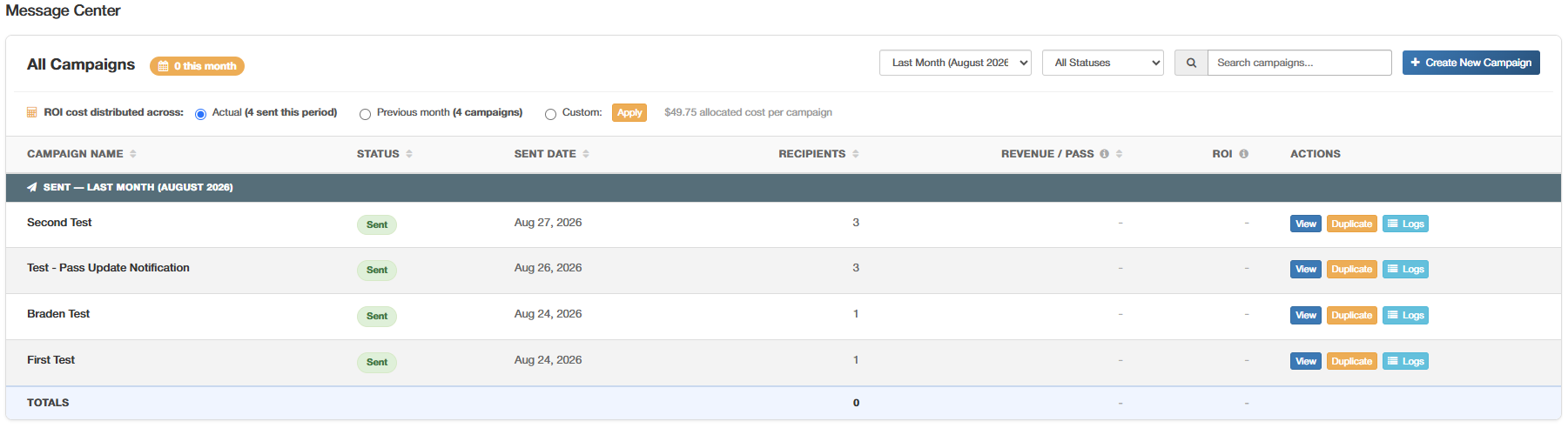
The Message Center displays an index of all campaigns currently in the Draft, Scheduled, or Sent state. Select Create New Campaign in the top right to build a new one.
The campaign generation page is split into two sections: a form on the left to build the campaign, and a live preview on the right showing how it will look. Use the iOS and Android toggle above the preview to switch between how the notification will appear on each platform.
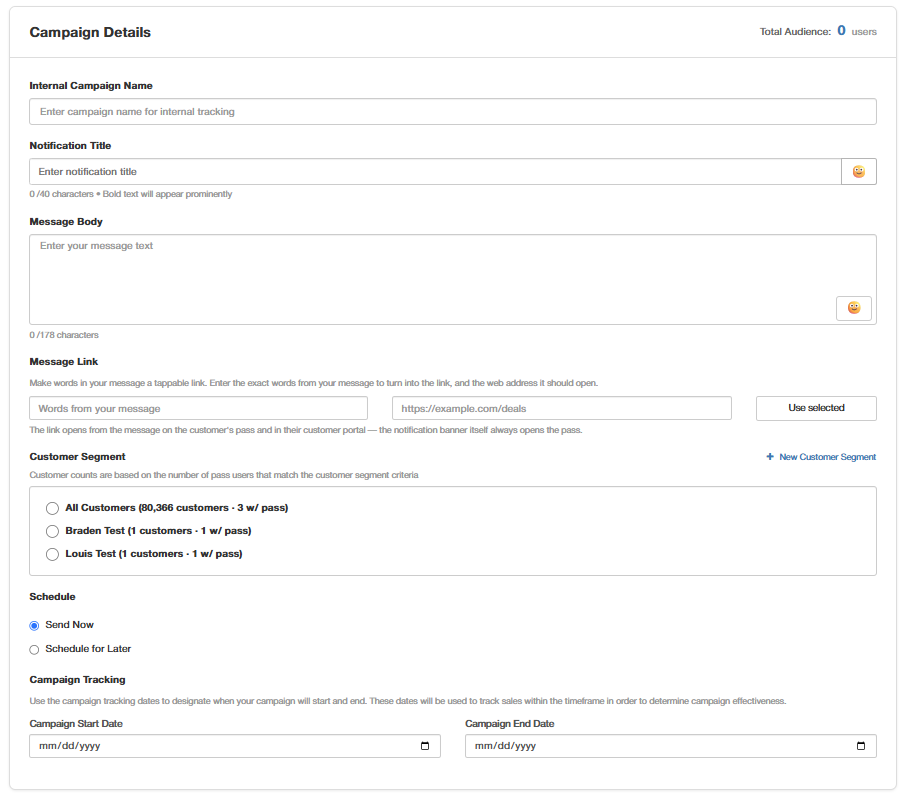
Campaign Details
In order to create a new push notification campaign, fill out the following fileds:
- Internal Campaign Name: This will be used within internal reporting to identify the campaign
- Notification Title: The notification title will be attached to the campaign push notification and displayed alongside the message within the pass details.
- Message Body: The message body is the actual text that will appear on the push notification sent to the loyalty customer's phone. Use the emoji picker to add an emoji to your notification message.
- Message Link: If you want to "Hyperlink" text within your message type out the exact text that you want to hyperlink within the left field under "Message Link". Then in the right field add the URL of the link you would like the hyperlink to route to.
Adding a Message Link can affect how the notification appears on Apple devices, causing the notification to be generalized to "Your Store Card Has Changed". However, the message within the pass detailes will contain the proper message with the hyperlinked text.
If you want to send a link within your message and avoid your message getting generalized, manually enter the URL into your message body.
Target Pass (if applicable)
- Select if you want your campaign to be sent to a specific Wallet Pass (identified via the linked customer portal). Or if you want to send the campaign to all wallet passes under the merchant account.
Schedule
- Defaults to Send Now - selecting Send Campaign sends the campaign immediately.
- Select Schedule for Later to choose a specific date and time to send the campaign, based on your local time.
Campaign Tracking
- Enter a Campaign Start Date and End Date. POSaBIT uses this window to track transactions from consumers who received the campaign - any recipient who makes a purchase within the start and end date is counted toward this campaign's success metrics.
When your campaign is ready, select Save Draft to save it without sending or scheduling it, or select Schedule Campaign or Send Campaign - the button reflects whichever option is set in the Schedule field - to finish.