How to Monitor Campaign Performance

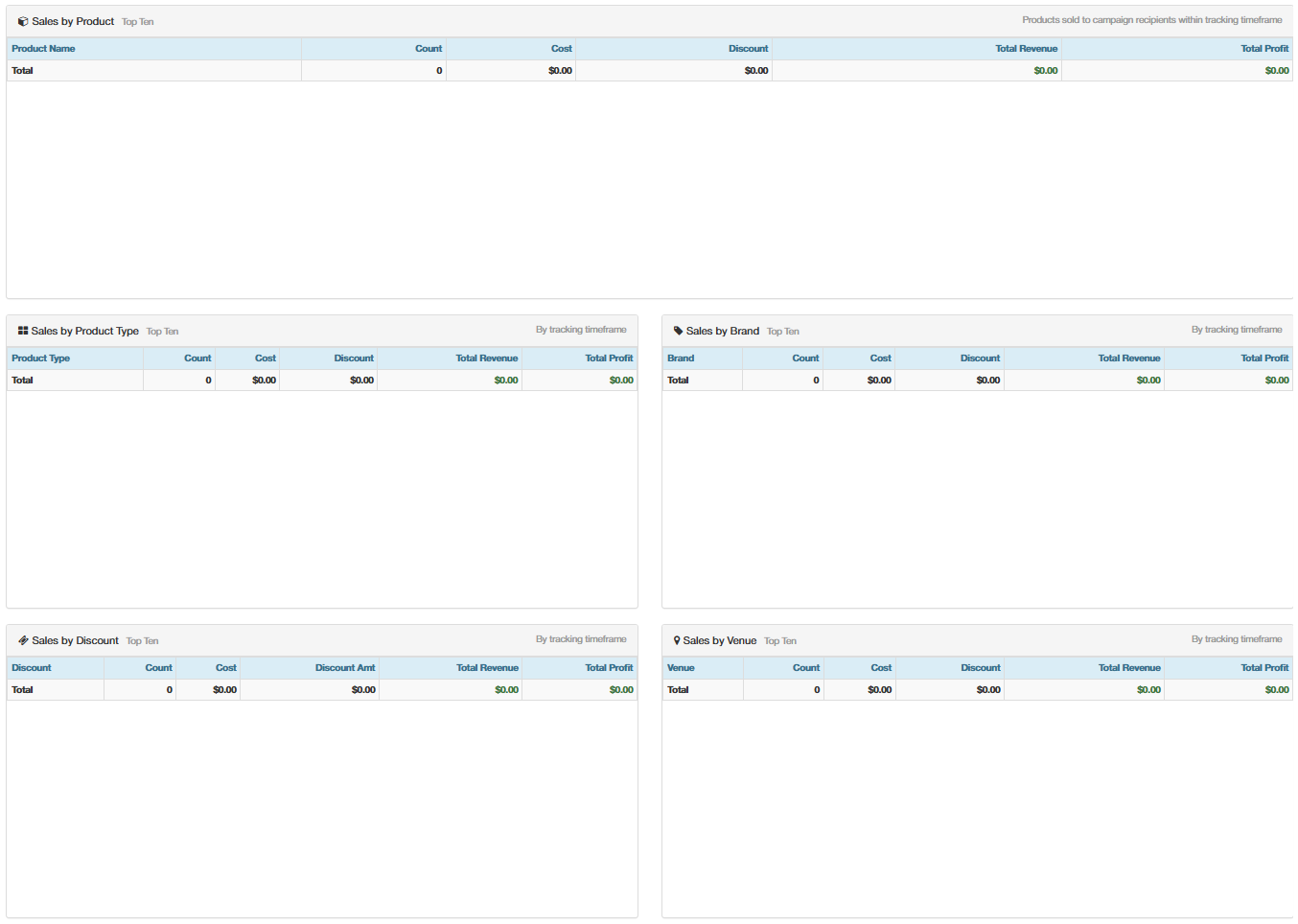
Monitoring a campaign gives merchants visibility into how it performed. This includes high-level conversion and recipient data, ROI metrics, graphics showing engagement over time for the campaign, and a breakdown of sales made by consumers who received the campaign - including sales by product, sales by product type, sales by brand, sales by discount, and sales by venue.
Follow the steps below to monitor campaign performance:
- Login to the POSaBIT web portal - https://app.posabit.com
- Navigate to Marketing and select Message Center.
- Locate the sent campaign you'd like to view, then select the blue View button under the Actions column.
The page updates to a dashboard showing all of the performance metrics for that campaign.
Campaign Summary
At the top of the dashboard, you'll see:
- Campaign Name
- Status (Sent)
- When the campaign was sent
- Number of recipients
- Any discount attached to the campaign
- Number of sales
- When sales data was last updated for this campaign
ROI
Since POSaBIT Pass offers unlimited campaigns for a fixed monthly cost, the cost attributed to any single campaign depends on how many campaigns are sent that month. The ROI section lets you customize how that cost is calculated across this page, using one of three options:
Option | Description |
Actual | Divides your fixed monthly POSaBIT Pass cost by the actual number of campaigns sent that month. For example, if you send 5 campaigns in a month and pay $100/month for POSaBIT Pass, $20 is attributed to each campaign for ROI purposes. |
Previous | Uses the total number of campaigns sent during the previous successful month to calculate the cost applied to each campaign. |
Custom | Lets you manually enter the number of campaigns you expect to send in the given month - the monthly cost is then allocated across that number. |

Performance Stats
Below the ROI section, five high-level stat boxes summarize how the campaign performed:
Stat | Description |
Total Recipients | The total number of loyalty pass holders who received the notification. |
Conversion Rate | Of the total recipients, how many made a purchase within the campaign's tracking start and end date. |
ROI | Compares the total revenue from purchases made within the tracking time frame by recipients against the cost calculated in the ROI section above. |
Revenue Attributed | The total revenue collected for this campaign. Subtext shows the number of orders that revenue came from, along with total sales profit. |
Revenue Per Recipient | Revenue Attributed divided by the total number of recipients, giving an average revenue per recipient. Subtext shows how this average is calculated. |

Engagement Over Time
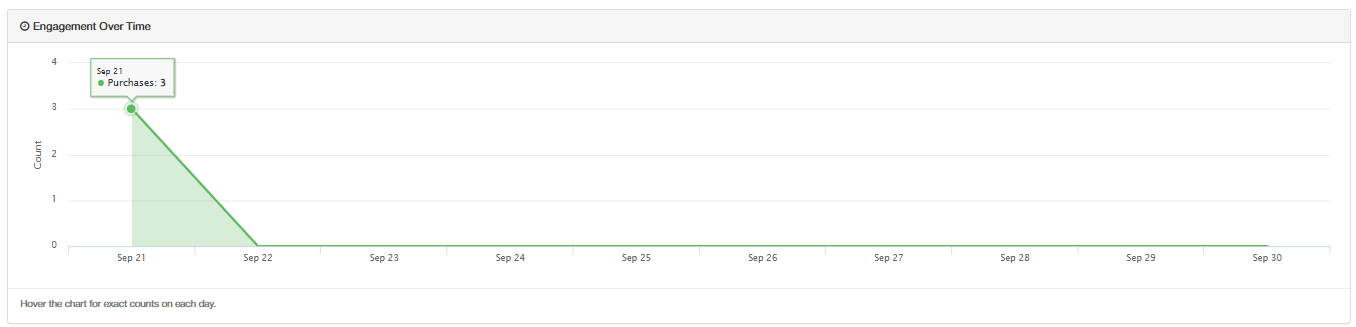
Below the stat boxes on the left, a line graph shows engagement over time - plotting the number of purchases made by recipients of the campaign for each day between (and including) the campaign's tracking start and end date.
Message Preview and Campaign Details
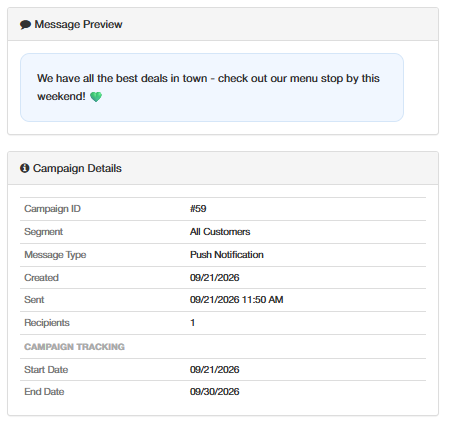
Next to the Engagement Over Time graph, on the right, you'll find a Message Preview showing what the message looked like as it was sent to recipients, along with the following campaign details:
- Campaign ID
- Customer Segment used to send the campaign
- Message Type (always Push Notification)
- When the campaign was sent
- Number of recipients
- Campaign tracking start and end date
Sales Breakdowns
Below the Engagement Over Time graph, five tables show the top 10 items in each category, based on sales made by consumers who received the campaign: Sales by Product, Sales by Product Type, Sales by Brand, Sales by Discount, and Sales by Venue.