How to Monitor Push Notification Logs

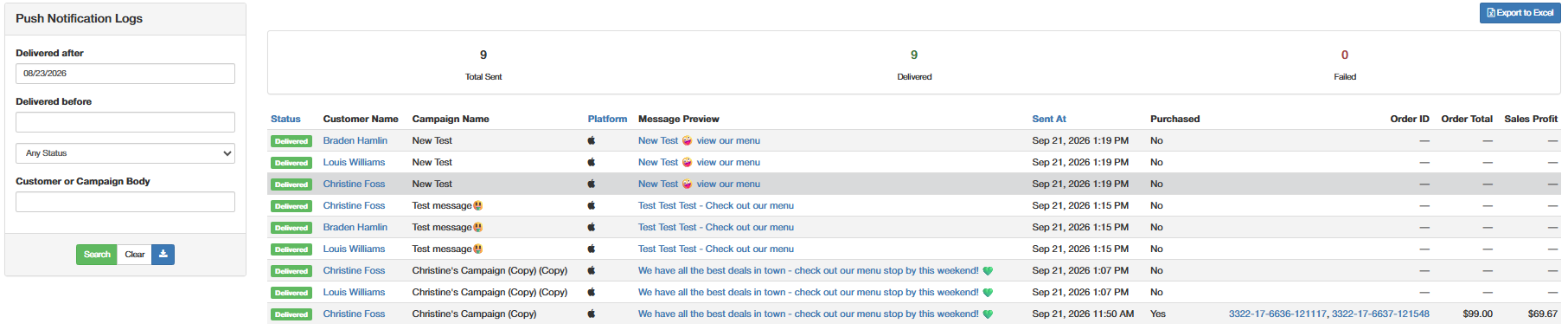
Push Notification Logs let merchants monitor campaigns sent within a specific date range or status. For each notification, the log shows which customer and platform (Apple or Google) it went to, the message that was sent, and whether that customer made a purchase within the campaign's tracking window - including a link to the transaction, order total, and sales profit if they did.
Follow the steps below to monitor push notification logs:
- Login to the POSaBIT web portal - https://app.posabit.com
- Navigate to Marketing and select Push Notification Logs.
Filters
Filter | Description |
Delivered After | Date |
Delivered Before | Date |
Status | Delivered, Failed, or Pending. |
Customer or Campaign Body | A general search field - search for a specific customer, or for specific text within a campaign's message body. |
Once you've set the filters you'd like to use, select the green Search button at the bottom to apply them. Select Clear to reset the filters, or select the Download button to export the filtered logs. You can also select the blue Export to Excel button in the top right corner, which works the same way as the Download button.
Overview
At the top of the page, you'll see summary data for the current filtered time frame: Total Sent, Delivered, and Failed.
Log Table
The table below shows each push notification, with the following columns:
Column | Description |
Status | (Apple ONLY) The delivered status of that message (Delivered, Failed, or Pending) |
Customer Name | The name of the customer name tied to the loyalty account |
Campaign Name | The internal name set on the campaign |
Platform | The loyalty customer's device type, (Apple or Google) |
Message Preview | A preview of the message the customer was sent. |
Sent At | Date/Time the notification was pushed to the loyalty customer |
Purchased | Identifies if the customer made a purchase within the start & end date of the campaign tracking. |
Order ID | If a purchase was made, this will populate with a clickable order ID that opens directly up to that associated sales record. |
Order Total | If a purchase was made, this will populate with the total purchase amount. |
Sales Profit | If a purchase was made, this will populate with the total profit amount (Order total - costs) |
Message Details
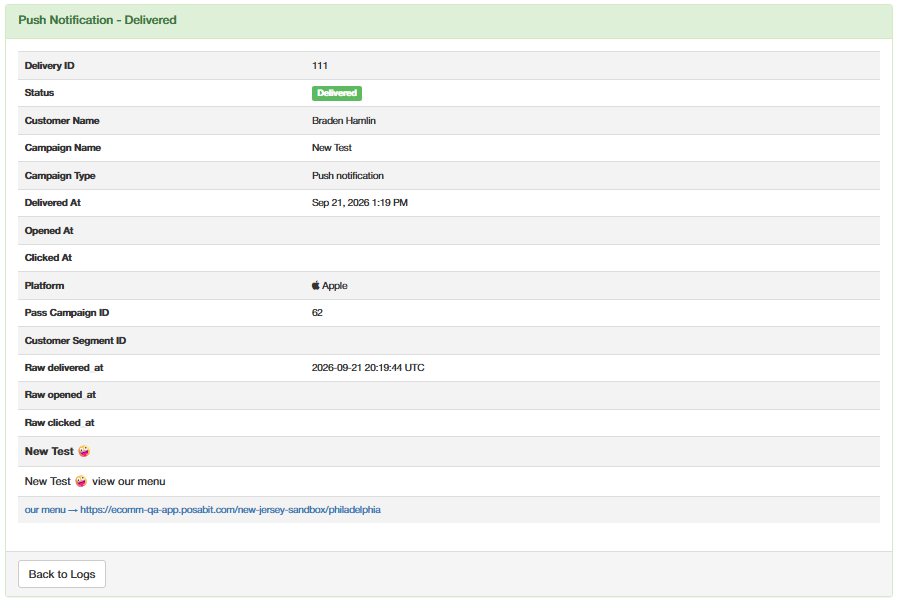
Select any message in the log table to open its details page. The top of the page shows the main details for that notification:
Field | Description |
Campaign Type | For now this will always populate as "Push Notification" |
Platform | The loyalty customer's device type, (Apple or Google) |
Campaign ID | The ID of the campaign this notification was sent from. |
Customer Segment | The customer segment the campaign was sent to. |
Below the main details, the Raw Data section shows exactly what was sent to the customer:
Field | Description |
Title | The title of the push notification. |
Message | The full message body of the push notification. |
Link | The link included with the push notification. |