How to Export the POSaBIT Order Planner Report from POSaBIT and Import into Cultivera

POSaBIT maps your Cultivera SKU IDs to the corresponding products in POSaBIT. This mapping enables seamless exports from the POSaBIT Order Planner.
After building a reorder in Order Planner, you can export a cultivera-compatible file and import it directly into Cultivera to quickly create a new cart, reducing manual work and streamlining the ordering process.
Step by Step Instructions:
- Login to your POSaBIT Product Catalog account.
- Navigate to the Order Planner from the main menu.
- Select the Retailer you are building an order for using the Retailer dropdown.
- Select the products you want to add to an order - adjust the item quantity and unit cost as needed from the Order Summary tab in POSaBIT.
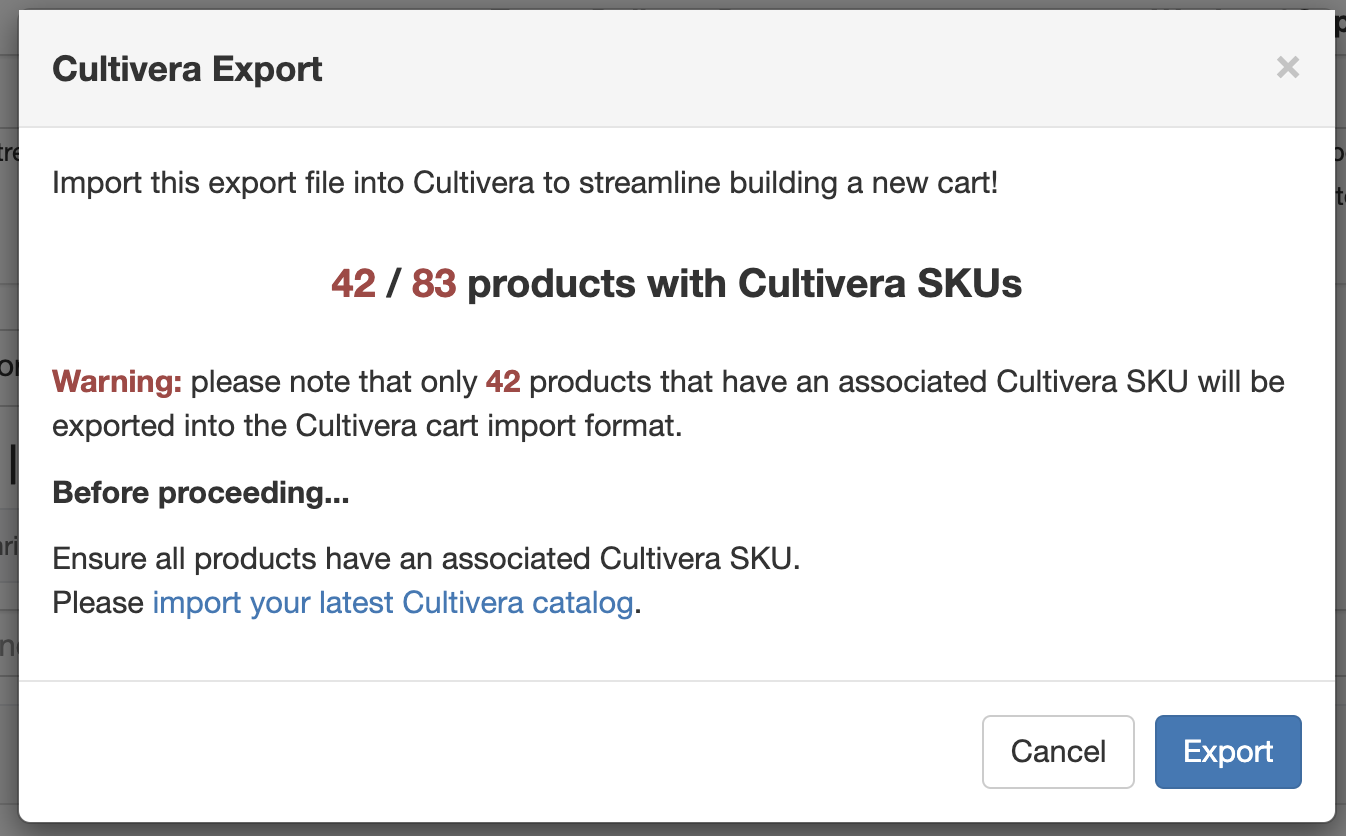
- Once you have the order finalized, click the blue Generate button. Once the order is generated, click the Export dropdown above the table on the right side. Select Export Cultivera to download the file.POSaBIT will only export products that have a corresponding Cultivera SKU ID since there is a specific file format that requires this information for import in Cultivera. If any selected products have a missing SKU ID import your latest catalog following steps HERE.
- Login to your Cultivera account.
- Navigate to Sales > Carts from the main menu or select an account and Start New Cart.
- On the cart detail page, you will find a blue "Import Cart from Excel" button, which can be utilized to upload an Excel sheet that lists the Product ID#/SKU# of the product you would like to add to the cart, the Quantity of that line item, as well as the Unit Price.
See Cultivera's Article HERE
For additional assistance please reach out to POSaBIT support @ 1 (855) POSaBIT OR SUPPORT@POSaBIT.COM
