Merchant Portal Employee Groups Overview

The Merchant Portal now uses employee groups, giving you finer control over what each merchant-level employee can see and do. This works the same way employee groups already work at the venue level and in the Brand Portal.
What this means for you
Merchant employees are placed in one or more groups. Each group has a Read/Manage permission grid that controls access to each page of the Merchant Portal. Every merchant starts with two built-in groups:
- Managers: Read and Manage access to every Merchant Portal page.
- Staff: Read-only access across the entire Merchant Portal, with no Manage access anywhere.
The built-in Managers and Staff groups can't be renamed, deleted, or edited. If someone needs different access, create a custom group for them.
Who Can Access the Merchant Portal
- Employees with merchant access can now open the Merchant Portal even if they're assigned to only one store, or to no stores at all, such as regional managers or bookkeepers. This also means single-store operators can reach merchant-level settings, such as Product Catalog sync.
- Setting an employee's Merchant Role to No Merchant Access removes their access to the Merchant Portal entirely.
How Merchant Roles and Groups Work Together
An employee's Merchant Role (set on their employee profile) decides which built-in group they're placed in automatically:
- Owners and Managers are placed in the Managers group.
- All other roles are placed in the Staff group.
If you change an employee's Merchant Role, they're moved to the matching built-in group. For example, promoting a Budtender to Manager moves them from Staff to Managers. Any custom groups the employee belongs to are kept.
Read vs. Manage
For most policies in the grid, the difference is straightforward:
- Read lets someone view a list, view details, and open a record, but not save changes, create anything new, or delete anything.
- Manage includes everything Read does, plus creating, editing, deleting, and any other action specific to that page.
A few policies can only be managed. On those rows, the Read box is greyed out and can't be changed. A group either has Manage and can take the action, or has no access to it.
Policies are grouped into sections such as Reports and Inventory. Select a section name to expand it and see the individual policies inside. Admins can also fine-tune a group using the Advanced option on a section, which lets you grant Manage access while blocking one or two specific actions.
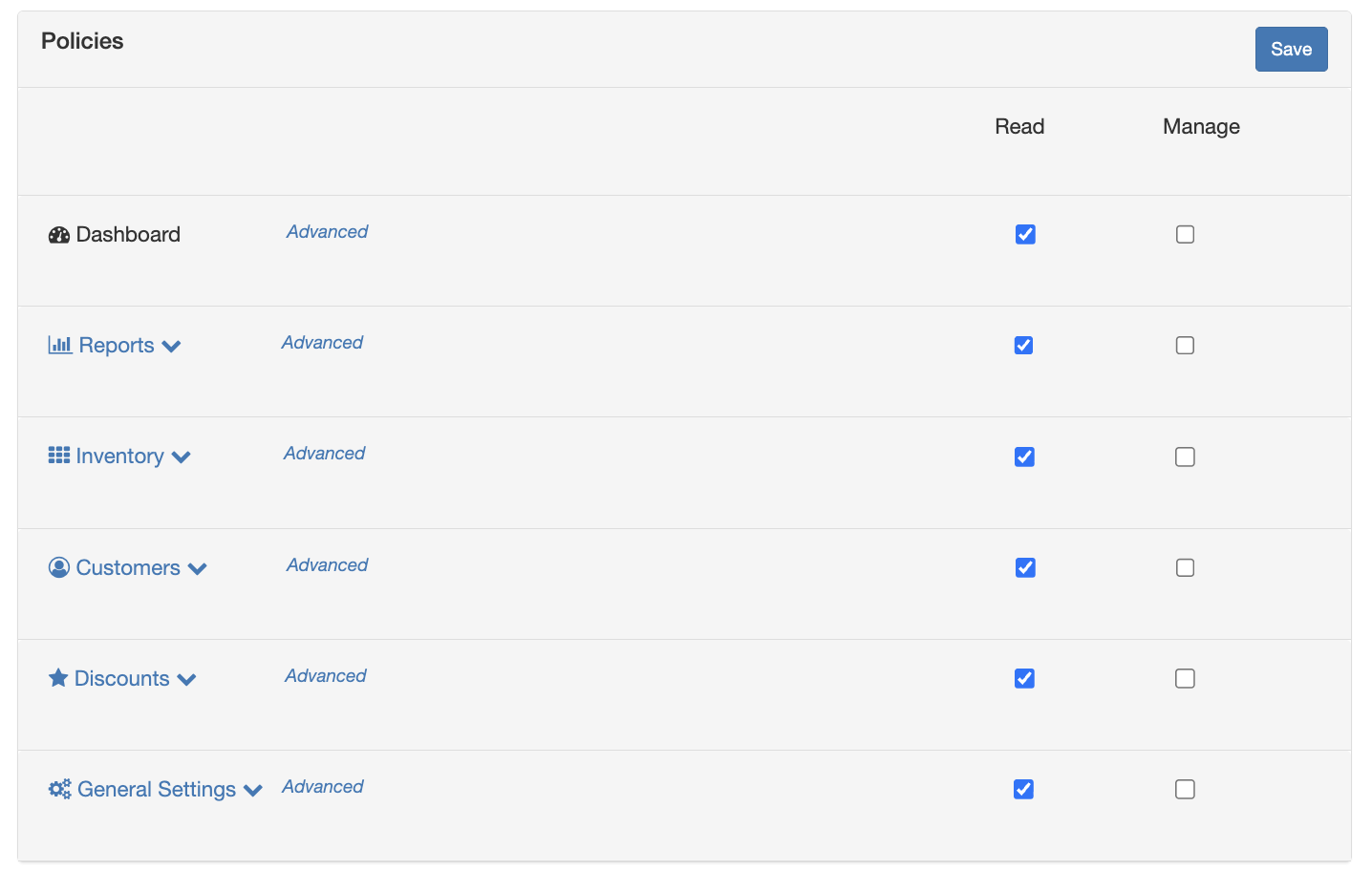
Dashboard
Policy | Read | Manage |
Dashboard | View the merchant dashboard and its panels. | Same as Read. The dashboard has nothing else to manage. |
Reports
Unless noted otherwise, every report below follows the same rule: Read lets someone run the report and view or export its results, and Manage adds nothing further, because reports don't have anything to create or delete.
Policy | Read | Manage |
Reports (section) | Access to the Reports section of the Merchant Portal. Individual reports can be turned on or off below. | No additional capability. |
Sales | Run and view the Sales report across your venues. | No additional capability. |
Sales by Day | Run and view sales broken down by day. | No additional capability. |
Sales by Month | Run and view sales broken down by month. | No additional capability. |
Sales by Product Type | Run and view sales broken down by product type. | No additional capability. |
Sales by Product Brand | Run and view sales broken down by brand. | No additional capability. |
Sales by Product Family | Run and view sales broken down by product family. | No additional capability. |
Sales by Product | Run and view sales broken down by individual product. | No additional capability. |
Sales Profit | Run and view the Sales Profit report, including cost and margin. | No additional capability. |
Sales by Employee | Run and view sales broken down by employee. | No additional capability. |
Sales by Discount | Run and view sales and discount usage broken down by discount. | No additional capability. |
Inventory Reorder | Run and view the Inventory Reorder report. | No additional capability. |
Inventory Manifests | Run and view the Inventory Manifests report. | No additional capability. |
Employee Samples | Run and view the Employee Samples report. | No additional capability. |
Exports | View data exports. | View and download data exports. |
Inventory
Policy | Read | Manage |
Inventory (section) | Access to the Inventory section of the Merchant Portal. Individual pages can be turned on or off below. | Allows manage access on all fields below |
Product Details | View product details. | Edit product details. |
Catalog Products | View your Product Catalog. | Create and edit catalog products. |
Product Types | View product types. | Create, edit, and delete product types. |
Product Brands | View product brands. | Create, edit, and delete product brands. |
Product Strains | View product strains. | Create, edit, and delete product strains. |
Product Tags | View product tags. | Create, edit, and delete product tags. |
Product Tag Assignments | — (Manage only) | Add or remove tags on products. There's no read-only view for this policy. |
Inventories | View inventory records. | Create, edit, and delete inventory records. |
Tier Pricing | View tier pricing. | Create, edit, and delete tier pricing. |
Tier Weights | View tier weights. | Create, edit, and delete tier weights. |
Suppliers | View your supplier list. | Create, edit, and delete suppliers. |
Image Gallery | View your image gallery. | Upload and delete images. |
Image Attachments | View which images are attached to which products. | Attach and remove images on products. |
Image Batch Uploads | — (Manage only) | Upload images in batches. There's no read-only view for this policy. |
Vendor Comments | View comments from vendors on your products. | No additional capability. |
Customers
Policy | Read | Manage |
Customers* | View merchant-level customer records. | Create and edit customer records. |
Customer Segments* | View merchant-level customer segments. | Create, edit, and archive customer segments. |
Discounts
Policy | Read | Manage |
Discounts (section) | View merchant-level discounts. | Create, edit, and delete merchant-level discounts. |
POSaBIT Pass* | View your POSaBIT Pass setup and design. | Edit and launch your POSaBIT Pass. |
Customer Portal* | View your Customer Portal settings. | Edit your Customer Portal settings. |
Message Center* | View messages and campaigns. | Create and send messages and campaigns. |
Push Notification Logs* | View the log of push notifications sent to customers. | Same as Read. There's nothing else to manage. |
General Settings
Policy | Read | Manage |
General Settings (section) | View your merchant's general settings. | Edit your merchant's general settings. |
Venues | View the list of venues under your merchant and their details. | Edit venue details. |
Employees | View the employee list and employee profiles. | Create and edit employees and remove their merchant access. Only merchant Managers can set an employee's password. |
Employee Access | View which employees have access to your merchant and its venues. | Add or remove employee access and change an employee's Merchant Role. |
Employee Groups | View employee groups, their members, and their permission grids. | Create custom groups, add or remove members, change permissions (including Advanced exceptions), and rename or delete custom groups. The built-in Managers and Staff groups can't be edited, renamed, or deleted. |
Support Requests | View support requests. | Submit new support requests. |
Billing & Subscriptions* | View your billing and subscription details. | Change or cancel your subscription plan. |
AI Connectors | View your AI Connectors and which employees are connected. | Create and remove AI Connector connections. |
API Call Usage | View your API call usage. | Same as Read. There's nothing else to manage. |
* These policies only appear in the grid when your merchant has POSaBIT Pass enabled.
Creating a Custom Group
- Log in to the POSaBIT web portal and switch to the Merchant view using the drop-down menu in the top right corner.
- Select Settings, then select Employee Groups.
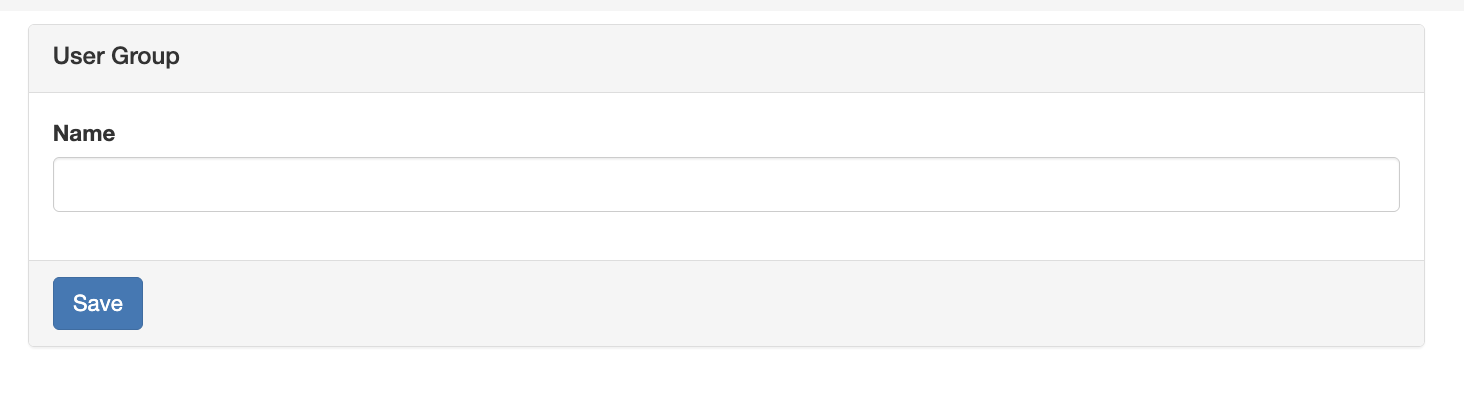
- Select the button to create a new group, then give the group a name.
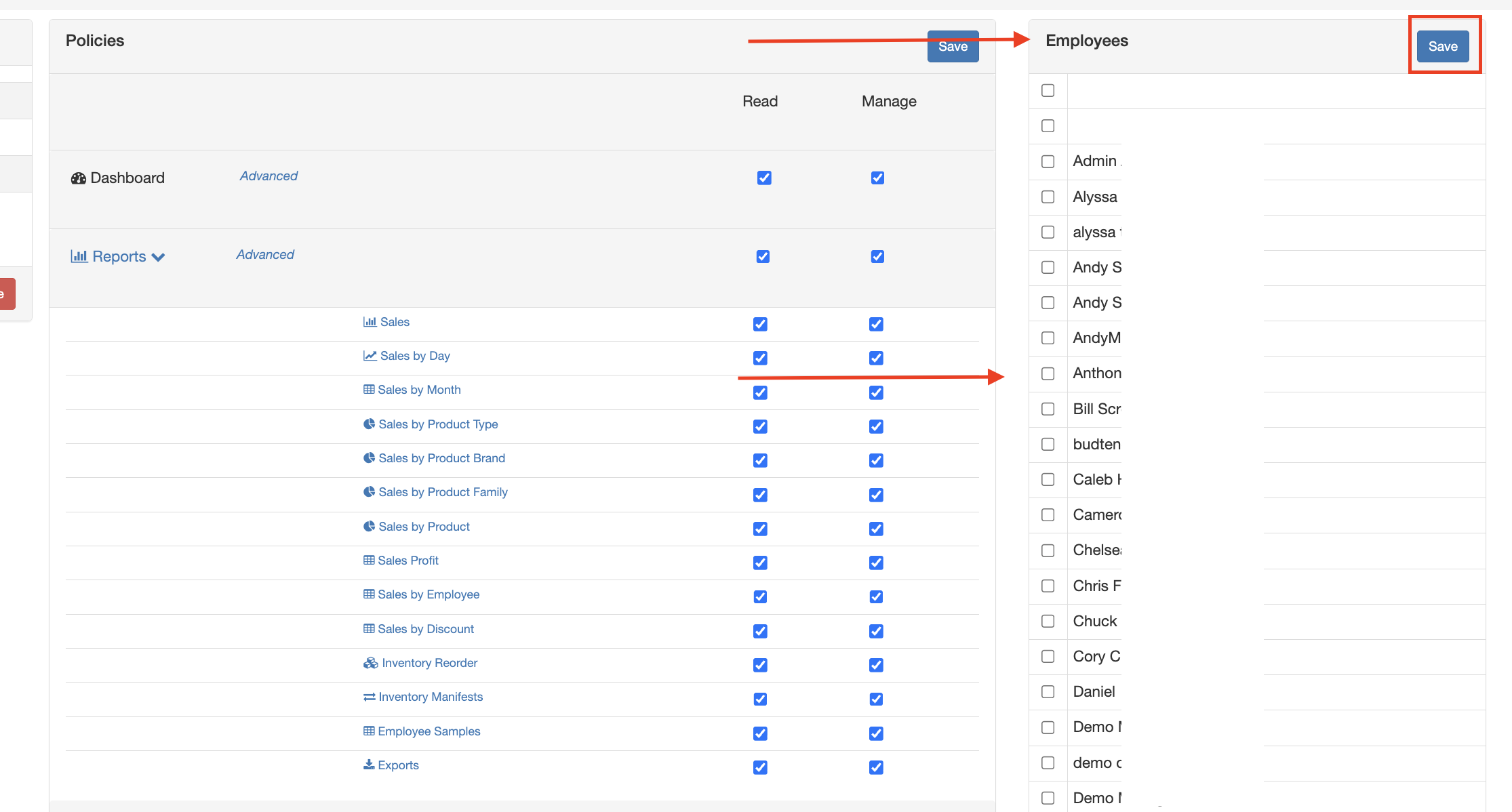
- Check Read and/or Manage for each policy this group should have access to. Select a section name, such as Reports, to expand it and set individual policies.
- Select Save.
Adding Employees to a Group
There are two ways to add an employee to a group:
- From the group: Open the group under Settings → Employee Groups, and check the box next to each employee you want in that group.
- From the employee's profile: Go to Settings → Employees, open the employee, select the green Edit button, and update their access.
Use the group view when setting up a roster all at once, or the employee's profile when you're adjusting one person's access.
For more on creating merchant employees and assigning them to stores, see Merchant Employee Management Overview.
For additional assistance, please reach out to POSaBIT support @ 1 (855) POSaBIT OR SUPPORT@POSaBIT.COM
