Retail - Order Planner Overview

The POSaBIT Order Planner gives cannabis retailers a smarter way to evaluate inventory needs and build purchase orders from a single, centralized tool. By combining inventory insights, sales trends, and data-driven reorder recommendations in one place, the Order Planner helps you make more informed purchasing decisions with less manual work. Whether you're identifying fast-moving products, reviewing stock health, or planning upcoming replenishment, the tool is designed to help you order with greater confidence and efficiency.
How to Access the Order Planner:
- Log in to your POSaBIT POS Portal.
- Open the Reports menu and select Order Planner.
How to Utilize the Order Planner:
- Once the Order Planner is opened, fill out the fields below and click the blue Generate button on the right side of the fields.
- Supplier License (Optional): If you want to see inventory from a specific license for any given supplier, select the license number here.
- Sales Week: Select the number of sales weeks you'd like to look back to analyze trends and velocity.
- Target Delivery Date: Select the target delivery date for this order - this will impact suggested products to reorder. If no date is selected, the default is today's date.
- Weeks Supply: How many weeks of inventory you want to order from the target delivery date, based on calculated velocity.
Click View More Filters to narrow the report further by Brand, Product Type, Lineage, or Product Name.If you'd like to start a new order and have items that were previously selected showing on the Order Summary tab, click on the Order Summary section and click the orange Start New Draft button to reset the report. - Click Generate.
- Click on the Columns button to view/hide columns on the report as desired.
- Once set, you can also hover over the column on the report for a definition of the column value.
- View the different inventory tabs based on how you'd like to filter down your products:
- Suggested Reorders - Items with a suggested reorder quantity greater than zero, based on velocity and current stock. Excludes inactive inventory.
- Active Inventory - Active SKUs with inventory activity in the last 90 days (excludes archived products and SKUs the retailer is no longer ordering).
- Inactive Products - SKUs the retailer is no longer ordering, archived SKUs, and active SKUs with no inventory activity for 90+ days.
- Order Summary - See a summary of the order you are planning.
The Search field located above the top right of the report is a useful field to quickly filter the report by product, type, brand, etc. Type in a search term to narrow your results. - Select the checkbox on the left of the product row to add it to the Order Summary section and/or select the item to export a report via Excel, CSV, or PDF.
- To export all products, leave the checkboxes unselected.
- To clear any selections previously made, click the Start New Draft button on the Order Summary tab.
Metric Cards
The metric cards at the top of the Order Planner give you a quick summary of your order data for this supplier. Each card includes a definition of what the number means, so you can understand exactly what you're looking at.
- Active Products - Every active product you supply to this retailer - mapped to your catalog or not - excluding samples.
- Units on Hand - Total quantity currently on hand across your active inventory at this retailer.
- Avg Sales/Day - Average retail sales dollars per day over the selected Sales Week window (total revenue/number of days)
- Avg Units/Day - Average units sold per day over the selected Sales Week window (total units/number of days

Adding Products from the Product Catalog
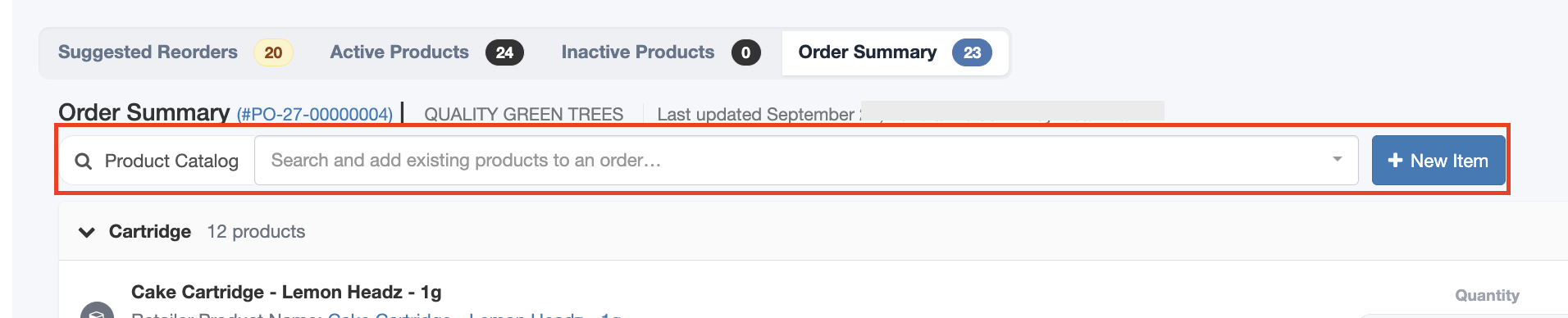
You can search for products directly from the Order Planner's Order Summary tab. Typing a search term looks across both your own Product catalog and your vendor's catalog at once, matching name, brand, strain, lineage, or product type. Results from Your Catalog always appear first, and each result shows a thumbnail and a label so you can confirm you've selected the right item before adding it. If a vendor catalog item is also linked to one of your own Product records, you'll see the linked product's name underneath it, with a link to view that product.
Adding New Items to an Order
On the Order Planner's Order Summary panel, click + New Product. A short 4-field form (Name, Product Type, Quantity, Unit Cost) creates the product and adds it to your currently loaded order in one step. This is meant for speed — the unit cost you enter is saved to both the new order line and the product's own cost field.
What Happens After a Product is Created
Every creation path runs through the same internal service, so naming and status behave consistently no matter how a product was created. A product created through quick-add always starts as Unverified until someone reviews it. Products created via Bamboo API sync are automatically marked Vendor Verified, since that data source already includes brand, strain, type, and other catalog fields.
Line Item Icons
Each line item in your order shows an icon that indicates where the item came from. There are three icon states, which let you quickly see how each item was added to your order.
Icon | Meaning |
Orange plus | A text-only item added via "+ New Item" — no catalog product involved |
Grey cube | A product already in your own catalog |
Blue truck | Added straight from the vendor's catalog — not yet in your own |
Quantity & Cost Warnings
If a quantity or cost on a line item needs your attention, it will be highlighted with a warning. The highlight clears as soon as you correct the value - there is no need to refresh the page.

Exporting Your Order
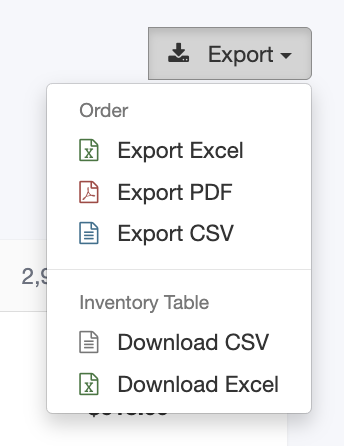
The Export dropdown above your Order Summary lets you export as the Order as an Excel, CSV, or PDF file, or download the Inventory Table as a CSV or Excel file.. CSV and Excel exports include the same summary details shown at the top of the PDF. When you export your order as a PDF, the file includes a Created By field showing who built the order, and no longer includes the Retailer row or the reference/generated-date subtitle.
For additional assistance, please reach out to POSaBIT support @ 1 (855) POSaBIT OR SUPPORT@POSaBIT.COM