METRC: View & Retry Failed Sales

POSaBIT now surfaces failed METRC submissions directly on the Sales page, allowing staff to identify, diagnose, and resubmit failed sales without contacting Support. This feature is available only to venues in METRC states.
Where to Find It
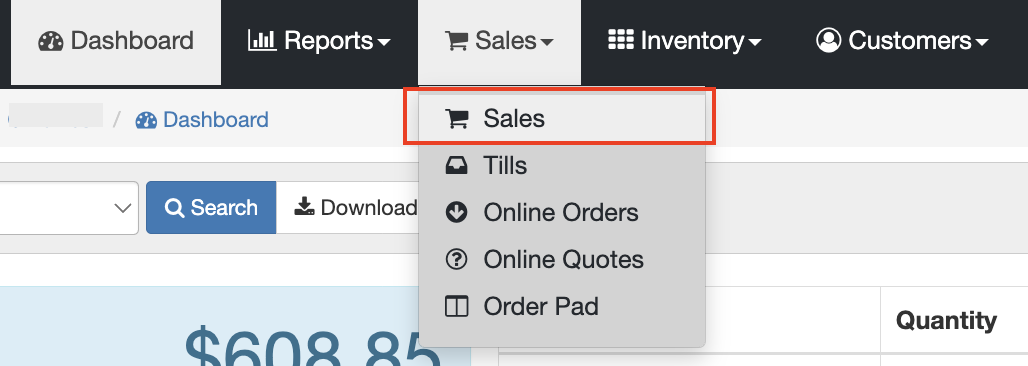
Navigate to the Sales menu tab → Sales. For METRC venues, a View Failed METRC Sales button appears in the top-right corner of the Sales History list.
How It Works
View Failed METRC Sales
Clicking View Failed METRC Sales filters the Sales History list to show only sales with a failed METRC submission. All other active filters—date range, employee, payment method—are preserved. Only the METRC status filter is added.
Once the "Failed" filter is active:
- The View Failed METRC Sales button is replaced by a Resubmit All Failed METRC Sales button. You can also go into an individual sale to resubmit to METRC.


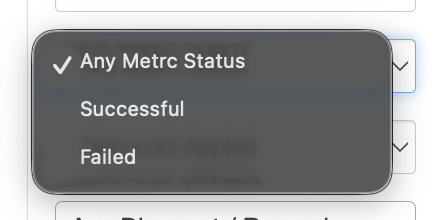
- You can clear the filter at any time by resetting the Any METRC Status dropdown in the search sidebar to its default
METRC Status Filter
A new Any METRC Status dropdown appears in the Sales History search sidebar for METRC venues. Use it to filter to Successful or Failed METRC submissions independently of the top-right button.
We have added the Metrc Status and Metrc Error to the downloadable Sales report:
- Log into your POSaBIT Venue Portal
- Go to the Sales menu tab --> Sales page
- At the bottom of the filters on the left side, click the blue download icon. This download now includes the Metrc Status and the Matrc Error for failed uploads.

Individual Sale Page
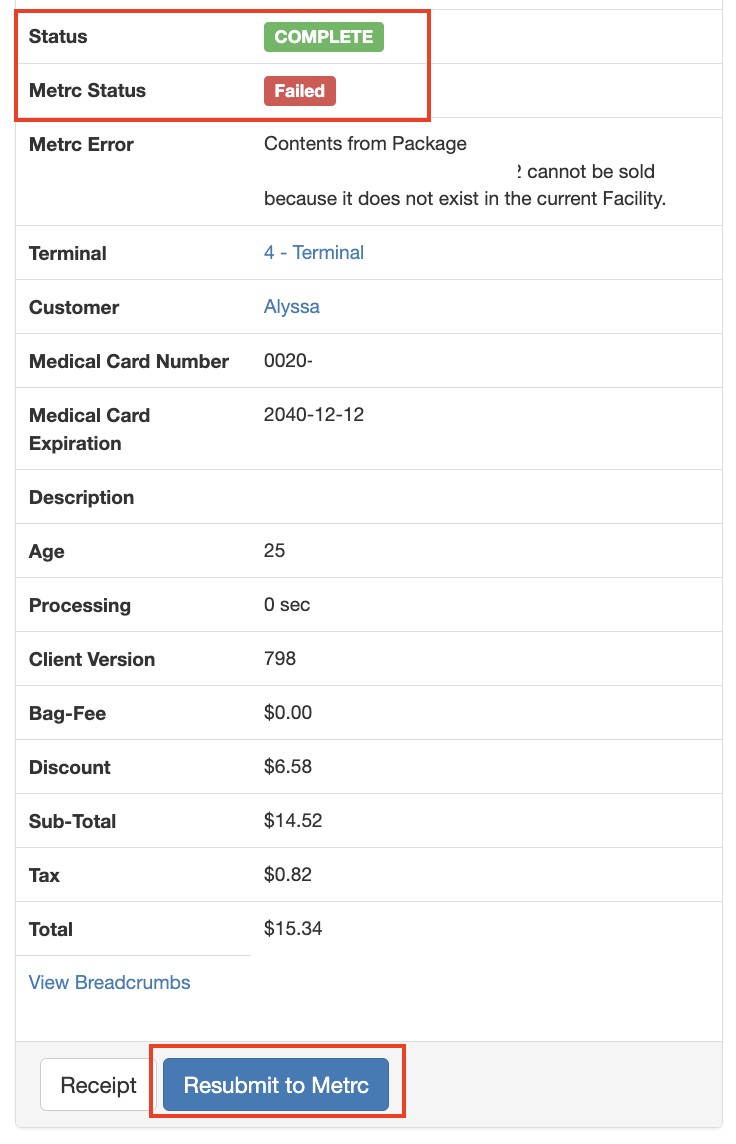
Opening an individual sale shows additional METRC information in the sale details:
- METRC Status — a green Success badge or red Failed badge depending on the submission result
- METRC Error — the error message returned by METRC on the last submission attempt. Useful for diagnosing why a sale failed (e.g., package not found, quantity mismatch)
- Resubmit to METRC button — appears in the footer only when the sale has a failed METRC status. Click to re-queue that sale for resubmission
Resubmit All Failed METRC Sales
The Resubmit All Failed METRC Sales button retries every failed METRC submission in the current filtered view. It does not retry all-time failures—it acts only on the sales visible under your current date range and search filters.
What Happens When You Resubmit
Resubmitting a sale re-queues the sale for transmission to METRC using the original sale data. POSaBIT checks the most recent submission attempt before re-queuing:
- If the last METRC transaction actually succeeded (despite the sale showing a failed status), POSaBIT corrects the status automatically and does not send a duplicate submission
- If the last transaction genuinely failed, the sale is re-queued for submission. METRC processes it asynchronously—the updated status appears in Sales History once the submission completes
Common Reasons a METRC Sale Fails
- Package not found in METRC — the package tag on the sale no longer exists or was transferred out in METRC before the sale was reported
- Quantity exceeds available inventory — the quantity sold exceeds what METRC shows as available on that package
- METRC API timeout or outage — a temporary METRC service interruption prevented the submission. Resubmitting after the outage resolves typically clears these failures
- Invalid license or location — the venue's METRC license configuration needs attention. Contact POSaBIT Support if resubmission consistently fails with a license-related error
Frequently Asked Questions
Will resubmitting create a duplicate sale in METRC?
No. POSaBIT checks whether the last submission attempt actually succeeded before re-queuing. If METRC already recorded the sale, POSaBIT corrects the status on its end without sending a second submission.
Can I resubmit a sale that was voided?
No. Voided sales are excluded from METRC submission automatically and cannot be resubmitted.
The error message is unclear. What should I do?
Copy the error message from the METRC Error field and share it with POSaBIT Support at support@posabit.com or (855) 767-2248. Support can look up the full METRC API response and advise on next steps.
How long does a resubmission take?
Most resubmissions process within a few minutes. Refresh the sale or Sales History page after allowing time for the background job to complete.
