Utilizing the POSaBIT Product Catalog (WA Only)
 Updated 2 months ago
The POSaBIT Product Catalog is designed to simplify product management by connecting your inventory to standardized data provided directly by brands and suppliers. By leveraging the catalog, you can quickly enrich your product listings with accurate descriptions and images, reduce manual data entry, and keep your menu up to date as the Suppliers make changes.
This article walks through how to enable and use Product Catalog features within POSaBIT, including connecting products, reviewing suggested matches, syncing updates, and streamlining new product creation.
First, enable and ensure your Product Catalog Management settings are configured properly for your store(s).
Once enabled, the following features and functionality will be enabled for all stores (venues) associated with your account:
Connection Status Icon
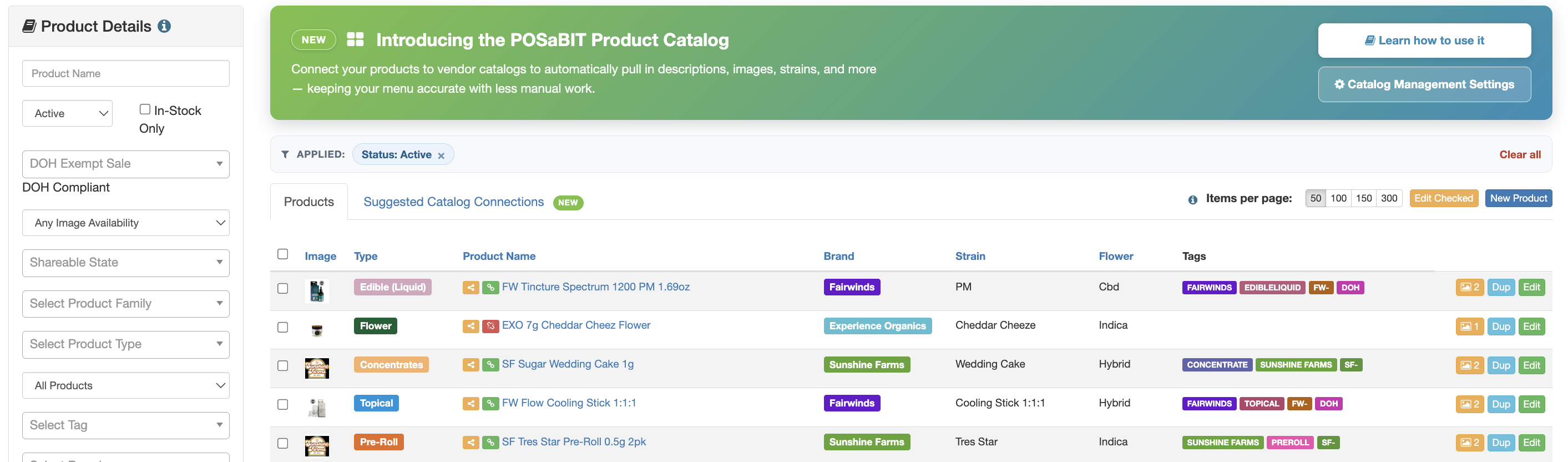
From the Product Details index page, there is an icon displayed next to each product to indicate whether the product is connected to data from the catalog.
- Green Link Icon: this means the product is connected to image(s) and/or a product description from the catalog.
- Red Link Icon: this means the product is NOT connected to image(s) and/or a product description from the catalog, and there is data available in the catalog to connect to.
Connection Status Filter
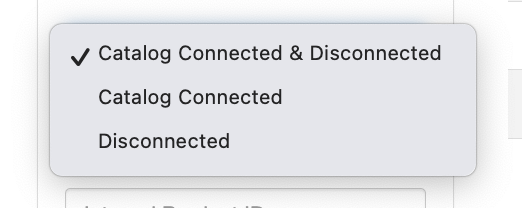
Use the connection status filter on the Product Details page to view all products, catalog connected products, or products that are disconnected (meaning, products that are not connected to catalog data and there is data available in the catalog for that product).
Suggested Catalog Connections
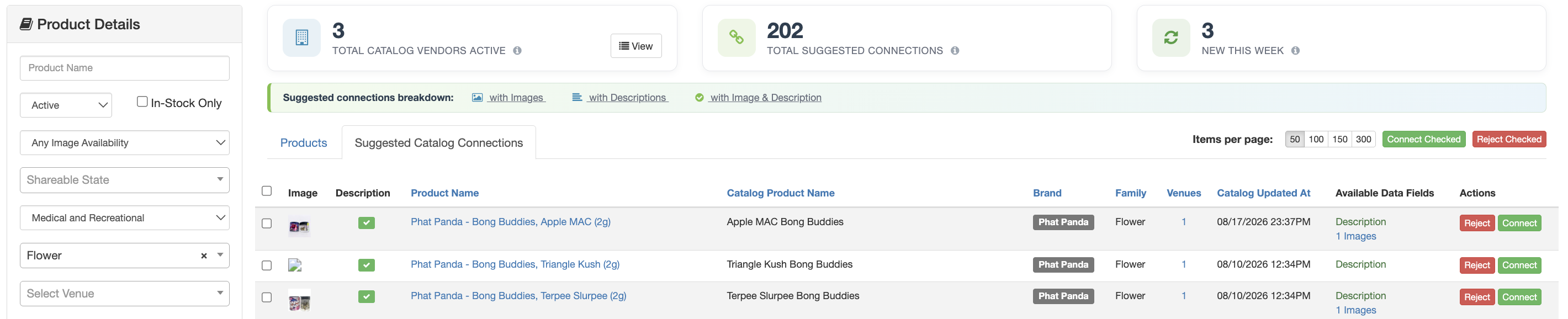
This new tab that is accessed from the Product Details page provides a high-level view of all products in your store(s) that have data available to pull in from the product catalog.
On the top of the Suggested Catalog Connections, there is a preview of a few data points:
- Total Catalog Vendors Active: Vendors/Suppliers with catalog enabled. Click View to see each supplier and the brands they carry.
- Total Suggested Connections: Store products that can be connected to a supplier's catalog product aren't synced yet.
- New This Week: Catalog products a supplier has updated since Sunday. For synched products, these changes flow into your store automatically.

Suggested Connections Breakdown
See all the products that could sync that have an image, description, or both.

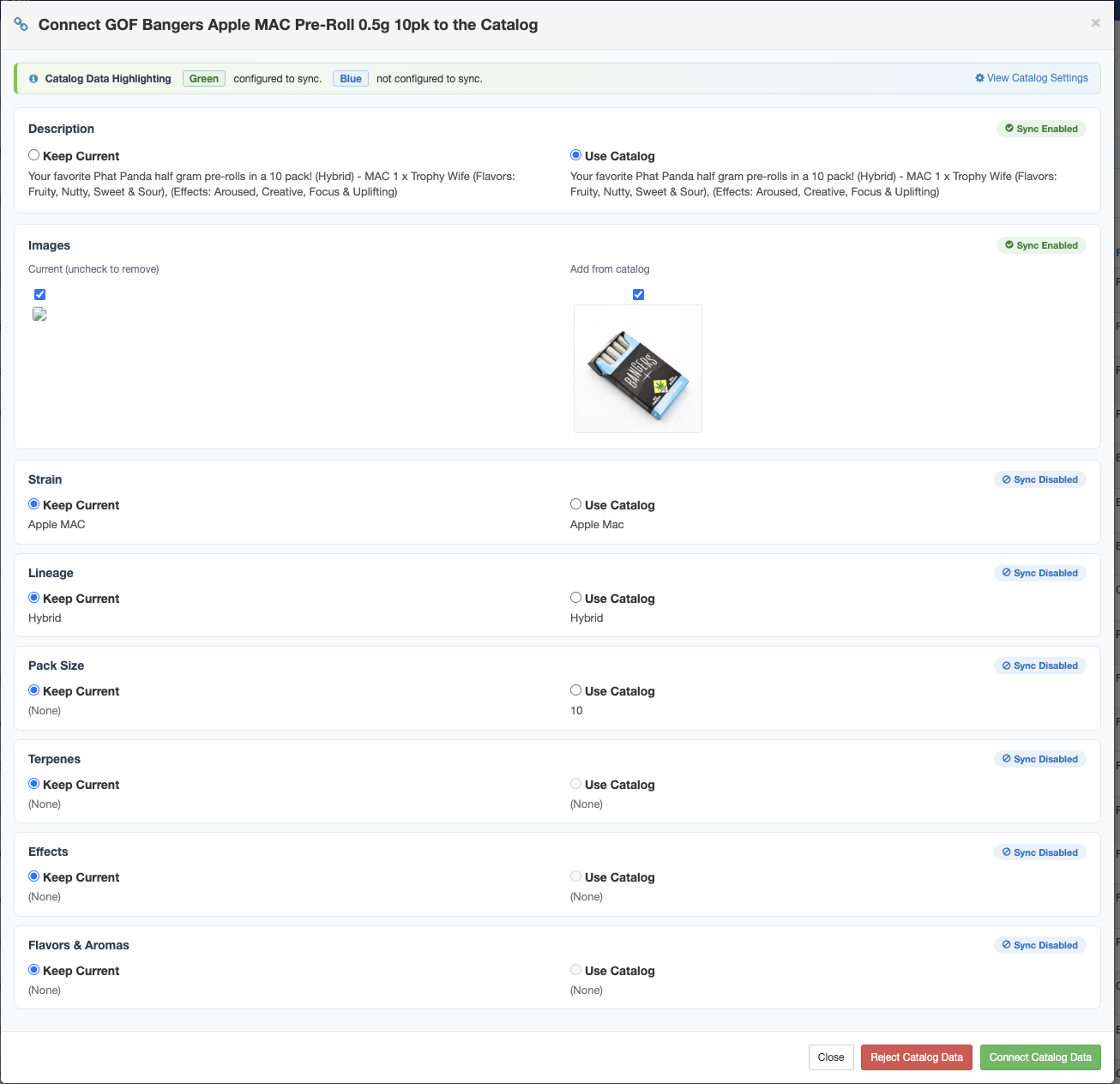
Click the green 'Connect' button on any row to view a preview and comparison of your current product information vs. product data that can be pulled in from the product catalog. Click the 'Connect Catalog Data' button at the bottom of the modal if you'd like to use the information from the catalog. Alternatively, click 'Reject' to remove the product suggestion from the list of 'Suggested Catalog Connections' to remove it from the list as you review suggestions.
If you would like to bulk sync or reject any suggested, select the checkboxes on the left side of each row and then click the 'Connect Checked' or 'Reject Checked' buttons in the top right corner.
Create a New Product
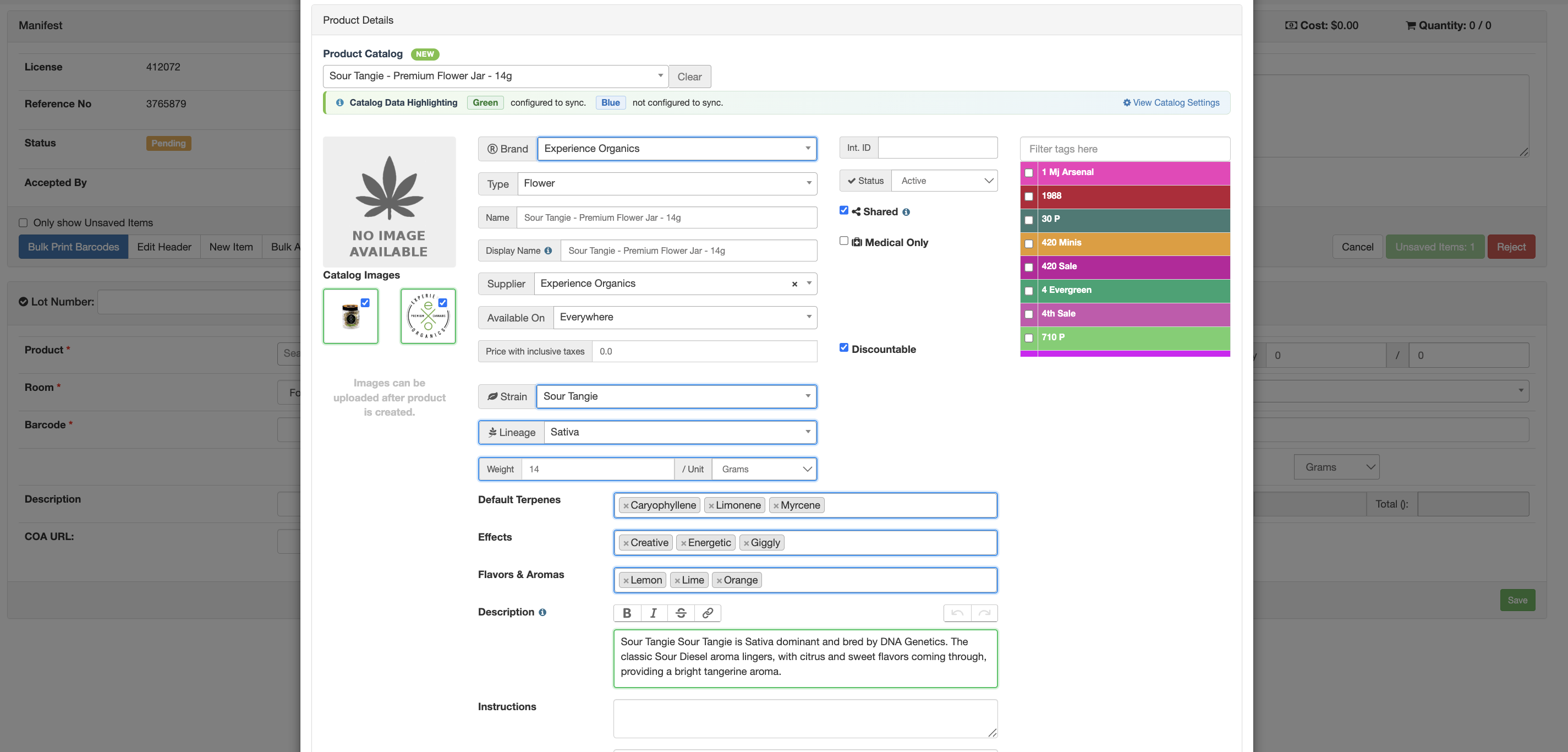
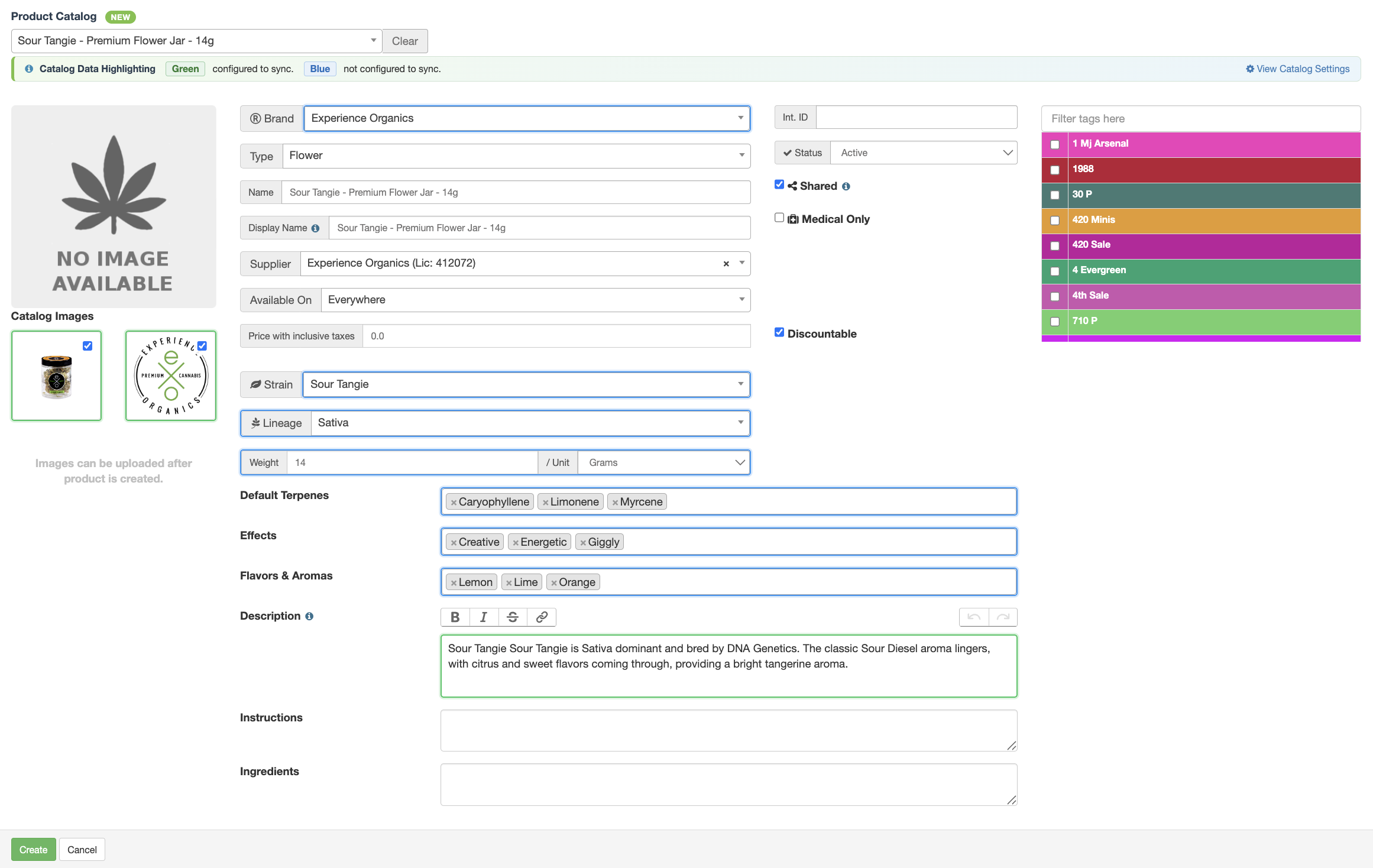
When creating a new product from the Product Details page, use the search field at the top of the form to browse find products available in the catalog. Any product information available from the Supplier will be populated on the product form to help streamline creating new products.
Any field highlighted BLUE is data being pulled in from the supplier's version of the product, but these fields are not 'synced' with the catalog - meaning if the supplier updates this information at any point, it will not automatically update your version of the product. You may update any blue field as you see fit.
Any field highlighted GREEN (only images and product descriptions can be synced at this time) is data being pulled in from the supplier's version of the product, and these fields ARE 'SYNCED' with the catalog - meaning if the supplier updates this information at any point, it automatically update your version of the product (i.e. supplier updates image because they have new packaging).
Creating a New Product (Incoming Manifest)
When creating a new product from an incoming manifest, the above explanation applies as well as some additional functionality.
Suggested Catalog Product: if POSaBIT detects there is data in the product catalog that matches the new incoming product, then a suggestion will appear with the option to 'Quick Select' the catalog product to populate data on the form and ultimately streamline creating your new product.
Automated New (Configuration): if this setting is enabled, then POSaBIT will automatically populate the form with the suggested product data to expedite using the product data from the catalog and creating a new product.