How to Enable POSaBIT Pass

POSaBIT Pass gives customers a digital loyalty pass they can download directly to their phone. Follow the steps below to set up and launch POSaBIT Pass for your venue.
- Login to the POSaBIT web portal - https://app.posabit.com
- Navigate to Marketing and select POSaBIT Pass.
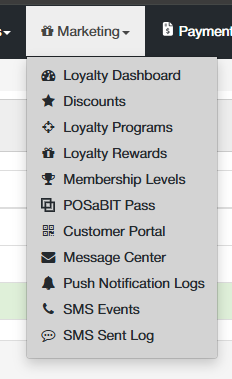
This will take you to the POSaBIT Pass page, where five steps are outlined to launch POSaBIT Pass.
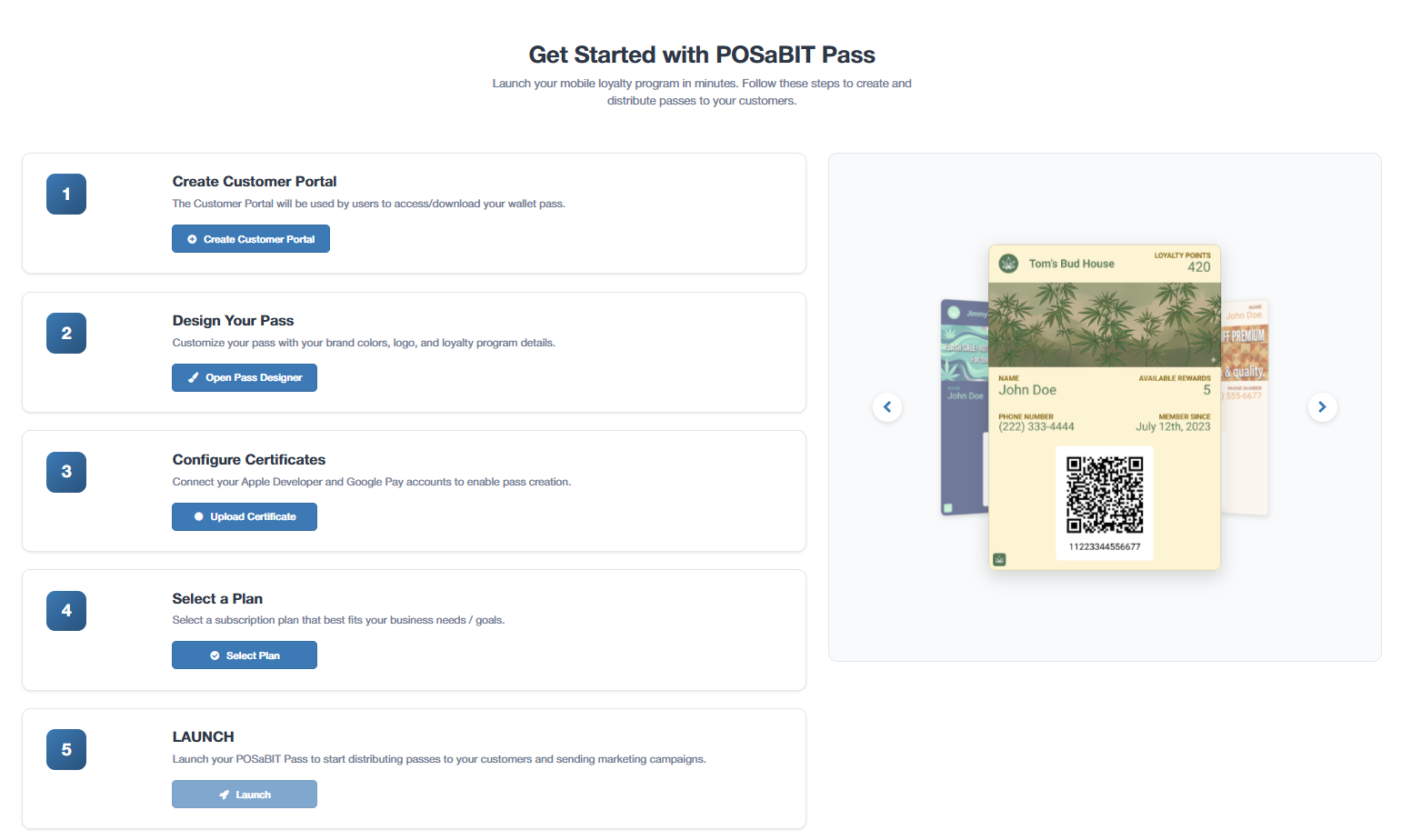
Step 1: Create and Select Customer Portal
- Select Create Customer Portal. This takes you to the customer portal creation page. See How to Create a Customer Portal for step-by-step instructions.
- If you've already created a customer portal, this button will be titled Select Customer Portal.
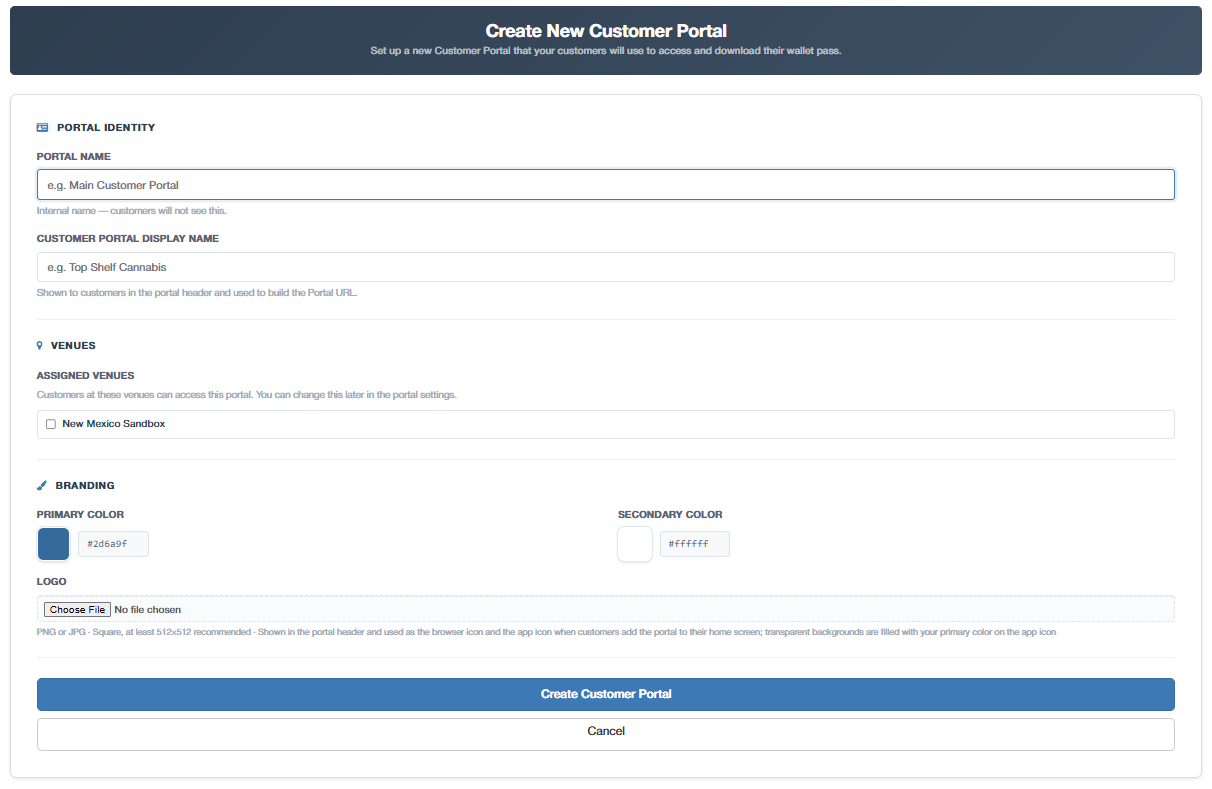
- After creating the customer portal, select Select Customer Portal. This opens the Select Customer Portal pop-up, where you can select the new customer portal you just created.
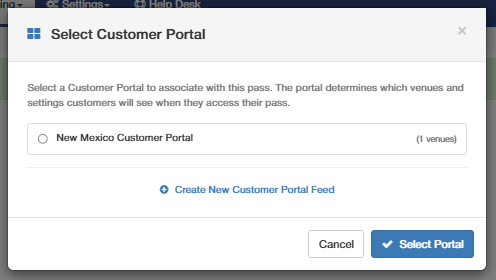
- The portal determines which venues and settings customers will see when they access their pass, and is the central place consumers will use to download and access their pass.
- Once you've made a selection, select Select Portal to continue.

Step 2: Design the Pass
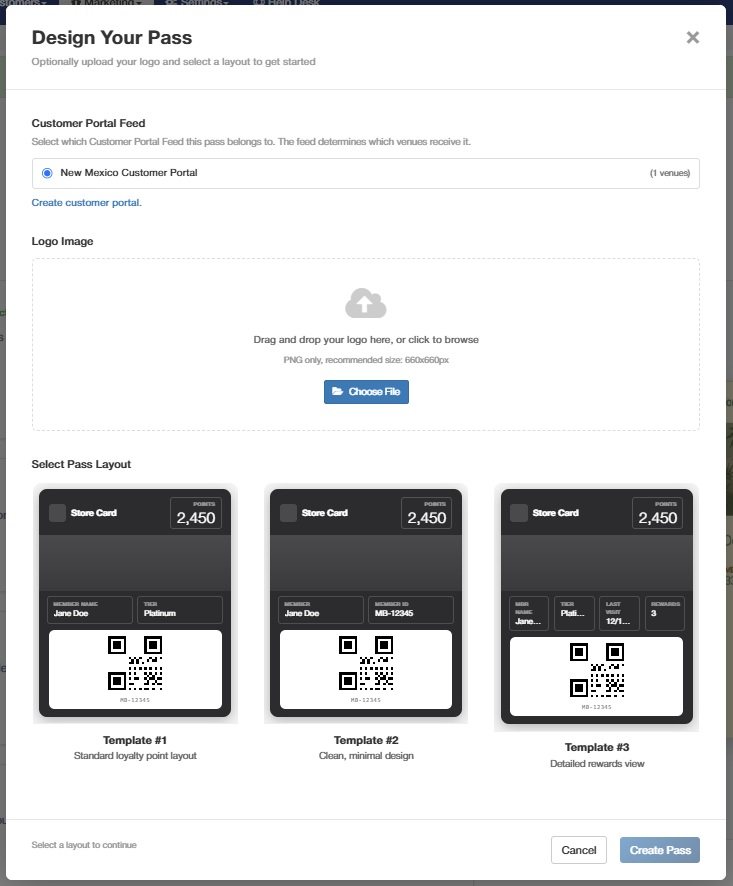
- After completing Step 1, select Open Pass Designer. This opens the Design Your Pass pop-up.
- Customer Portal Feed: Select which customer portal feed this pass belongs to - the feed determines which venues receive it. Select an existing portal, or select Create customer portal. if you don't already have one.
- Logo Image (optional): Drag and drop a logo, or select Choose File to browse for one. Recommended size is 660 x 660 pixels (PNG).
- Select Pass Layout: Choose one of three templates:
Template
Layout
Template #1 - Standard loyalty point layout
Points in the top right, member name on the left, loyalty tier on the right.
Template #2 - Clean, minimal design
Points in the top right, member name on the left, member ID on the right.
Template #3 - Detailed rewards view
Points in the top right, with member name, tier, last visit date, and total rewards available displayed across the pass.
- Once a layout is selected, select Create Pass to open the POSaBIT Pass - Designer.
Customizing the Pass
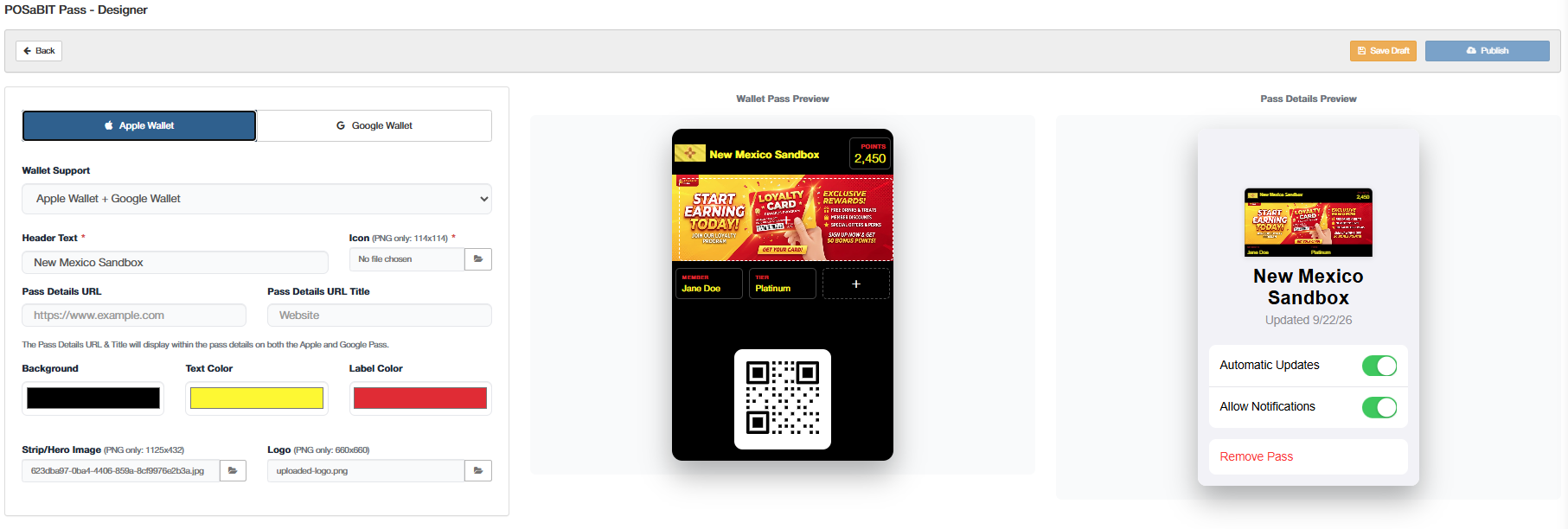
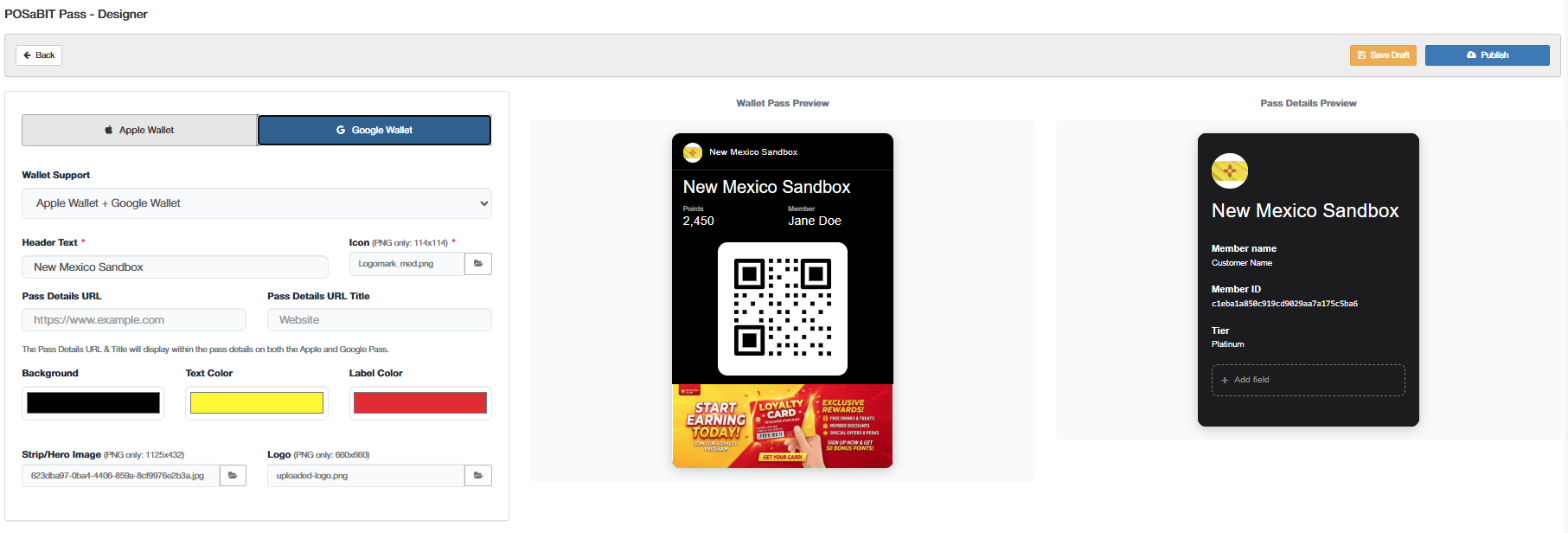
The Pass Designer is split into three sections: customizable fields on the left, the Wallet Pass Preview in the middle, and the Pass Details Preview on the right. At the top of the left panel, toggle between Apple Wallet and Google Wallet to see how the pass will look on each platform.
Field | Description |
Header Text (required) | The text that will display in the pass header, next to the icon. |
Icon (114 x 114 px, required) | A small square icon displayed next to the header text at the top of the pass. |
Pass Details URL | The URL that will display on the back of the pass, in the Pass Details Preview. |
Background | The pass's background color. |
Text Color | The pass's text color. |
Label Color | The pass's label color. |
Strip/Hero Image (1125 x 432 px) | The main image displayed on the body of the pass. |
Logo (660 x 660 px) | The larger logo image displayed in the body of the pass. |
Adding Custom Fields
- Select the + button within the Wallet Pass Preview to add a data field (for example, Member and Member ID). This opens a drawer on the right-hand side where you can:
- Select the data field you'd like to display.
- Give the field a custom title (any text you choose).
- Choose a data format - Text, Number, or Phone Number - to control how the data displays in that field.
- Repeat for each field you'd like to add, and check both the Apple Wallet and Google Wallet previews to confirm they look correct.
- The Pass Details Preview also includes Automatic Updates and Allow Notifications toggles.
- When you're ready, select Save Draft to save your progress, or Publish to continue preparing the pass to go live.

Step 3: Configure Certificates
- After selecting Publish in the Pass Designer, you'll be taken back to the POSaBIT Pass page with steps 1 and 2 checked off.
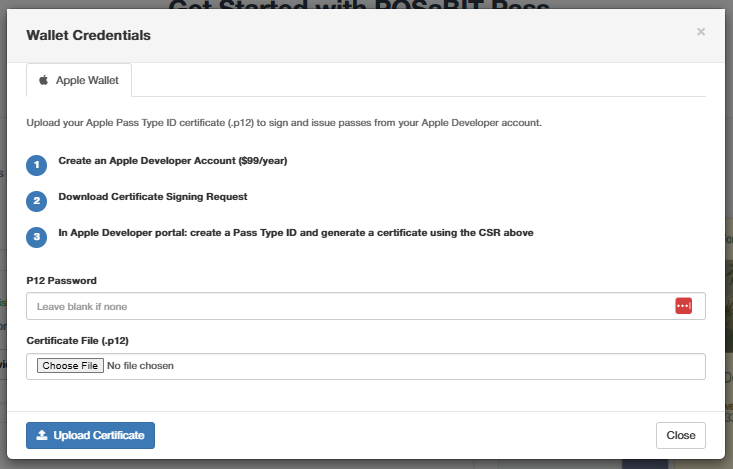
- Select Upload Certificate. This opens the Wallet Credentials pop-up, where you can upload your Apple Wallet certificate.
Apple Wallet
- Upload your Apple Pass Type ID certificate (.p12) to sign and issue passes from your Apple Developer account:
- Create an Apple Developer Account ($99/year).
- Download the Certificate Signing Request.
- In the Apple Developer portal, create a Pass Type ID and generate a certificate using the CSR from step 2.
- See How to Create and Upload an Apple Wallet Certificate for detailed, step-by-step instructions.
- Enter your P12 Password (leave blank if none).
- Select Choose File to upload your Certificate File (.p12).
- Select Upload Certificate.
- Once your certificate is uploaded, select Close to exit the pop-up.

Step 4: Select a Plan
- From the POSaBIT Pass page, select Select Plan.
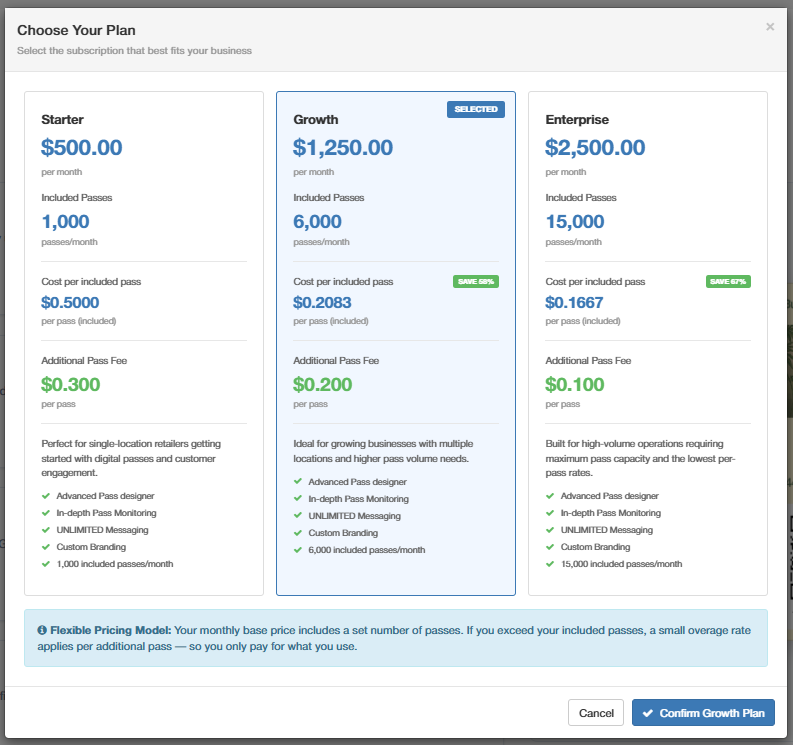
- Select one of three tier plans: Starter, Growth, or Enterprise.
- Each plan has a fixed monthly cost that includes a set number of passes for that month.
- If you go over your plan's included number of passes for the month, any additional passes are billed at an additional pass fee.
- You're able to upgrade or downgrade your plan tier once per month.
- Select Confirm Plan to continue.

Step 5: Launch
- After confirming your plan, you'll be taken back to the POSaBIT Pass page. Select Launch to complete setup.
- Selecting Launch opens a Billing Authorization pop-up, where you'll select which single venue should be billed on behalf of the entire merchant account for the POSaBIT Pass subscription.
- Type I APPROVE in the field provided, then select Submit. This step is required before the pass will launch, and confirms you're authorized to make this change on behalf of the merchant account.
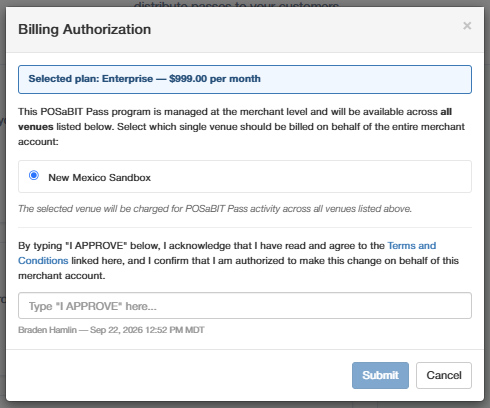
- Submitting the Billing Authorization initiates billing for the POSaBIT Pass subscription.
- A pop-up will display a QR code. You can use this QR code to direct customers to the customer portal, where they can log in to their loyalty profile and download either the Apple Pass or Google Pass to their mobile wallet, depending on their phone type.
- Once Launch has been selected, the POSaBIT Pass page will also update from the five-step getting started process into a dashboard view.
