Brand - Order Planner Overview

Within the Brand Portal, you get access to see the current inventory at stores that have purchased your products at some point and have the option of building new orders for your retailers. There is a lot of helpful information, including the last manifest date, cost, item count, percentage of product sold through, along with a recommended delivery date for the next order. Follow the steps below to see how to access the order planner:
- Log in to your Vendor Portal
- Go to the Order Planner tab and select the venue you'd like to plan an order for.
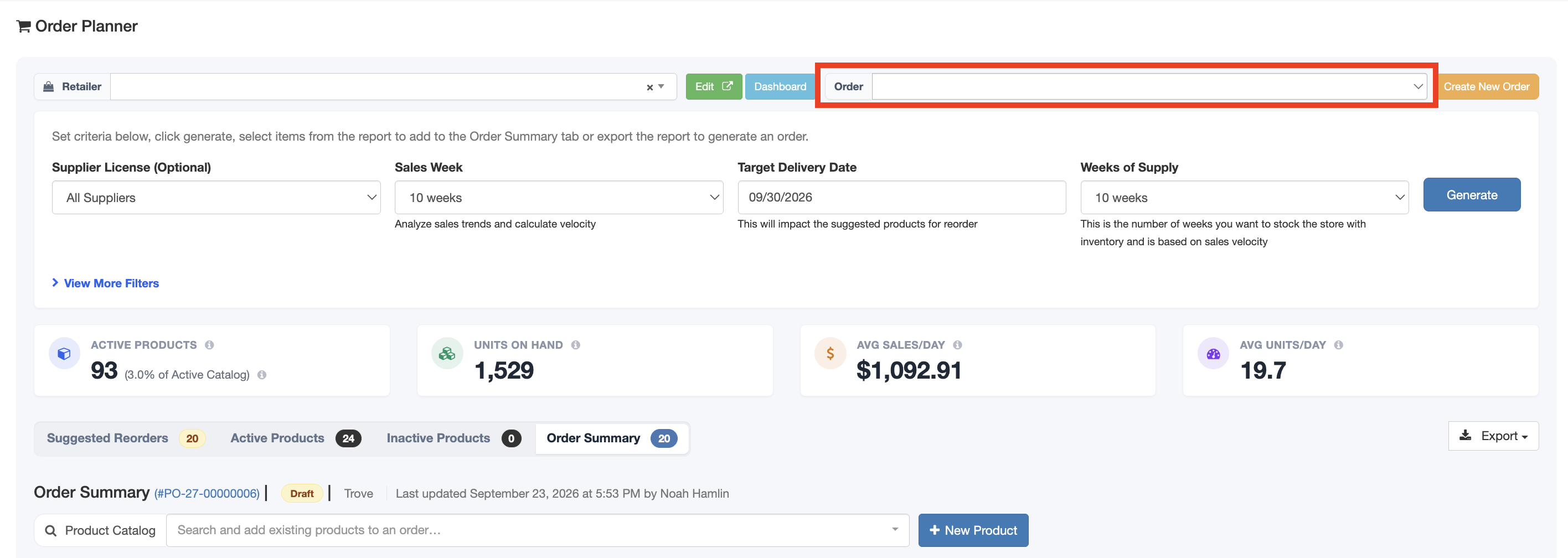
- Once the Order Planner is opened, fill out the fields below and click the blue Generate button on the right side of the fields.
- Supplier License: If you want to see a specific one of your brands, select this here.
- Sales Week: Select the Time Period to analyze sales trends and calculate velocity
- Target Delivery Date: Select the (Optional) target delivery date for this order - this will impact suggested products to reorder
- Weeks of Supply: How many weeks of inventory you want to order based on calculated velocity
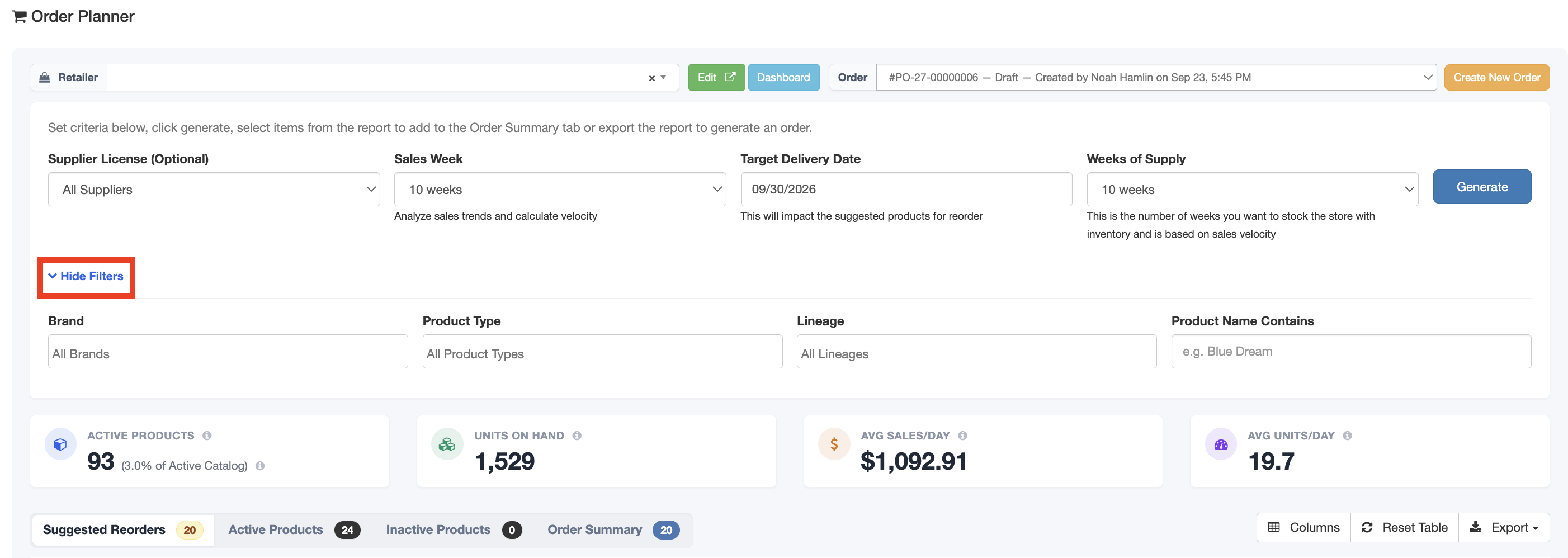
Click View More Filters to narrow the list further by Brand, Product Type, Lineage, or Product Name.
Metric Cards
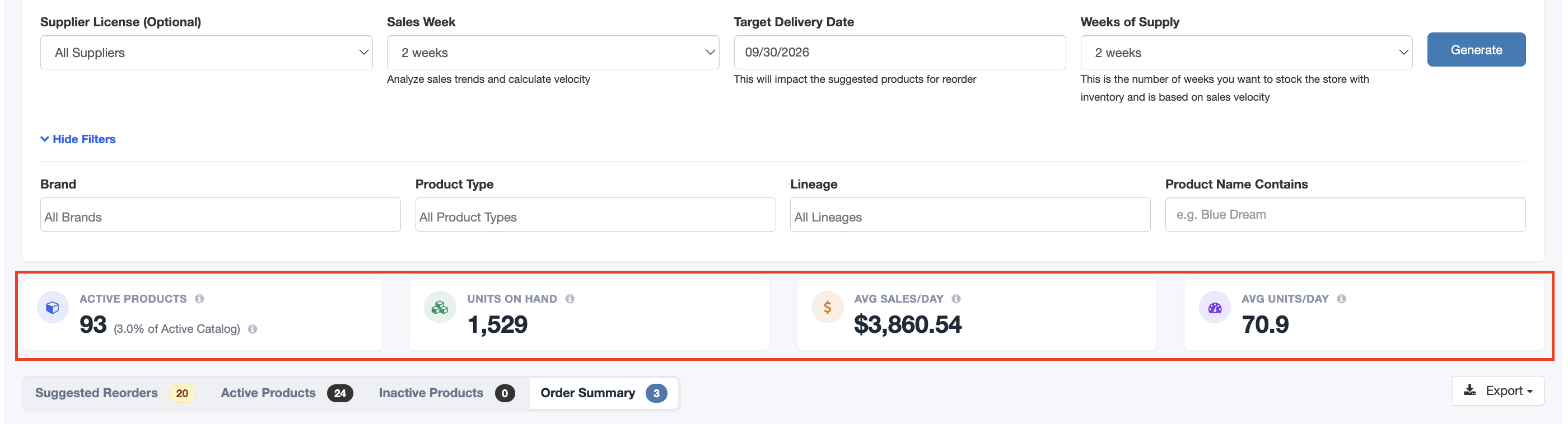
The metric cards at the top of the Order Planner give you a quick summary of your order data for this venue. Each card includes a definition of what the number means, so you can understand exactly what you're looking at.
- Active Products - Every active product you supply to this retailer - mapped to your catalog or not - excluding samples.
- Units on Hand - Total quantity currently on hand across your active inventory at this retailer.
- Avg Sales/Day - Average retail sales dollars per day over the selected Sales Week window (total revenue/number of days)
- Avg Units/Day - Average units sold per day over the selected Sales Week window (total units/number of days)
Order Planner Views
- Suggested Reorders - Items with a suggested reorder quantity greater than zero, based on velocity and current stock. Excludes inactive inventory.
- Active Inventory - Active SKUs with inventory activity in the last 90 days (excludes archived products and SKUs the retailer is no longer ordering).
- Inactive Products - SKUs the retailer is no longer ordering, archived SKUs, and active SKUs with no inventory activity for 90+ days.
- Order Summary - See a summary of the order you are planning.

- Once you have generated the order, you will see a list of inventory in the Order Summary tab. You can see an assortment of data, including Product Type, On Hand count, sellable count, and some other valuable data. This information can help you understand what products the venue is likely to need more of. Select the box to the left of the product to add it to the order you're planning.Use the Columns button on the right side to edit which columns are shown.
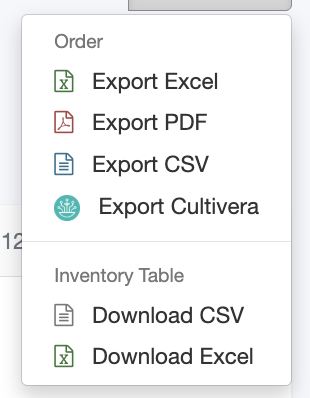
- Once you check the box on the left side of any given product, it will be added to the inventory list under the Order Summary section. Once you have built a projected order, you should locate the Export button on the right side of the page, parallel to the Order Summary header. You may select to export this as an Excel, CSV, PDF file, Cultivera format, or download the order as a CSV or Excel.
Adding a New Product from the Order Planner
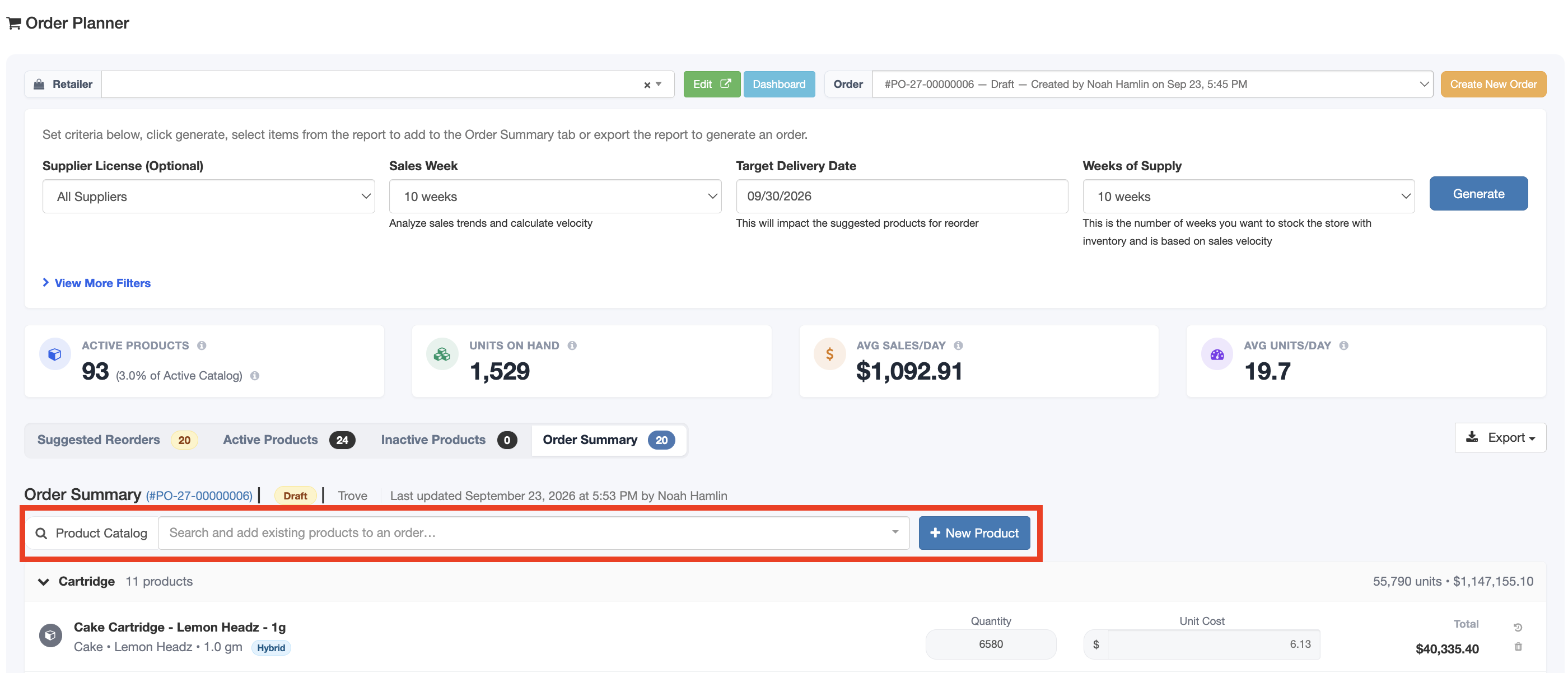
If you need to order a product that isn't in your catalog yet, from the Order Summary tab, click + New Product button. Fill in the Name, Product Type, Quantity, and Unit Cost, and the product is created and added to your order in one step. New products created this way start as Unverified until you review them in your full Product Catalog.
Switching Between Orders
The order switch dropdown sits at the top of the page beside the Retailer picker. Use it to move between draft orders for this retailer. When you start a new order, a confirmation prompt will appear first so you don't accidentally leave the order you're working on.
For additional assistance, please reach out to POSaBIT support @ 1 (855) POSaBIT OR SUPPORT@POSaBIT.COM