Brand Portal Basic Overview

Welcome to the POSaBIT Brand Portal Overview!
In this article, you will learn the basics of the Brand Portal, which will include links to articles that are more thorough and allow you to get an even deeper understanding of how you can use this portal to improve your business operations.
Dashboard
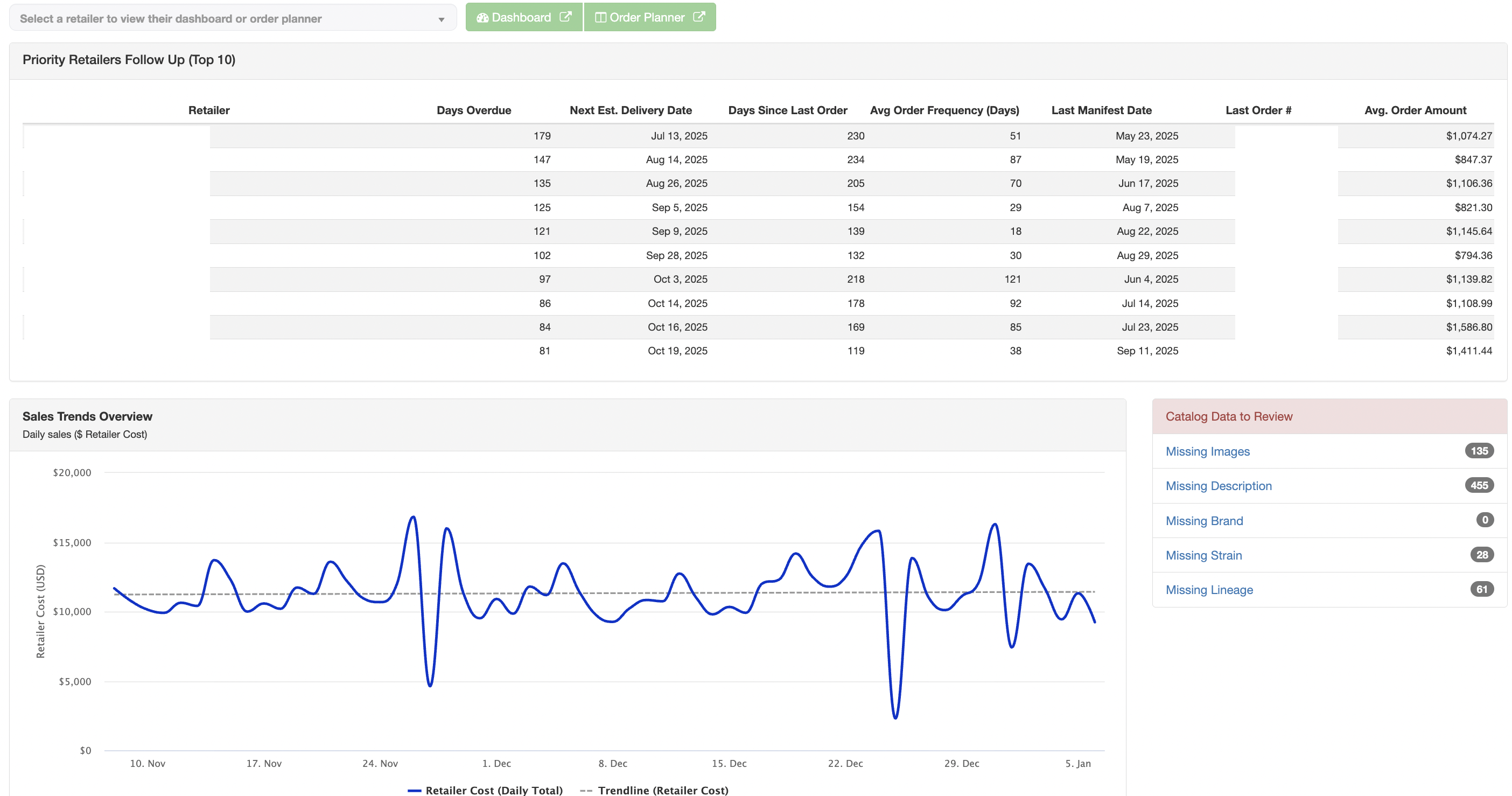
When first logging into the Brand Portal, a dashboard will be shown. This dashboard will allow you to see the priority retailers' follow-up list (top 10). This shows the top ten retailers you should be working with to get a new order in. This will show the retailer name, days overdue, the estimated next delivery date, days since last order, average order frequency (days), the last manifest date, last order # (with an embedded link), and the average order amount (in $).
Below this list, there is the Sales Trends Overview graph. This shows the retailer's costs over a timeline of around 3 months. A trendline is also shown to see where the average is.
On the right side of the graph, there is a Catalog Data to Review section. Use this to see where your products could use some updates, including images, descriptions, brands, strains, and lineage.
Back at the top of the page, there is a dropdown selector for venues. If you select a venue, the Dashboard and Order Planner buttons will now be able to be selected to go to those two pages for the selected venue. This way, if you see a retailer that needs a new order, simply select the venue from the dropdown and click the Order Planner button to start building out a new order. Learn more about the order planner HERE.
Retailers
To the right of the Dashboard menu tab, you will see a Retailers tab. This is where you can review all your retailers, as well as your inventory, lots, and manifest history.
Retailers (Under the Retailers tab)
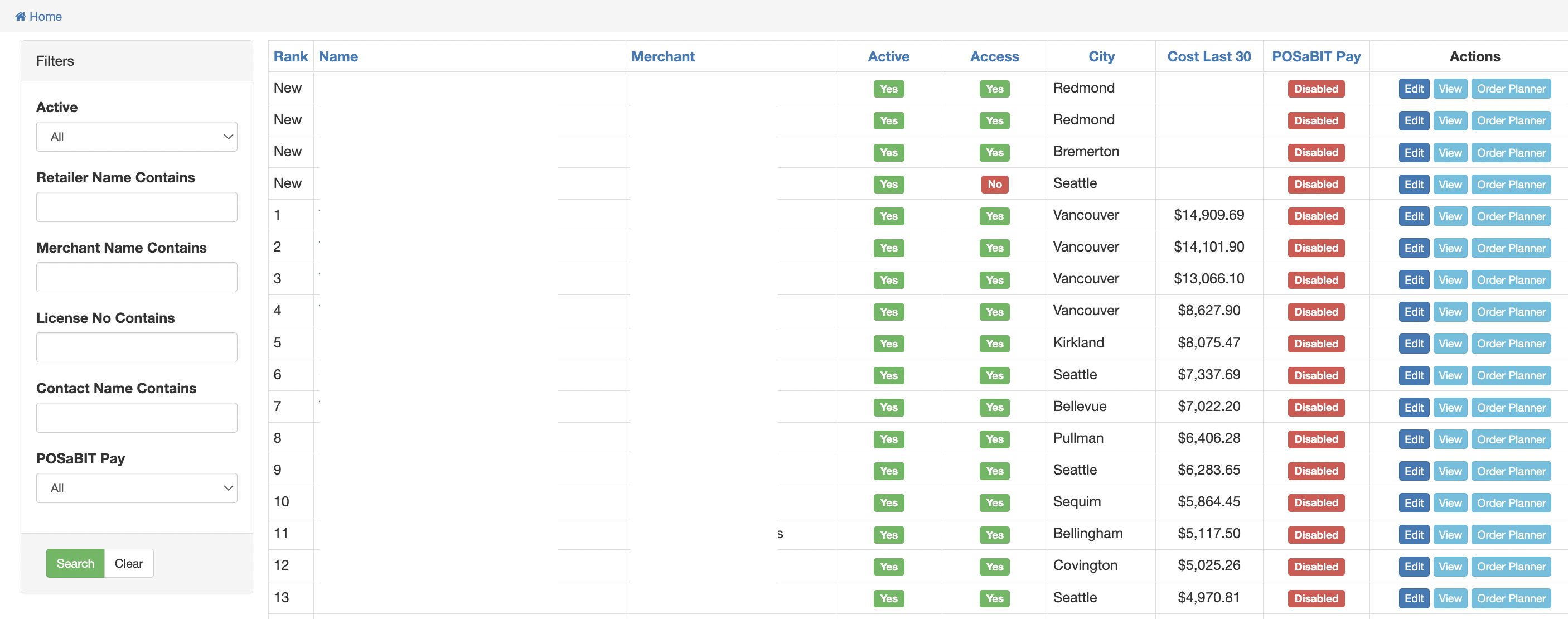
If you select the Retailers page, a page showing all your retailers will be displayed. This is where you can see the following information about retailers:
- Rank of each retailer
- Name
- Merchant
- Active (Yes or No)
- Access - If they gave you access or not (Yes or No)
- City
- Cost Last 30 - Cost of products sold to them the last 30 days
- POSaBIT Pay - If they have it enabled or disabled for B2B payments
- Actions - Edit (edit this retailer), View (view this retailer's dashboard), or Order Planner (takes you to the order planner page for this specific retailer).
Inventory
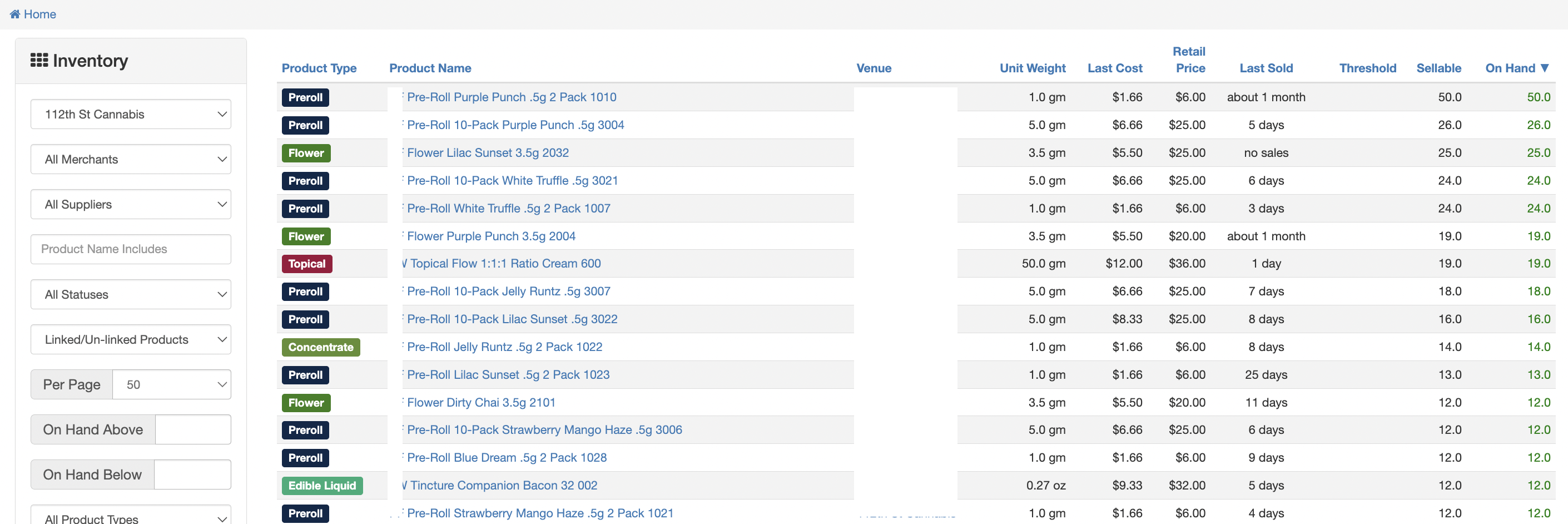
Under the inventory page, you will have visibility into all your inventory at your retailers. Use the filters on the left side to find exactly what you are looking for, including filtering on a specific venue. See the article linked HERE to learn more.
Lots
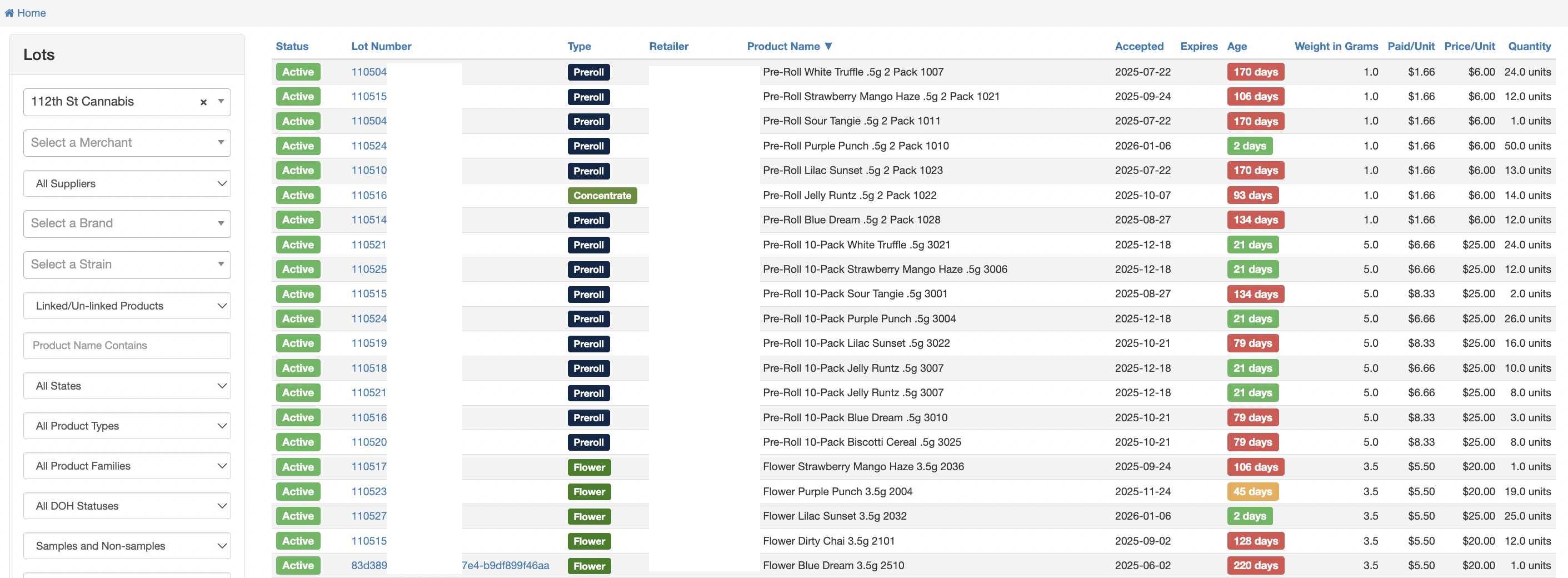
Under the Lots page, you can see all the lots you have at each of your retailers. Use the filters on the left side to find exactly what you are looking for, including filtering on a specific venue.
Manifests
View your manifest history on this page. Use the filters on the left side to find exactly what you are looking for, including filtering on a specific venue. See HERE to learn more about the manifests page.
Reports
We have created very customizable reports for you to get the exact information you are looking for. To see a general overview of custom reports, visit this link. If you want to see some examples of reports we think might be helpful, visit this link.
Product Catalog
With the Product Catalog, you get the ability to upload content into one system vs. multiple (since all retailers will have the ability to access the catalog if they choose - data the retailer will push up to their menu). This helps your brand be displayed exactly how you would like it within POSaBIT merchants' menus. This will help you set a standard for your Brand's marketing so it is more organized and structured throughout the market. To see what types of information you can upload to the portal, see the article linked HERE.
Settings
Within the settings tab is where you will set up your general settings, including general brand information, your logo, address, employees, and more!
For additional assistance, please reach out to POSaBIT support @ 1 (855) POSaBIT OR SUPPORT@POSaBIT.COM