How do I destroy a product within a child lot?

Products will often get damaged or simply expire and are unable to be sold anymore. When this happens it is common for stores to have a process to destroy these unsellable products.
Follow the steps below to learn how to perform a lot destruction:
- Login to the POSaBIT web portal
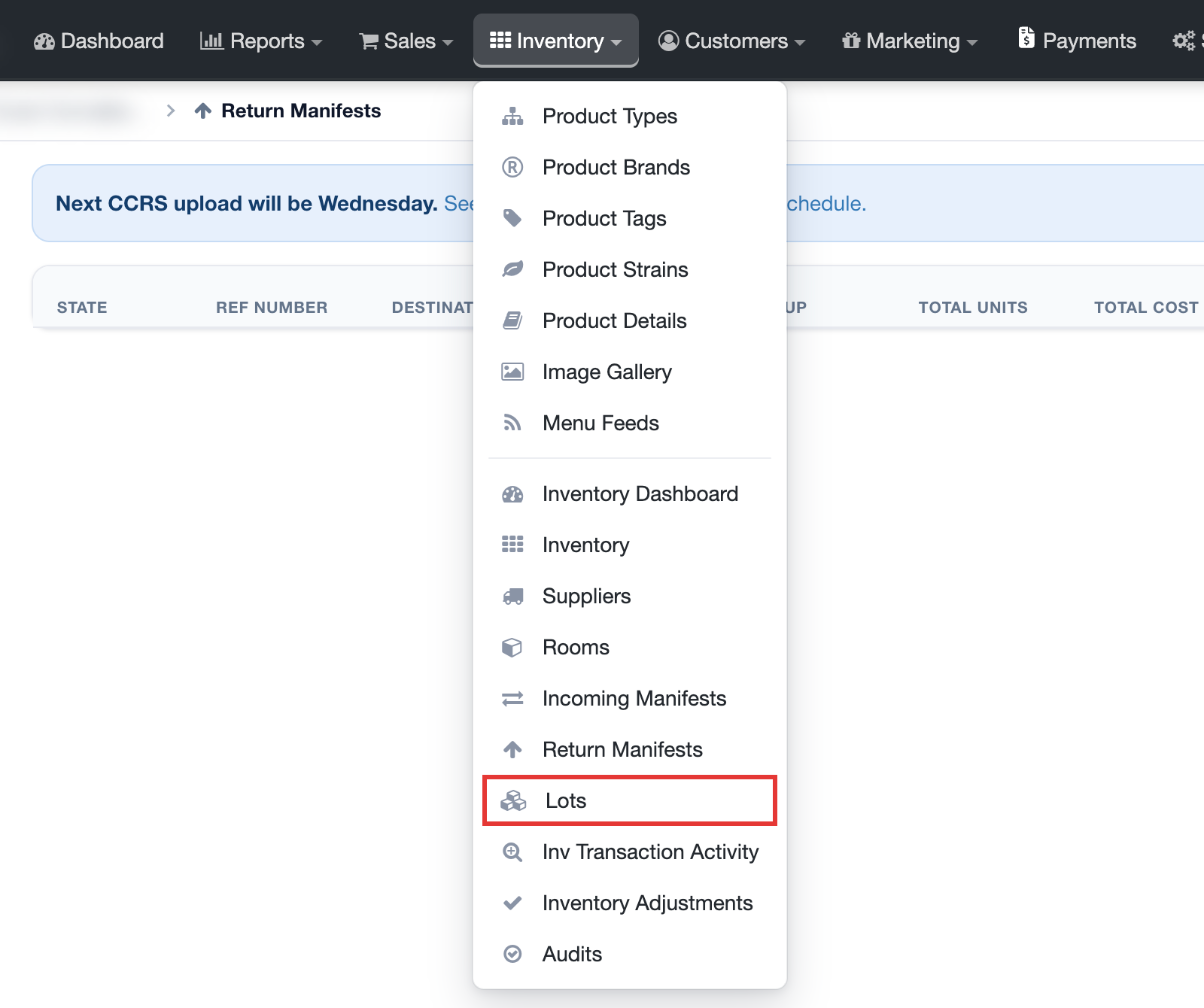
- Select "Lots" from the Inventory drop-down located at the top of the screen
- Using the Filters panel at the top of the page, find the specific lot you would like to destroy products from and click on the blue "Lot Number" in the corresponding row
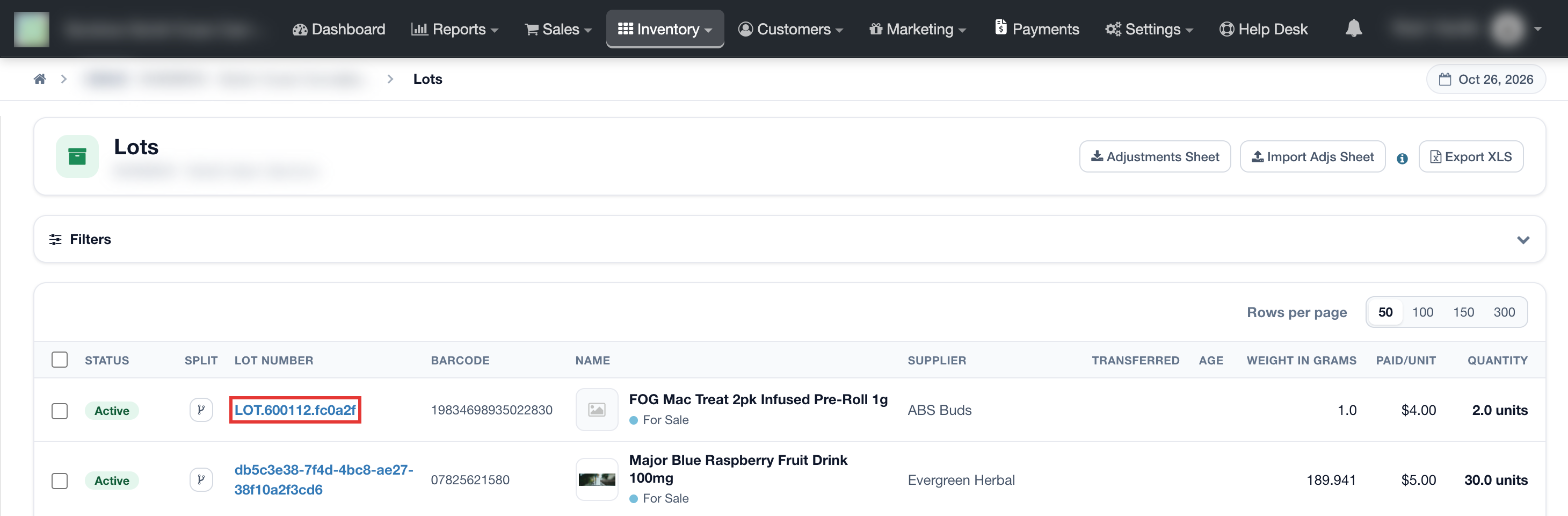
- If you are destroying the entire lot continue to step #10
- In order to only destroy a specific amount of products from a lot, you will first have to split the lot, splitting will generate a new lot number for the products that you wish to destroy.
- Split a lot by navigating to the "Other Actions" drop-down at the bottom right of the lot details, then under this drop-down select "Split Lot"
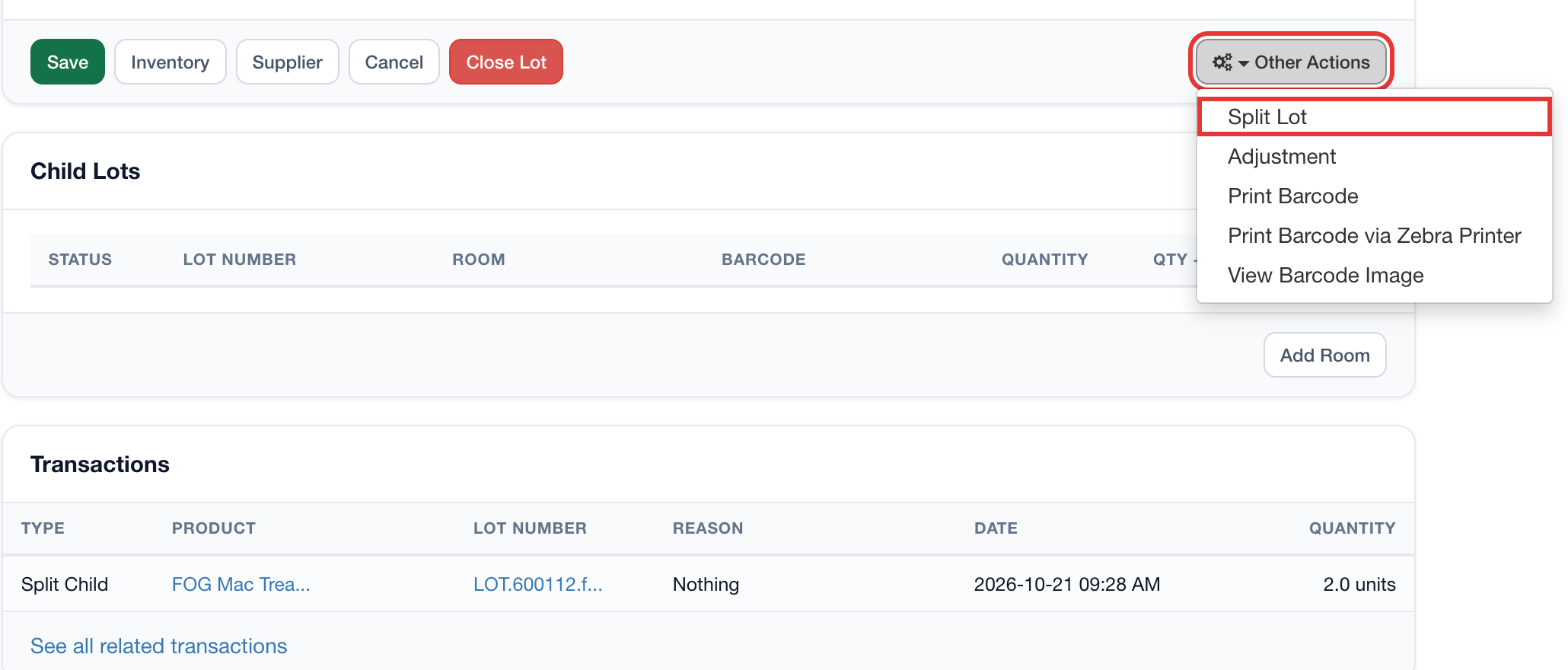
- Enter in the desired quantity of product that you would like to split off for destruction and press the blue "Split" button
- Scroll down below the lot details and find the module labeled "Child Lots"
- Under the "Child Lots" module find the new lot that was created with the desired quantity for destruction and press on the corresponding lot number found in the same row
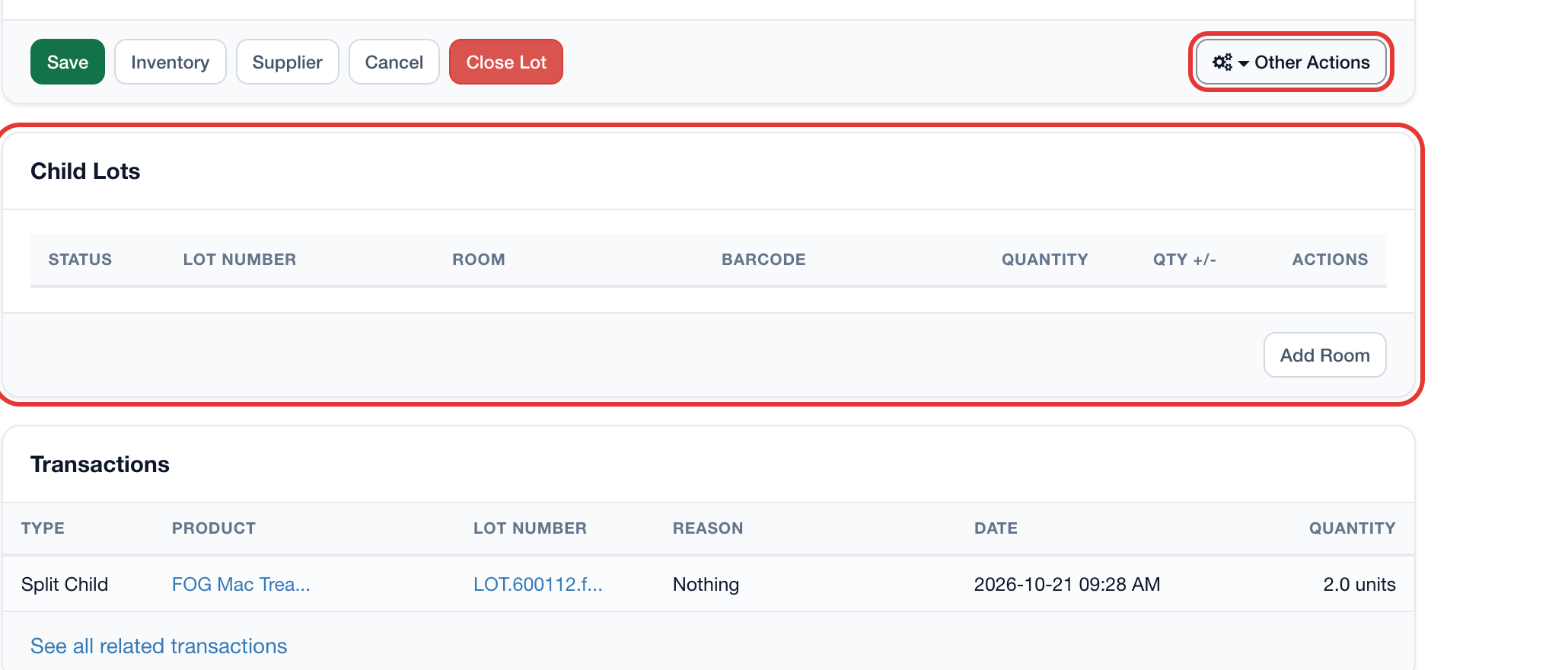
- You will now be on the lot details page that only has the quantity of products you wish to destroy
- Navigate to the "Other Actions" drop-down and select "Adjustment" and this takes you to the Inventory Adjustment page.
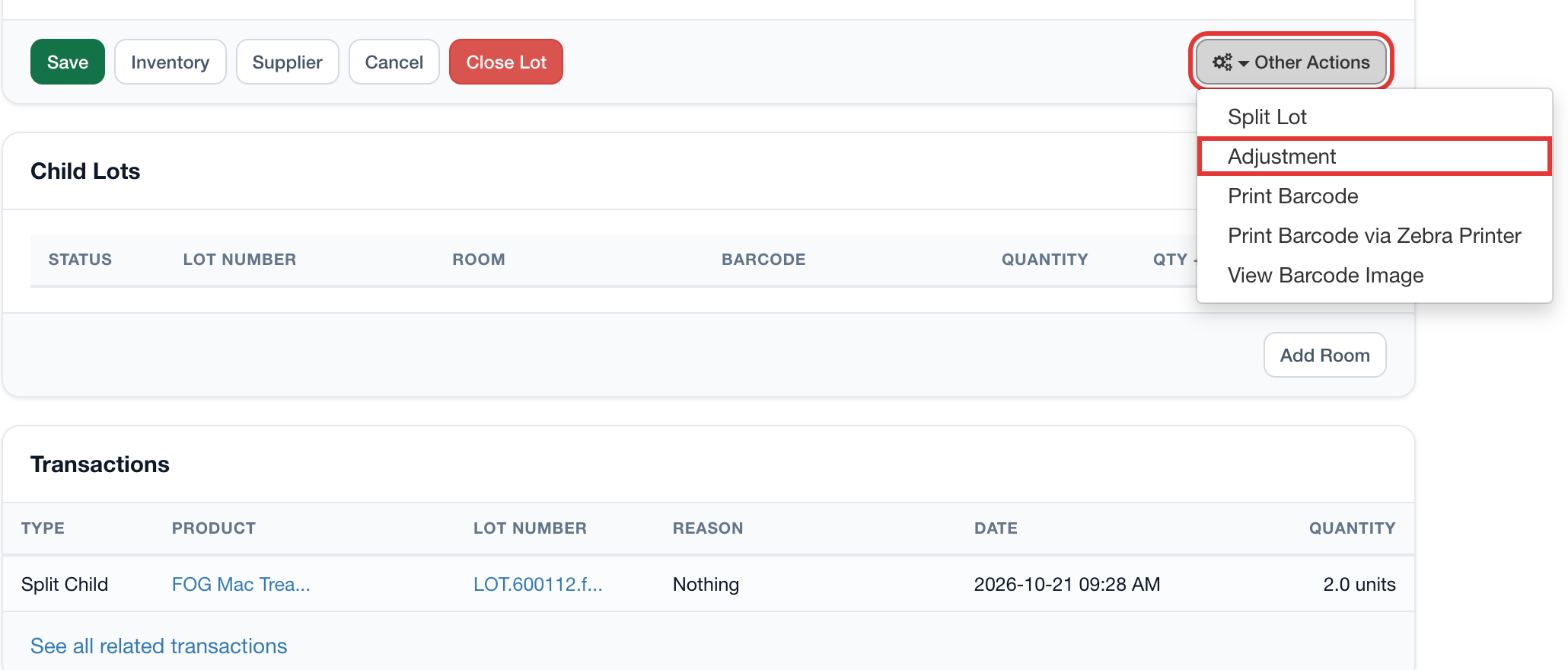
- Normally if you're destroying an entire lot that means that quantity would go to "0".
If the intention is to destroy the entire lot, you'd enter "0" for the new quantity in the Quantity On Hand box
Note: The quantity you enter is the quantity to adjust to, not how much to adjust by. In this photo, the lot is being adjusted to "0"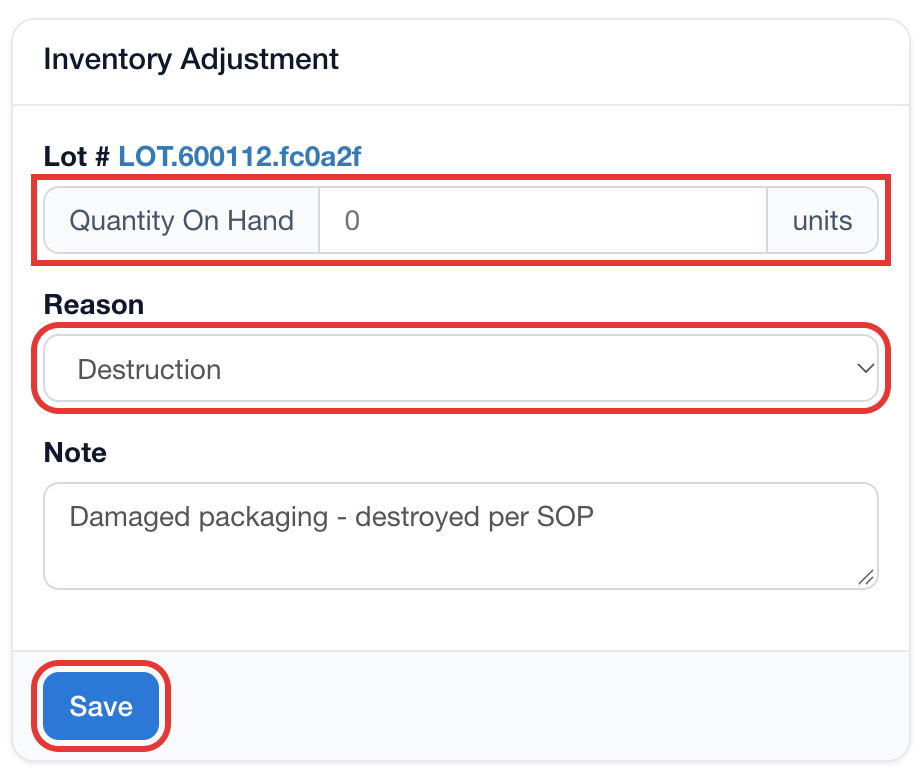
- Next, select the Reason that is most appropriate for your state (for example, Destruction). Then fill out the Note.
- Hit "Save" and there are two things that could happen:
- The Lot Auto Closes at Depletion - This is the "Auto close depleted Lots" setting under "Inventory Settings" that automatically closes the lot once it is "0". To reactivate the lot, select "Other Actions" and hit "Reactivate". Notice that this changes the state to "Active", but doesn't also change the quantity on hand. To change this, you have to repeat steps 11-14, but this time fill in the correct quantity.
- The Lot doesn't automatically close, so you must close the lot yourself using the red Close Lot button.
To Reactivate a Lot
There are various reasons why you might need to reactivate a lot, here's how you do it:
- Once you find the lot you are reactivating and confirm that the lot is Closed, select "Other Actions" and hit "Reactivate"
- Again, head to "Other Actions" and select "Adjustment"
- Enter the quantity you are adjusting to, select the appropriate reason, and write a note. Hit "Save"
- If it doesn't automatically reactivate the lot, you will have to reactivate it yourself. Head to "Other Actions" and select "Reactivate"
For additional assistance please reach out to POSaBIT support @ 1 (855) POSaBIT OR SUPPORT@POSaBIT.COM