Sales Summary Report

The Sales Summary Report is a great way to monitor a general overview of your venue.
Opening the Report
- In the POS portal, go to Reports → Sales Summary. You can also select Sales Summary under Sales Reports in the left-hand report menu.
- Choose a Date range. Select Custom to enter your own From and To dates.
- To narrow the results, click Filters and choose specific Terminals, Employees, or a Customer segment.
- Click Search. Click Clear to remove your filters, or Download to download the report.
Sales Graph
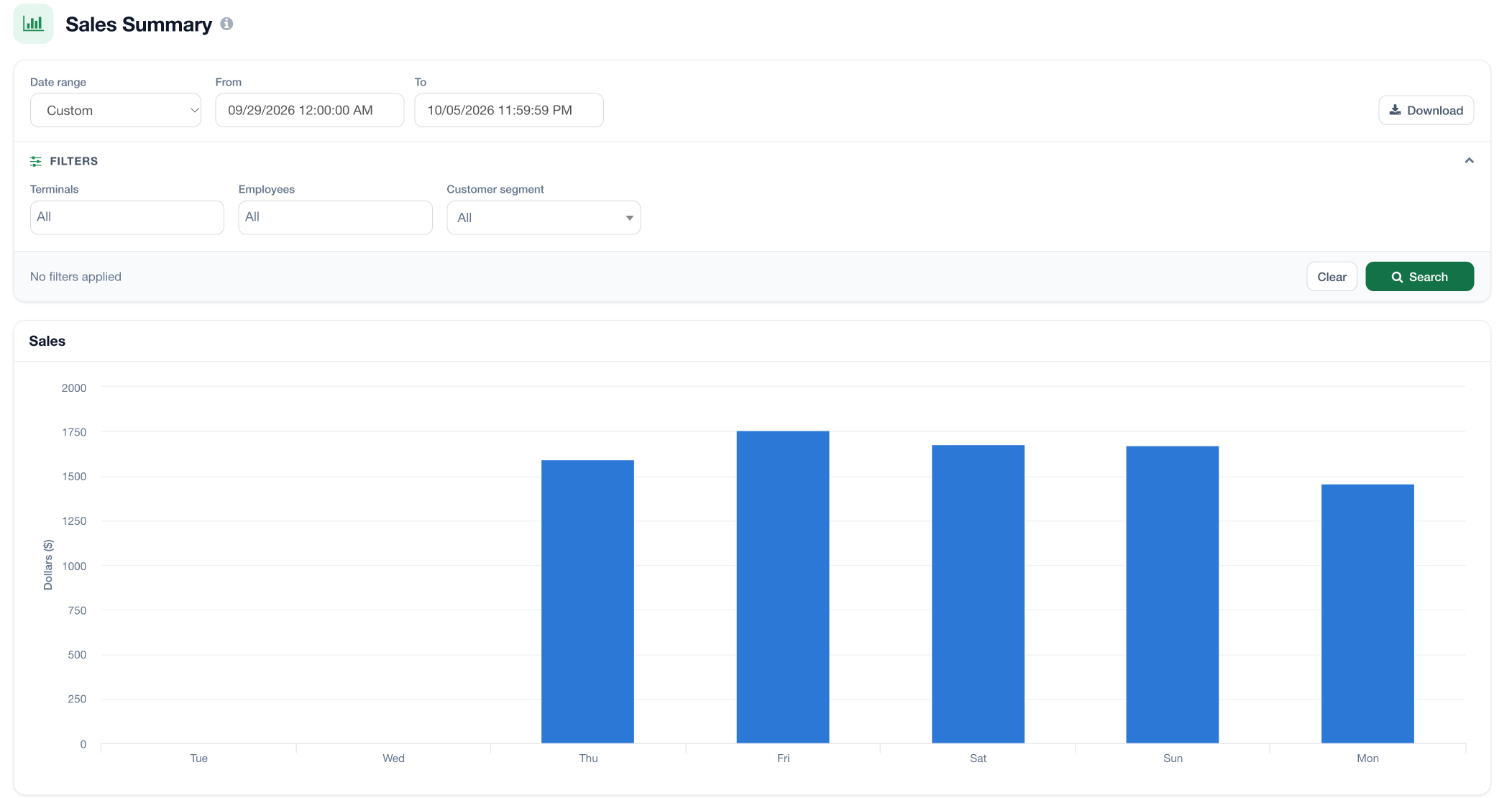
The Sales graph tracks total sales for the date range you selected. Shorter date ranges (a week or less) show sales by day, while longer ranges show weekly sales totals.
Sales Metrics Table
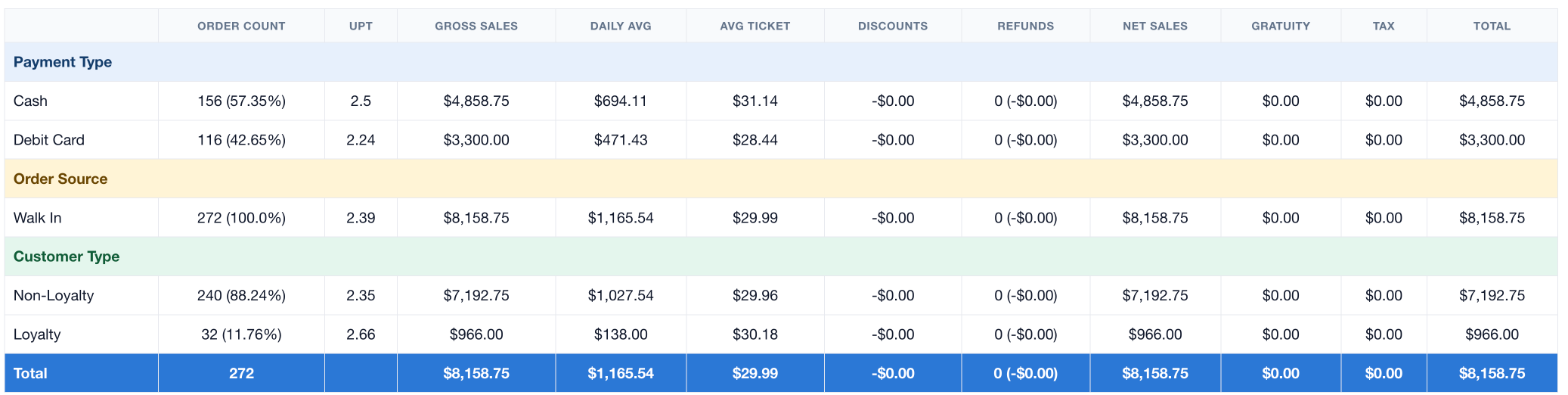
Below the graph, a table breaks down key sales metrics by Payment Type, Order Source, and Customer Type (loyalty and non-loyalty customers). Metrics include order count, UPT (units per transaction), gross sales, daily average, average ticket, discounts, refunds, net sales, gratuity, tax, and total. The blue Total row at the bottom sums up the whole date range.
Sales by Age and Gender Distribution
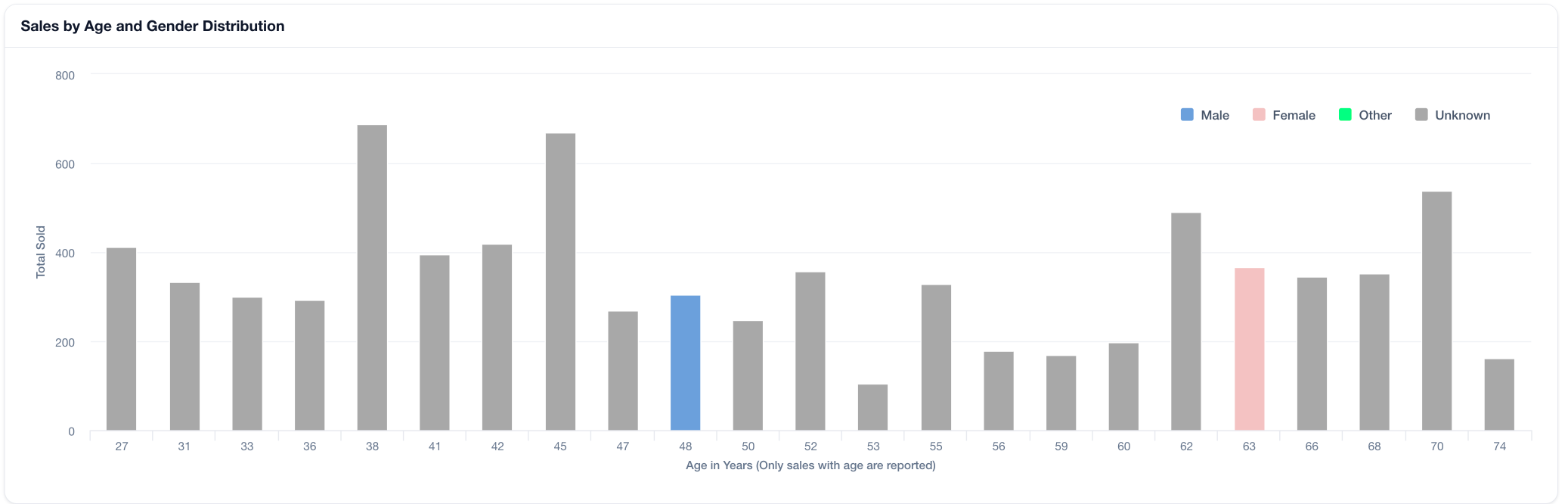
At the bottom of the page is a breakdown of sales by customer age, color-coded by gender (Male, Female, Other, and Unknown). Only sales with a recorded customer age are included. This graph is a great way to identify your customer demographics.
For additional assistance, please reach out to POSaBIT support @ 1 (855) POSaBIT OR SUPPORT@POSaBIT.COM