How to Enable or Disable Dark Mode in the POSaBIT Portal

The POSaBIT portal can be displayed in a dark theme, which is easier on the eyes in low light. Dark mode is a personal setting: turning it on only changes how the portal looks for you, not for anyone else on your account.
Turning dark mode on
- Log in to the POSaBIT portal.
- Click your name in the top right corner to open your user menu.
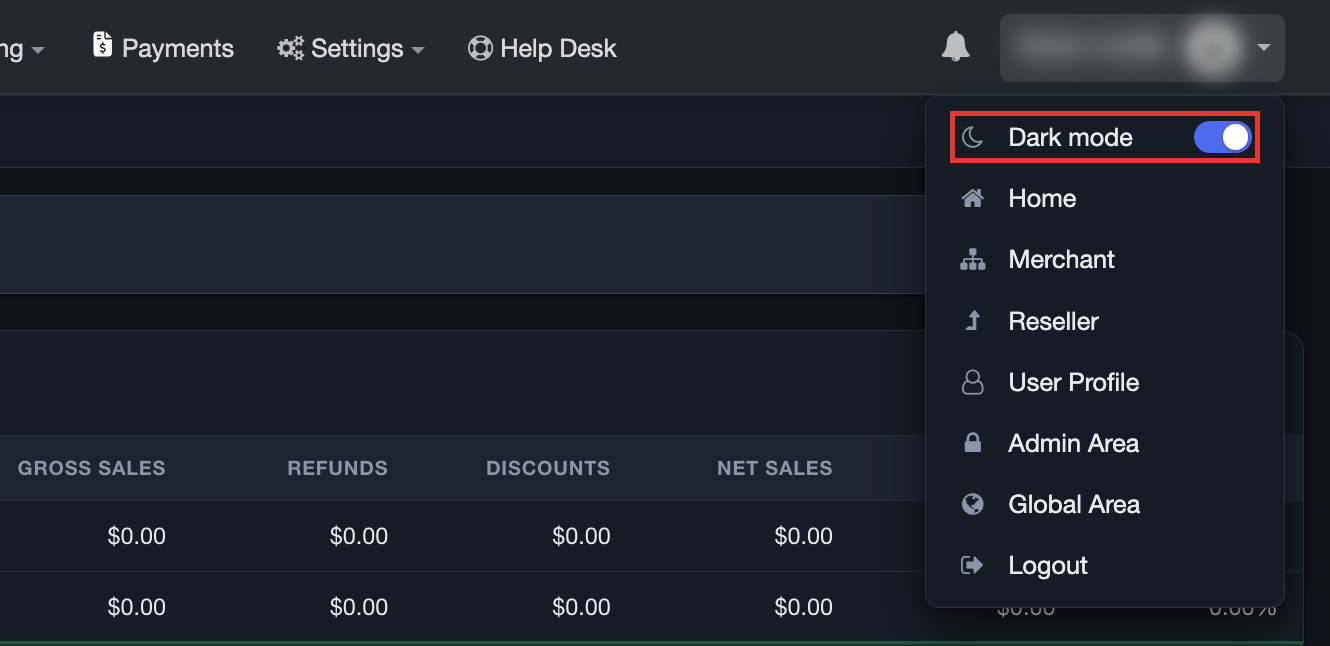
- Click the Dark mode switch at the top of the menu so it turns blue.
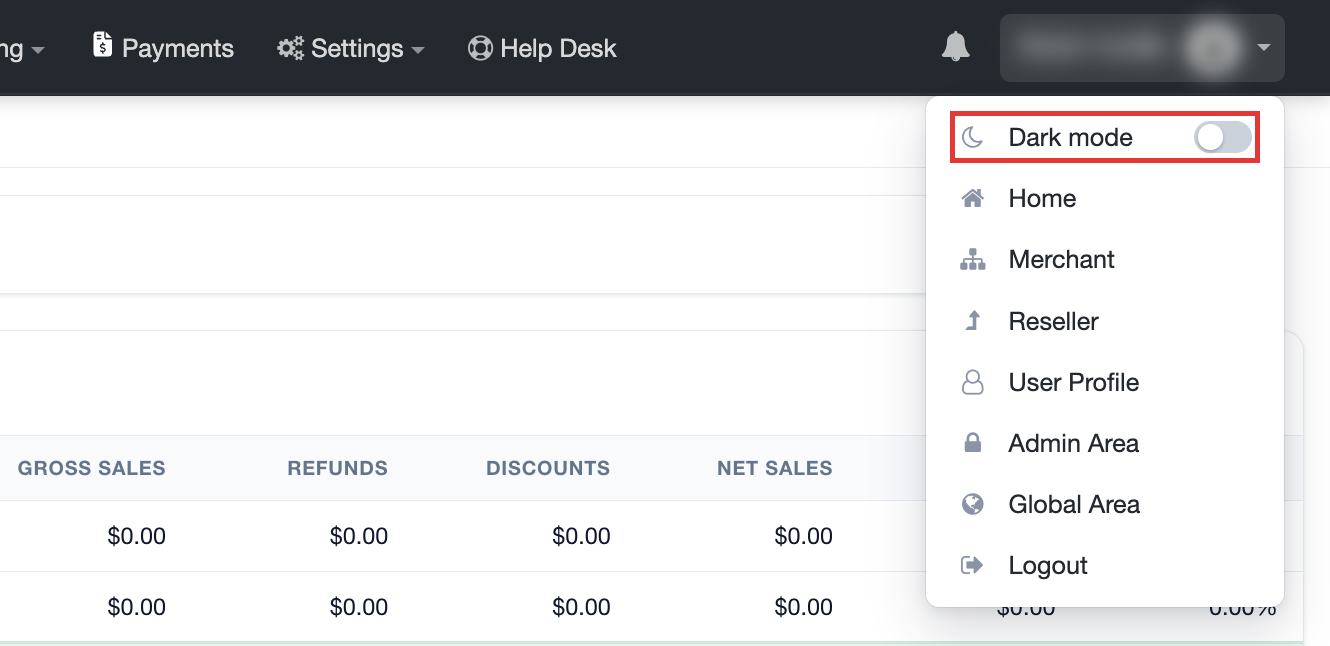
The portal switches to the dark theme right away. You don't need to save or reload the page.
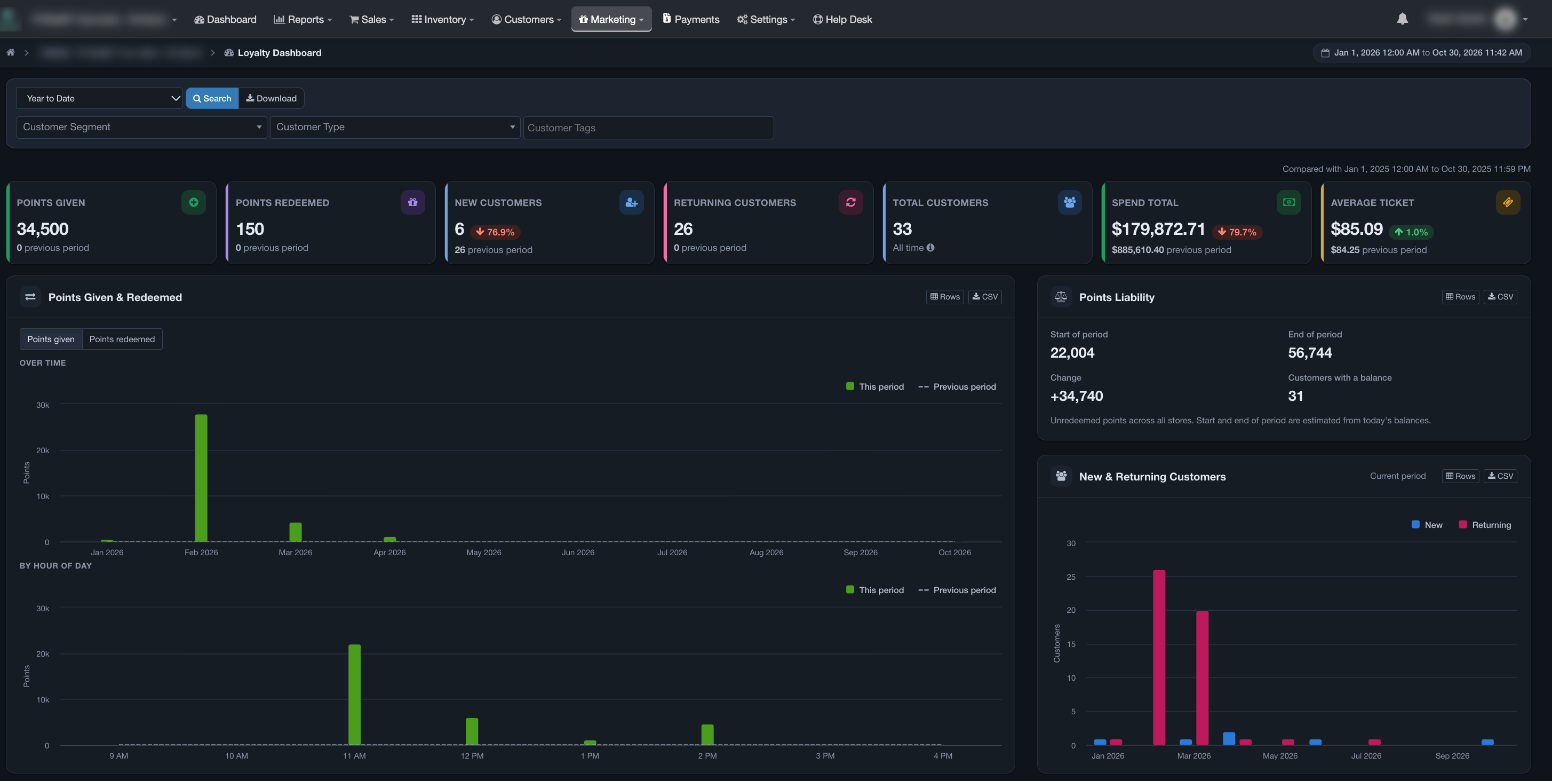
Dark mode applies to every page in the portal, including reports and dashboards:
Turning dark mode off
- Click your name in the top right corner to open your user menu.
- Click the Dark mode switch again so it turns gray.
The portal switches back to the light theme right away.
Things to know
- Your choice is saved to your user profile, so the portal stays in the theme you picked when you move between pages or log in again.
- The setting is only in the user menu. It does not appear on the User Profile page.
- This setting only affects the web portal. To use dark mode on a POS terminal, see How to Enable Dark Mode on a POS Terminal.