How to Create and Accept a NON-MJ Manifest

Unlike marijuana products, paraphernalia sales are not reported to your state's traceability system (Metrc, CCRS, etc.). Therefore, instead of automatically generating these manifests by pulling data from your state's system, you will need to manually create all paraphernalia manifests within POSaBIT.
Follow the steps below to learn how to manually Create and Accept a Paraphernalia Manifest in POSaBIT:
- Log in to the POSaBIT POS portal
- Select Incoming Manifests from the Inventory menu at the top of the page
- Click the blue New Manifest button in the top right-hand corner of the page
- Fill out the following information to create a new incoming manifest:
- Supplier: Use the drop-down selector to select which supplier is providing the paraphernalia products. If you have never received a product from this supplier, you may need to create a new supplier, learn how to do so HERE
- Reference ID: Enter the manifest ID or other unique identifier to help you easily locate this manifest if needed
- Discount $ (optional): Add a discount to the manifest
- Transfer date: Fill in the date the products were shipped (left the supplier's facility)
- Delivery time: Fill in the date and time you received or plan to receive the products
- Notes (optional): A space to add any notes you would like to save to the manifest for future reference
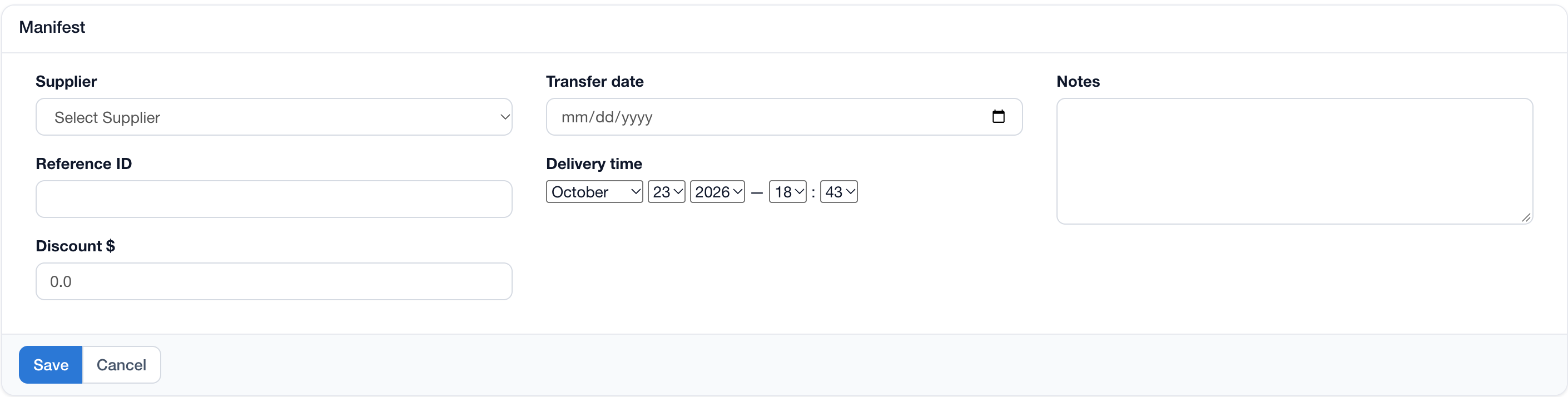
- After you have entered the required information, click Save to create the new manifest.
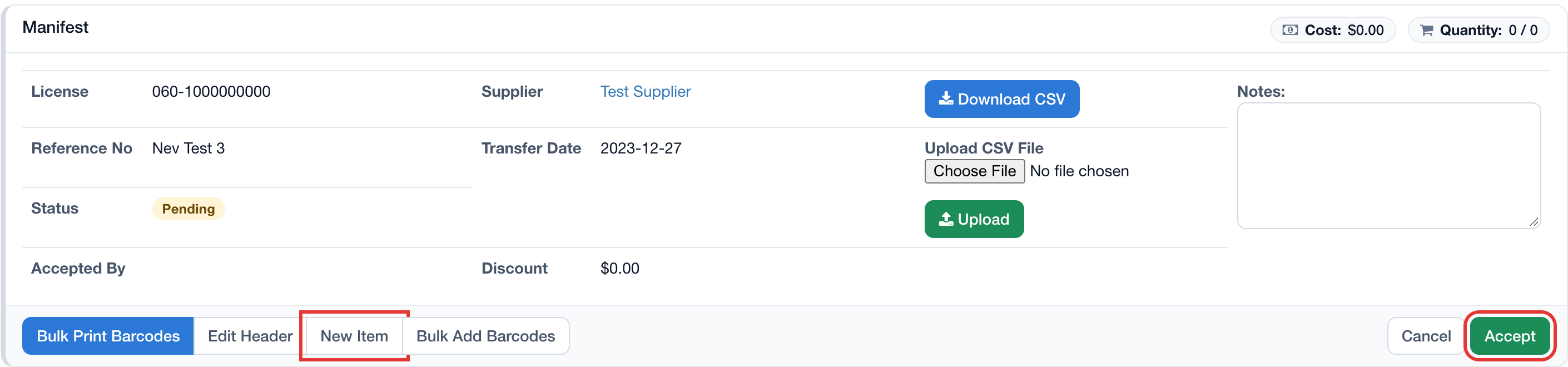
- Now you will need to add the products included in the manifest. Click the New Item button at the bottom of the manifest header to start creating a new product lot/package.
- Fill out the following information about the first product lot/package in the manifest:
- Product: Search for an existing product if you have carried this product in the past; otherwise, create a new product by clicking the orange + icon.
- Room: Select which room you wish to add this lot/package to
- Barcode: Enter the barcode you wish to use for this lot/package, or click the refresh icon to generate one
- Price $: Enter the price you would like to sell this product at
- Cost Per $: Enter the cost you paid for each unit
- Qty: Enter the quantity of units you would like to accept from the manifest (left) as well as the total quantity of units that were included in the manifest (right).
- Producer (optional): Change the producer of this specific product if it differs from the manifest supplier.
- Test Results: Ignore these fields for paraphernalia products
- Description (optional): A lot/package specific description for this product. Note: this description is for internal use only.
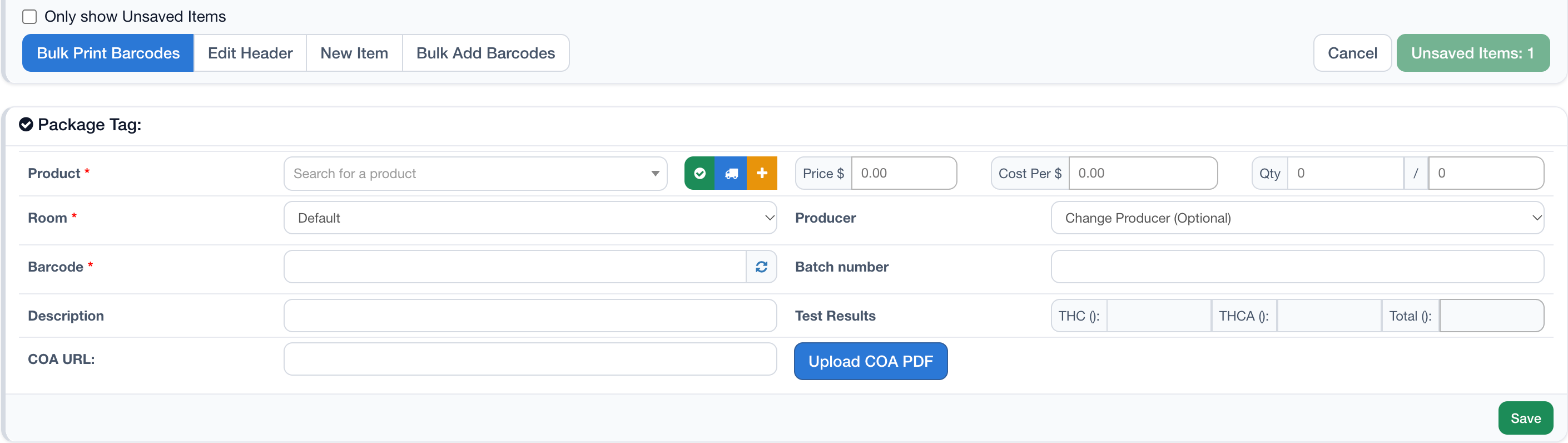
- Once you have entered all the required information for the new item, click the green Save button to save and verify that all information was entered correctly
- Repeat steps 6-8 for any additional paraphernalia lots/packages that you received in this manifest.
- Once all lots/packages have been entered and saved, click the green Accept button in the manifest header to accept the manifest. Note, if this button says Unsaved Items: # please double-check that all new lots/packages have been fully saved.
For additional assistance, please reach out to POSaBIT support @ 1 (855) POSaBIT OR SUPPORT@POSaBIT.COM