How to Temporarily Turn Off Online Ordering on Your POSaBIT Menu

How to Temporarily Turn Off Online Ordering on Your POSaBIT Menu
Need to pause online orders without taking your menu offline? With the Turn off ordering feature, you can temporarily stop shoppers from checking out while your menu stays live. Shoppers can still browse your products and add items to their cart, but they won't be able to place an order until you turn ordering back on.
This is useful when you need a short break from online orders, for example:
- Closed for a holiday
- Running an inventory count
- Short-staffed or catching up on a backlog of orders
- Closing early or handling an unexpected closure
- Troubleshooting an issue at the store
How to Turn Off Ordering from the Menu Dashboard
- Log in to the POSaBIT POS Portal
- Navigate to the Inventory tab --> Select Menu Feeds
- Click Edit on the POSaBIT V2 Menu you want to pause
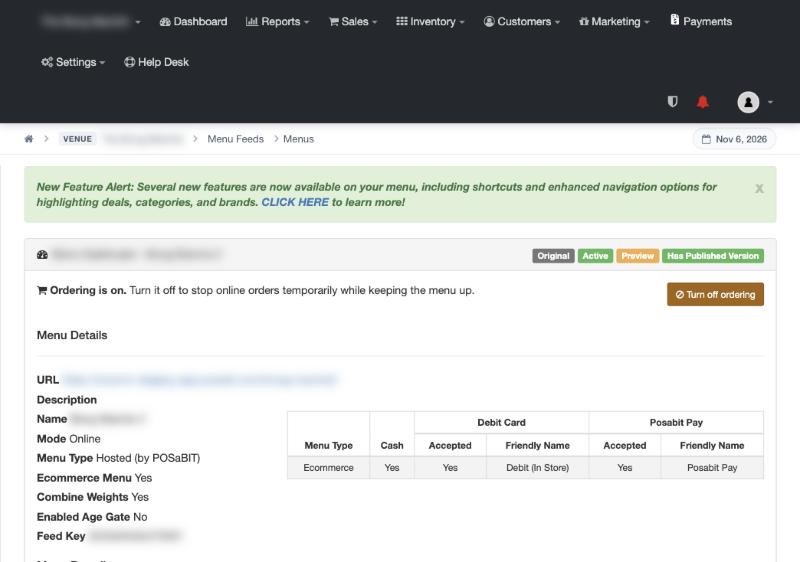
- At the top of the Menu Dashboard, you will see Ordering is on. Click the Turn off ordering button on the right
- A Turn off ordering pop-up will appear. Enter a Message for shoppers (Optional)
- This message is shown at the top of every page of your menu, so shoppers know why they can't check out.
- If you leave this blank, a default message will be shown instead.
Tip: Let shoppers know when to expect ordering to be back. For example: "Online ordering is paused while we restock. We'll be back tomorrow!"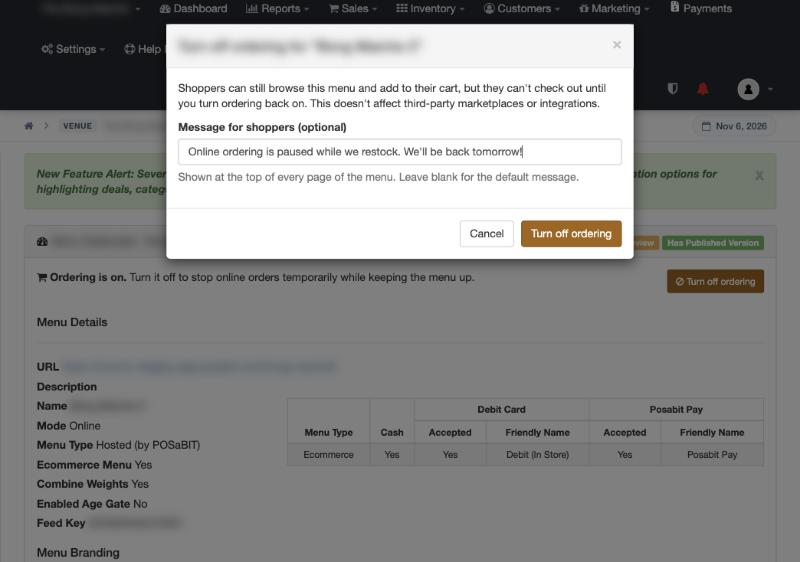
- Click Turn off ordering to confirm
How to Turn Off Ordering from the Menu Feeds Page
You can also turn ordering on or off directly from the list of menus, without opening the Menu Dashboard.
- Navigate to the Inventory tab --> Select Menu Feeds
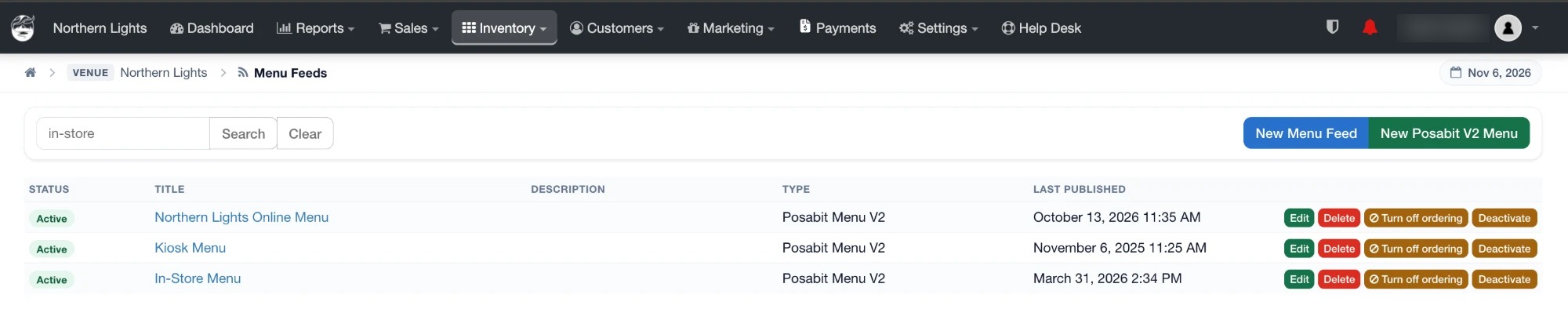
- Find the POSaBIT V2 Menu you want to pause and click the Turn off ordering button to the right of it
- Add an optional message for shoppers, then click Turn off ordering to confirm
What You'll See While Ordering Is Off
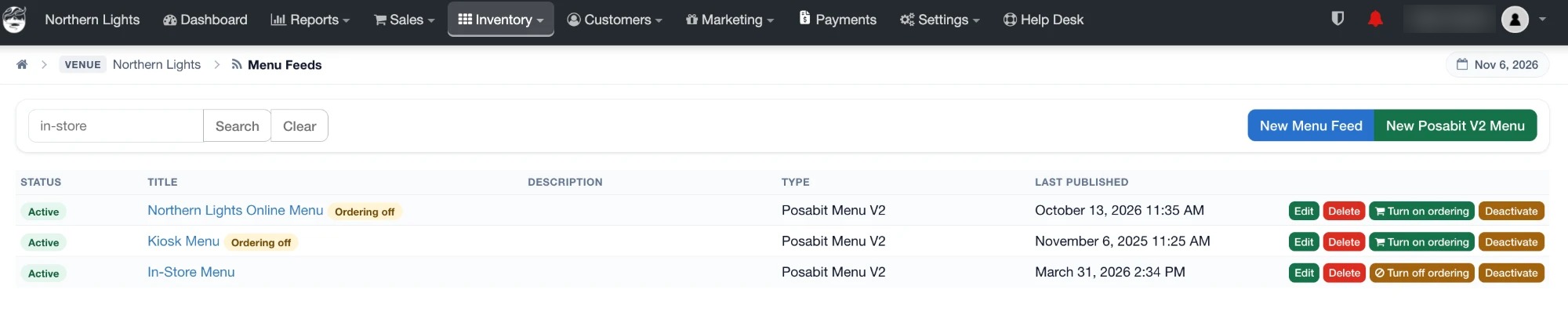
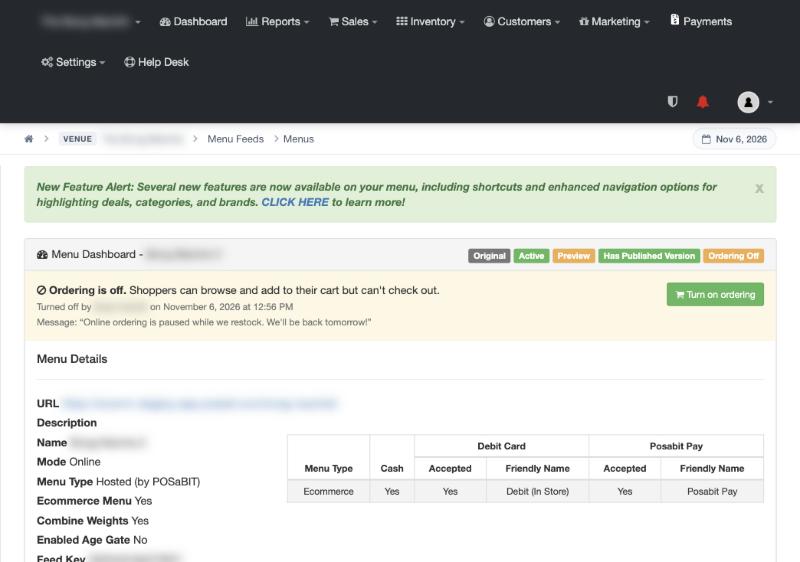
Once ordering is turned off, you'll see a confirmation at the top of the page, and the menu will be clearly marked in two places so your team knows ordering is paused:
- Menu Feeds page: an orange Ordering off badge is displayed next to the menu's name, and the button changes to Turn on ordering

- Menu Dashboard: an Ordering Off badge is added to the menu's status badges, and a yellow banner shows:
- Ordering is off. Shoppers can browse and add to their cart but can't check out.
- Who turned off ordering, along with the date and time
- The message being shown to shoppers (if one was entered)
What Shoppers See While Ordering Is Off
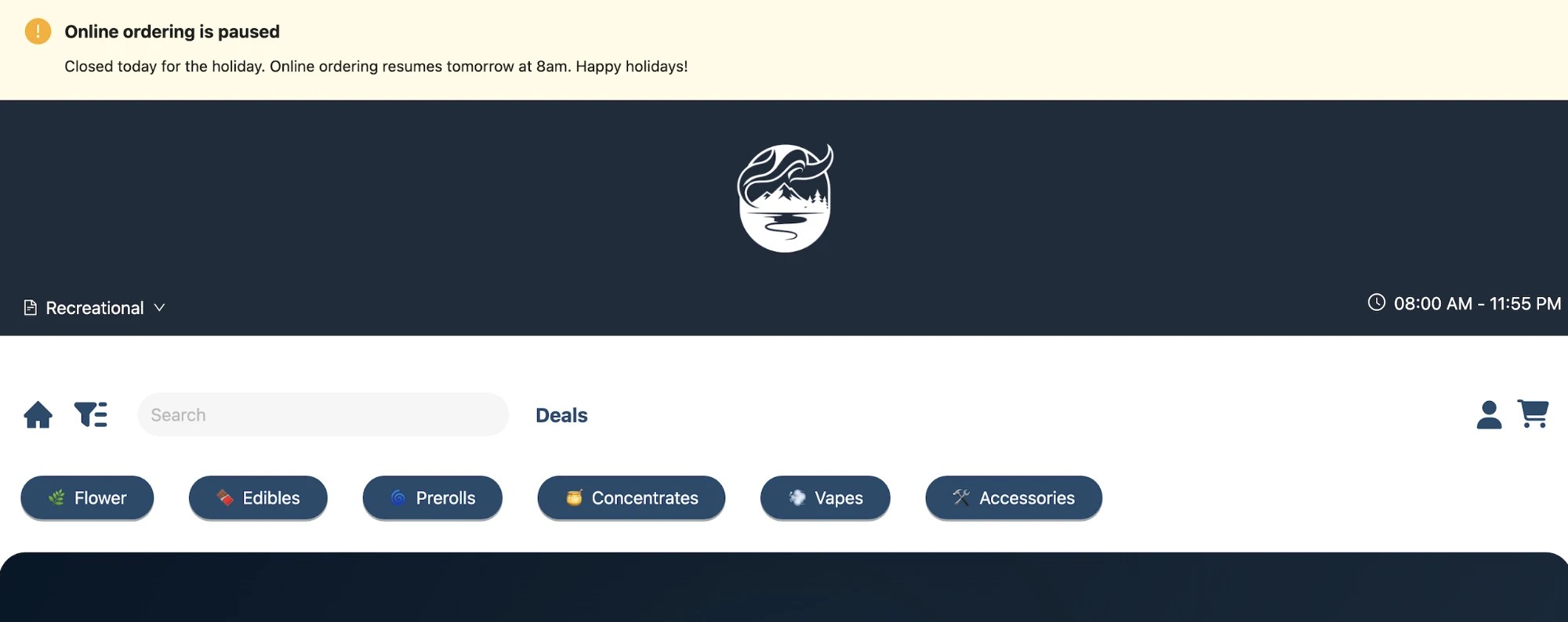
While ordering is off, your menu stays fully browsable, but shoppers are clearly told that online ordering is paused:
- Menu banner: an Online ordering is paused banner is shown at the top of every page of your menu, along with your message for shoppers (or the default message if you left it blank)
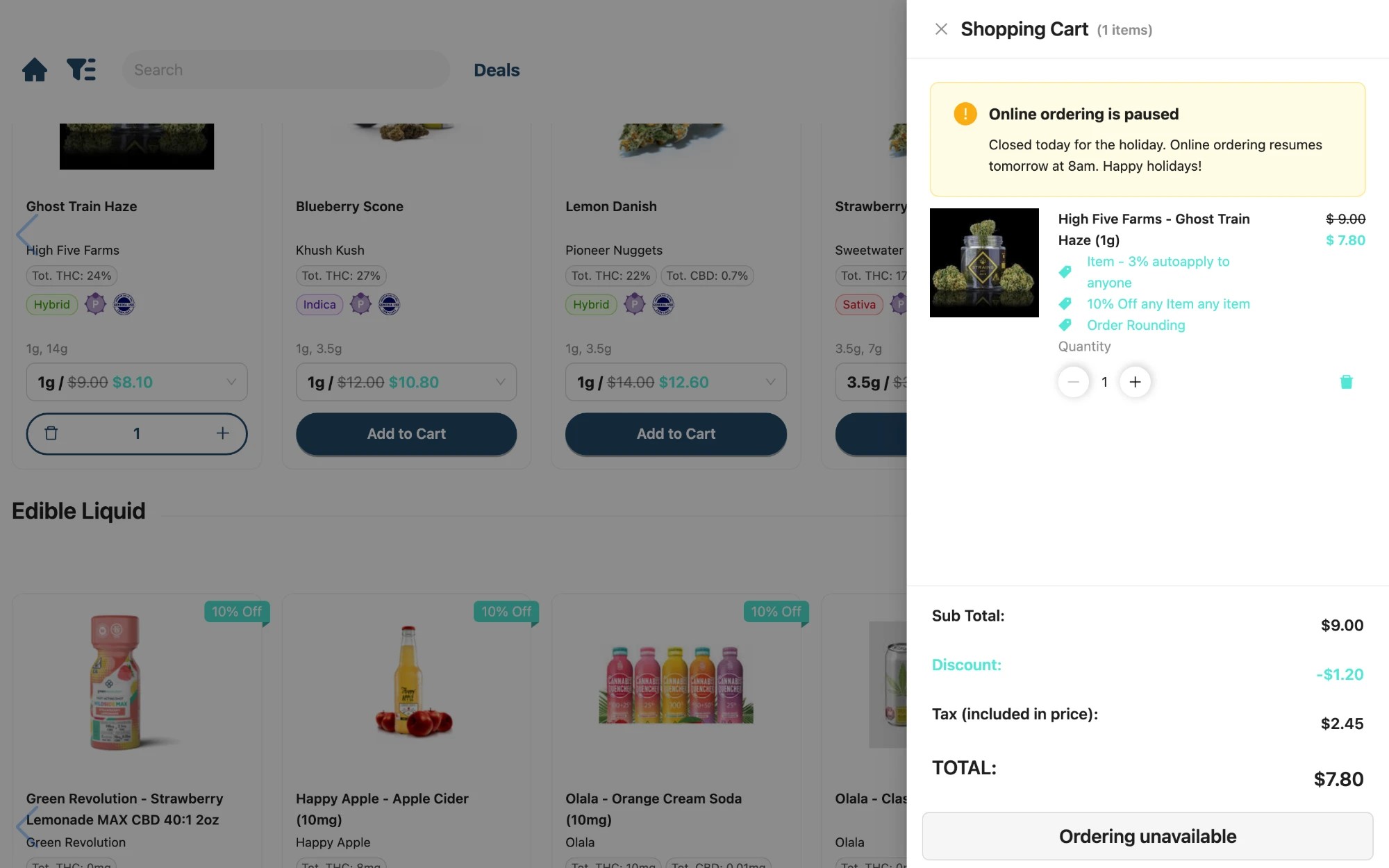
- Shopping cart: shoppers can still add items to their cart, but the cart shows the same Online ordering is paused notice and the checkout button changes to Ordering unavailable, so an order can't be placed
How to Turn Ordering Back On
Ordering stays off until someone turns it back on, so be sure to turn it back on once you're ready to accept orders again.
- Navigate to the Inventory tab --> Select Menu Feeds
- Click the green Turn on ordering button next to the menu OR click Edit on the menu and select Turn on ordering from the top of the Menu Dashboard
- Click Turn on ordering to confirm
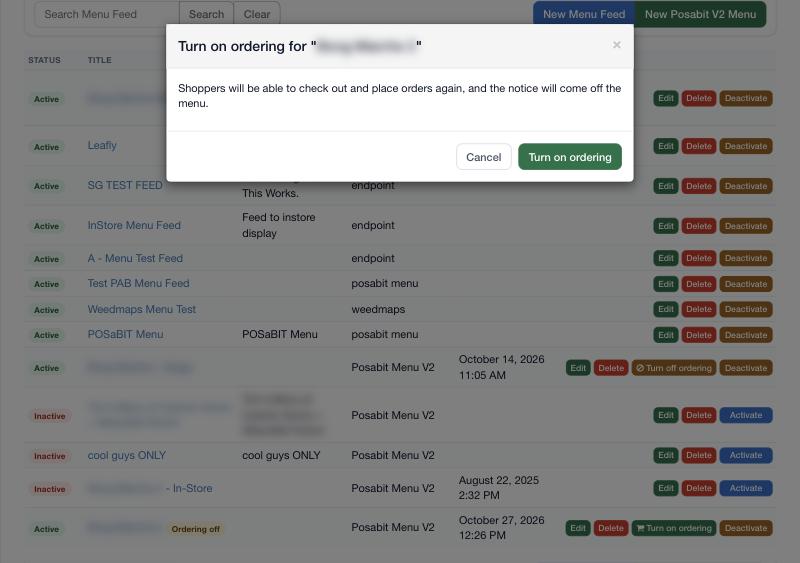
- You will see a confirmation that ordering is back on. Shoppers can now check out and place orders again, and the message is removed from your menu.
Frequently Asked Questions
Will my menu go offline when I turn off ordering?
No. Your menu stays up and shoppers can still browse products, view deals, and add items to their cart. They just can't check out.
Will this stop orders from 3rd party menu integrations?
No. This setting only affects your POSaBIT Menu. Third-party marketplaces and integrations are not affected.
How is this different from deactivating a menu?
Deactivate turns the menu off entirely. Turn off ordering keeps your menu live so shoppers can keep browsing, and only pauses checkout.
Will ordering turn back on automatically?
No. Ordering stays off until you turn it back on from the Menu Dashboard or the Menu Feeds page.