Setting up an in-store kiosk menu
 Updated 2 weeks ago
A kiosk menu lets customers browse and place their own orders on a self-serve screen in your store. Kiosk orders go straight to the POS, where a budtender opens the order, fulfills it and takes payment.
This article covers:
- Before you start: set up a separate kiosk menu
- Setting a menu to Kiosk mode
- Choosing what customers must enter at checkout
- Showing medical card details
- Setting the inactivity timeout
- Other kiosk settings
Before you start: set up a separate kiosk menu
A kiosk needs its own POSaBIT menu. It must be separate from your online menu. Your online menu stays in Online mode for customers ordering from home, and the kiosk menu runs in Kiosk mode for customers ordering in the store.
If you don’t have a menu for the kiosk yet, create one first. See POSaBIT Menu Overview.
Set the menu to Kiosk mode
- In the portal, go to Inventory >Menu Feeds and edit the menu you’ll use on the kiosk.
- Click the blue edit button to access the menu setup page, and change Mode to Kiosk.
- Save.
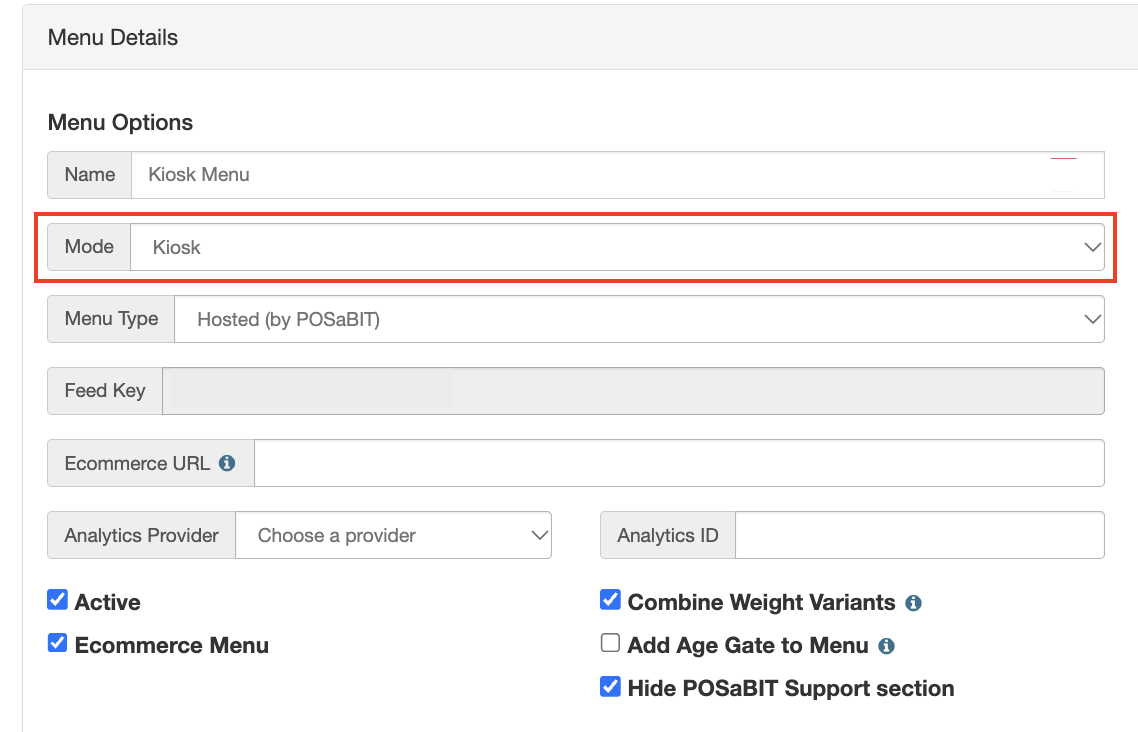
Orders placed on a kiosk menu show on the POS as In Store – Kiosk, so budtenders can tell them apart from online orders.
Choose what customers enter at checkout
You can choose which customer details are required when someone checks out on the kiosk.
- In the menu settings, find Customer Information Requirements at Checkout.
- Choose which fields are required:
- First Name
- Last Name
- Date of Birth
- Medical Card Number (prefilled if logged in as an existing medical customer)
- Medical Card Expiration Date (prefilled if logged in as an existing medical customer)
- Save.
Phone Number is always required and can’t be turned off.
Keep the requirements short. Every extra field slows down checkout at the kiosk.
Show medical card details at checkout
When a medical customer logs in on the kiosk, checkout can show an I have a medical card checkbox along with their card details. The checkbox is checked and can’t be changed by the customer.
To show the card details:
- In Customer Information Requirements at Checkout, turn on:
- Medical Card Number
- Medical Card Expiration Date
- Save.
The details come from the customer’s profile, so the customer doesn’t type them in.
Set the inactivity timeout
If a customer walks away from the kiosk partway through an order, the timeout clears their cart so the next customer starts fresh.
- In the menu settings, turn on the session timeout.
- Set how long the kiosk waits with no activity. You can choose 30 seconds up to 10 minutes.
- Save.
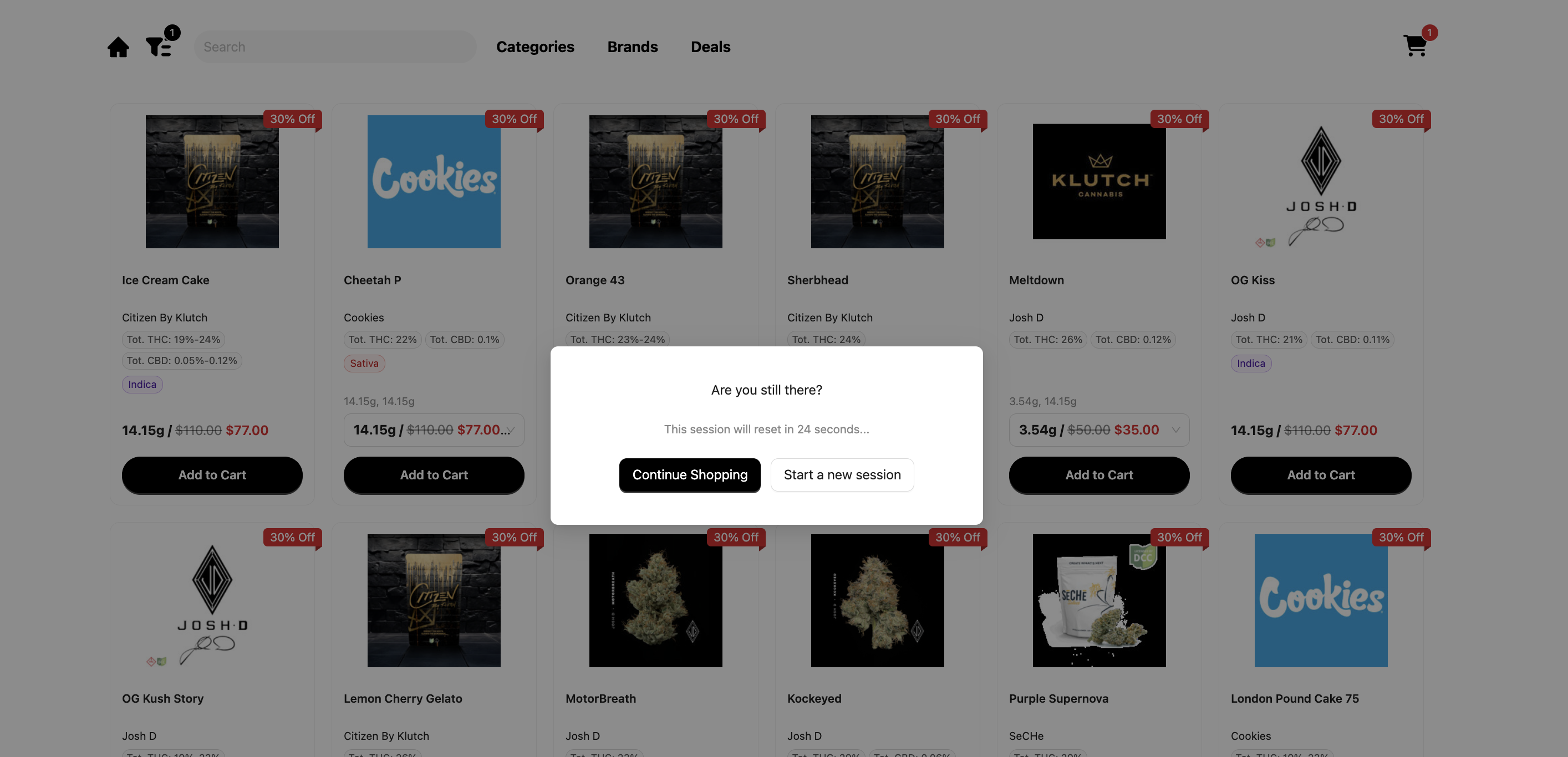
When the time runs out, the customer sees a countdown with two options:
- Continue shopping: keeps their cart.
- Start a new session: clears the cart.
If no one responds, the kiosk clears the cart, goes back to the home screen and switches to Recreational mode.