Opening a kiosk order from the Customer Queue
 Updated 2 weeks ago
When a customer places an order on the in-store kiosk, the order waits in POSaBIT until a budtender opens it at the register. This article shows how to pull up the customer’s existing order, and how to see the change due when they pay with cash.
Turn on the Open Existing Order pop-up
A manager or admin can set the POS to show a customer’s existing orders automatically whenever a budtender opens a new cart.
- In the portal, go to Settings > General POS Register Settings (Customer Check-in Settings section).
- Turn on Automate Existing Order Modal for New Carts.
- Save.
We recommend turning this on for stores where most orders come from the kiosk.
Open a kiosk order
- Open a cart for the customer from the Customer Queue. You can also search for the customer, or create a new profile on the POS.
- The Open Existing Order window appears with the open orders.
- Find the customer’s order. To sort the list, tap a column heading: Customer Name, Phone Number or Type.
- Tap View Order. The customer’s order replaces the empty cart.
- Continue with the sale.
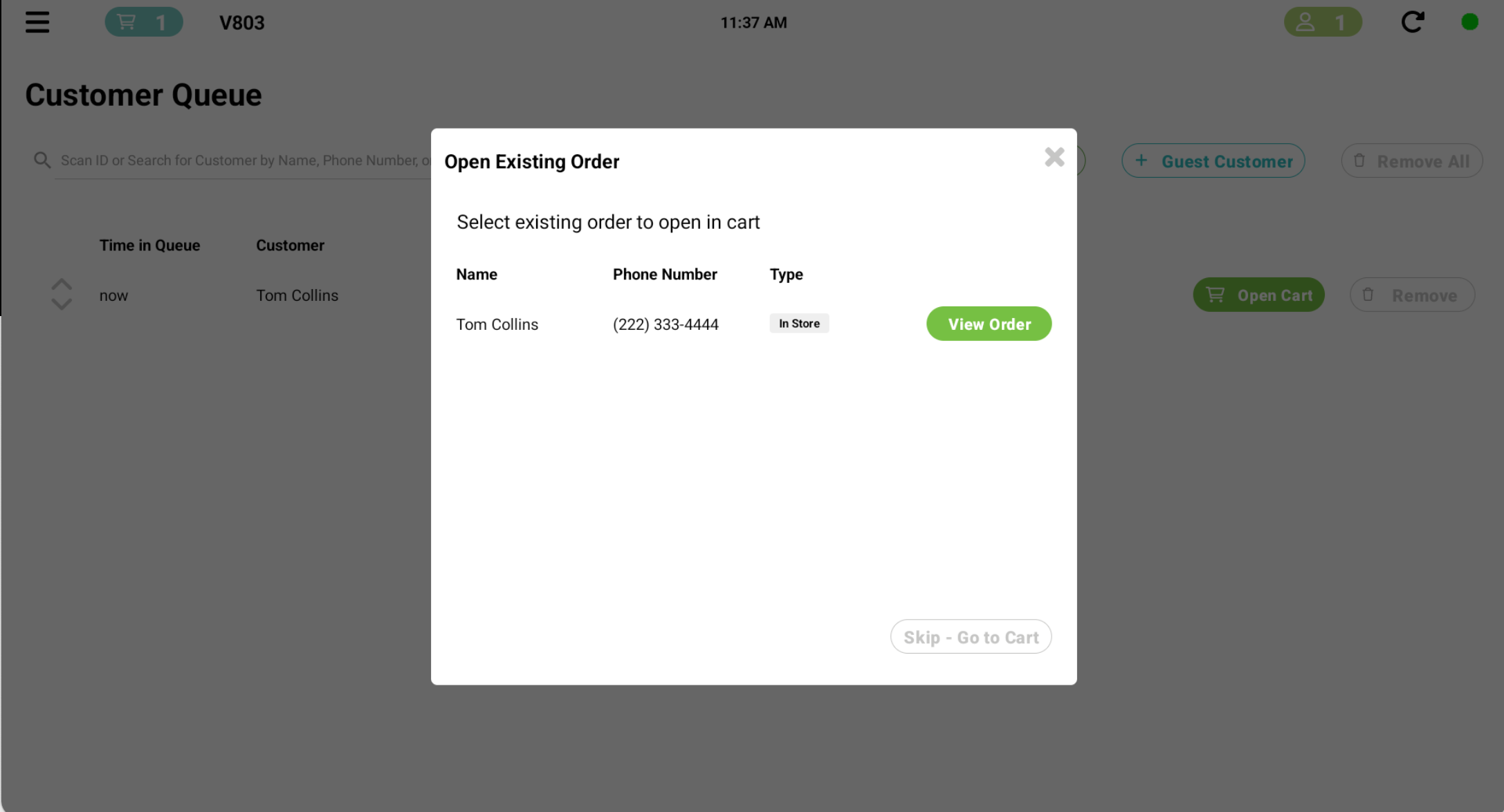
To start a new order instead, tap Skip – Go to Cart at the bottom of the window.
Order types
The Type column shows where each order came from:
Type | Where the order came from |
Pickup – Kiosk | The in-store kiosk |
Pickup – In Store | Placed in store at the POS |
Pickup – Drive Thru | An online or app order for drive-thru pickup |
Pickup – Curbside | An online or app order for curbside pickup |
Pickup – Online | An online order for in-store pickup |
Open an existing order manually
If the pop-up is turned off, or you skipped it:
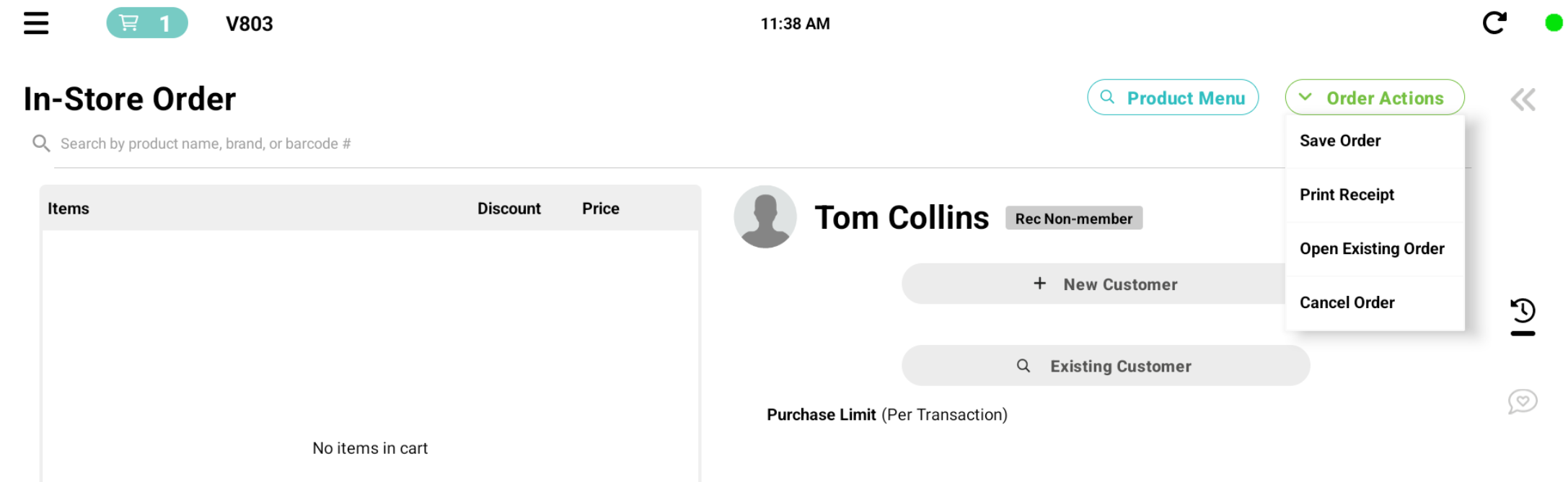
- On the cart, tap Order Actions.
- Tap Open Existing Order.
- Find the order and tap View Order.
Open Existing Order is always available under Order Actions, whether or not the pop-up setting is on.
When the pop-up doesn’t appear
The pop-up doesn’t appear when you:
- Open an order from the Order Planner
- Search for a customer and tap View Open Order
In both cases you’re already opening a specific order.
See the change due
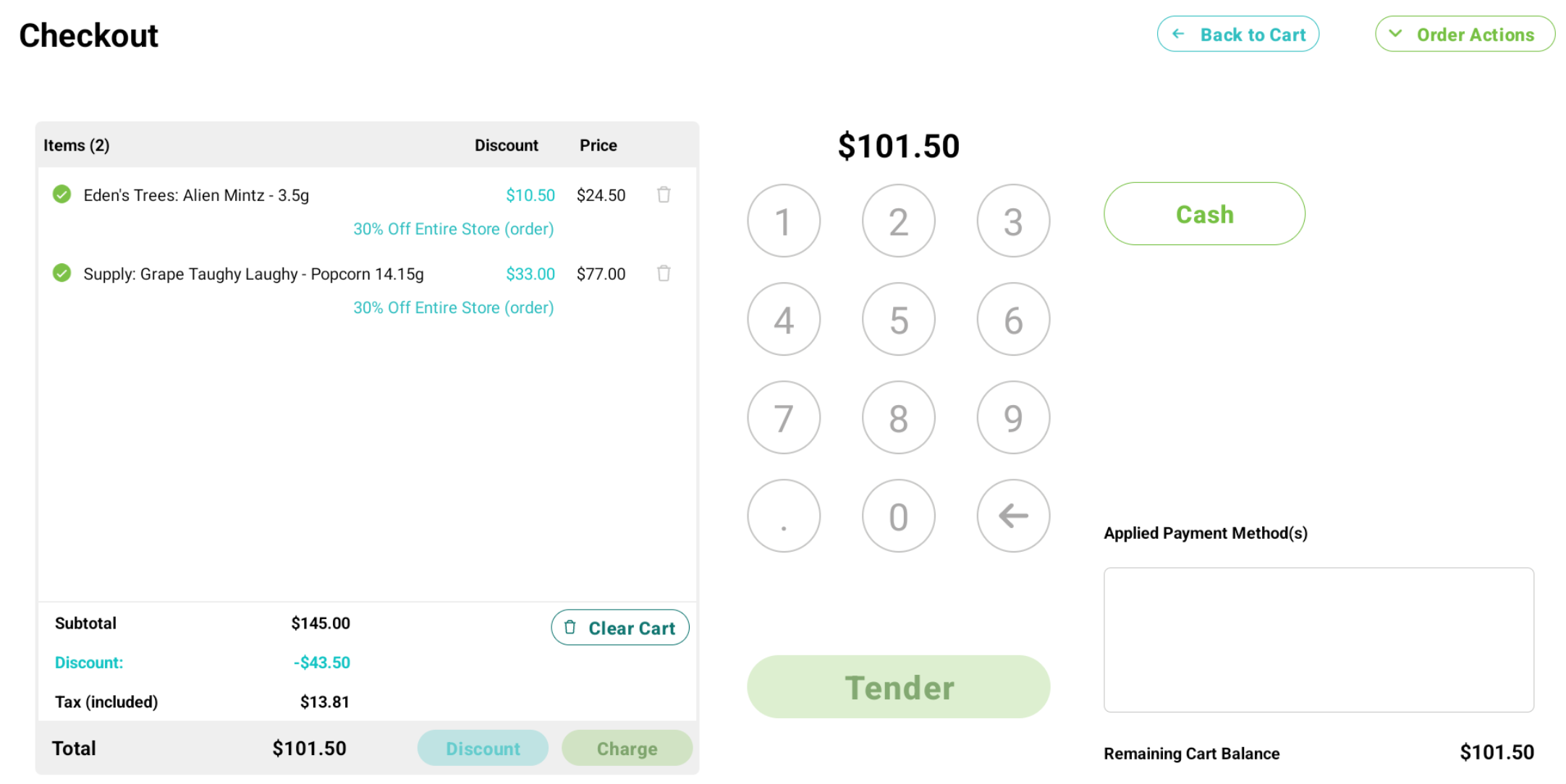
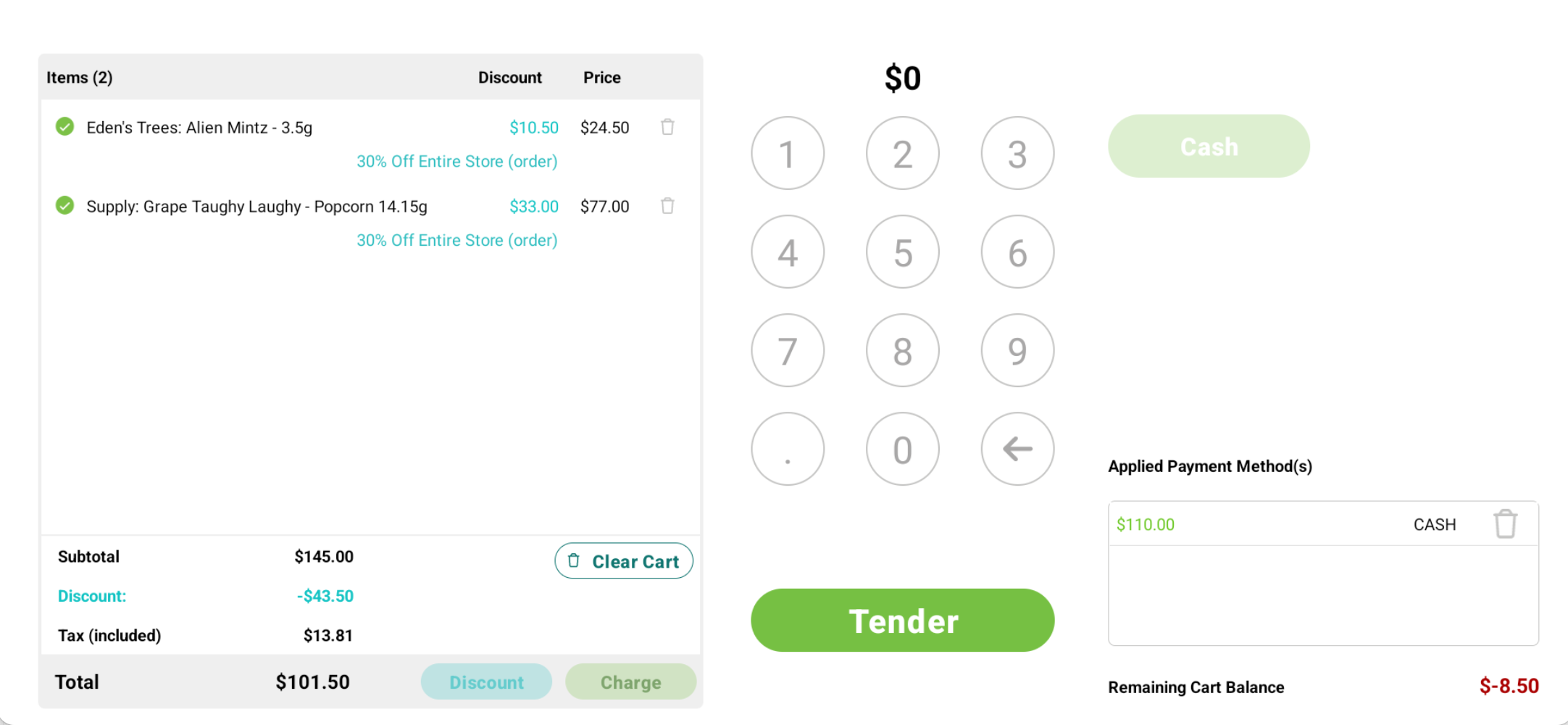
When the customer pays, the tender screen shows the change due as soon as you enter the payment. For example, if the order total is $101.50 and the customer hands you $110.00 cash, the remaining balance shows -$8.50 in red. That’s the change you give back once you've tendered out the order.