Patient vs caregiver carts and Ohio purchase limits
 Updated 2 weeks ago
In Ohio, the purchase limit on a medical sale depends on who is buying. A patient buying for themselves has a higher limit than a caregiver or guardian buying on the patient's behalf. When you open a medical cart, the POS asks who you're selling to, and it enforces the right limit from then on.
Ohio purchase limits
Who's buying | Flower | Other products (total THC) | Seeds, Clones & Plants |
Medical patient | 283 g (10 oz) | 60,000 mg (60 g) | 6 units |
Caregiver or guardian | 70.75 g (2.5 oz) | 15,000 mg (15 g) | 6 units |
Recreational customer | 70.75 g (2.5 oz) | 15,000 mg (15 g) | 6 units |
Other products include concentrates, edibles, liquid edibles and anything else that isn't flower. They count toward the total THC limit, not by weight.
Set purchase limits on your product types
The POS only counts a product toward a limit if its product type is set up with that limit. Check each product type when you set up your store, and whenever you add a new one.
- In the portal, go to Inventory > Product Types.
- Open a product type.
- Under the purchase limit settings, choose the limits the product type counts toward:
- Flower types: Flower for recreational, and Flower – Medical for medical
- Concentrates, edibles, liquid edibles and other THC products: THC in products for recreational, and THC in products – Medical for medical
- Seeds, clones and plants: Seeds, Clones & Plants
- Save.
- Repeat for each product type.
If a product type isn't set up with a limit, its products won't count toward that limit at the register. That can let a sale go over Ohio's limits.
Selling to a patient or caregiver
- Open the patient's profile and start a medical cart.
- The POS asks who you're selling to. Choose one:
- Patient: the patient is buying for themselves.
- Caregiver or Guardian: a caregiver or guardian is buying for the patient.
- Above the cart, the POS shows Patient Order or Caregiver/Guardian Order so you can see which you picked.
- Add products. The POS tracks the cart against the limit for your choice.
Rec-only and medical-only products
Some products can only be sold on one type of cart:
- Rec-only products, such as infused prerolls, can only go on a recreational cart.
- Medical-only products can only go on a medical cart.
If a medical patient wants a rec-only product, use the Rec/Med toggle on the cart to switch to a recreational cart. The sale is then handled as a recreational sale:
- It uses the recreational purchase limits.
- It's charged recreational taxes, including the 10% excise tax.
- It isn't reported to OARRS.
To buy both medical and rec-only products, the patient needs two separate sales: one on a medical cart and one on a recreational cart.
See Rec-only and medical-only products, and the Rec/Med cart toggle for how to flag products and use the toggle.
What happens when a cart reaches the limit
The POS lets you add items to the cart, but it won't let you complete a sale that's over a purchase limit.
When the cart goes over a limit:
- A red banner appears above the cart totals showing which limit was reached, the cart's current amount and the limit. For example: Limit "Flower" reached! Current weight (flower equivalent) 84.9 gm; limit is 70.75 gm.
- The Charge button is grayed out, so the sale can't be completed.
To finish the sale, remove items or lower quantities until the cart is back under the limit. The banner then goes away and Charge becomes available again.
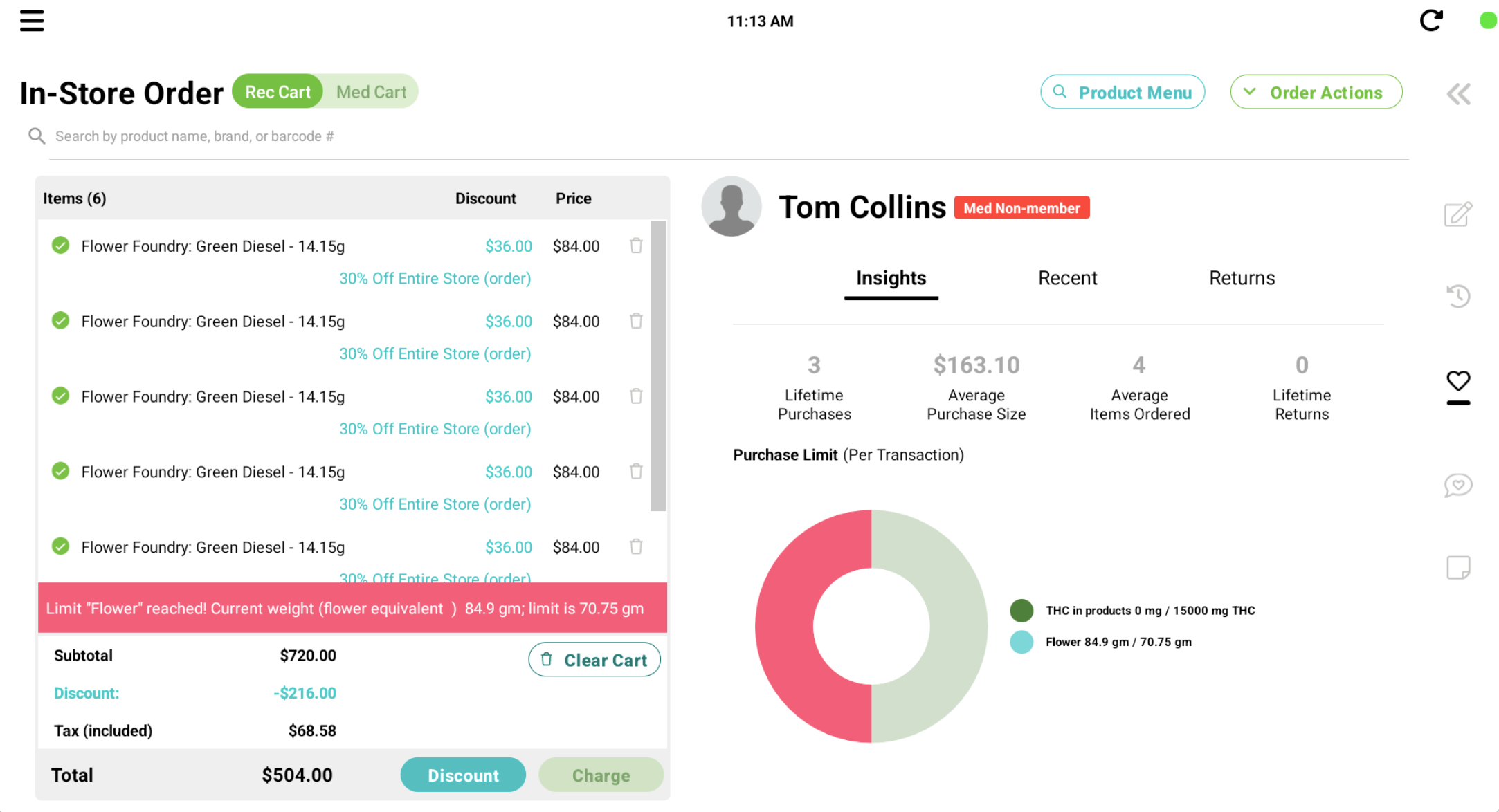
By default, purchase limits apply per transaction. Stores can also turn on the anti-looping setting, which counts a customer's earlier purchases toward their limit. See Looping Prevention (track daily purchase limits across transactions/locations) article.
Checking limits as you build the cart
With a customer selected, the Insights tab on the customer panel shows a Purchase Limit (Per Transaction) chart. It tracks the cart against each limit as you add items. For example, Flower 84.9 gm / 70.75 gm and THC in products 0 mg / 15000 mg THC. The chart turns red for any limit the cart is over.
How concentrates count toward the limit
Concentrates count toward the total THC limit using the product's Weight (Grams Per Concentration) value. Make sure this field is filled in correctly for every concentrate:
- On the product: set Weight (Grams Per Concentration) on the product form.
