Leafly Integration & Implementation

Never worry about manually updating your products and inventory quantities again! The POSaBIT point of sale is fully integrated with Leafly and will automatically keep your Leafly menu in sync with your inventory.
Before connecting your menu with your inventory in POSaBIT, ensure that every product you'd like displayed on the menu has strain and brand listed under the product details of that product. If strain or brand is missing from a product, it will not appear on your Leafly menu. When one of those product attributes is missing, the product is highlighted yellow and the missing field (for example "Brand missing") is listed in the product preview on the right side of the feed category setup page (as shown below).
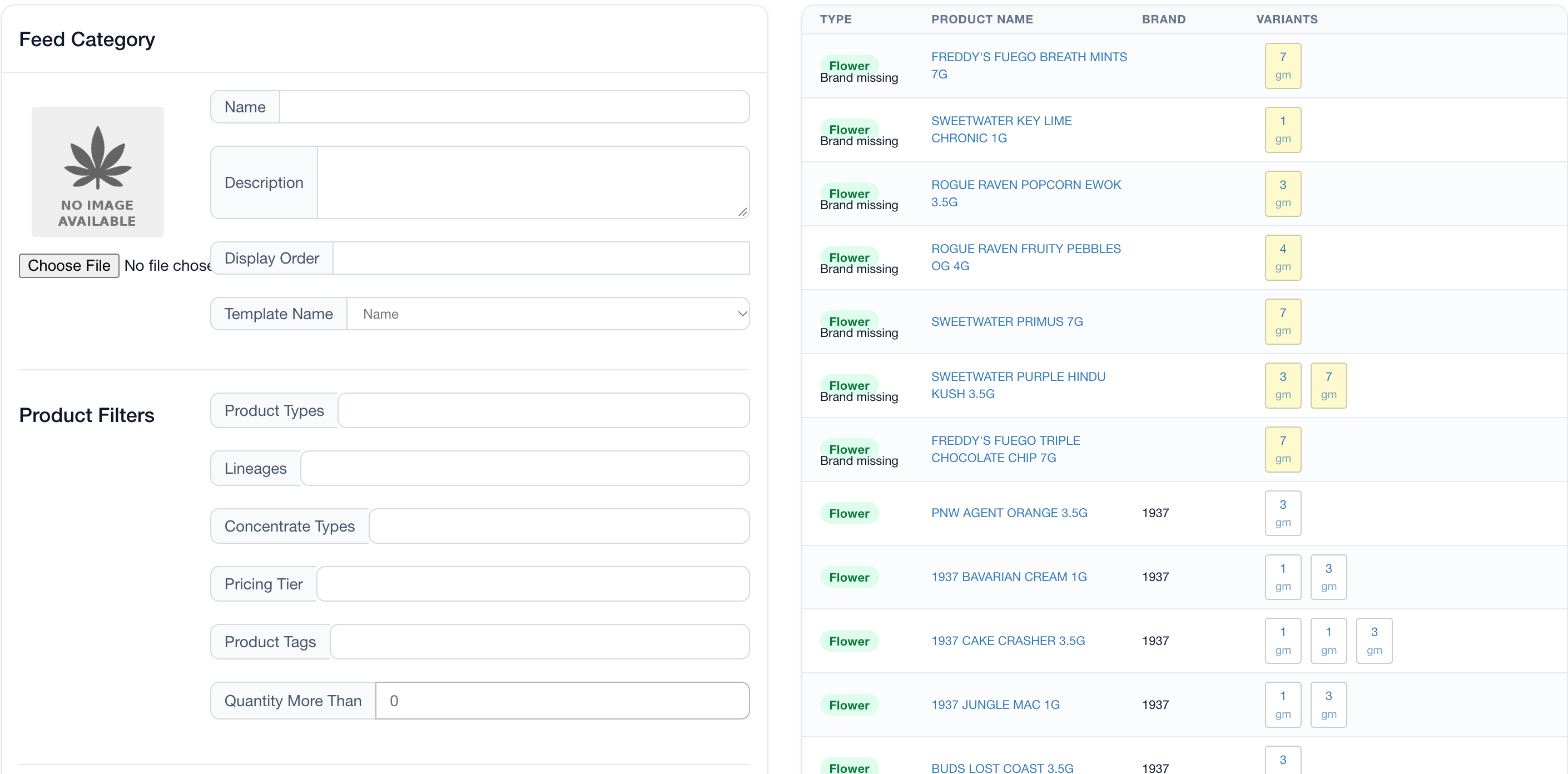
Step 1 - To Integrate your Leafly menu with the POS, follow these steps:
- Log into the POSaBIT POS Portal.
- Click on Inventory from the menu bar and then select the Menu Feeds tab.
- Hit the blue New Menu Feed button in the top right corner.
- Fill out the required fields to create a new feed, including:
- Name: Title of menu feed (i.e. "Leafly Menu")
- Description: Details about the feed (i.e. Leafly Integration)
- Feed Type: Leafly
- Feed Key: This is populated for you
- Products Sorting: This is how your menu will be sorted - Name asc (a-z), Name desc (z-a), Price asc ($-$$$), Price desc ($$$-$)
- Client Key: This is the Leafly key that you'll get from the Leafly portal. This field appears once Leafly is selected as the Feed Type.
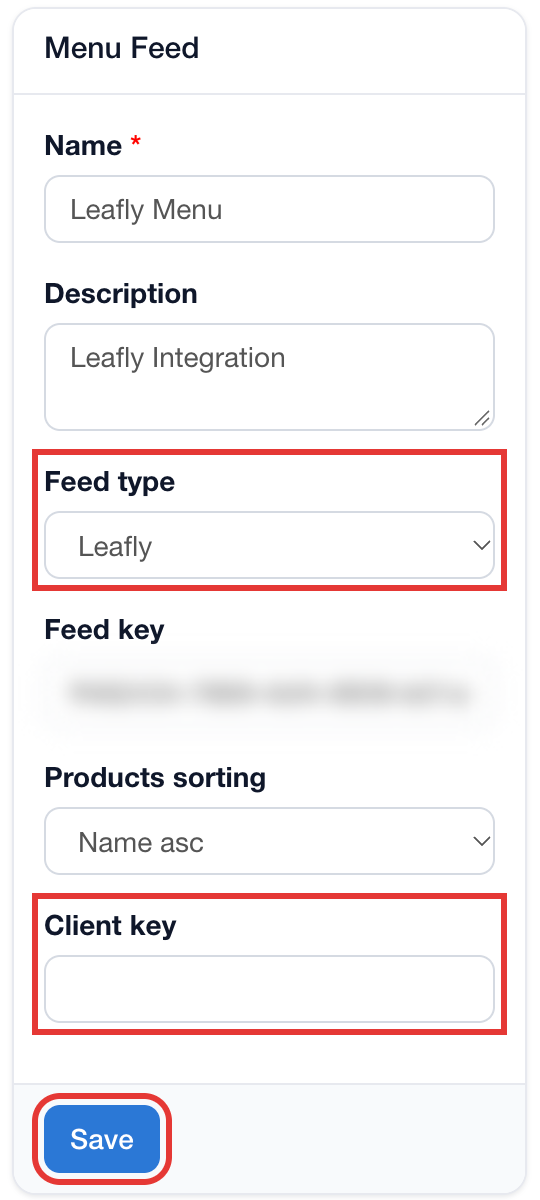
- Click Save.
- Click the blue New Category button, and begin setting up your menu categories.
- Name: Name of menu category.
- Description: This is displayed below the category name on your online menu.
- Display Order: The order it will be shown in on the menu in comparison to other categories.
- Template Name: Choose whether you want products on your menu to be listed by product Name or by the product Strain (Strain is recommended for naming consistency).
- Product Types: Select all product types that apply to that category.
- Lineages: Lineages that will be included in that category.
- Concentrate Types: Types of concentrates that apply to that category.
- Pricing Tier: Optionally limit the category to products in specific pricing tiers.
- Product Tags: This can be used if you use tags to group your products and want to create a category of those tagged products (i.e. you could have a menu category called "Featured Products" and tag all products that you'd like to "feature" on your menu).
- Quantity More Than: This is the minimum number of units on hand that determines if the product appears on the online menu or not. Once the on-hand quantity for any given product reaches this number the product will automatically be removed from the menu. This is to prevent the store from selling something online that they ran out of because it was first sold to someone else in-store.
- Combine weights?: This box should be checked to consolidate the various flower weights that the store carries under one product vs. displaying the various flower weights as separate products on the online menu.
- Click Save and repeat for however many categories you would like.
For additional assistance, please reach out to POSaBIT support @ 1 (855) POSaBIT OR SUPPORT@POSaBIT.COM