Creating a Profile and Logging In on Your Dispensary's Online Menu

With a profile on your dispensary's online menu, you can earn and redeem rewards points, see your past purchases, and keep your contact information up to date.
Already shopped in store? You may already have a profile. Try Logging In with your phone number first so all your points stay in one place.
Creating a New Profile
Step 1: Open the sign-up form
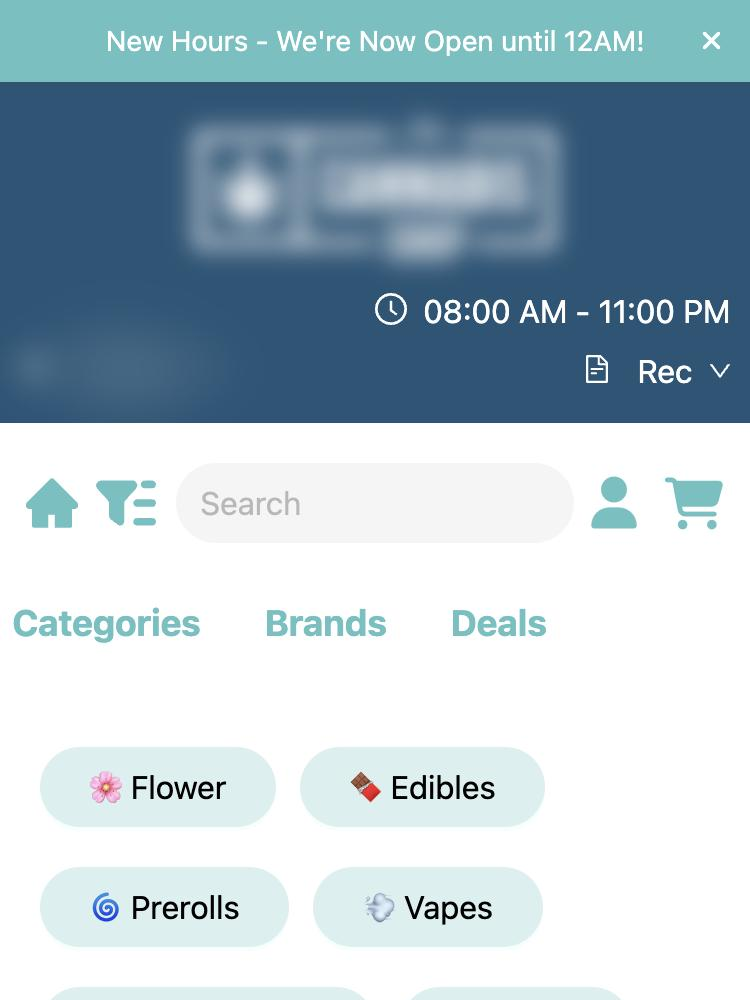
- Go to the store's online menu.
- Tap the Profile icon in the top right corner.
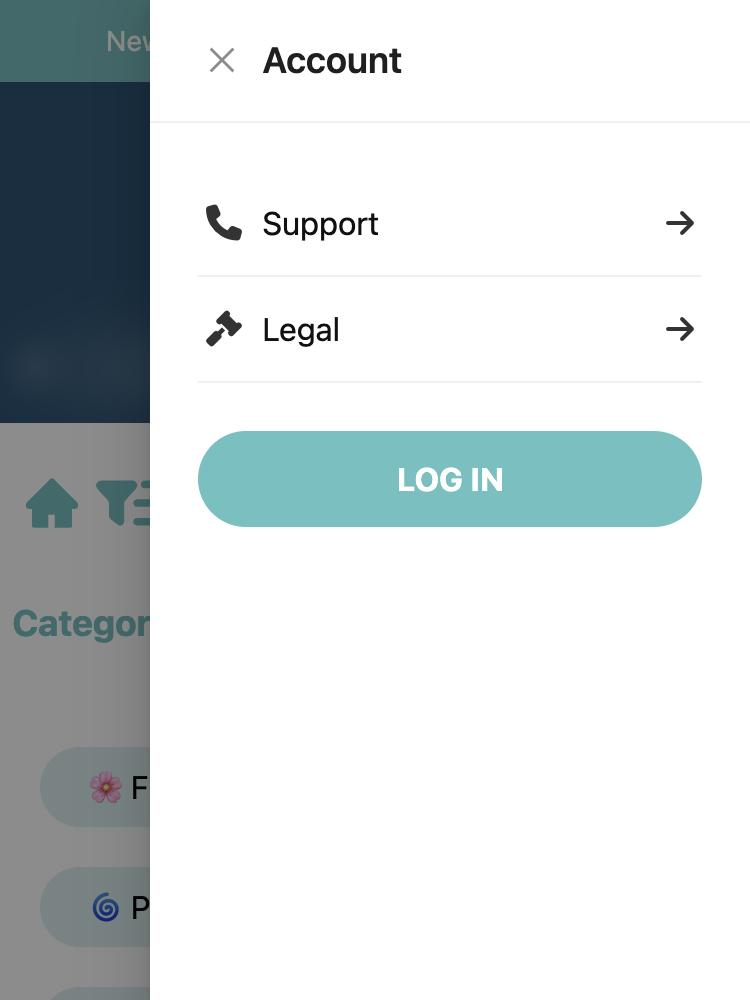
- Tap LOG IN.
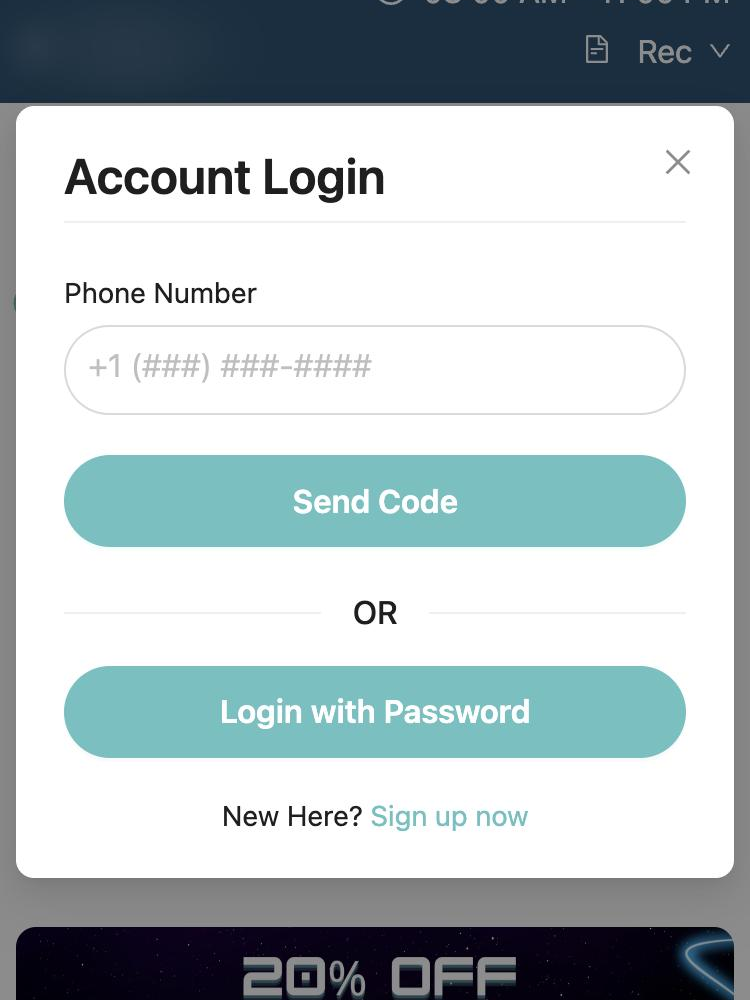
- At the bottom of the Account Login window, tap Sign up now.
Step 2: Enter your information
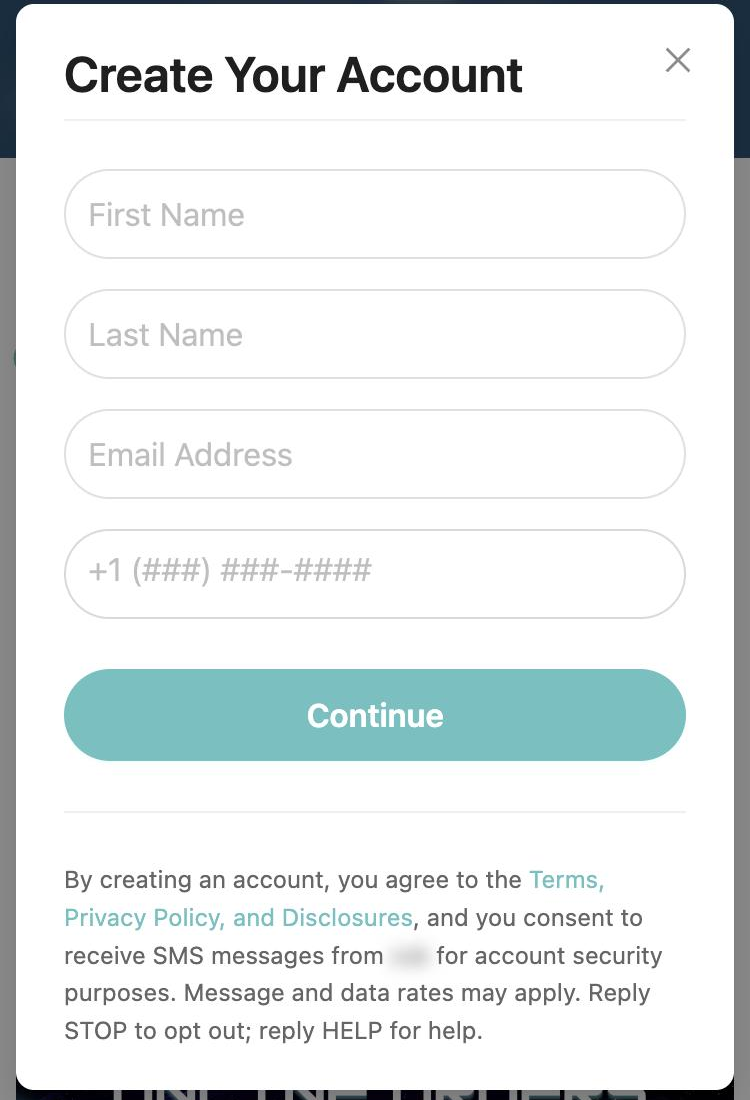
Fill in your:
- First name
- Last name
- Email address
- Mobile phone number
Then tap Continue.
Step 3: Verify your phone number
We'll text a 4-digit code to the phone number you entered. Type the code into the menu.
Step 4: Finish up
Tap Create Account. You'll be logged in automatically and ready to shop.
Logging In With an Existing Profile
Step 1: Open the login screen
- Go to the store's online menu.
- Tap the Profile icon in the top right corner.
- Tap LOG IN.
Step 2: Enter your phone number
Enter the mobile number linked to your profile, then choose one of these:
- Text me a code (recommended): Tap SEND CODE, then enter the 4-digit code we text you.
- Use a password: Tap Login with Password, enter your password, and tap Log In.
Don't have a password? Profiles created in store usually don't have one yet. Use SEND CODE instead. You can add a password later from your profile.
Step 3: You're in!
Tap the Profile icon at any time to:
- View your rewards points
- See your past purchases
- Update your name, email, or phone number
Need Help?
Didn't get a code? Make sure you entered the right mobile number and wait a minute before trying again. If you're still having trouble, contact the store directly.