Splitting Packages with Metrc

When you need to separate part of a package, that quantity needs its own Metrc package tag. Common reasons are returning part of a package to a supplier, transferring it to another location, or destroying some of it. POSaBIT and Metrc must both show the same split. There are two ways to do this, depending on where the split starts.
Before you begin
- Have an unused Metrc package tag that has been received in Metrc.
- Make sure the package you are splitting is Active in POSaBIT.
Which workflow should I use?
- Option 1 (recommended): Split the package in POSaBIT. Use this when the split hasn't happened yet. POSaBIT creates the new package with the tag you enter.
- Option 2: Sync a package that was split in Metrc. Use this if the split was already done directly in Metrc, so the new package exists in Metrc but not in POSaBIT.
Option 1: Split a Package in POSaBIT (Recommended)
- Log in to the POSaBIT web portal
- Select Lots from the Inventory menu at the top of the screen
- Using the filters, find the package you want to split and click the blue lot number in its row
- Open the Other Actions drop-down on the lot details page and select Split Package
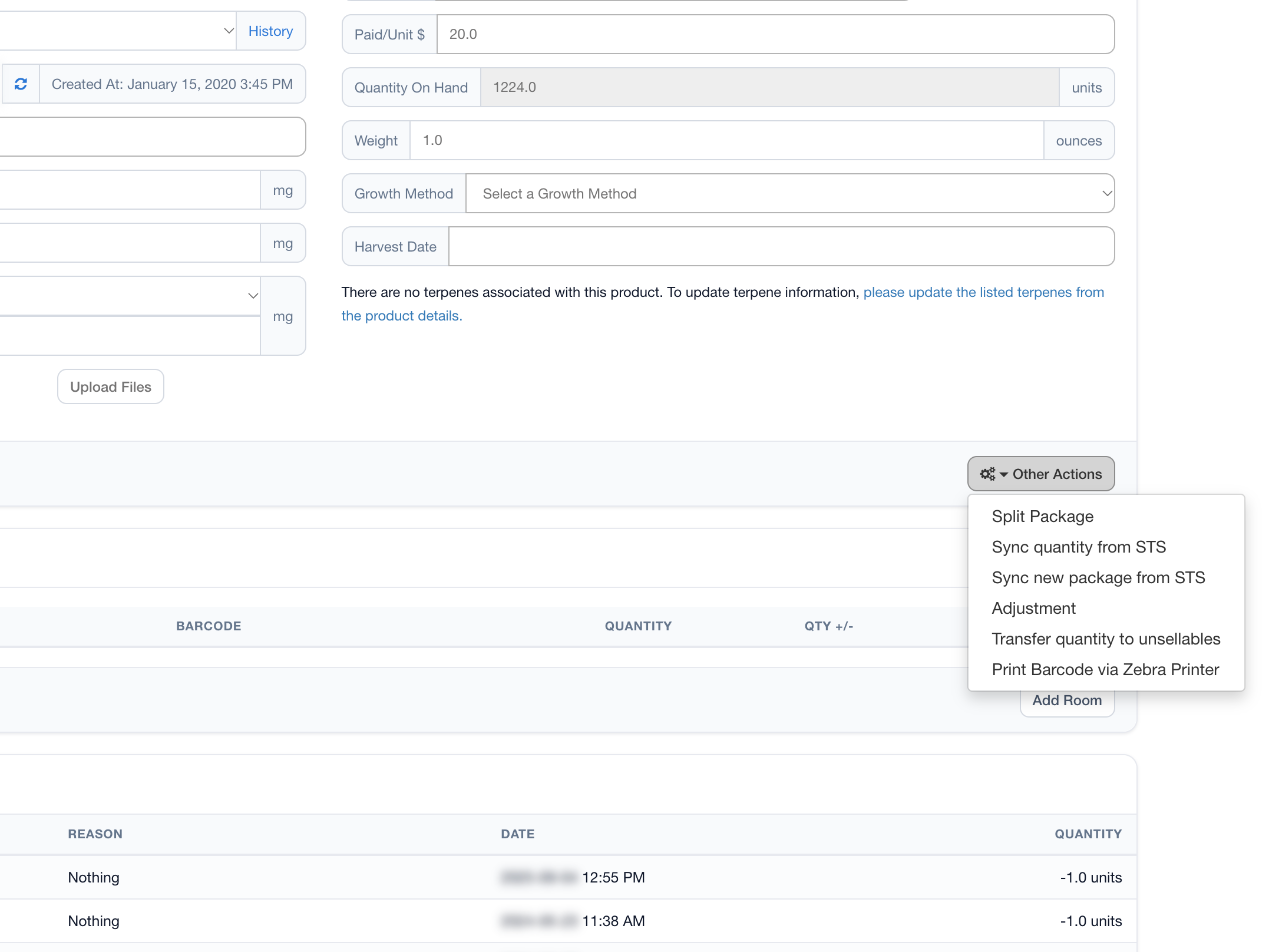
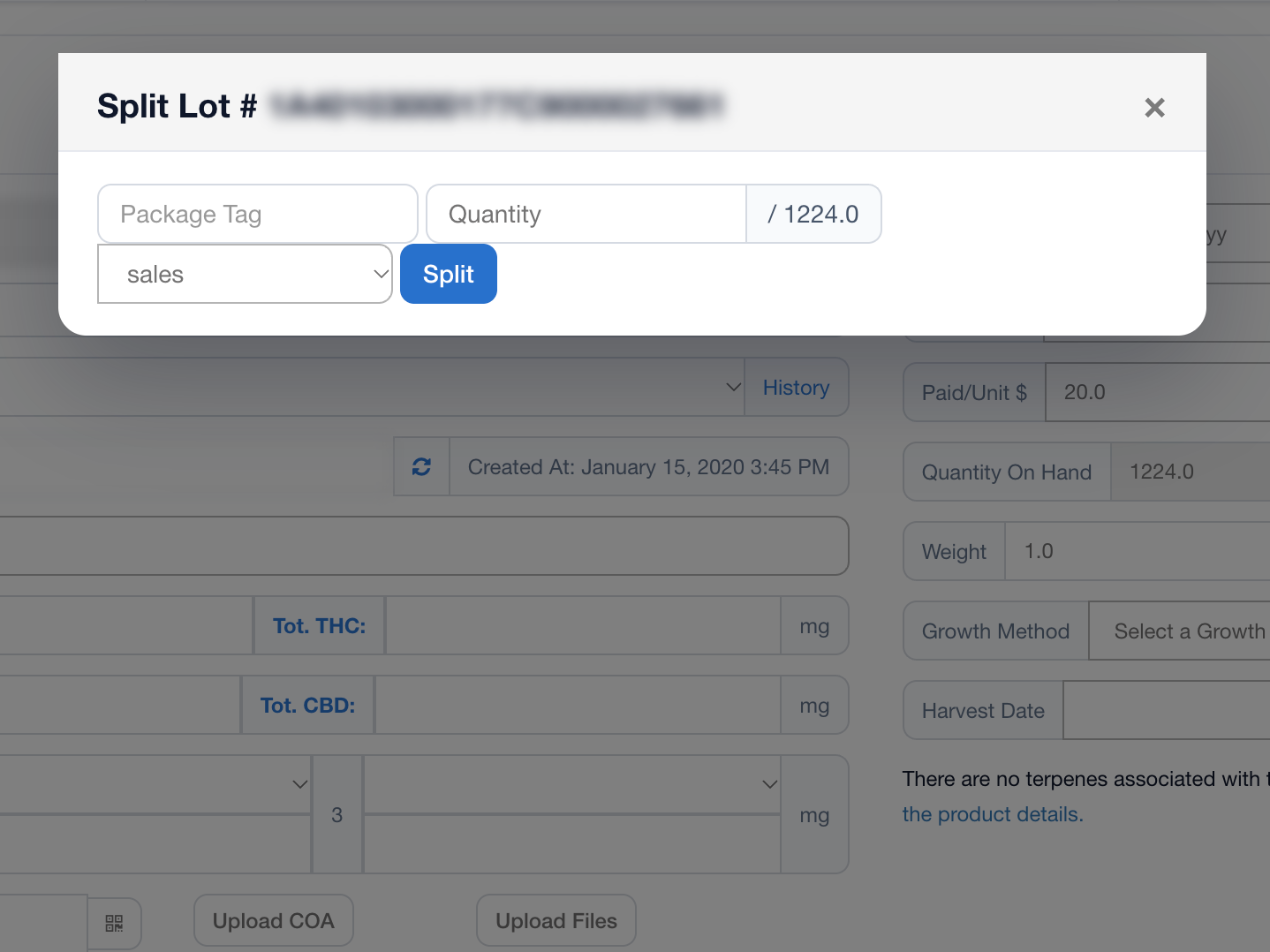
- In the Split Lot pop-up, enter the new Metrc tag in the Package Tag box
- Enter the Quantity you want to split off. The number next to it shows how much is in the package.
- Choose the room the new package should go into, then click Split
- Scroll to Child Packages at the bottom of the lot details page and confirm the new package shows the correct tag and quantity
- In Metrc, confirm the new package appears with the correct quantity and that the original package's quantity was reduced
The new package can now be transferred, returned, or destroyed on its own.
Option 2: Sync a Package That Was Split in Metrc
Use this if the split was already done directly in Metrc, so the new package exists in Metrc but not in POSaBIT.
- Log in to the POSaBIT web portal
- Select Lots from the Inventory menu at the top of the screen
- Find and open the original (source) package that the new package was split from
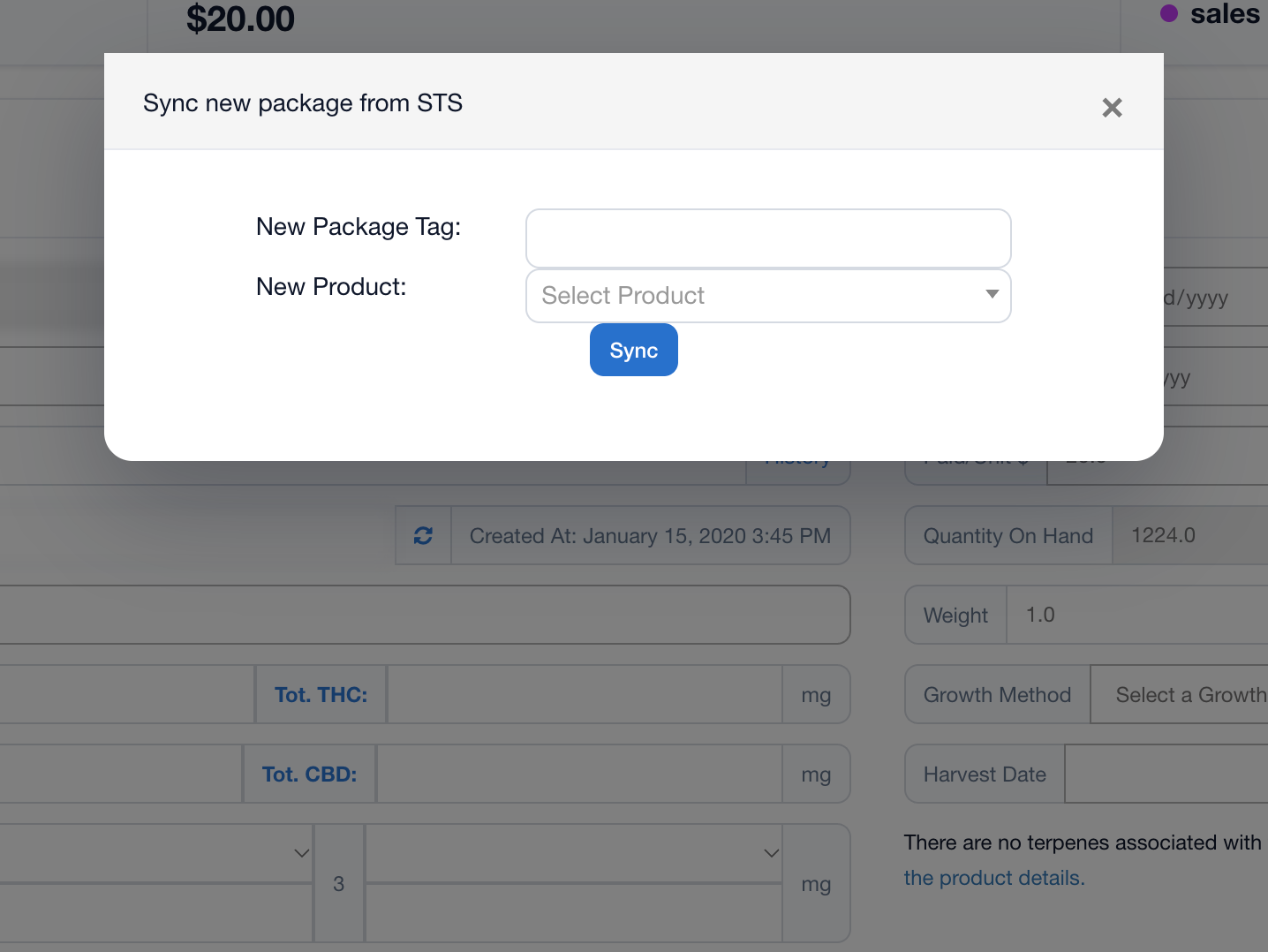
- Open the Other Actions drop-down and select Sync new package from STS
- In the pop-up, enter the new package's tag in New Package Tag
- Under New Product, select the product the new package should be linked to. This is normally the same product as the original package.
- Click Sync
- Confirm that the new package now appears in POSaBIT and that its quantity was subtracted from the original package
Troubleshooting
I used Sync quantity from STS by mistake and the new package is missing.
Run Sync new package from STS on the original package to add the new package. This step also subtracts the split quantity from the original package, so the original's quantity will now be too low. Run Sync quantity from STS on the original package again to correct it.
The split package was already transferred out of Metrc before being synced.
Contact POSaBIT Support. In most cases the original package's quantity can be corrected using the STS Discrepancy Report instead of adding the new package.
The new package doesn't appear after syncing.
Wait a few minutes for Metrc to process the change, then sync again.
Splitting vs. Rooms vs. Transforming
- Split Package creates a new package with its own Metrc tag.
- Multi-Room Inventory Splitting moves quantity between rooms within POSaBIT and does not create a new Metrc tag.
- Transform converts bulk product, such as bulk flower to prepacked. The child package gets a suffix like -TR123.
For additional assistance please reach out to POSaBIT support @ 1 (855) POSaBIT OR SUPPORT@POSaBIT.COM