How to Enable the Enforce Tender Amount Entry Setting

In October 2026, we added a new Enforce Tender Amount Entry setting. When it's turned on, cashiers must enter the amount received from the customer before selecting a payment type on the POS. Learn how to turn it on below.
How to Turn On Enforce Tender Amount Entry:
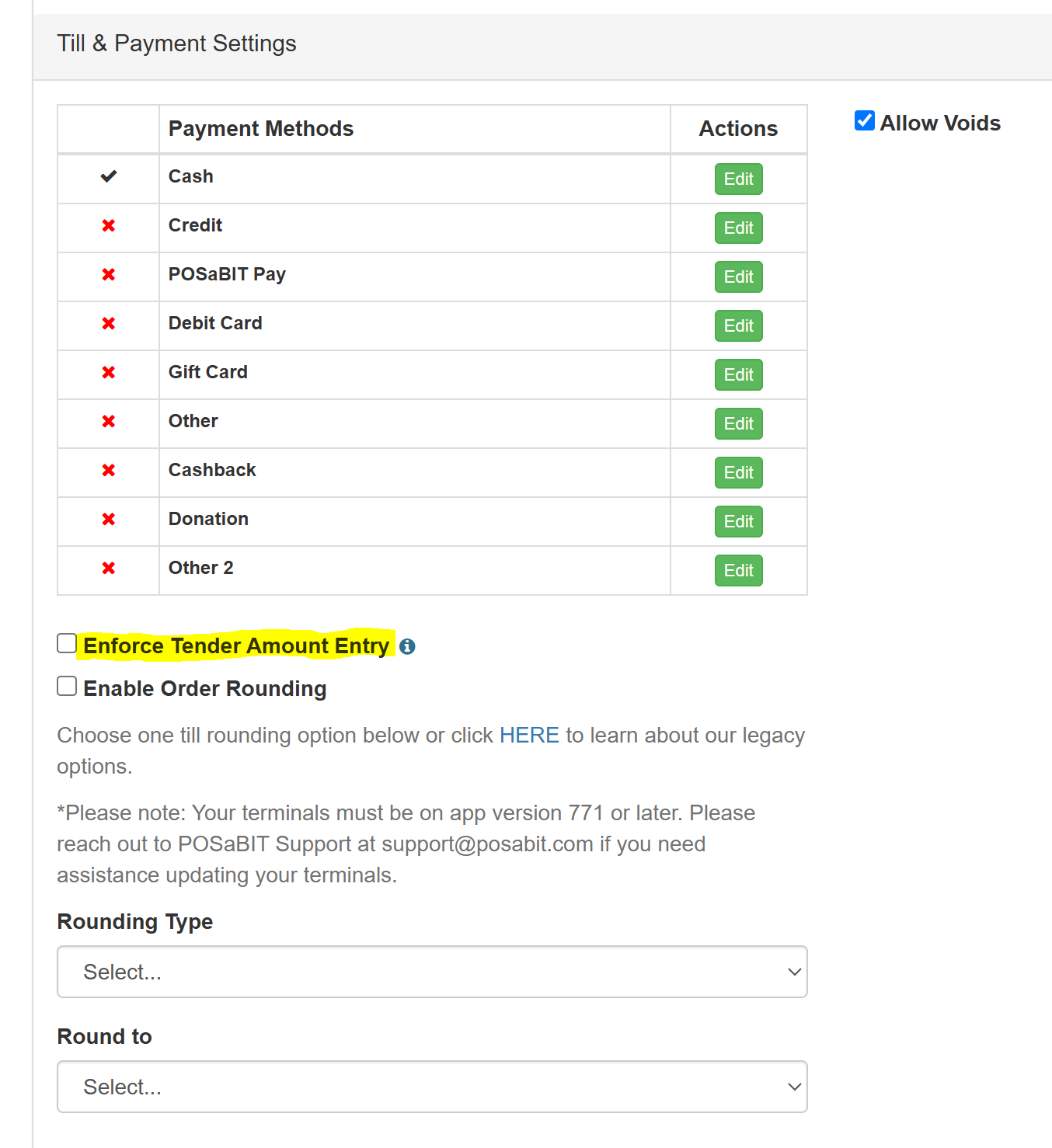
- Log in to the POSaBIT Portal.
- Go to the Settings tab --> General POS Register Settings.
- Under the Till & Payment Settings section, turn on Enforce Tender Amount Entry.
- Select Save.
How the Tender Screen Works:
- Setting off (default): The amount starts at the order total. Cashiers can tap a payment type (for example, Cash) for exact change, or enter the amount received first.
- Setting on: The amount starts at $0.00. Cashiers must enter the amount received before tapping a payment type.
What Cashiers Will See with the Setting On:
- When the cashier opens the tender screen, the payment amount starts at $0.00 instead of the order total.
- If the cashier taps a payment type without entering an amount, a "Not Enough Money" message appears asking them to enter the amount received first.
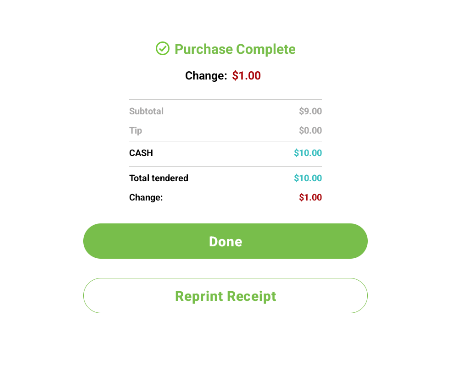
- Once the amount is entered and a payment type is selected, the POS shows the change due. If change is owed to the customer, the amount is highlighted in red on the purchase complete screen, the same way the remaining balance is shown.
Here's an example with Enforce Tender Amount Entry turned on:
Total = $9.00, customer gives the budtender $10.00 cash
- The tender screen opens with the amount at $0.00.
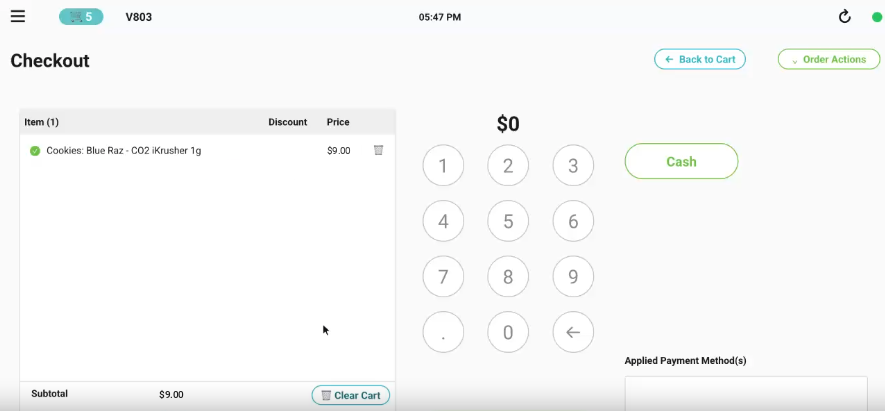
- The budtender enters $10.00, then taps Cash.
- The purchase complete screen shows $1.00 change due in red.
Things to Note:
- This setting is off by default, so nothing changes for your venue unless you turn it on.
- This setting applies to the whole venue, so every register at that location uses the same behavior.
- Enforce Tender Amount Entry helps make sure the cash received is counted and entered before the sale is completed, which can cut down on change-due mistakes and till discrepancies.
For additional assistance, please reach out to POSaBIT support @ 1 (855) POSaBIT OR SUPPORT@POSaBIT.COM
